
Other settings
Other OneComme settings
App screen
Open the top-right menu > Settings > "Others" tab.
Item descriptions
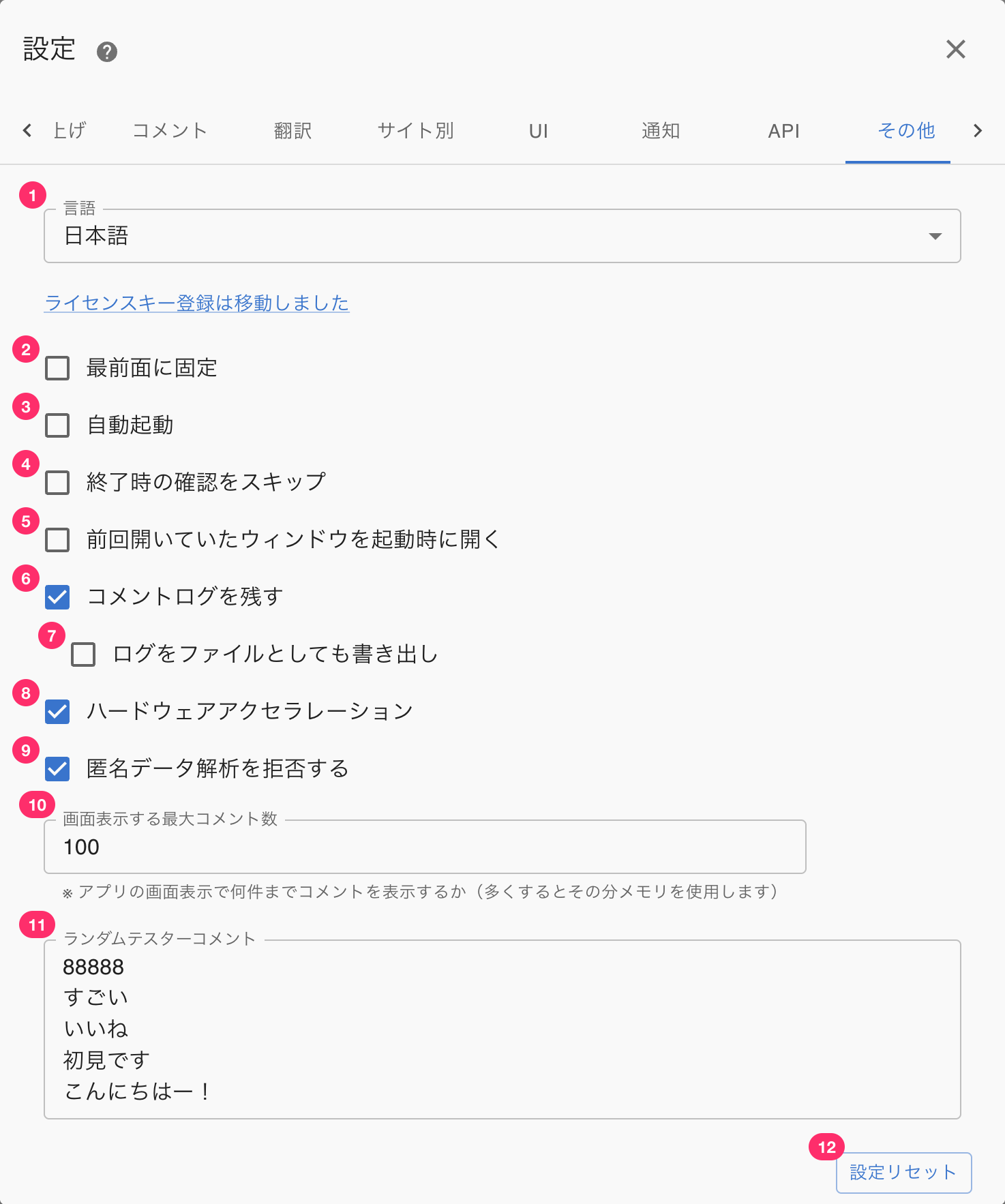 SettingsCommentsTranslateWebsite specificNotificationOthersLanguageJapaneseLicense Key Registration Has Been Moved.Always on topDon't warn before quittingReopen windows from the last session on startupKeep comment logsWrite logs to filesHardware accelerationRefuse Anonymized Data AnalysisMaximum Number Of Comments To Display On ScreenHow Many Comments Should Be Displayed On The App Screen? (Displaying More Comments Will Use More Memory.)Random comments testAmazingFirst time hereReset Settings
Note
License Key registration has moved to the "License" dialog. Open "License" from the "・・・" menu at the top right to register and check your license. For details, see "How to register PRO".
| ① Language | The language used by the application |
| ② Always on top | Keeps the OneComme app pinned in front of all other windows |
| ③ Auto Run | Starts OneComme automatically when your computer starts |
| ④ Skip confirmation on exit | Stops the confirmation dialog from appearing when OneComme exits |
| ⑤ Reopen windows from the last session on startup | Reopens the windows that were open when OneComme last closed, each time OneComme starts (9.2+. Off by default) Applies to Viewer-participating System, Setlist, Stream Schedule, Poll, Commenters, Templates, Timestamps, Analytics, Stocked comments, and Gifts |
| ⑥ Keep comment logs | Saves a record of comments as files on your PC This must be turned on to use the comment analysis feature |
| ⑦ Write logs to files | Also writes comment logs to files, as in OneComme 7.2 and earlier |
| ⑧ Hardware acceleration | Uses the GPU to render OneComme Uncheck this if you experience graphics problems, such as screen flickering or parts of the screen not displaying correctly |
| ⑨ Opt out of anonymous data analysis | Stops OneComme from sending anonymous usage information to the server to keep the service stable Your cooperation is appreciated in keeping the service stable |
| ⑩ Maximum comments shown on screen | The number of past comments that can be displayed on the main screen (9.2+) The default is 100. Increasing it raises memory usage and CPU load accordingly This does not affect output to Templates or the number of comments saved in the comment log |
| ⑪ Random tester comments | Lets you freely change the random comments that are posted when you submit an empty comment in Dummy Commenter |
| ⑫ Reset Settings | Restores the "Others" settings to their defaults Your license is not deactivated |