
Website specific settings
Change settings specific to each streaming platform.
Open the top-right menu > Settings > "Website specific" tab.
Site settings
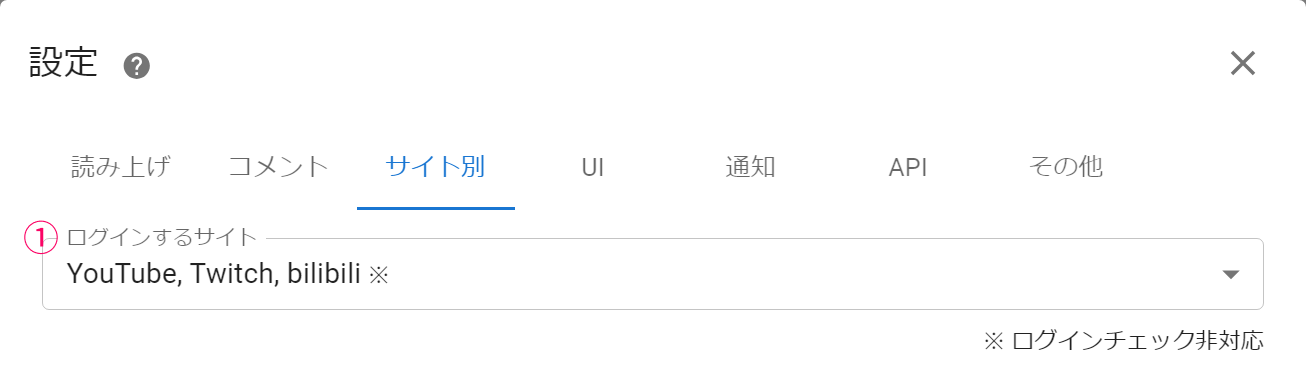 SettingsSpeechCommentsPlatform to loginWebsite specificNotificationOthersLogin check not supported
| ① Sites to log in to | Register the streaming platforms you normally use with OneComme For sites that support login checks, you can see the Login Status on the main screen |
YouTube
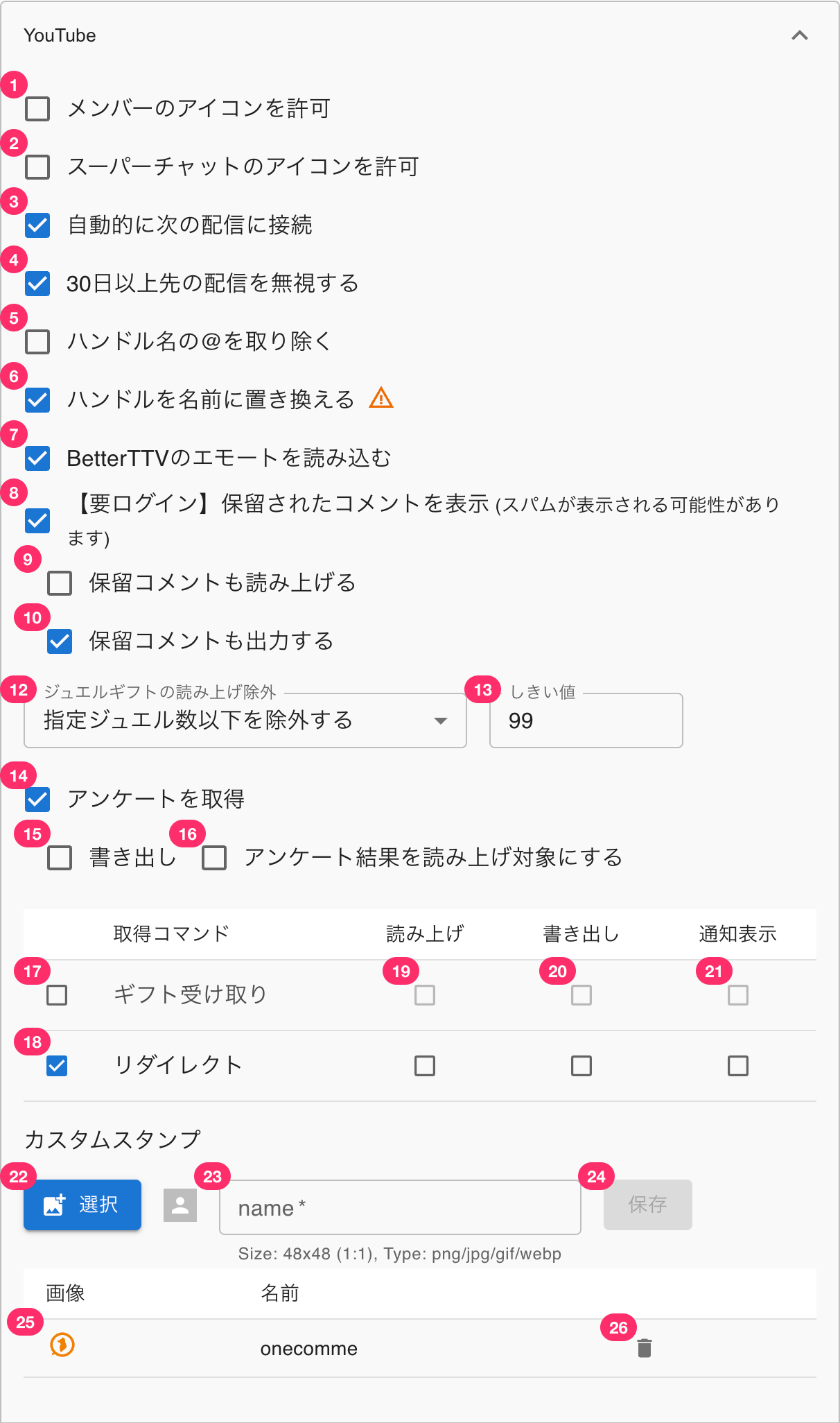 YouTubeAllow Members IconAllow Icon of SuperChatAutomatically Connects To The Next BroadcastIgnores Deliveries Scheduled More Than 30 Days In Advance.Remove The @ From The Handle NameEnable emotes of BetterTTV[Login required] Show auto-moderated comments (may include spamRead held commentsExport held commentsExcluding Jewel Gifts From SpeechExclude The Specified Jewels Or FewerThresholdObtain The SurveyExportSelect The Survey Results To Be Read Aloud.Acquisition CommandSpeechExportNotification DisplayGift ReceiptRedirectCustom StampsSaveImagesName
| ① Allow member icons | Allow display of icons for users who are YouTube channel members |
| ② Allow Super Chat icons | Allow display of user icons for YouTube Super Chats |
| ③ Automatically connect to the next stream | |
| ④ Ignore streams scheduled more than 30 days ahead | |
| ⑤ Remove the @ from handle names | |
| ⑥ Replace names with handles | |
| ⑦ Import BetterTTV emotes | Import and display BetterTTV and FrankerFaceZ emote data (9.2+) This increases the amount of data imported |
| ⑧ [Login required] Show auto-moderated comments (spam may be displayed) | Retrieve comments held for review on YouTube Even when this setting is off, when a moderator approves a held comment, it is retrieved as a normal comment at that time Approved Pending Comments are not read aloud by default (you can enable this with ⑪). An icon indicating the comment has been approved is displayed in the comment panel |
| ⑨ Read held comments aloud | Read aloud the comments held in ⑧ |
| ⑩ Output held comments | Output the comments held in ⑧ to Templates |
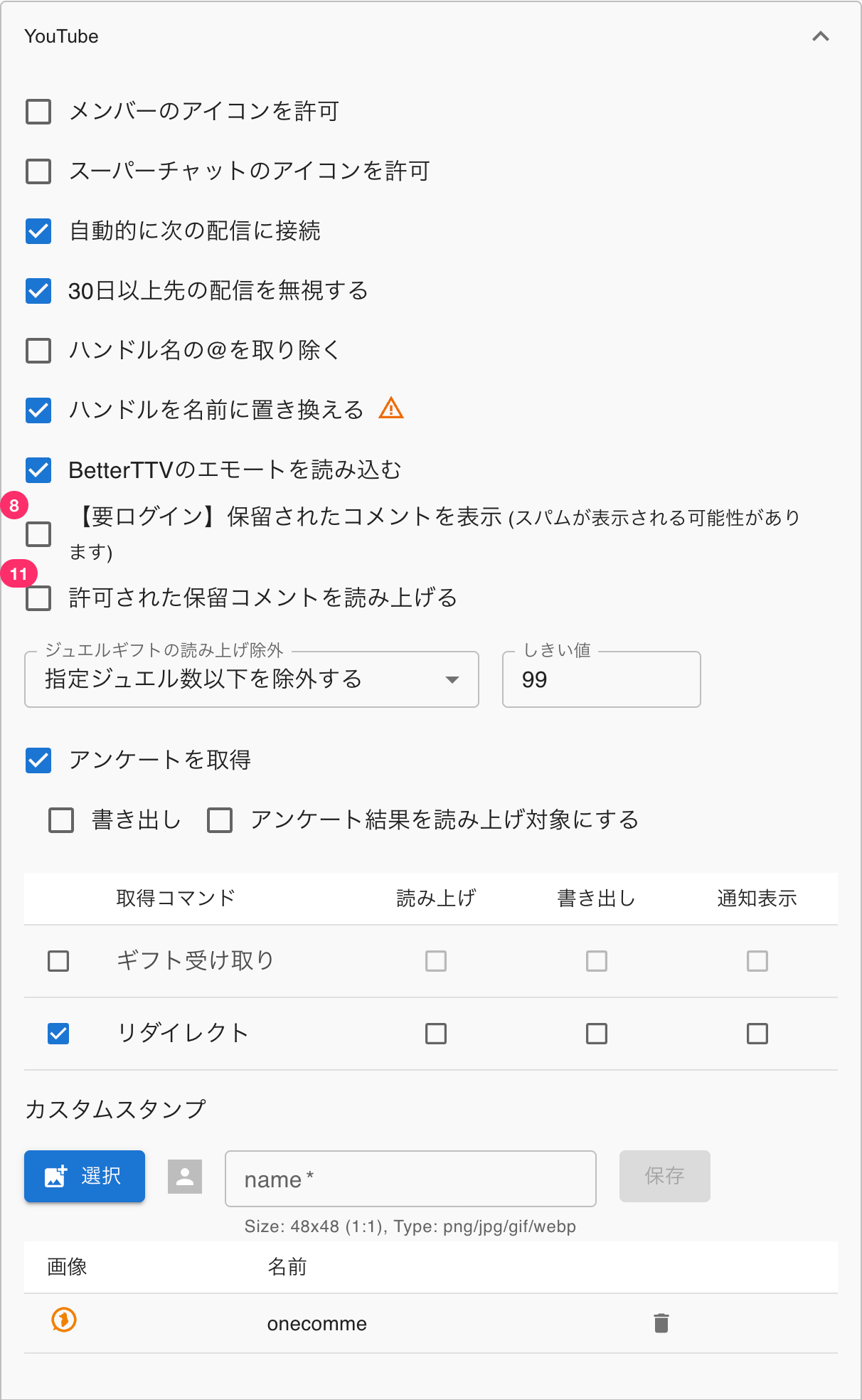
| ⑪ Read approved pending comments aloud | This item is shown when ⑧ is off Sets whether to read aloud held comments that a moderator has approved The default is off, and approved comments retrieved while ⑧ is off are not read aloud |
| ⑫ Exclude Jewel gifts from speech | Exclude Jewel gifts from Speech (9.2+) Choose from "Do not exclude", "Exclude all", or "Exclude up to the specified number of Jewels" |
| ⑬ Threshold | Shown when "Exclude up to the specified number of Jewels" is selected in ⑫ Gifts with this many Jewels or fewer are not read aloud |
| ⑭ Get Poll | Retrieve YouTube polls in OneComme |
| ⑮ Export Poll | Also output the poll results to Templates as a comment Export must also be turned on when retrieving polls with an external app |
| ⑯ Read Results of poll aloud | Read aloud the results when a poll ends |
| ⑰ Gift Receipt (receiving Membership Gifts) | Sets whether to show in the comment panel when a Membership Gift is received The label on the screen is "Gift Receipt", but it applies only to receiving Membership Gifts, and displays a message such as "X received a Membership Gift from Y" |
| ⑱ Redirect (experimental) | Notifies you when viewers are sent over from another channel by a redirect (9.2+) A message such as "X and their viewers have joined. Say hello!" is displayed, and it can also be used as the WordParty trigger condition "[YouTube] Redirect" ※ This feature has not been tested and is not supported at this time |
| ⑲ Speech | Whether to read aloud when this event is received |
| ⑳ Export | Whether to output this event as a comment when it is received |
| ㉑ Notification Display | Whether to show a notification when this event is received |
| ㉒ Select Custom Stamps | Upload your own Custom Stamps |
| ㉓ Custom Stamps name | The name to be converted into the stamp |
| ㉔ Save | Save the Custom Stamps |
| ㉕ Configured Custom Stamps | Stamps that have already been set |
| ㉖ Delete Custom Stamps | Delete a configured stamp |
Switching of held comment items
Turning ⑧ "[Login required] Show auto-moderated comments" on or off changes which items are listed below it
- When ⑧ is on: ⑨ and ⑩ are shown, and ⑪ is not shown (the screenshot above shows this state)
- When ⑧ is off: ⑨ and ⑩ are not shown, and ⑪ "Read approved pending comments aloud" is shown instead
This is how the screen looks when ⑧ is turned off
 YouTubeAllow Members IconAllow Icon of SuperChatAutomatically Connects To The Next BroadcastIgnores Deliveries Scheduled More Than 30 Days In Advance.Remove The @ From The Handle NameReplace The Handle With The Name.Enable emotes of BetterTTV[Login required] Show auto-moderated comments (may include spamRead Out The Approved Pending Comments.Excluding Jewel Gifts From SpeechExclude The Specified Jewels Or FewerThresholdObtain The SurveyExportSelect The Survey Results To Be Read Aloud.Acquisition CommandGift ReceiptSpeechExportNotification DisplayRedirectCustom StampsImagesNameSave
About Jewel gifts
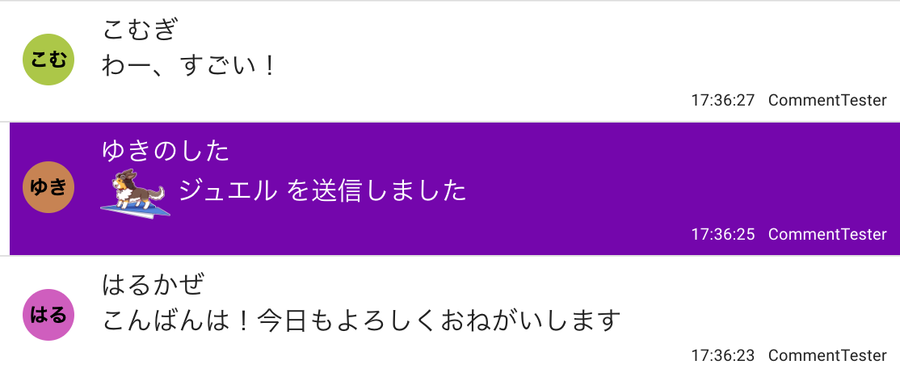
OneComme supports "Jewel gifts", YouTube's tipping feature
There is no ON/OFF setting for receiving Jewel gifts; they are always received
- Gift names are displayed exactly as the text shown in YouTube chat
- Gifts sent in rapid succession are treated as a combo, and the count is tracked exactly
- Jewel comments get a background color (dark purple #7406ac with white text), displayed consistently in both the app's comment panel and OBS Templates
- Because YouTube does not return price or currency fields, amounts converted to yen or other currencies are not displayed (OneComme cannot calculate them)
 KomugiWow, amazingYukinoshitaSpring BreezeGood evening! Thanks for today too
NicoNicoLive
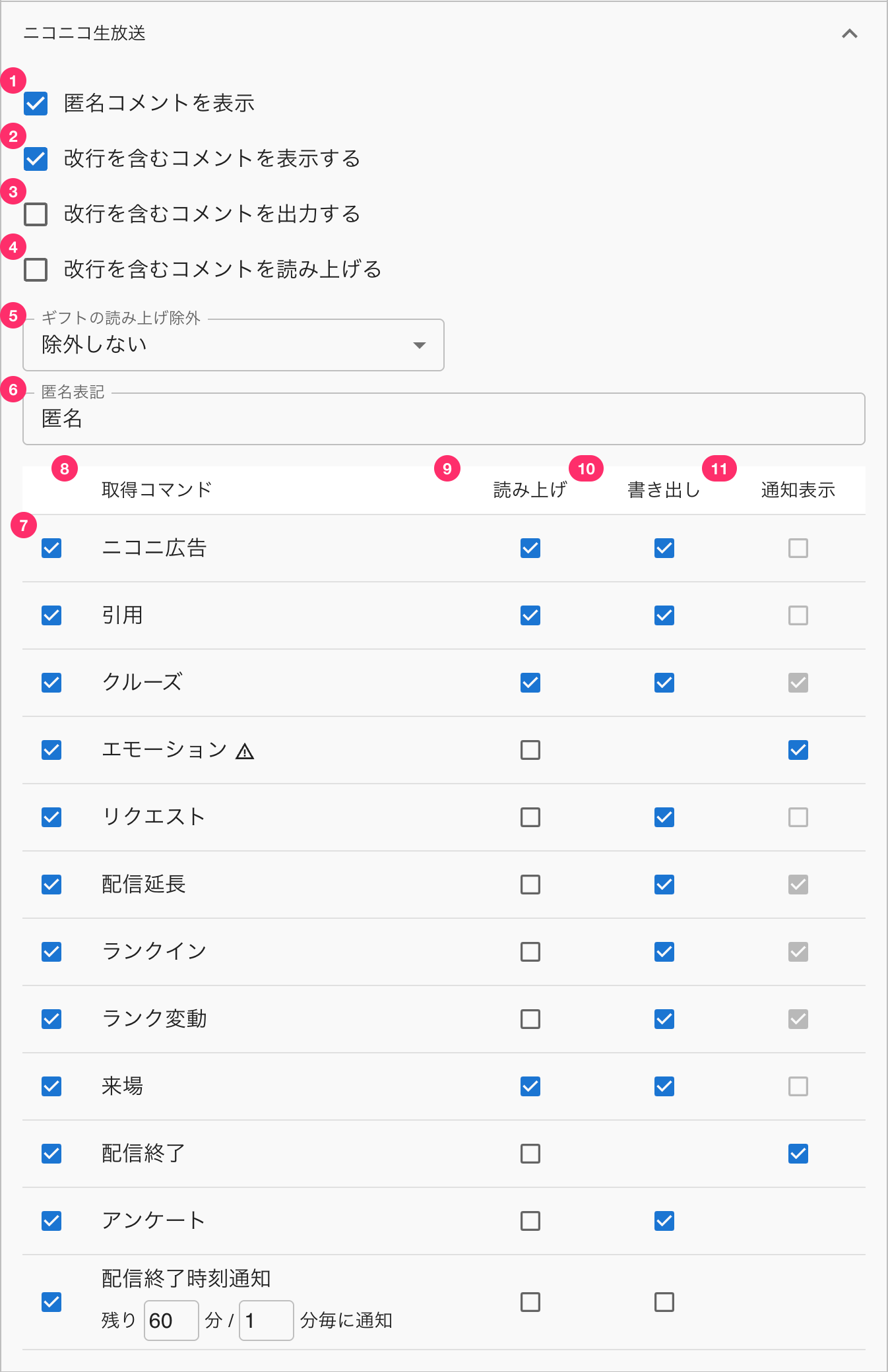 NicoNicoLiveShow Anonymous CommentsShow comments including line breaksOutput comments including line breaksReading ccomments including line breaksExcluding Gifts From SpeechDon't ExcludePrefix for anonymous commenter's numberAnonymousAcquisition CommandCruiseStreaming EndedPollEnd Of Distribution Time NotificationLeftnotify every minuteSpeechExportNotification Display
| ① Show anonymous comments | Sets whether to show anonymous comments |
| ② Show comments containing line breaks | Sets whether to show comments containing line breaks in the app |
| ③ Output comments containing line breaks | Sets whether to output comments containing line breaks to Templates |
| ④ Read comments containing line breaks aloud | Sets whether to read aloud comments containing line breaks |
| ⑤ Exclude gifts from speech | Exclude NicoNicoLive gifts from Speech (9.2+) Choose from "Do not exclude", "Exclude all", or "Exclude up to the specified number" When you select "Exclude up to the specified number", a "Threshold" input field appears on the right, and gifts at or below that number are not read aloud |
| ⑥ Anonymous label | The label used as the name for anonymous comments The default is "Anonymous" |
| ⑦ Command acquisition switch | Retrieve the checked commands in OneComme |
| ⑧ Acquisition Command | The list of supported NicoNicoLive commands |
| ⑨ Speech | Read aloud the content of the command ※ Speech for the stream must also be enabled |
| ⑩ Export | Also export the retrieved command information to Templates and WordParty |
| ⑪ Notification Display | Instead of showing the retrieved command as a comment in the app or Templates, show it in the app's notification UI |
About Emotion
The "Emotion" entry in the ⑧ Acquisition Command list now uses the official API to retrieve data for each broadcast
Using the official API requires logging in to a Niconico account, and the "Emotion" item in the ⑧ list shows a [Login required] icon
- If you are not logged in or the official API is unavailable, it automatically falls back to the previous static data
- If the streamer has turned off the Emotion feature, there is no information to retrieve and nothing is displayed. This is normal behavior, not an error
About the stream end time notification
The "Stream end time notification" command in the ⑧ Acquisition Command list shows a message such as "The stream ends in X minutes" in the app's notification UI as the end of the stream approaches
It had temporarily stopped being displayed, but it works again as of 9.1
- By default, notifications start 5 minutes before the end and repeat every 2 minutes (the remaining time also follows automatically if the stream is extended)
- You can adjust the notification timing within the ⑧ item
- Following the ⑨ Speech and ⑩ Export settings, it can also be read aloud and exported to Templates
Twitch
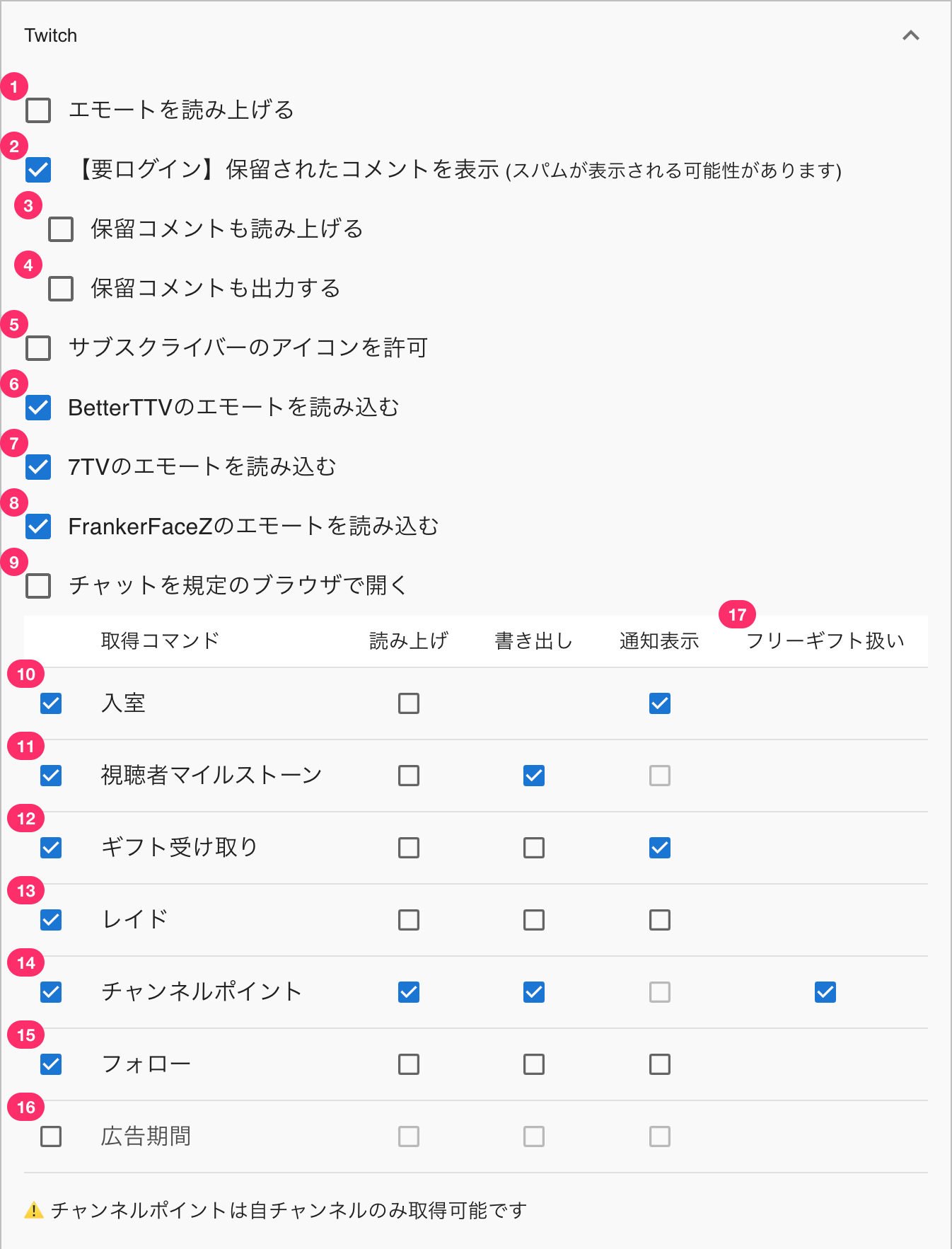 Read name of emote[Login required] Show auto-moderated comments (spam may show)Read held commentsExport held commentsAllow Subscribers IconEnable emotes of BetterTTVEnable emotes of 7TVEnable emotes of FrankerFaceZOpen The Chat In Your Default Browser.Acquisition CommandSpeechExportNotification DisplayTreated As A Free GiftEntering The RoomViewer MilestonesGift ReceiptRaidChannel PointsFollowAd BreakChannel Points are available for your own channel only
| ① Read emotes aloud | Sets whether to read emotes aloud on Twitch |
| ② [Login required] Show auto-moderated comments | Choose whether to also show in OneComme comments that were held by some setting, such as Block words |
| ③ Read held comments aloud | Sets whether to read aloud the held comments received in 5 |
| ④ Output held comments | Sets whether to output the held comments received in 5 to Templates and elsewhere |
| ⑤ Allow subscriber icons | Automatically allow icons for subscribers' comments |
| ⑥ Import BetterTTV emotes | Import and display BetterTTV emote data This increases the amount of data imported Channel-specific emotes are also displayed correctly |
| ⑦ Import 7TV emotes | Import and display 7TV emote data This increases the amount of data imported Channel-specific emotes are also displayed correctly |
| ⑧ Import FrankerFaceZ emotes | Import and display FrankerFaceZ emote data This increases the amount of data imported Channel-specific emotes are also displayed correctly |
| ⑨ Open Chats in the default browser | If Twitch security prevents you from logging in with the OneComme browser, you can set the Chats to open in your default browser |
| ⑩ Join | Notifies you of users who have accessed the stream (due to the specification, notifications are batched at regular intervals) |
| ⑪ Viewer milestones | Settings for handling viewer milestone events |
| ⑫ Gift Receipt | Settings for handling Gift Receipt events |
| ⑬ Raid | Settings for receiving raid events |
| ⑭ Channel Points | Settings for receiving Channel Points events |
| ⑮ Follow | Settings for receiving follow events |
| ⑯ Ad break | Notification settings for ad breaks (9.2+) You can show notifications such as "An ad break is coming up" about 30 seconds before an ad starts, when it starts, and when it ends. Speech, Export, and Notification Display can be switched just like other commands |
| ⑰ Treat as Free gifts | Treats Channel Points as Free gifts and shows them in the Free gifts section of the Gifts list (9.2+; default is ON) When OFF, Channel Points are shown in the comment panel as normal comments |
About ad break notifications
Ad break notifications require additional permissions to receive ad information from Twitch
If you logged in to Twitch before 9.2, log in to Twitch again (re-authorize) from the Login Status icon and reconnect the stream
If permissions are insufficient, a notice prompting you to log in again is displayed in the Twitch settings
- The advance notification timing is fixed at about 30 seconds before the ad starts
- The notification includes the stream name, the remaining seconds, and the length of the ad (in seconds)
About Power-ups and built-in Channel Points rewards
As of 9.2, Twitch custom Power-ups (redemption details, Bits spent, user input, and icon) can be shown as comments
In addition, built-in Twitch Channel Points rewards such as "Highlight My Message" and "Unlock a Random Sub Emote" can be received on an experimental basis (not tested, and not supported at this time)
SHOWROOM
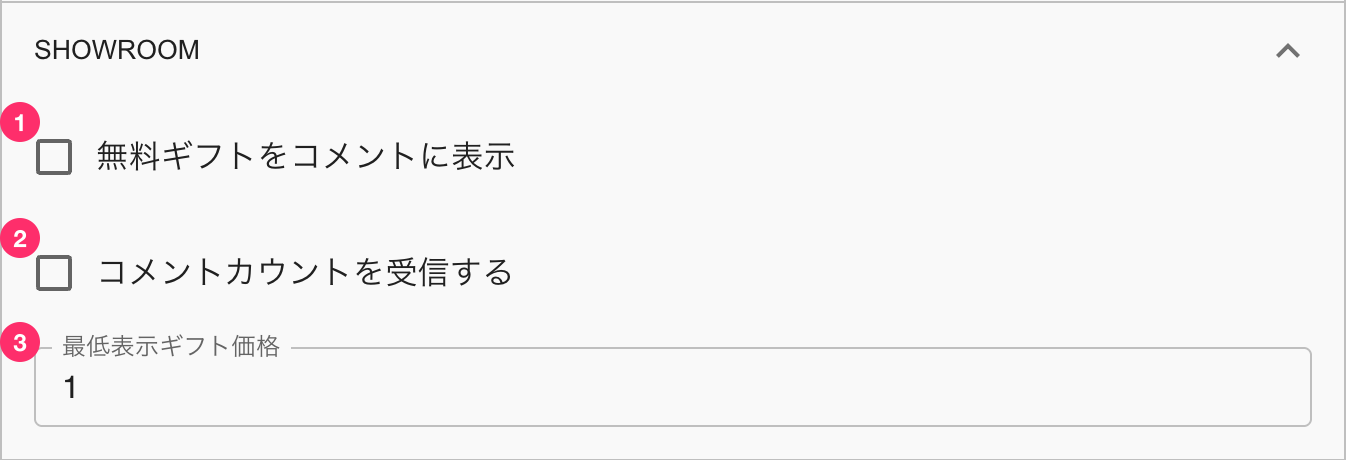 Display free gifts in commentsReceive Comment Countmin price to show
| ① Show free gifts as comments | Sets whether to treat SHOWROOM free gifts as comments |
| ② Receive comment count | Receive the stream's Comments Count information |
| ③ min price to show | Sets the minimum price of gifts shown as comments (gifts below it are shown in the free gifts column) |
MIXCHANNEL
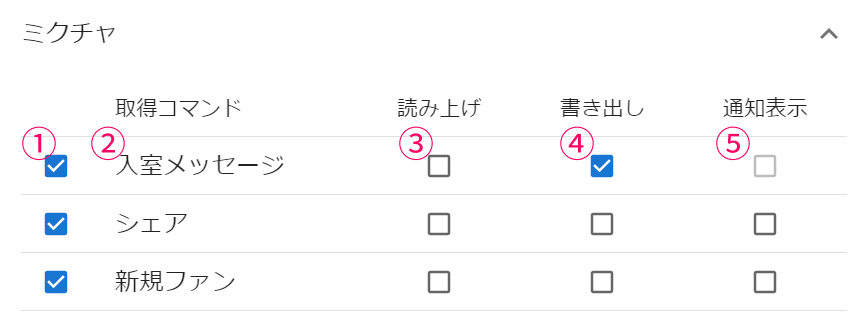 MIXCHANNELAcquisition CommandEntry MessageSpeechExportNotification Display
| ① Command acquisition switch | Retrieve the checked commands in OneComme |
| ② Acquisition Command | The supported commands |
| ③ Speech | Read aloud the content of the command ※ Speech for the stream must also be enabled |
| ④ Export | Also export the retrieved command information to Templates and WordParty |
| ⑤ Notification Display | Instead of showing the retrieved command as a comment in the app or Templates, show it in the app's notification UI |
TwitCasting
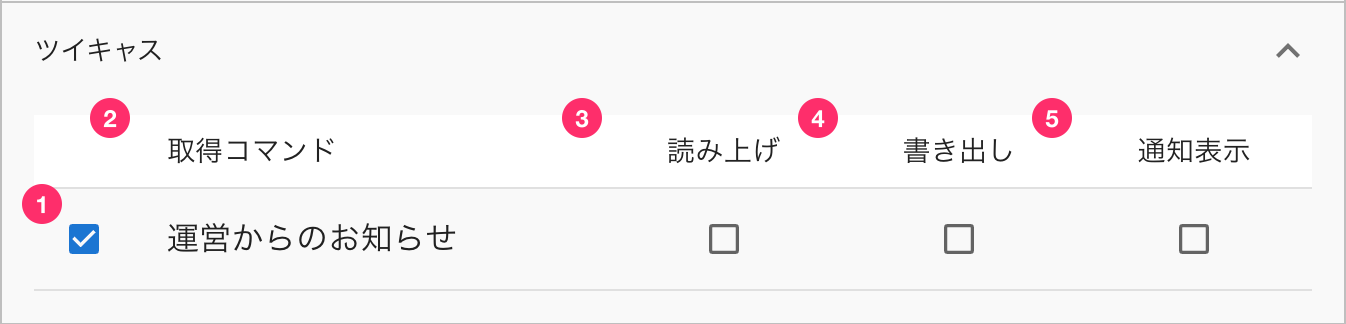 TwitCastingAcquisition CommandOfficial noticesSpeechExportNotification Display
A TwitCasting settings section was added in 9.2
| ① Command acquisition switch | Retrieve the checked commands in OneComme |
| ② Acquisition Command | The supported commands "Announcements from the operators" are notices from the TwitCasting operators, such as automatic campaign ticket grant notifications |
| ③ Speech | Read aloud the content of the command ※ Speech for the stream must also be enabled |
| ④ Export | Also export the retrieved command information to Templates and WordParty |
| ⑤ Notification Display | Instead of showing the retrieved command as a comment in the app or Templates, show it in the app's notification UI |
TikTok
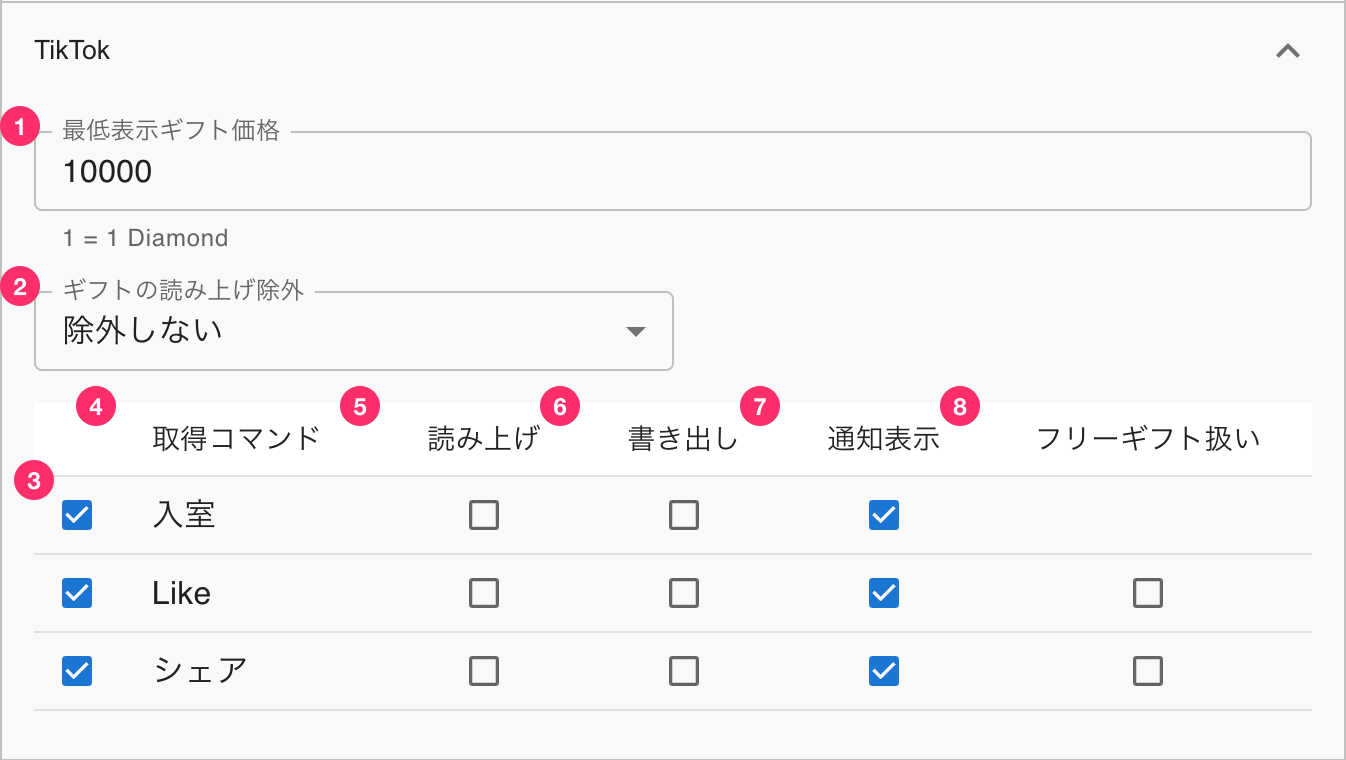 min price to showExcluding Gifts From SpeechDon't ExcludeAcquisition CommandEntering The RoomShareSpeechExportNotification DisplayTreated As A Free Gift
| ① min price to show | Enter the minimum amount for gifts shown as comments on TikTok 1 = 1 Diamond |
| ② Exclude gifts from speech | Exclude TikTok gifts from Speech (9.2+) Choose from "Do not exclude", "Exclude all", or "Exclude up to the specified number" When you select "Exclude up to the specified number", a "Threshold" input field appears on the right, and gifts at or below that number (in Diamonds) are not read aloud |
| ③ Command acquisition switch | Retrieve the checked commands in OneComme |
| ④ Acquisition Command | The supported commands |
| ⑤ Speech | Read aloud the content of the command ※ Speech for the stream must also be enabled |
| ⑥ Export | Also export the retrieved command information to Templates and WordParty |
| ⑦ Notification Display | Instead of showing the retrieved command as a comment in the app or Templates, show it in the app's notification UI |
| ⑧ Treat as Free gifts | Treat this command the same as Free gifts and show it in the Free gifts section |
※ As of 9.2, TikTok emotes (stamps) are replaced with images in comments
BiliBili
 min price to show
| ① min price to show | Enter the minimum amount for gifts shown as comments on BiliBili 1000 = 1 CNY |
Mirrative
 Mirrativmin price to show
| ① min price to show | Enter the minimum amount for gifts shown as comments on Mirrative 1 = 1 Coin |
Reset Settings
| Reset Settings | Restore the "Website specific" settings to their defaults |