
StreamDeck plugin
A plugin that lets you run various OneComme features from StreamDeck
What is StreamDeck?
Stream Deck is hardware and software developed and sold by Elgato. It lets you configure and run various macros with buttons and dials.
The OneComme StreamDeck plugin works with the hardware and software from Elgato.
Download
The StreamDeck plugin is a perk of PRO.
Caution
From 9.2, OneComme PRO must be running to execute StreamDeck plugin actions.
If OneComme is not running or you are not on PRO, pressing a button will not execute the action and a warning is shown on the button (the action settings screen displays "OneComme PRO must be running").
You can configure actions at any time.
Download the latest plugin from the StreamDeck tag list on FANBOX.
Installation
On a PC with the StreamDeck application installed, double-click the downloaded plugin to open it.
Supported actions
Button actions
Comments and speech
| Action | Description |
|---|---|
| Reaction | Sends a Reaction with the specified characters (you can set the count, whether to show effects, and the repetition interval) |
| WordParty | Runs the on-screen effect with the specified WordParty ID (fires regardless of conditions; the repetition interval can be set) |
| Clear comments | Clears the comments currently displayed |
| Speech | Reads aloud text you entered in advance |
| Stop speech | Stops the current speech |
| Send test comment | Sends a test comment or gift configured in Dummy Commenter |
| Toggle split UI | Turns the split UI on/off |
| Bookmark at top | Places a bookmark on the latest comment in the target panel (comment panel 1, gift panel 1, comment panel 2 or gift panel 2 in split view) and scrolls to it (9.2+) |
| Jump to bookmark | Scrolls to the position of the bookmark placed in the target panel (9.2+) |
| Toggle Reaction effects | Turns the display of Reaction on-screen effects on the screen on/off (9.2+) |
Participation management (queue)
| Action | Description |
|---|---|
| Set as playing | Sets the specified number of entries from the top of the queue as Playing |
| Complete playing | Marks the entries currently Playing as completed |
| Cancel playing | Clears all Playing statuses |
| Increase playing count | Adds 1 to the count of the entries currently Playing |
| Decrease playing count | Subtracts 1 from the count of the entries currently Playing |
| Complete top entry | Marks the top entry in the queue as completed |
| Sort queue | Sorts by one of three modes: Shuffle / Participation times low to high / Sort with cumulative times(low to high) |
Setlist
| Action | Description |
|---|---|
| Next | Moves the started Setlist to the next song |
| Undo last completed song | Returns only the most recently completed song |
| Restore all completed songs | Returns all completed songs to the Setlist |
| Open link of Current song | Opens the link (or file) of the Current song |
| Add Timestamps for Current song | Adds a timestamp with the Current song's title |
Timestamps
| Action | Description |
|---|---|
| Timestamps | Inserts a timestamp with the content you entered in advance |
| Insert from Talk Script | Inserts a timestamp from the content of a Talk Script |
Poll
| Action | Description |
|---|---|
| Open/close answers for a specified question | Toggles whether answers are accepted for a specified Poll question (the accepting state is reflected on the button) |
| Next question | Switches the question currently accepting answers to the next one |
| Previous question | Switches the question currently accepting answers to the previous one |
| Toggle Results of poll | Toggles the Templates display of the Results of poll |
| Show quiz answer | Shows the correct answer of the quiz currently accepting answers (9.2+) |
Streams and windows
| Action | Description |
|---|---|
| Stream switch | Toggles connection / Speech / export / Persist for the specified stream (the state is reflected on the button) |
| Streaming information | Shows Viewers / total viewers / Like / Follower count for the specified stream on the button |
| Open window | Opens the window for Commenters, Templates, Dummy Commenter, participation management, Setlist, analysis, Poll, Plugins, Stocked comments, Gifts (by user), Timestamps, Notice, dictionary, search, authentication, or stream schedule (stream schedule is 9.2+) |
| Toggle PiP display | Turns the floating comment window (PiP) on/off (9.2+) |
Data
| Action | Description |
|---|---|
| Run Backup | Runs a OneComme Backup (9.2+) It takes a few seconds to complete. Pressing it while running will not start another run |
| Generate report | Creates a report and saves it to the Downloads folder (9.2+) It takes a few seconds to complete. Pressing it while running will not start another run |
Dial actions
| Action | Description |
|---|---|
| WordParty (dial) | Assign a WordParty ID to each of rotate left, rotate right, press and tap, and run them (while pressed, the press action fires repeatedly at the set interval) |
| [9.0.0+] Scroll | Scrolls the comment panel / gift panel with the dial. Press to jump to the top, touch to switch the target (comment panel ⇔ gift panel). The speed factor adjusts the scroll amount per notch |
How to find a WordParty ID
Open the on-screen effect editor in the WordParty editor to see the ID (the 8-character alphanumeric string at the top right of the image).
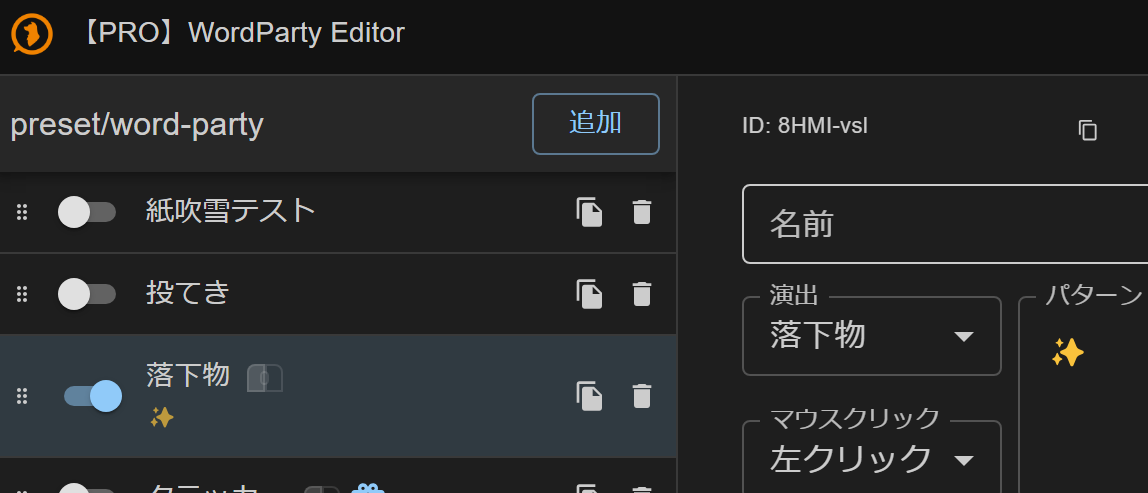 Confetti TestThrowingDropAddNameEffectDropMouse ClickLeft ClickPattern