
StreamDeck plugin
A plugin that lets you run various OneComme features from StreamDeck
What is StreamDeck?
Stream Deck is hardware and software developed and sold by Elgato that lets you set up and run various macros using buttons or dial controls.
The OneComme StreamDeck plugin works with the hardware and software made by the same company.
Download
The StreamDeck plugin is a PRO perk.
You can download the latest plugin from the StreamDeck tag list on FANBOX.
How to install
On a PC with the StreamDeck application installed, double-click the downloaded plugin to open it.
Supported actions
Button actions
Comments and Speech
| Action | Description |
|---|---|
| Reaction | Send a reaction with the specified text (you can configure the count, whether to show effects, and the repeat interval) |
| WordParty | Trigger the on-screen effects for the specified WordParty ID (fires regardless of its conditions; repeat interval configurable) |
| Clear comments | Clear the currently displayed comments |
| Speech | Read aloud the text you entered in advance |
| Stop speech | Stop the current speech |
| Send test comment | Send the test comment/gift configured in Dummy Commenter |
| Toggle split UI | Turn split UI on/off |
Viewer-participating System (waiting list)
| Action | Description |
|---|---|
| Change to Playing | Set the specified number of people from the top of the waiting list to Playing |
| Complete Playing | Mark those currently Playing as completed |
| Cancel Playing | Clear the Playing status for everyone |
| Increase Playing count | Add +1 to the count of those currently Playing |
| Decrease Playing count | Subtract -1 from the count of those currently Playing |
| Complete top entry | Mark the top entry of the waiting list as completed |
| Sort waiting list | Sort by one of three methods: shuffle / participation times low to high / cumulative times low to high |
Setlist
| Action | Description |
|---|---|
| Next song | Move the started setlist to the next song |
| Undo last completed song | Move the most recently completed song back by one |
| Undo all completed songs | Move all completed songs back into the setlist |
| Open current song link | Open the link (or file) for the current song |
| Insert timestamp for current song | Insert a timestamp with the current song's title |
Timestamps
| Action | Description |
|---|---|
| Timestamp | Insert a timestamp with the text you entered in advance |
| Insert Talk Script | Insert a timestamp based on the content of the Talk Script |
Poll
| Action | Description |
|---|---|
| Start/stop accepting answers for a question | Toggle accepting/closing answers for the specified poll question (the accepting state is reflected on the button) |
| Next question | Switch the currently open question to the next one |
| Previous question | Switch the currently open question to the previous one |
| Toggle poll results display | Toggle the template display of poll results |
Streams and windows
| Action | Description |
|---|---|
| Stream switch | Toggle Connection / Speech / Export / Persist for the specified stream (the state is reflected on the button) |
| Streaming information | Show Viewers / Total Viewers / Likes / Followers for the specified stream on the button |
| Open window | Open the Commenters, Templates, Dummy Commenter, Viewer-participating System, Setlist, analysis, Poll, Plugins, Stocked comments, Gifts (by user), Timestamps, or Notice window |
Dial operations
| Action | Description |
|---|---|
| WordParty (dial) | Assign a WordParty ID to each of rotate left, rotate right, press, and tap (while held down, press fires repeatedly at the configured interval) |
| [9.0.0+] Scroll | Scroll the comment panel/gift panel with the dial. Press to jump to the top; touch to switch the target (comment panel ⇔ gift panel). The speed coefficient lets you adjust the scroll amount per notch. |
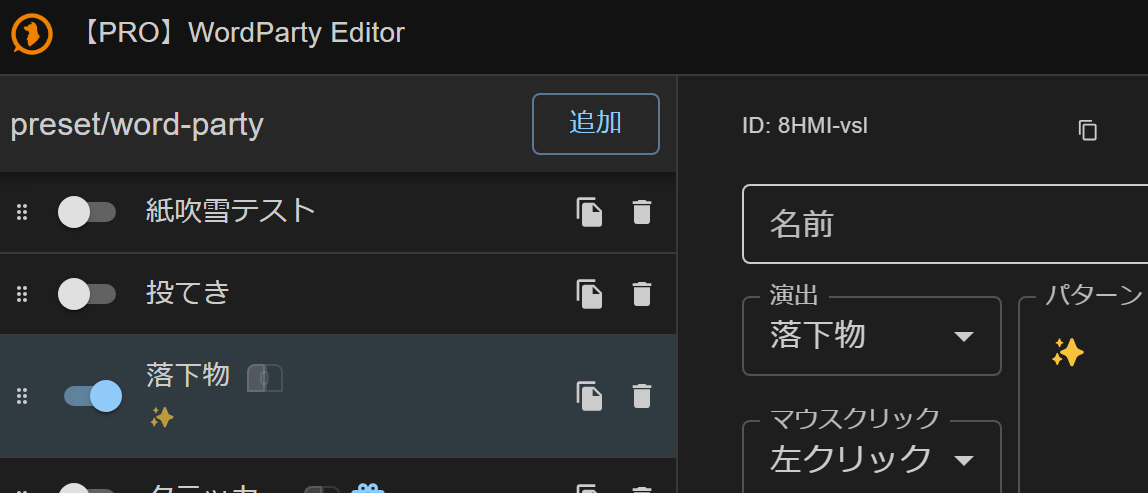
How to get a WordParty ID
Open the effect editor in the WordParty editor to see the ID (the 8-character alphanumeric code in the top right of the image).
 Confetti TestThrowingDropAddNameEffectDropMouse ClickLeft ClickPattern