
On-screen effects triggered by comments - WordParty
How to use WordParty, a template that displays on-screen effects triggered by words in comments
Types of on-screen effects
Cracker
Launches objects from the left and right, like a party popper
Drop
Displays objects using physics simulation
Fixed coordinates
Displays images or videos at a fixed position
Confetti [PRO only]
Throwing [PRO only]
Ambient [PRO only]
A particle-style effect that keeps moving continuously in the very back of the screen
21 patterns are available. Movement is built from a two-layer structure combining parameters with six basic motions: "parallel flow," "radial flow," "pulse," "arc," "circular motion," and "wander"
Shapes are drawn via code as circles, water drops, paper, stars, hearts, musical notes, bubbles, or lines, and you can also specify emojis or images as motifs
Key parameters include "blur" (which softens the outline), a "colorful" toggle that randomizes the paper into multiple colors, and "fix angle" (OFF by default), which locks the orientation and is available only for emoji/image motifs
The available motions can be viewed in a list gallery that opens in a separate window
VTS Object [PRO only]
Instead of displaying drops as an OBS browser source, this shows them as a scene item in VTube Studio (from 9.2 onward)
You can set up collision detection against the model's outline. Only image assets are supported, and the WordParty template must be kept open in a browser or OBS, etc., for this to work
For details, see "[PRO] VTube Studio integration for comment-triggered on-screen effects"
Connector [PRO only]
The Connector has no on-screen effect of its own — it's a feature for linking predefined on-screen effects together
You can combine multiple on-screen effects to run them with random selection, in parallel, or with a delay
Trigger [PRO only]
The Trigger has no on-screen effect of its own — it's a feature that runs another on-screen effect when a specific condition is met
For example, it can run a predefined on-screen effect such as a cracker or a drop once the Like count reaches a certain value
You can also run a Connector and further randomize or chain on-screen effects together
How to use
Open "Templates" from the "···" menu at the top right of OneComme
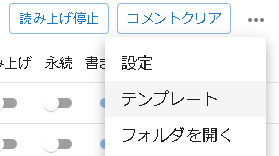 Stop speechClear commentsSettingsTemplatesOpen folder
Find the "word-party-xxxx" template and click the pen icon
 Drag and Drop this into OBS scene
The editor opens, where you can set up the on-screen effects you want to display and the words that trigger them
How to read the edit screen (WordParty editor)
For details on the editor screen, see "How to read and configure the WordParty editor"
About saving
Everything is saved automatically, so there's no need to click a save button
(If you think you might want to revert later, copy the template's folder to make a backup)
Once your settings are complete, close the window and add it to OBS just like a regular template
TIPS
When setting the blending method for the browser source in OBS, we recommend "sRGB off"
How to check your settings
Changes made in the editor are reflected immediately
Just as with checking comment display, use the Dummy Commenter to verify that it behaves as intended
Notes on using images and videos
As much as possible, resize images and videos to the size you plan to use beforehand
Caution
Data over 1MB may not display correctly, and depending on the number of items, other issues may also occur
How to get the audio into your stream
To get the sound played by WordParty into your broadcast, open the properties of the browser source placed in OBS and check "Control audio via OBS" to capture the audio
(The exact wording may differ slightly depending on your OS or version)
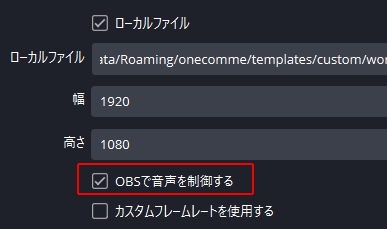 Local FileHeightUse custom frame rate
To also monitor the sound, set Audio Monitoring to "Monitor and Output" in the Audio Mixer
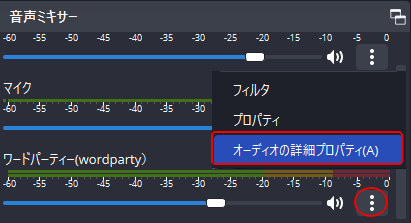 Audio MixerMicFilterPropertiesAdvanced Audio Properties (A
 WordPartyActiveMonitor and OutputMonitor OffMonitor Only (Output mutedMonitor and Output
Audio is then output from the monitoring device specified in OBS's settings
Supported formats
| Cracker effect | gif (static) / jpg / png |
| Drop effect | gif (static) / jpg / png |
| Fixed coordinates | gif (static/animated) / jpg / png / webm (transparent background supported) / mp3 / wav |
| Confetti | gif (static) / jpg / png |
| Throwing | gif (static) / jpg / png |
| VTS Object | gif (static) / jpg / png (64–2048 pixels, under 5MB) |
| Sound Effects | mp3 / wav |
Other specifications
- Opening a settings file from WordParty version 2 will result in an error
- word-party can be used as-is without duplicating it (only the config is preserved and won't be overwritten by updates)
- Any template whose Name starts with the string "word-party" will display a pen icon (to open the editor)
 Drag and Drop this into OBS scene