
Individual options
You can change settings individually for each stream
Settings that apply globally can be overridden with "except for this stream, do this instead"
How to open Individual options
Click "・・・" on the right side of the stream, then click "Settings" in the dropdown that opens
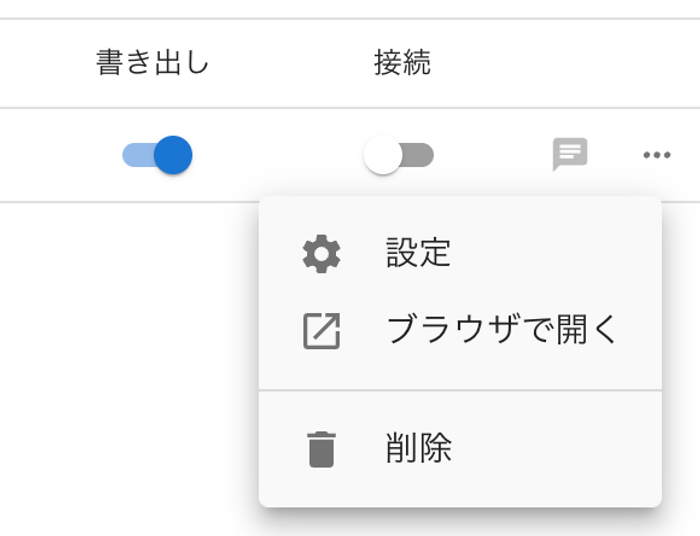 ExportSettingsOpen in web browserRemove
App screen
Open "・・・" > "Settings" at the right end of the target stream
Selecting and overriding the Text-To-Speech Engine
OneComme uses one "Text-To-Speech Engine" at a time to turn comments into audio
- By default, the Default Text-To-Speech Engine selected in "Speech Settings" is used for all streams
- To use a different engine for this stream only, change it with "Text-To-Speech Engine" in Individual options
- You can choose only "Built-In Voice Engine", "SAPI5" (Windows only), and engines already connected through integration
- Only the override items for the selected engine are shown (multiple engines are never used at the same time)
- For numeric items such as volume and speed, check the box to override with a value for this stream only; leave it unchecked to use the global settings as they are
- Specify the Speech Voice in the selection field. Choose "Default" to use the global settings as they are
Description of app screen items
Machine Translation
This item appears at the top of the Individual options dialog
It appears only when Machine Translation is turned ON in the global settings (from 9.2, it is also available in the free version) → Comment translation

| ①Machine Translation | Sets whether to automatically translate comments in this stream |
Speech Settings
 Speech SettingsText-To-Speech EngineFollow Default Settings
| ①Text-To-Speech Engine | Select the Text-To-Speech Engine to use for this stream Choose "既定に従う" to use the default engine selected in Speech Settings If the selected engine becomes unavailable, it automatically switches to the default engine |
When you select an engine, its override items appear below
When Built-In Voice Engine is selected
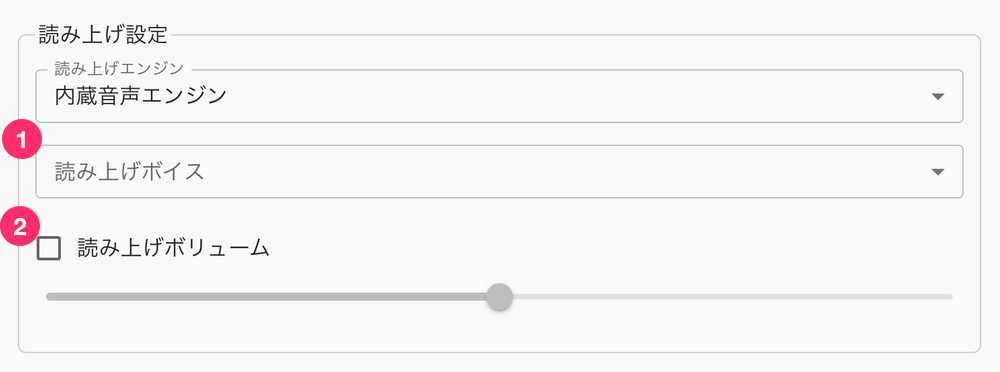 Speech SettingsText-To-Speech EngineBuilt-In Voice EngineSpeech VoiceSpeech Volume
| ①Speech Voice | Overrides the Speech Voice for this stream only |
| ②Speech Volume | Overrides the speech volume setting |
Note: With the Built-In Voice Engine, speed and pitch cannot be overridden per stream
When SAPI5 is selected
SAPI5 has no per-stream override items
The voice, volume, and speed specified in "SAPI5設定" under "Speech Settings" are used
When BouyomiChan is selected
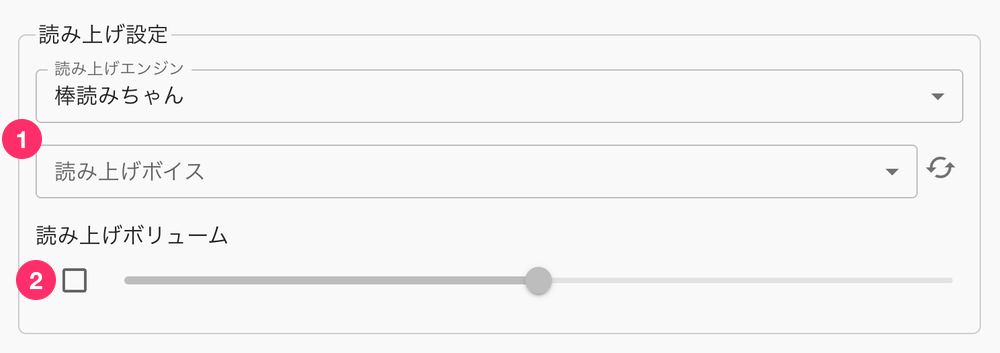 Speech SettingsText-To-Speech EngineBouyomiChanSpeech VoiceSpeech Volume
| ①Speech Voice | Overrides the Speech Voice for this stream only |
| ②Speech Volume | Overrides the speech volume setting |
When YUKARINETTE CONNECTOR NEO is selected
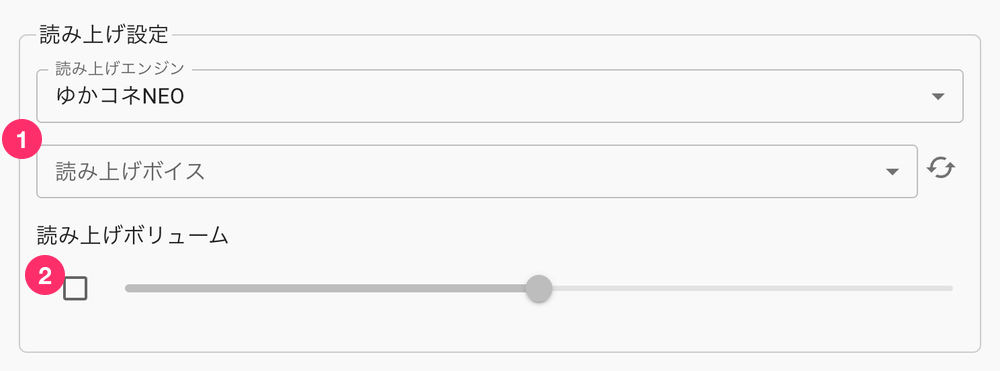 Speech SettingsText-To-Speech EngineYUKARINETTE CONNECTOR NEOSpeech VoiceSpeech Volume
| ①Speech Voice | Overrides the Speech Voice for this stream only |
| ②Speech Volume | Overrides the speech volume setting |
When VOICEVOX is selected
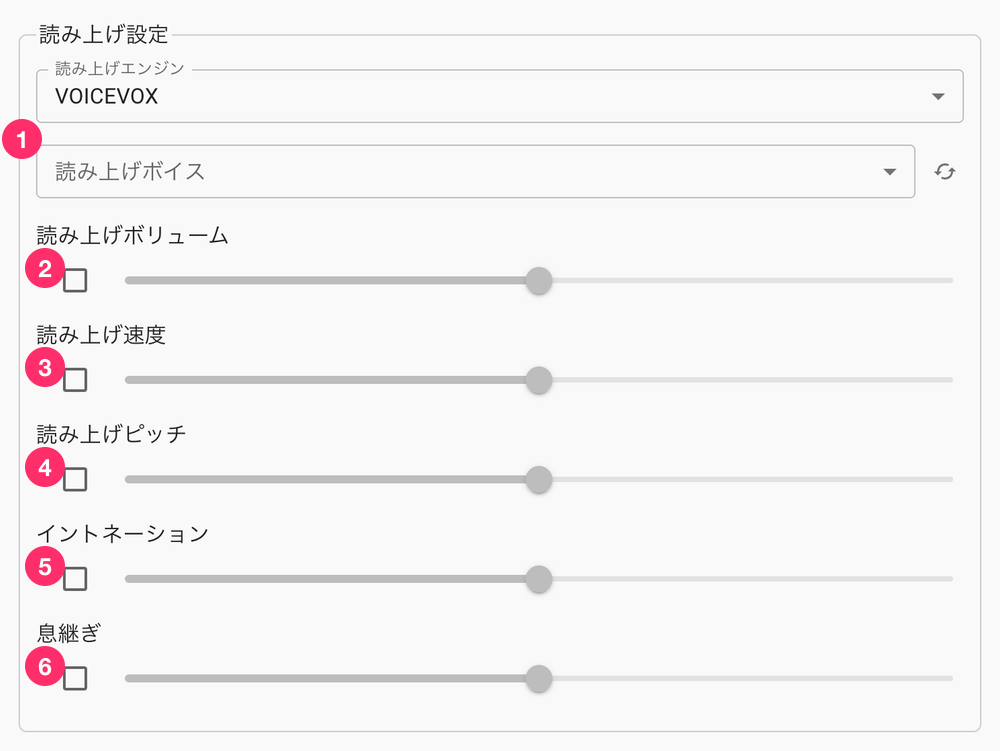 Speech SettingsText-To-Speech EngineSpeech VoiceSpeech VolumeSpeech Voice PitchIntonation
| ①Speech Voice | Overrides the Speech Voice for this stream only |
| ②Speech Volume | Overrides the speech volume setting |
| ③Speech Speed | Overrides the speech speed setting |
| ④Speech Voice Pitch | Overrides the speech pitch |
| ⑤Intonation | Overrides the intonation value for speech |
| ⑥Taking A Breath | Overrides the breathing setting for speech |
When COEIROINK is selected
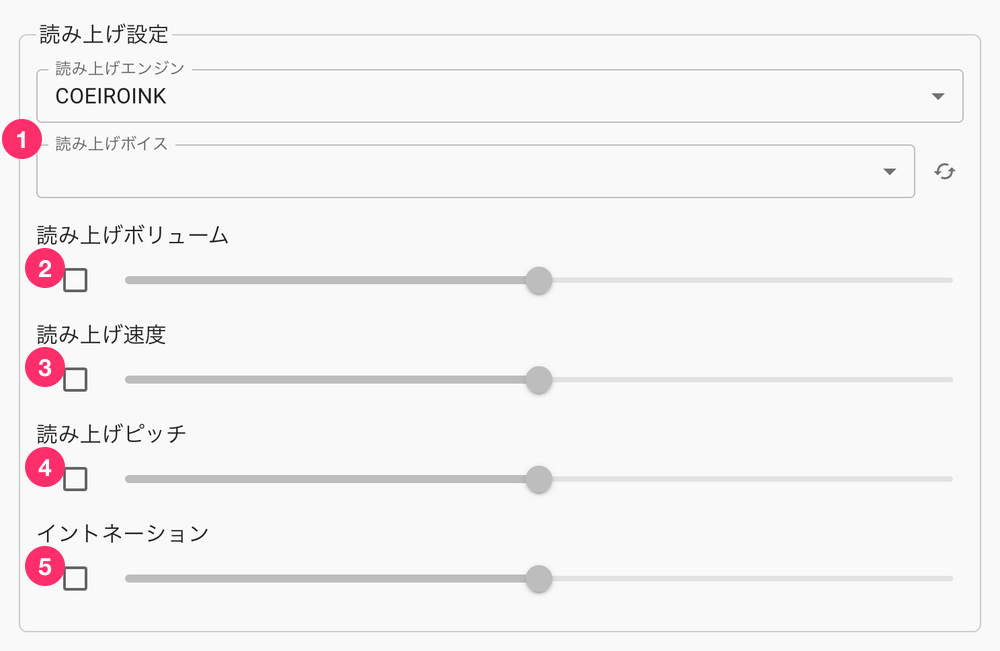 Speech SettingsText-To-Speech EngineSpeech VoiceSpeech VolumeSpeech SpeedSpeech Voice PitchIntonation
| ①Speech Voice | Overrides the Speech Voice for this stream only |
| ②Speech Volume | Overrides the speech volume setting |
| ③Speech Speed | Overrides the speech speed setting |
| ④Speech Voice Pitch | Overrides the speech pitch |
| ⑤Intonation | Overrides the intonation value for speech |
When AivisSpeech is selected
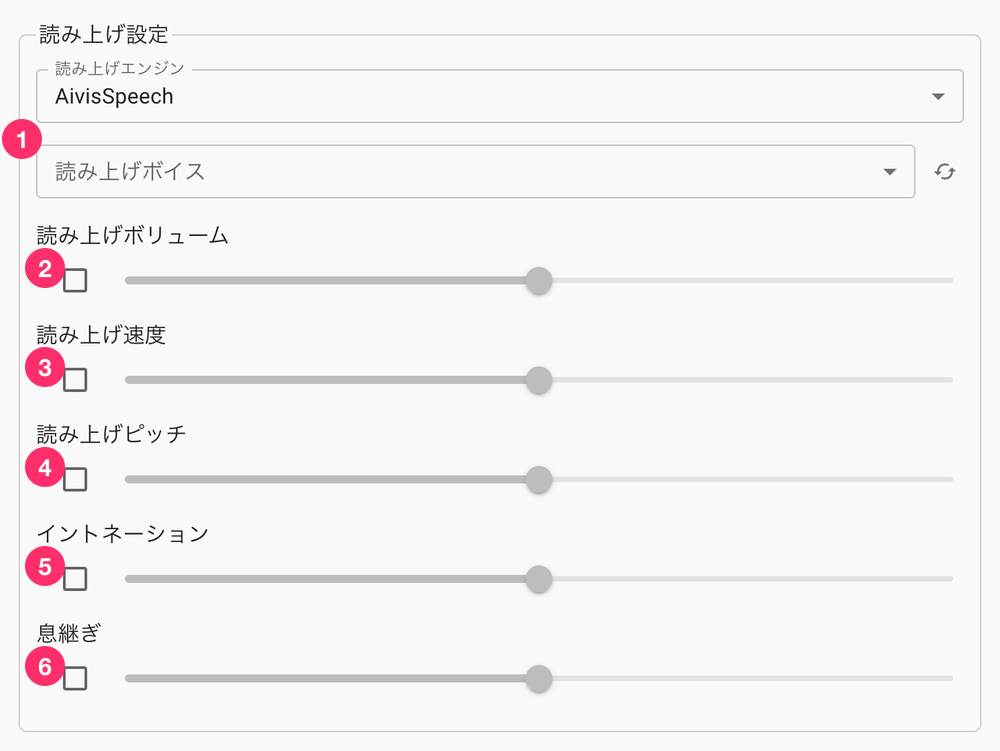 Speech SettingsText-To-Speech EngineSpeech VoiceSpeech VolumeSpeech Voice PitchIntonation
| ①Speech Voice | Overrides the Speech Voice for this stream only |
| ②Speech Volume | Overrides the speech volume setting |
| ③Speech Speed | Overrides the speech speed setting |
| ④Speech Voice Pitch | Overrides the speech pitch |
| ⑤Intonation | Overrides the intonation value for speech |
| ⑥Taking A Breath | Overrides the breathing setting for speech |
Log settings
 Comments log
| ①Keep comment logs | If comment logs are kept globally, overrides whether logs are output for this stream |
Sound Effects
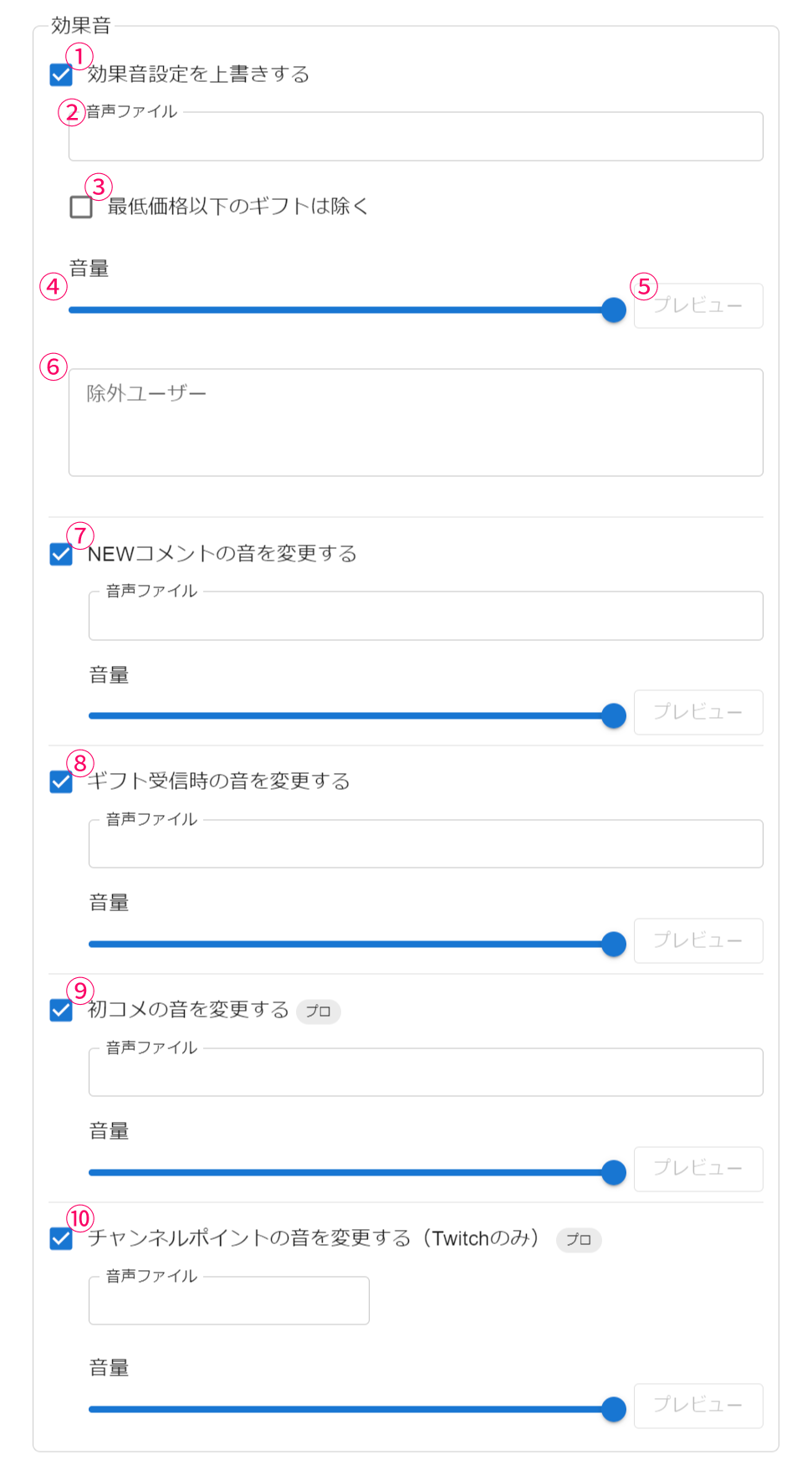 Set comment ringtones for this streamAudio fileExclude gifts have prices which are min price or cheaper.PreviewExcluded usersChange New Comment soundAudio fileVolumePreviewChange the SE when gifts are comming.Audio fileVolumePreviewAudio filePreviewChange Channel Points sound (Twitch only) ProAudio filePreview
| ①Override sound effect settings | Check to override the sound effect settings for this stream |
| ②Audio file | Overrides the sound effect to play |
| ③Exclude gifts at or below the minimum price | Prevents sound effects from playing when free gifts or gifts at or below the minimum price are received |
| ④Volume | Overrides the sound effect volume setting |
| ⑤Preview | Previews the overridden sound effect settings |
| ⑥Excluded | Adds users for whom sound effects are not played Adds users who have been added to the users excluded in the global settings |
| ⑦Change the New Comment sound | Overrides the sound effect played when a New Comment is received (Other setting items are the same as for normal sound effects) |
| ⑧Change the sound when a gift is received | Overrides the sound effect played when a Gift Comment is received (Other setting items are the same as for normal sound effects) |
| ⑨Change the Newcomer sound | Overrides the sound effect played when a Newcomer comment is received (Other setting items are the same as for normal sound effects) |
| ⑩Change the Channel Points sound (Twitch only) | Overrides the sound effect played when a Channel Points notification is received (Other setting items are the same as for normal sound effects) |