
Speech Settings
OneComme's Speech Settings screen
App screen
Open the top-right menu > Settings > the "Speech" tab
How to choose a Text-To-Speech Engine
OneComme uses one "Text-To-Speech Engine" at a time to turn comments into speech
- The "Built-In Voice Engine" and "SAPI5" (Windows only) don't require a connection and can be selected directly from this Speech Settings screen
- For VOICEVOX, COEIROINK, AivisSpeech, BouyomiChan, and YUKARINETTE CONNECTOR NEO, connect them first under "Integrations". Only engines that are already connected appear as options on this screen
- The engine selected here becomes the "Default Text-To-Speech Engine" used for all streams. To use a different engine per stream, change it individually under "Individual options"
※If OneComme can't connect to the selected engine, a "Can't speak" notice appears at the top of the screen
Field-by-field explanation of the app screen
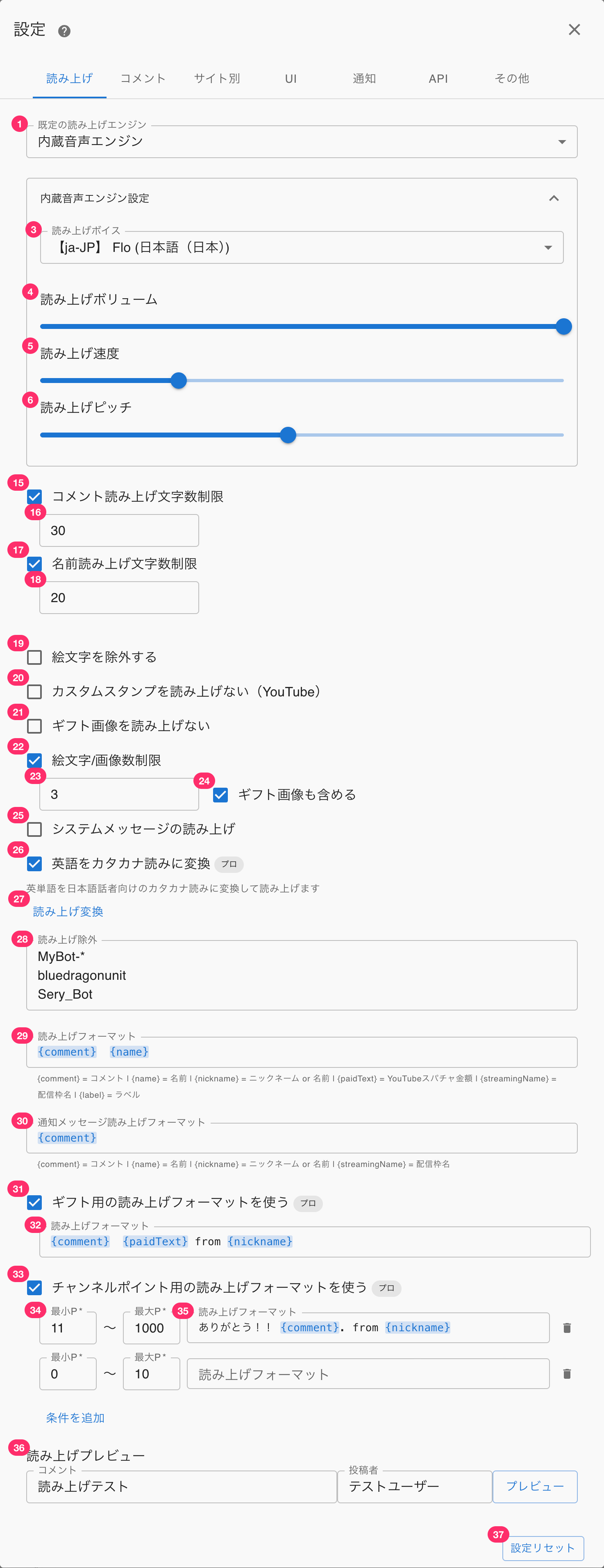 SettingsSpeechDefault Text-To-Speech EngineBuilt-In Voice EngineCommentsWebsite specificNotificationOthersBuilt-In Voice Engine SettingsSpeech VoiceSpeech VolumeSpeech SpeedSpeech Voice PitchUsername character speech limitExclude EmojiDon't read giftsEmoji or image limitIncludes gifts' imageRead system messagesConvert English To Katakana PronunciationPROThis Program Converts English Words Into Katakana Pronunciations Suitable For Japanese Speakers And Reads Them Aloud.29 Syntax for speechNotification Message Reading FormatUse syntax for speech for Gifts (PRO)Syntax for speechUse syntax for speech for Channel Points (PRO)Min pointMax pointSyntax for speechMin pointMax pointSyntax for speechAdd conditionsSpeech PreviewCommentsSpeech testUsernameTestUserPreviewReset Settings
Default Text-To-Speech Engine
| ① Default Text-To-Speech Engine | Choose the engine used for speech Connected integration engines, plus the connection-free "Built-In Voice Engine" and "SAPI5" (Windows only), appear as options Selecting "+ Add integration voice engine" at the bottom of the list opens the integration settings screen |
| ② Open integration | Shown when an integration engine is selected; opens that engine's connection settings |
Built-In Voice Engine Settings
Shown when you open "Built-In Voice Engine Settings"
| ③ Speech Voice | Choose from the voices installed on your PC |
| ④ Speech Volume | The volume of the speech voice |
| ⑤ Speech Speed | The speed of speech (the maximum value differs between Windows and Mac) |
| ⑥ Speech Voice Pitch | The pitch of the speech voice |
SAPI5 settings
Shown on Windows only
SAPI5 is Windows' built-in speech synthesis engine
If you have an external SAPI5-compatible voice installed (such as CeVIO AI), you can use that voice for speech
※SAPI5 is a Windows feature rather than an integration (connection to an external app), so it doesn't appear in the integrations list
| ⑦ Enable SAPI5 | Makes SAPI5 available as a Text-To-Speech Engine When enabled, it's added as an option for "Default Text-To-Speech Engine" |
| ⑧ Output Device | Choose the device that outputs SAPI5 audio |
| ⑨ Voice | Choose from the voices installed on Windows |
| ⑩ Volume | The speech volume for SAPI5 |
| ⑪ Speed | The speech speed for SAPI5 |
| ⑫ Automatic Speed Adjustment | Speeds up speech for longer comments |
| ⑬ Acceleration Coefficient / Accelerated Character Count | With Automatic Speed Adjustment, specify at what character count speed starts increasing, and by how much |
| ⑭ Maximum Queued Items | The maximum number of comments kept waiting to be read aloud |
Speech targets
| ⑮ Comment character limit for speech | Cuts off speech at the specified character count for long comments |
| ⑯ (input field) | Specify the character limit for comment speech here |
| ⑰ Name character limit for speech | Cuts off speech at the specified character count for long names |
| ⑱ (input field) | Specify the character limit for name speech here |
| ⑲ Exclude emojis | Stops reading emojis aloud |
| ⑳ Don't read Custom Stamps aloud (YouTube) | Stops reading YouTube Custom Stamps aloud |
| ㉑ Don't read gift images aloud | Stops reading gift image names aloud |
| ㉒ Emoji/image count limit | Limits the number of emojis or images read aloud |
| ㉓ (input field) | Specify the limit on the number of emojis/images read aloud here |
| ㉔ Include gift images | Sets whether gift images count toward the emoji/image speech limit |
| ㉕ Read system messages aloud | Reads connection, disconnection, and reconnection events aloud |
English speech
| ㉖ Convert English to katakana reading [PRO] | Converts English words to a katakana reading aimed at Japanese speakers before reading them aloud Reduces mispronunciations in comments that mix in English words Shown only when the app's display language is Japanese ※Not available on Macs with Intel CPUs (Apple silicon Macs and Windows only) |
Exclude from speech / text conversion (replacement)
| ㉗ Speech conversion | Opens the dictionary settings dialog → Dictionary |
| ㉘ Exclude from speech | Specify usernames (commenter names) to exclude from speech Using "*" as part of a username lets you exclude by partial match (e.g. Nightbot-*) Enter one username per line |
Syntax for speech
| ㉙ Syntax for speech | Specify the format used for reading comments aloud "{comment}", "{name}", "{paidText}", and "{streamingName}" are replaced with the 'comment', 'author name', 'Super Chat amount', and 'stream name' respectively "{nickname}" is replaced with the 'Nickname' if one is set (if no nickname is set, it's replaced with the 'author name') Leaving it empty disables speech "{label}" is replaced with the label assigned to the user From 9.2, placeholders are shown in color inside the input field, and a list of available placeholders is shown below the field |
| ㉚ Notification message speech format | Specify the format used for reading notifications and Notice comments aloud The syntax works the same way as the speech syntax above |
| ㉛ Use a separate speech format for gifts | Lets you use a different speech format when a gift comment is received, instead of the normal one |
| ㉜ Syntax for speech (for gifts) | The syntax is written the same way as in ㉙ |
| ㉝ Use a separate speech format for Channel Points | Changes the speech format only for Twitch Channel Points notifications |
| ㉞ Minimum P\* to maximum P\* | Changes speech only within the specified range |
| ㉟ Syntax for speech (for Channel Points) | Specify the speech format to use Written the same way as the normal speech syntax |
Speech Preview
| ㊱ Speech Preview | Sends a test comment containing an author name and comment text |
Reset Settings
| ㊲ Reset Settings | Restores the "Speech" settings to their default values Speech conversion settings are kept |