
UI settings
Configure settings related to the OneComme app's UI.
App screen
Open the top-right menu > Settings > UI tab.
App screen items
App
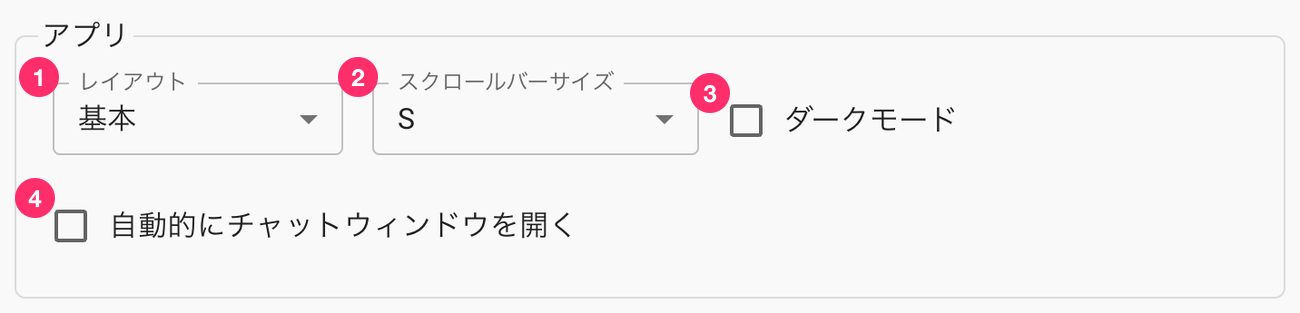 AppLayoutBasicScrollbar SizeAutomatically open chat windowDark theme
| ① Layout | Change the layout of the main screen. |
| ② Scrollbar size | Change the thickness of scrollbars in the comment panel and elsewhere (choose from S, M, L, or Native (OS default)). From 9.2, the OS default scrollbar is used even if this is not set. |
| ③ Theme | Choose the color scheme of the whole app (light theme, dark theme, built-in themes, or theme files you added). Up to 9.1, this is the "Dark theme" checkbox. See Themes (app colors) for details (9.2 and later). |
| ④ Automatically open chat window | Automatically opens the platform's chat window as soon as the connection to the stream is established. |
Comments
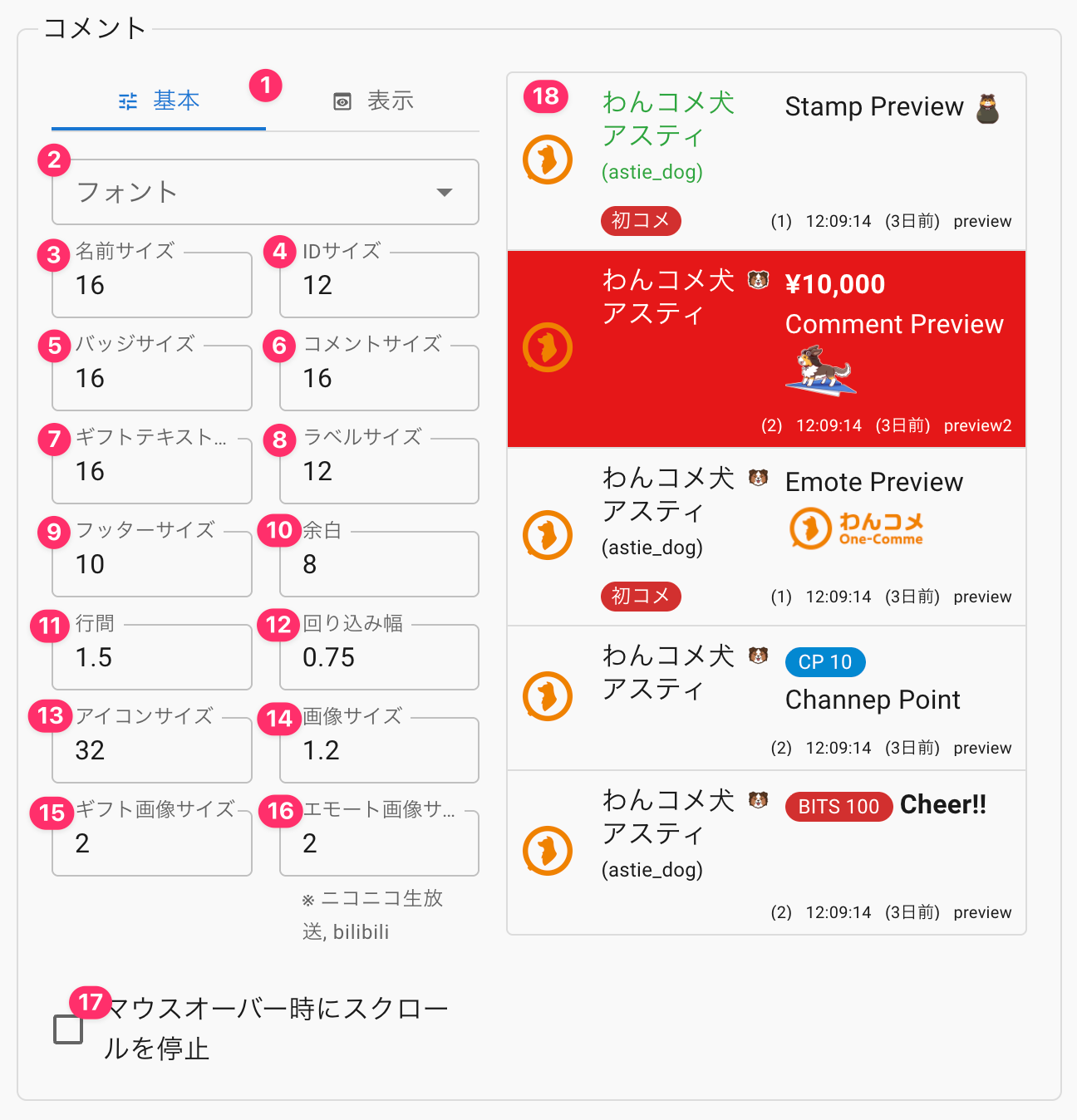 CommentsFontsName SizeId SizeBadge SizeComment SizeGiftsTextLabel SizeFooter SizeMarginHeightWrap WidthIcon sizeImage sizeNicoNicoLive17 Stop scroll on mouseoverOneComme DogAstieNewcomerAstieNewcomerOneComme DogAstie1) 12:09:14 (3 days ago) preview3 days agoOneComme DogAstie
| ① Basic / Display tabs | Switch between basic UI settings and UI display toggle settings. |
| ② Fonts | Select the font used in the comment panel (also applied to Remote View). |
| ③ Name size | Text size of the comment author name. |
| ④ ID size | Size of User Id, screen ID, and similar items. |
| ⑤ Badge size | Display size of Membership and subscriber badges. |
| ⑥ Comment size | Text size of the comment body. |
| ⑦ Gift text size | Text size of amounts, such as for YouTube. |
| ⑧ Label size | Size of labels such as first-time and returning viewers. |
| ⑨ Footer size | Text size of the comment footer information (stream name and time). |
| ⑩ Padding | Top, bottom, left, and right padding of each comment frame. |
| ⑪ Line spacing | Line spacing of comments. |
| ⑫ Wrap width | Width of the name area, which can be set when "wrap" is ON in the display settings (if set to 0, the width is automatically set to the width of the name). |
| ⑬ Icon size | Size of the Commenter icon. |
| ⑭ Image size | Size of images. |
| ⑮ Gift image size | Size of gift images. |
| ⑯ Emote image size | Size of emote images. |
| ⑰ Pause scrolling on mouse over | Keeps the scroll position fixed when the mouse cursor is placed over the OneComme comment panel, even if new comments are added. |
| ⑱ Comment preview | Preview of the comment panel with your changes applied. |
UI display toggle settings
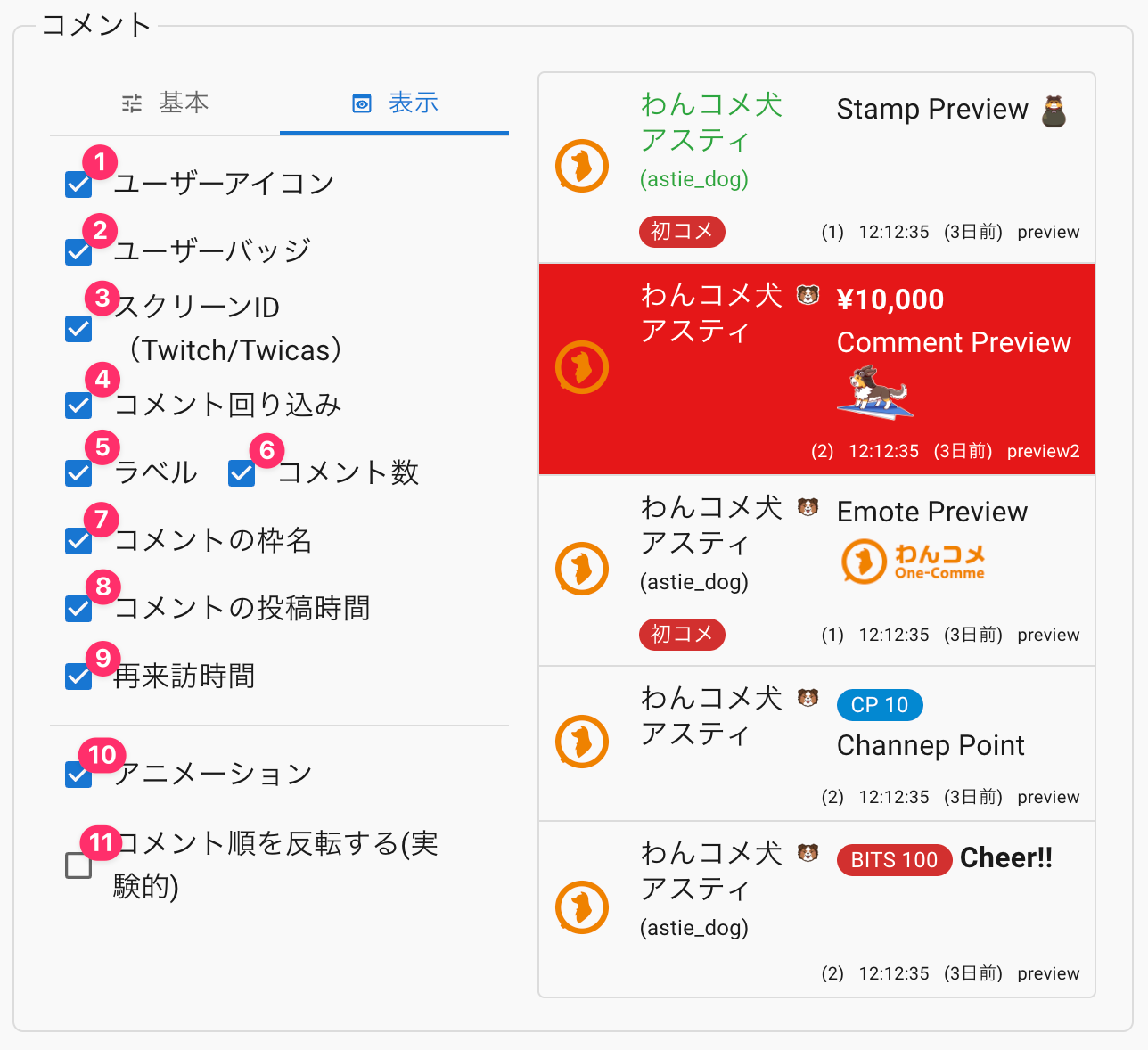 CommentsCommenter iconCommenter badgeScreen IDSlim designNewcomer/RepeaterComments CountService name of each commentTimestampElapsed time since last visitAnimation11 Reverse comment order (implOneComme DogAstieNewcomerAstieNewcomerAstie3 days ago) preview2OneComme DogAstie
| ① Commenter icon | Show or hide the "Commenter icon" in comments displayed in the app. |
| ② User badge | Show or hide the "user badge" in comments displayed in the app. |
| ③ Screen ID | Show or hide the "screen ID" in comments displayed in the app. |
| ④ Comment wrapping | Disable comment wrapping to switch to a display with fewer lines. |
| ⑤ Label | Show or hide the "label" in comments displayed in the app. |
| ⑥ Comments Count | Show or hide the "Comments Count" in comments displayed in the app. |
| ⑦ Comment stream name | Show or hide the "comment stream name" in comments displayed in the app. |
| ⑧ Comment post time | Show or hide the "comment post time" in comments displayed in the app. |
| ⑨ Return visit time | Show or hide the "return visit time" in comments displayed in the app. |
| ⑩ Animation (experimental) | Comments are displayed with animation. Uncheck this if a large number of comments flow in a short time. |
| ⑪ Reverse comment order (experimental) | Flips the display order of comments upside down. |
Notifications
 NotificationLife timeSize
| ① Life time | How long in-app notifications (such as entry and follow notifications) stay displayed, in milliseconds. |
| ② Size | Display size of notifications. |
On-screen effects
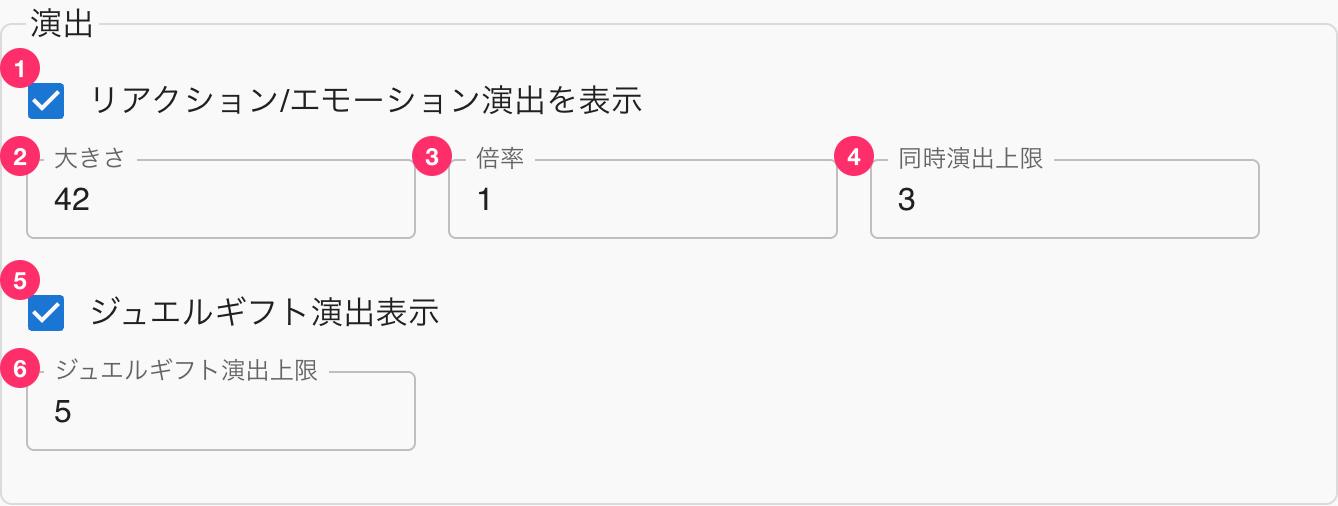 EffectSizeDisplay Reaction/Emotion EffectsMagnificationJewel Gift Presentation DisplayJewel Gift Animation LimitReactions' max
| ① Show Reaction/Emotion effects | Displays on-screen effects in OneComme when a YouTube reaction button is pressed or a NicoNicoLive Emotion is sent. |
| ② Size | Set the size of the emojis shown when a Reaction or Emotion is sent. |
| ③ Multiplier | Coefficient for how many effects are shown when a Reaction or Emotion is sent. |
| ④ Max simultaneous effects | Limits the number of effects that appear at the same time. |
| ⑤ Show Jewel gift effects | Displays an effect of the gift image flying around the app when a YouTube Jewel gift is received (9.2+). Can be turned ON/OFF independently of Reactions. The same effect is also displayed in Remote View. |
| ⑥ Jewel gift effect limit | Limits the number of Jewel gift effects that appear at the same time. Shown only when ⑤ is ON. |
Note: The combo-stage animation displayed immediately after the "× N" of a Jewel gift is shown regardless of this setting.
Comment screen display
Toggle the display of the comment panel itself.
When a box is unchecked, that part of the UI is not rendered.
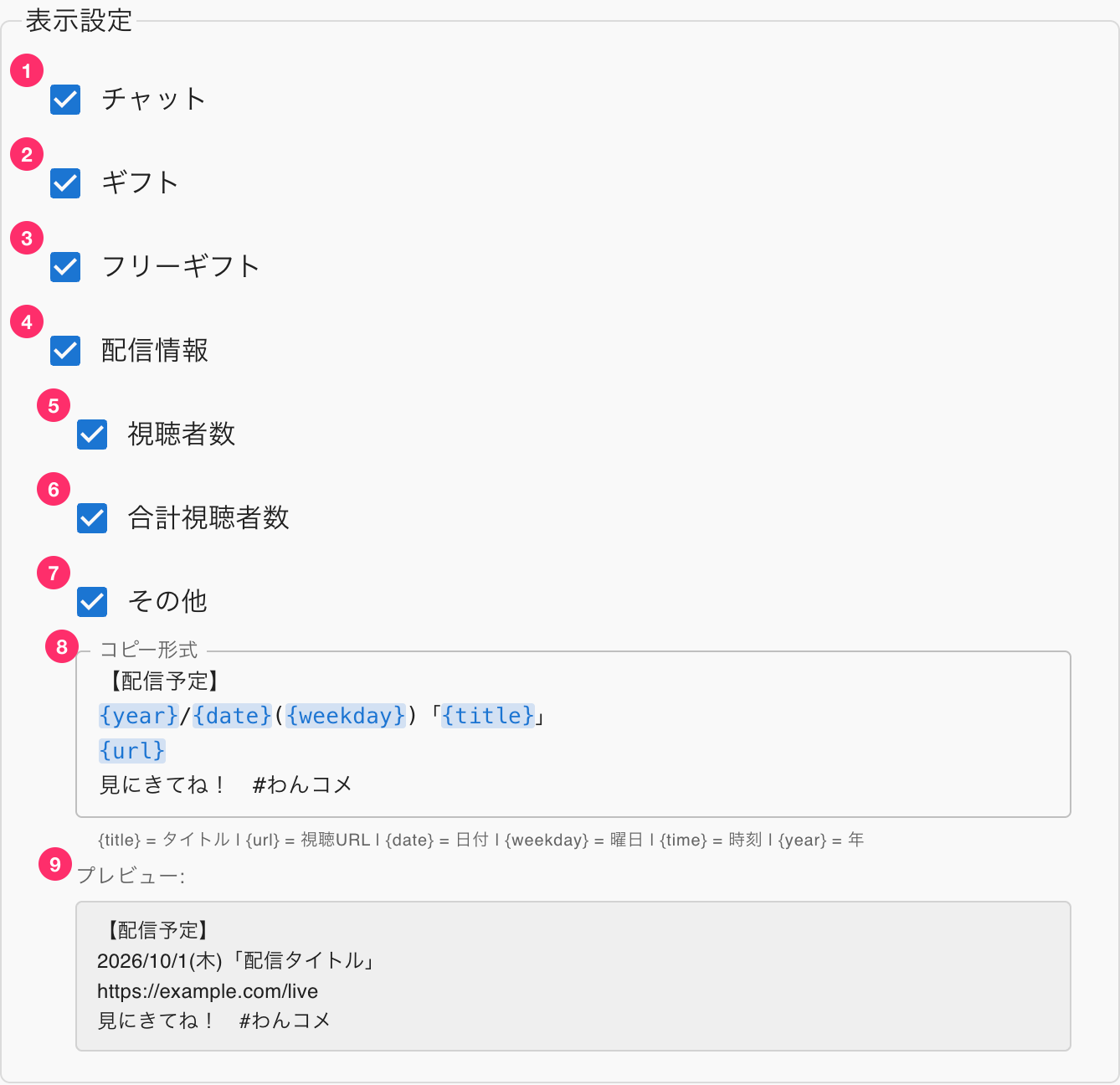 Display SettingsChatsGiftsFree giftsStreaming informationViewersTotal ViewersOthersCopy formatStream ScheduleCome check it out! #OneCommePreviewStream Schedule2026/10/1 (Thu) "Stream Title"Come check it out! #OneComme
| ① Chats | Toggle the display of the chat section. |
| ② Gifts | Toggle the display of the gift section. |
| ③ Free gifts | Toggle the display of the free gift section. |
| ④ Streaming information | Toggle the display of the stream information. |
| ⑤ Viewers | Toggle the display of the Viewers column in the stream information. |
| ⑥ Total Viewers | Toggle the display of the Total Viewers column in the stream information. |
| ⑦ Other | Toggle the display of the Other column in the stream information. |
| ⑧ Copy format | Format used when copying stream information from the bottom of the main screen or from the "Stream Schedule" window (9.2+). "{title}", "{url}", "{date}", "{weekday}", "{time}", and "{year}" are replaced with the stream Title, Stream URL, date, day of the week, time, and year, respectively. You can prepare a template in advance for use in stream announcement posts and the like. |
| ⑨ Preview | Example text produced when copying with the format in ⑧. |
PiP
 Display Scale
| ① Display scale | Scale factor of the PiP comment panel. Set to 1 to make it the same size as the normal comment panel. |
| ② Opacity | Specifies the opacity of the window background. 0 is fully transparent, and 1 is fully opaque. |
| Reset Settings | Resets the UI settings. |