
Viewer-participating System
Manage the turn order for viewer-participation streams using comments.
How to use
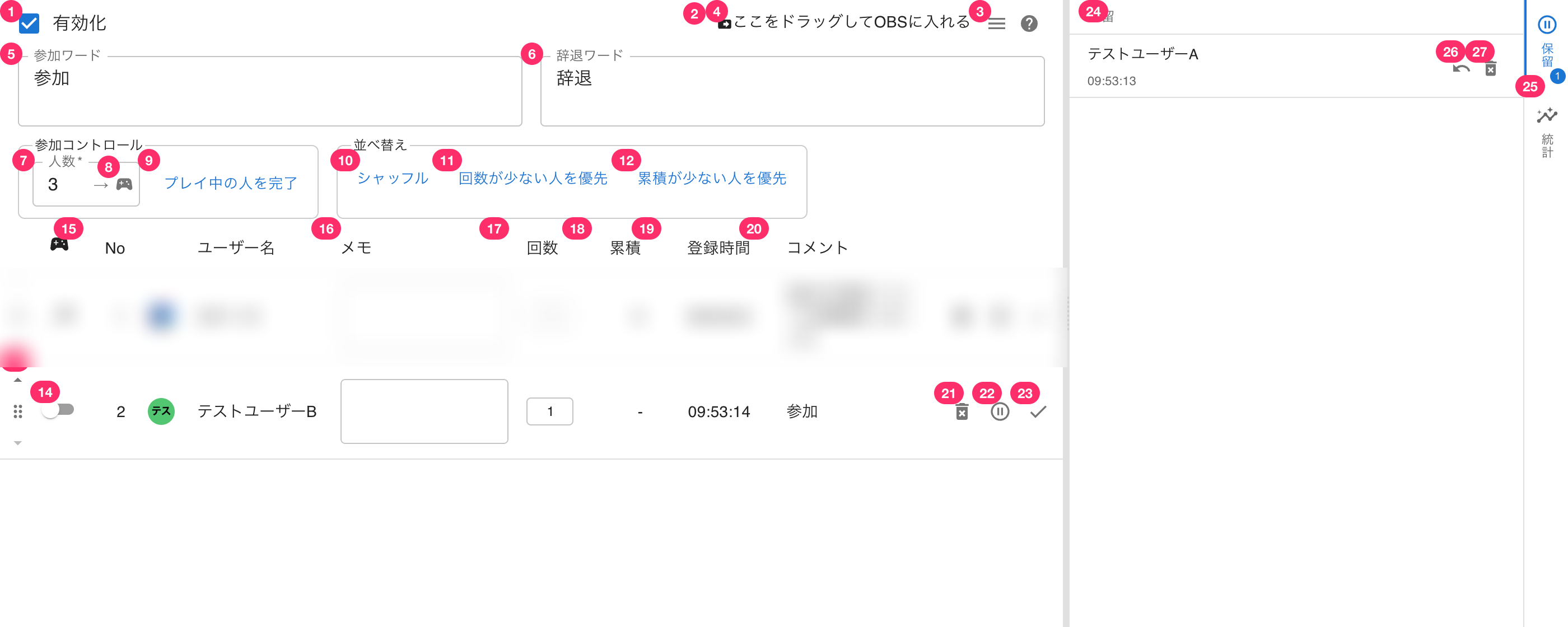 EnabledKeyword for joiningJoinParticipants controlNumberCircleComplete playingShuffle and SortShuffleUsernameNotesTestUserKeyword for giving upDeclineTestUserParticipation times low to highTimesSort with cumulative times(low to high)Cumulative timesJoining TimeCommentsJoin
- Check Enable
- Set the "Keyword for joining"
When a comment contains the keyword for joining, the commenter is added to the waiting list - Set the "Keyword for giving up"
When a comment contains the keyword for giving up, the commenter is removed from the waiting list - Drag "Drag and Drop this into OBS scene" to add the text template to OBS
- Adjust the font size, color, position, etc. of the text template added in OBS
- When the keyword for joining is commented, the viewer's name and comment content are registered in order
- For sorting, use "Shuffle" to randomize the order, or "Participation times low to high" to prioritize people with fewer participations, such as first-timers
- After a participant finishes, click "Complete" to remove them from the list, allowing them to join again (their participation count increases by 1)
9. Enter the number of people you want to set as playing at once in the "Number of people" field in the participation controls, then use the "🎮 icon" to set that number of people as playing
- "Complete people who are playing" lets you complete everyone currently set as playing all at once
※ Participation count does not increase when a participant gives up
Holding participants (9.2+)
You can temporarily move participants from the waiting list into a separate "Hold" slot, apart from the waiting list
This lets you temporarily remove someone from the list without canceling them — for example, if they're "away right now" or you want them to "join later"
- Click "Hold" (⏸ icon) at the right end of the participant's row
- Click "Hold" on the right edge of the screen to open the Hold panel, which lists the participants currently on hold ("Hold" shows the number of people on hold next to it)
- In the Hold panel, use "Return to waiting" to move them back to the end of the waiting list, or "Cancel" to cancel them
※ While on hold, participants are not shown in the waiting list template
※ Holding and returning can also be done from Remote View
Viewer-participating System settings
- Enter usernames you don't want added to the waiting list, such as bots, into Excluded as needed
Using "*" within part of a username allows exclusion by partial match (e.g., Nightbot-*) - Click "Stats" on the right edge of the screen to open the Stats panel
The Stats panel also shows users who completed their participation during this stream ※This record is cleared when OneComme is closed
Click the gear icon in the top right of the Viewer-participating System screen to change settings such as the text template content, notation, and sound effects
Settings items
EnabledKeyword for joiningJoinParticipants controlNumberCircleComplete playingShuffle and SortShuffleUsernameNotesTestUserKeyword for giving upDeclineTestUserParticipation times low to highTimesSort with cumulative times(low to high)Cumulative timesJoining TimeCommentsJoin
(The image above shows the "Hold" panel open)
| ①Enable | Enables the Viewer-participating System |
| ②Drag and Drop this into OBS scene | Drag this part into OBS to display the waiting list template (text file) in OBS |
| ③Menu | Opens export/import of settings and other settings |
| ④? icon | Opens OneComme site help |
| ⑤Keyword for joining | Adds comments containing the entered keyword to the waiting list. Multiple keywords can be specified, one per line |
| ⑥Keyword for giving up | Removes a participant from the waiting list when a comment containing the entered keyword is received. Multiple keywords can be specified, one per line |
| ⑦Number of people | Use ▴/▾ to set any number (keyboard input is also possible) |
| ⑧Set specified number to playing | Click the 🎮 icon to switch the number of people specified in ⑦ to playing all at once |
| ⑨Complete people who are playing | Completes all people who are playing at once |
| ⑩Sort (Shuffle) | Randomly reorders the waiting list |
| ⑪Sort (Participation times low to high) | Prioritizes people with fewer participations without changing the order |
| ⑫Sort (Sort with cumulative times(low to high)) | Prioritizes and reorders people with fewer cumulative participations without changing the order (today's count is used for anonymous users) |
| ⑬▴/▾ (arrow marks) | Swaps the order of the selected row forward or backward. You can also drag the 6-dot mark to move it to any position |
| ⑭Playing switch | Turning this ON sets the participant as playing. Setting as playing moves them to the top |
| ⑮No./icon/username | The waiting number, username, and icon |
| ⑯Note | You can add a note to a waiting participant |
| ⑰Count | The number of times they participated today. Completing adds 1 to the count |
| ⑱Cumulative | Shows the number of times they have participated in the past |
| ⑲Registration time | The column showing the time the keyword for joining was commented |
| ⑳Comment | The column showing the comment that triggered participation |
| ㉑Cancel | Cancels without increasing the count |
| ㉒Hold | Moves this participant to the Hold slot (9.2+) |
| ㉓Complete (check button) | Completes the wait and increases the count by 1. Completing removes them from the list, allowing them to wait again |
| ㉔Hold panel | A list of participants on hold. Click "Hold" on the right edge of the screen to open/close it (9.2+) |
| ㉕Stats | Click "Stats" on the right edge of the screen to open the Stats (formerly Insight) panel, where you can check the count, cancellations, completions, number of unique users (users who have requested to participate at least once), and participation status per user |
| ㉖Return to waiting | Returns a participant on hold to the waiting list |
| ㉗Cancel (Hold panel) | Cancels a participant on hold (the count does not increase) |
Menu
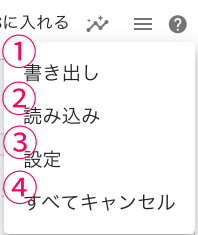 ExportImportCancel All
| ①Export | Exports the current settings as a file Use with ② Import to restore the settings |
| ②Import | Restore settings by referencing the file exported in ① |
| ③Settings | Opens other settings |
| ④Cancel all | Cancels everyone on the waiting list |
Other Viewer-participating System settings
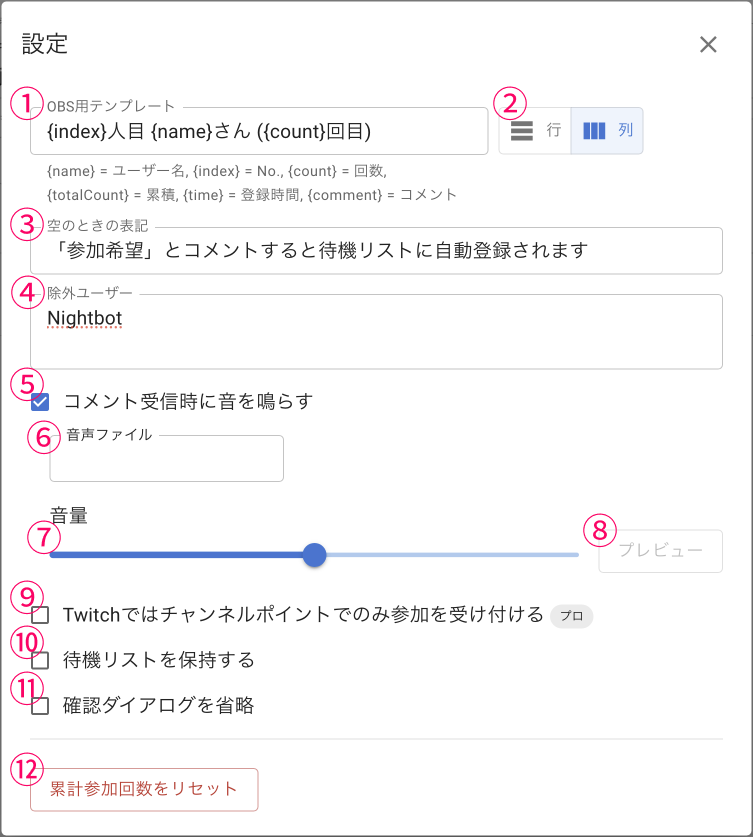 SettingsRowDisplay if emptyComment "Want to Join" to auto-join waitlistComment ringtoneAudio fileVolumePreviewOn Twitch, only Channel Points can joinKeep The Waiting ListSkip confirm dialogReset Cumulative Participation Count
| ①Template for OBS | Changes the format (※) of the waiting list template |
| ②≡ Row / lll Column | Changes the layout direction (vertical/horizontal) of the waiting list template |
| ③Notation when empty | Sets the notation displayed when the waiting list is empty |
| ④Excluded | Prevents specific users, such as bots, from being added as participants. Adding * like Bot-* allows exclusion by partial match |
| ⑤Play sound on comment received | Plays a sound effect each time a comment that counts as participation is received |
| ⑥Audio file | Changes the sound effect played when a participation comment is received |
| ⑦Volume | Adjusts the volume of the sound effect played when a participation comment is received |
| ⑧Preview | Previews the sound effect |
| ⑨On Twitch, only accept participation via Channel Points [PRO] | Only accepts participation when Channel Points have been given [PRO] |
| ⑩Keep the waiting list | Keeps the waiting list even after closing OneComme |
| ⑪Skip confirmation dialog | Confirmation dialogs no longer appear when sorting or deleting |
| ⑫Reset cumulative participation count | Resets all recorded cumulative participation counts |
※ The special notations below are each replaced as follows:
- {name} - username
- {index} - order
- {count} - participation count
- {totalCount} - cumulative participation count
- {time} - comment time
- {comment} - comment
Remote View
The Viewer-participating System can also be operated from Remote View, included in PRO (including holding and returning to waiting)