
[PRO] Remote View
View and control comments from PCs and mobile devices on the same network.
Caution
This feature requires PRO.
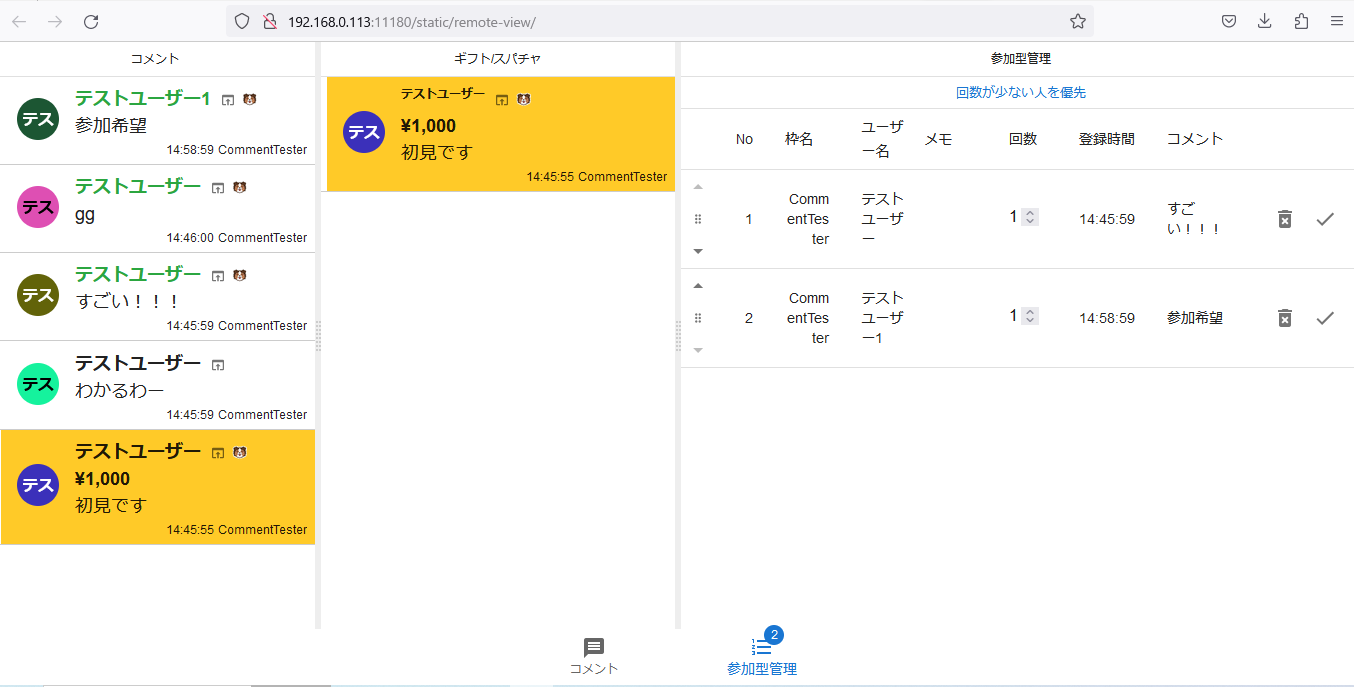 TesTesTesTesTesCommentsHope to joiningTestUserTestUserI get itTestUserFirst time hereGift/SuperChatTesFirst time hereStream NameCommentsViewer-participating SystemViewer-participating SystemParticipation times low to highTimesJoining TimeUserTestUserTestUserNotesCommentsAmazingHope to joining
Remote View lets you view and control comments retrieved by the OneComme app from other devices on the same network. When Viewer-participating System is enabled, you can perform the same operations in a browser.
Note: This feature does not retrieve comments on a smartphone or other device by itself.
How to use
- From the top-right menu "・・・", select "Remote View" to open the Remote View window (since 9.2, it is a dedicated window rather than a dialog).
- Turn "Enable" ON.
- Scan the QR code shown by the QR code icon in the top right with your device, or open the displayed URL.
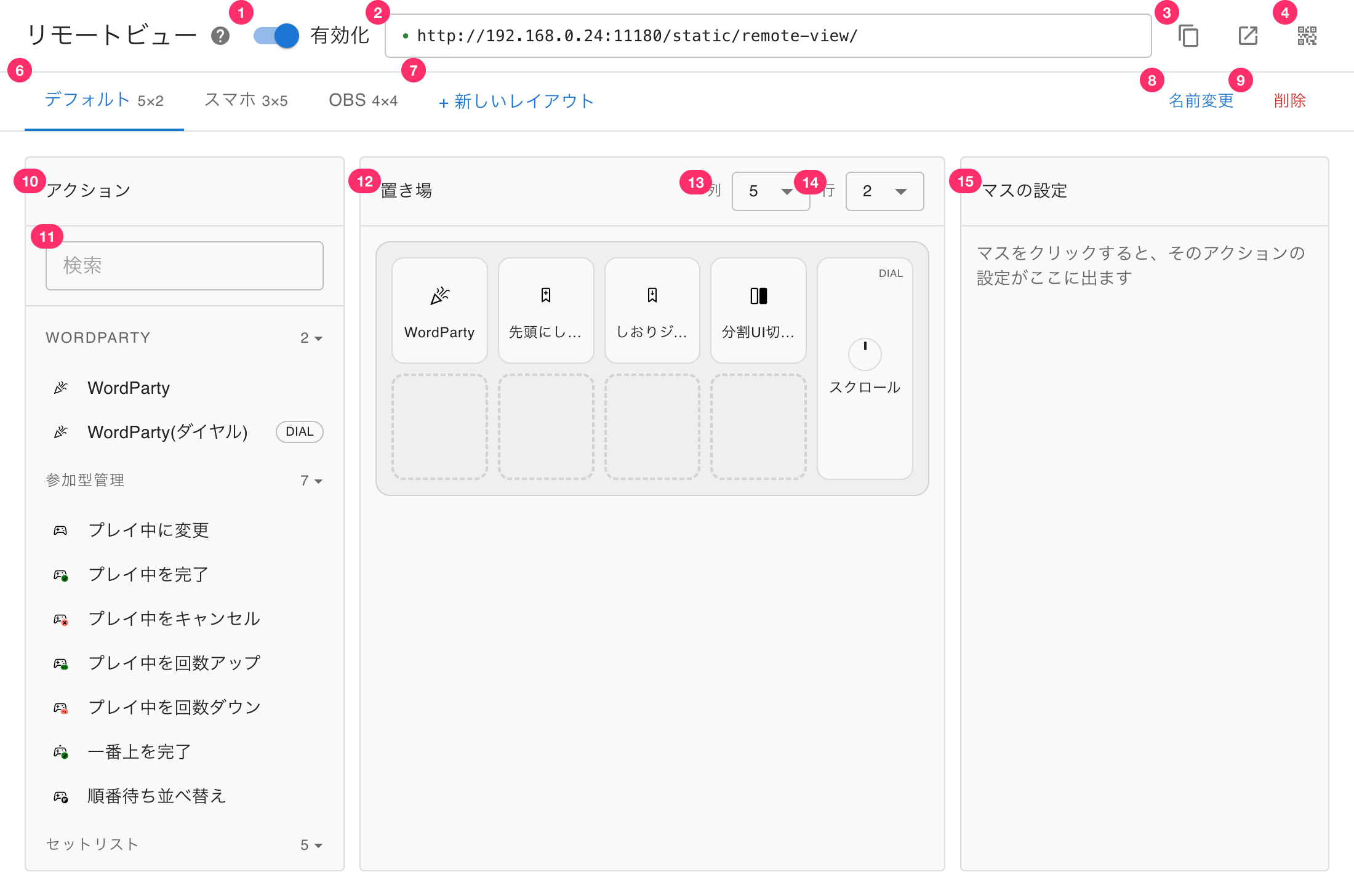 Remote ViewEnabledGridNew layoutName ChangeRemove10 ActionsSearchWordParty (Dial)Viewer-participating SystemChange to PlayingComplete PlayingCancel PlayingIncrease Playing countDecrease Playing countComplete top itemReorder queueSetlistSettings for 15 cellsClick a cell to see that action'ssettings appear hereScroll
Note: If the QR code can't be scanned, copy the URL with the copy icon next to it and enter it in your device's browser.
URL http://<local IP>:11180/static/remote-view/
That completes the setup.
Device screen
- From the fullscreen icon to the right of the tabs at the bottom of the screen, you can toggle fullscreen on any tab (9.2+).
- The last selected tab is saved in your device's browser and opens again after reloading the page (9.2+).
Displaying Streaming information
Since 9.1, the Remote View screen can also display the same "Streaming information" as the OneComme main window.
Remote View has no dedicated setting for showing or hiding Streaming information. It is linked to the "Streaming information" checkbox in the OneComme main window's "UI" settings screen.
If Streaming information is turned off in the main window, it is not displayed in Remote View either.
The displayed content is grouped in cards for each integrated service, and you can check the stream Title, Streaming time, Viewers, Total Viewers, and other details (such as subscriber and Follower counts).
On narrow screens such as smartphones, it is placed above the comment panel; on wide screens such as tablets and PCs, it is placed beside the comment panel.
You can also adjust the size of the display area by dragging the divider.
If you can't connect
Check that "Enable" is checked.
If you still can't connect, your security software may be blocking the connection.
ESET
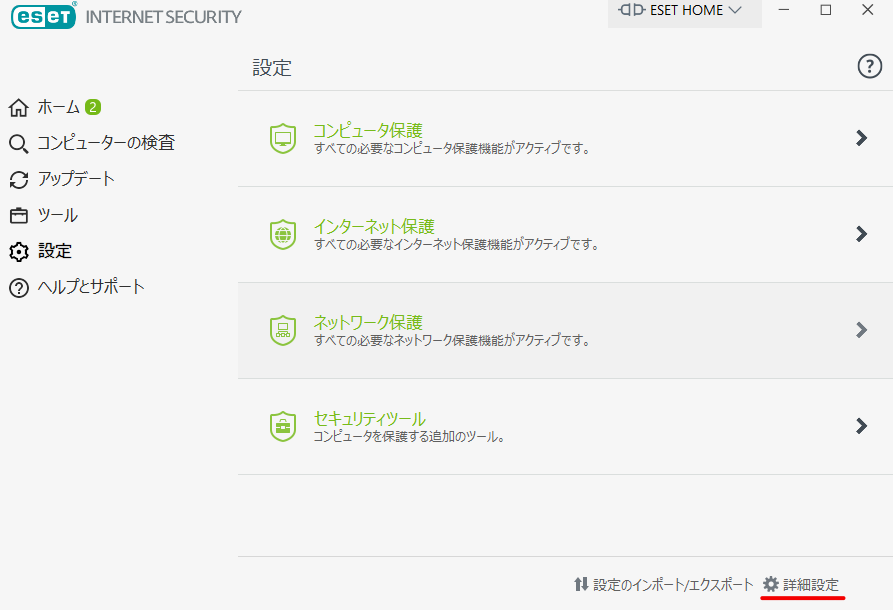 SettingsComputer checkUpdateAll required computer protections are activeAll required internet protections are activeAll required network protection features are activeAdditional tools to protect your computer
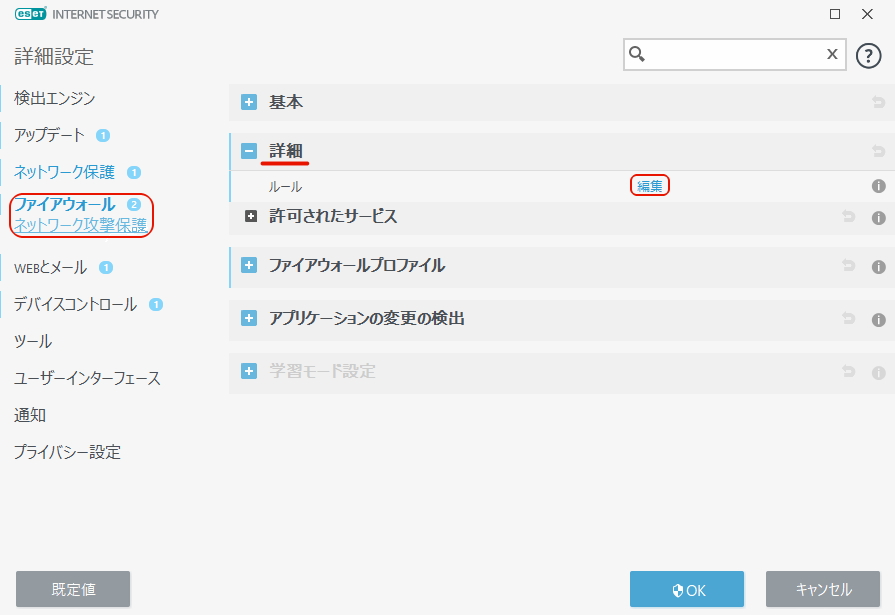 Advanced SettingsDetection engineUpdateNetwork protectionDevice controlToolsUser interfaceNotificationPrivacy settingsDefaultBasicRulesCancel
 Edit
[General tab]
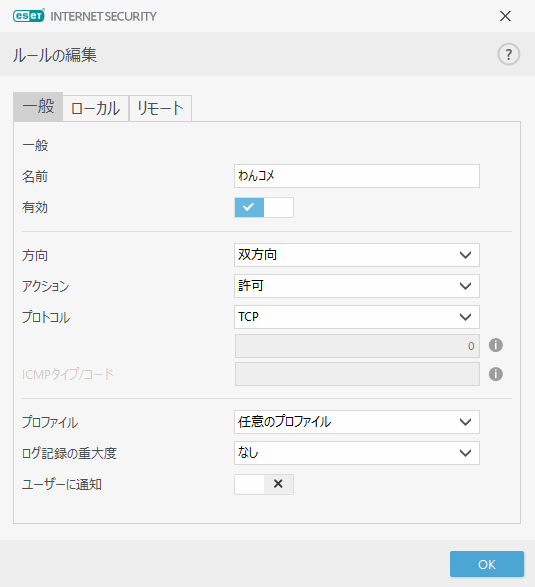 Edit ruleGeneralNameEnabledDirectionReactionProtocolICMP Type/CodeLogging severityNotify userOneCommeBidirectionalAllowAny profileOFF
Name: OneComme
Enabled: On
Direction: Both
Action: Allow
Protocol: TCP
[Local tab]
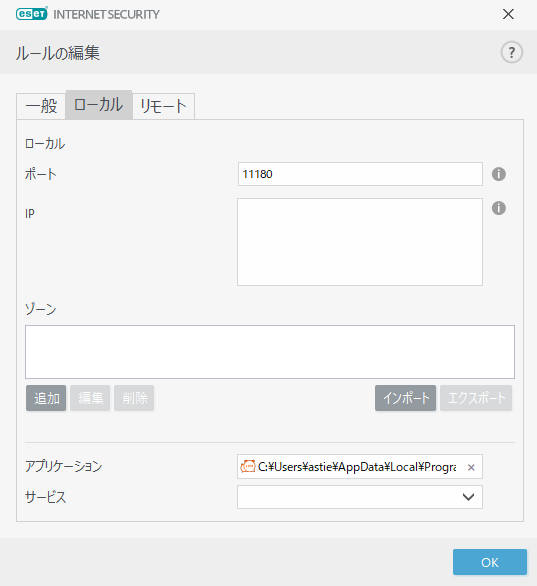 Edit ruleLocalPortZoneAddRemoveApplicationServicesImportExport
Port: 11180
Application: OneComme exe
McAfee
Note: The basic settings are the same as for ESET.
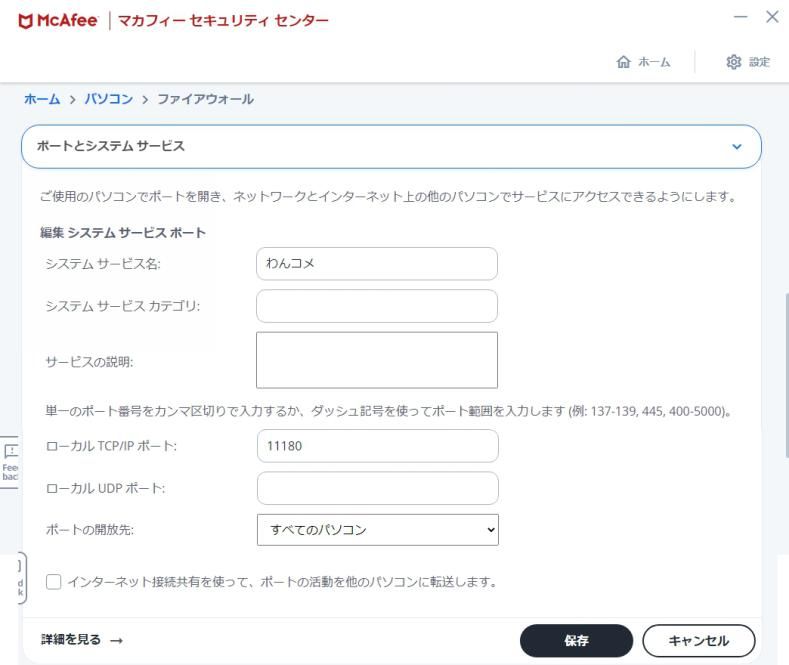 Ports and system servicesOpens ports on your PC so other computers on the network and Internet can access servicesEnter single port numbers separated by commas, or use a dash for ranges (e.g. 137-139,445,400-5000Use Internet Connection Sharing to forward port activity to other computers
Other software
OneComme cannot provide support for network settings, so contact your network administrator or security software vendor.
If you find a solution, please post it to the Forum.
Remote View window
Remote ViewEnabledGridNew layoutName ChangeRemove10 ActionsSearchWordParty (Dial)Viewer-participating SystemChange to PlayingComplete PlayingCancel PlayingIncrease Playing countDecrease Playing countComplete top itemReorder queueSetlistSettings for 15 cellsClick a cell to see that action'ssettings appear hereScroll
| ① Enable | Enables Remote View |
| ② URL | The access URL for Remote View |
| ③ Copy | Copies the access URL to the clipboard |
| ④ Open in web browser | Opens Remote View in the browser on your PC |
| ⑤ QR code | Displays a QR code for the access URL |
| ⑥ Layout tabs | Switch between Remote Deck layouts (see below) |
| ⑦ New layout | Adds a Remote Deck layout |
| ⑧ Rename | Renames the selected layout |
| ⑨ Delete | Deletes the selected layout (the last remaining one can't be deleted) |
| ⑩ Actions | List of actions that can be assigned to deck buttons |
| ⑪ Search | Filters actions by name |
| ⑫ Grid area | The grid where deck buttons are arranged |
| ⑬ Columns | Number of columns in the grid |
| ⑭ Rows | Number of rows in the grid |
| ⑮ Cell settings | When you click a cell in the grid area, the settings for that action (such as the WordParty ID) appear here |
Remote Deck (9.2+)
A "Deck" tab has been added to the Remote View screen, letting you run OneComme operations and WordParty on-screen effects with a single button press.
From a smartphone or tablet, you can run the same actions as the StreamDeck plugin (run WordParty, Viewer-participating System, Setlist, Timestamps, Poll, Clear comments, stop Speech, switch split UI, Reaction, and more).
Creating a layout
- In the Remote View window, click "+ New layout" or select an existing layout tab.
- Use the columns and rows of the "Grid area" to set a grid size suited to your device (you can also create a separate, vertical layout for smartphones).
- Drag the action you want to use from "Actions" on the left into a grid cell.
- Click a cell to show that action's settings in "Cell settings", then specify the WordParty ID, stream, and so on.
- Layouts are saved automatically and are immediately reflected in the "Deck" tab of Remote View.
- Actions labeled "DIAL" (WordParty (dial) and Scroll) require two vertical cells of free space.
- Select a cell and click "Remove from cell" to remove the action.
- Deck operations are performed by opening the "Deck" tab in Remote View. Switching to fullscreen (the fullscreen icon at the bottom of the screen) makes it easier to use.
Holding participants in Viewer-participating System
Since 9.2, you can also "Hold", "Return to waiting", and "Cancel" participants from Viewer-participating System in Remote View. → Viewer-participating System