
[PRO] Remote View
Comments can be viewed and operated from PCs or mobile devices on the same network.
Caution
PRO is required to use this feature
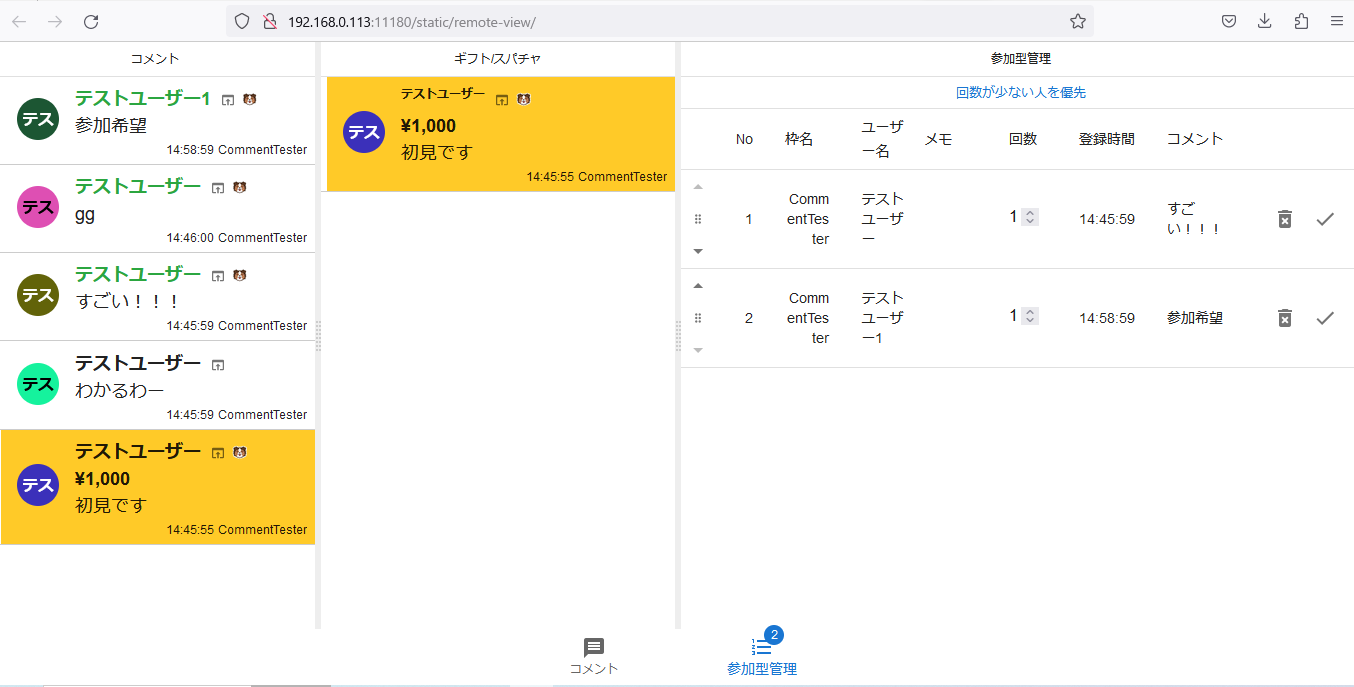 TesTesTesTesTesCommentsHope to joiningTestUserTestUserI get itTestUserFirst time hereGift/SuperChatTesFirst time hereStream NameCommentsViewer-participating SystemViewer-participating SystemParticipation times low to highTimesJoining TimeUserTestUserTestUserNotesCommentsAmazingHope to joining
Remote View lets you view and operate, on other devices on the same network, the comments that OneComme has retrieved. When Viewer-participating System is enabled, the same operations are also available in the browser.
*This is not a feature that lets a smartphone or similar device retrieve comments on its own.
How to use
- Select Remote View from the menu
- Check Enable
- Scan the QR code with your device, or access the URL shown in the browser
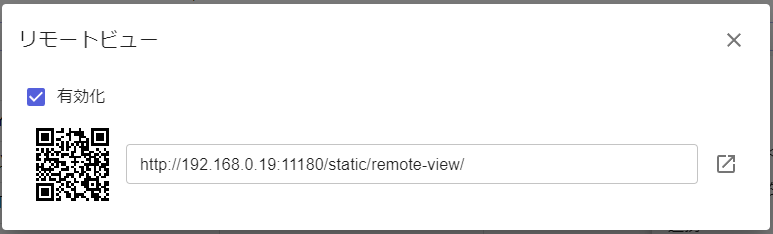 Remote View
*If you can't scan the code, enter the URL shown next to the QR code instead
URL http://<local IP>:11180/templates/static/remote-view/
That completes the setup.
Displaying streaming information
Starting from 9.1, the Remote View screen can also show the same "Streaming information" as the main OneComme app.
There is no dedicated setting for showing or hiding streaming information in Remote View itself — it follows the "Streaming information" checkbox under the "UI" section of the main OneComme settings screen.
If streaming information display is turned off in the main app, it will not be shown in Remote View either.
The information is grouped into cards for each connected service, showing the stream title, streaming time, viewers, total viewers, and other details (such as subscriber or follower counts).
On narrow screens such as smartphones, it appears above the comment panel; on wider screens such as tablets or PCs, it appears next to the comment panel.
You can also drag the divider to resize the display area.
If you can't connect
Check that Enable is checked.
If it still won't connect, your security software may be blocking it.
For ESET
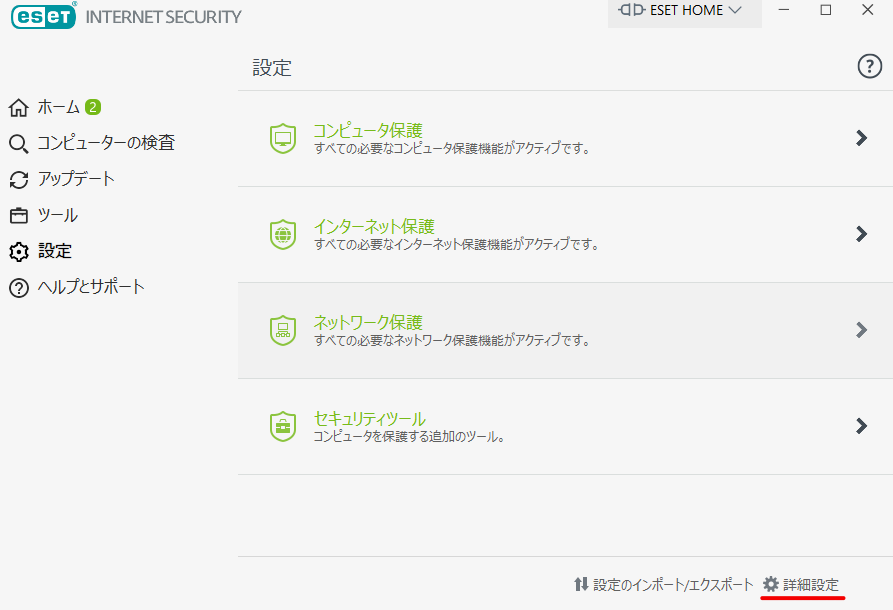 SettingsComputer checkUpdateAll required computer protections are activeAll required internet protections are activeAll required network protection features are activeAdditional tools to protect your computer
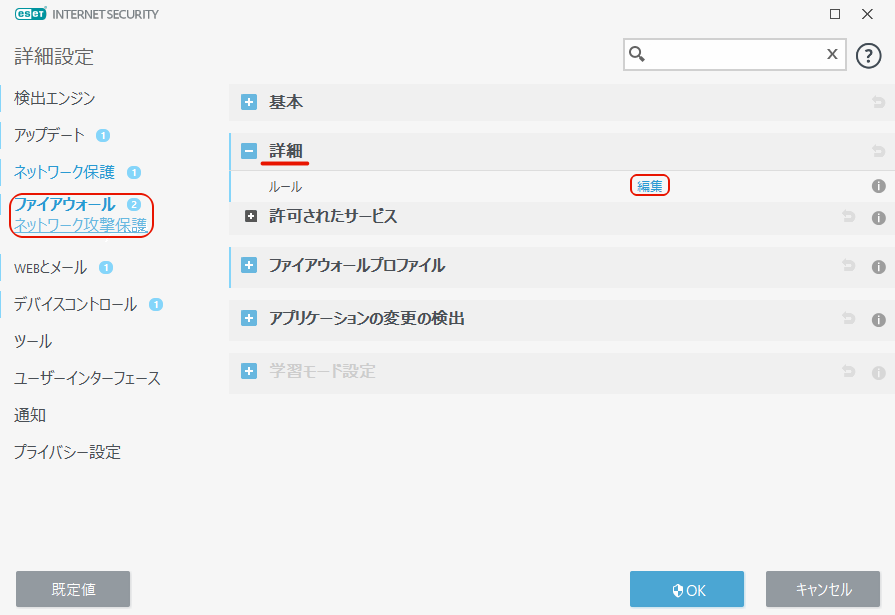 Advanced SettingsDetection engineUpdateNetwork protectionDevice controlToolsUser interfaceNotificationPrivacy settingsDefaultBasicRulesCancel
 Edit
Edit
[General tab]
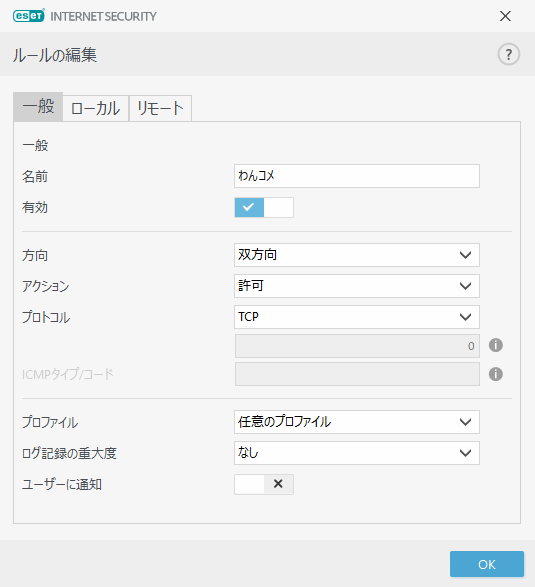 Edit ruleGeneralNameEnabledDirectionReactionProtocolICMP Type/CodeLogging severityNotify userOneCommeBidirectionalAllowAny profileOFF
Name: OneComme
Enabled: On
Direction: Both
Action: Allow
Protocol: TCP
[Local tab]
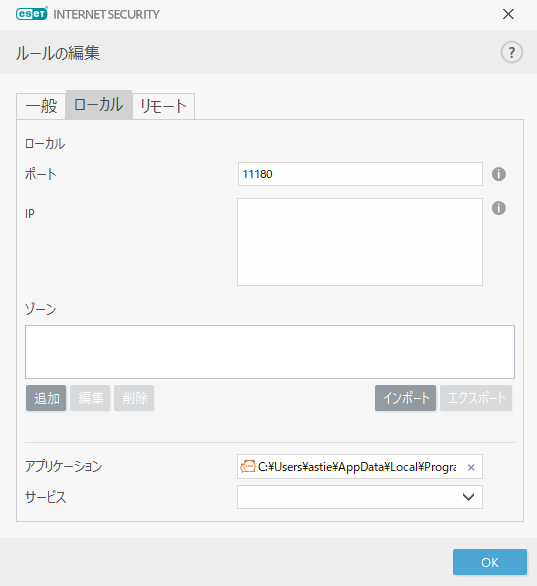 Edit ruleLocalPortZoneAddRemoveApplicationServicesImportExport
Port: 11180
Application: OneComme's exe
For McAfee
*The basic settings are the same as for ESET
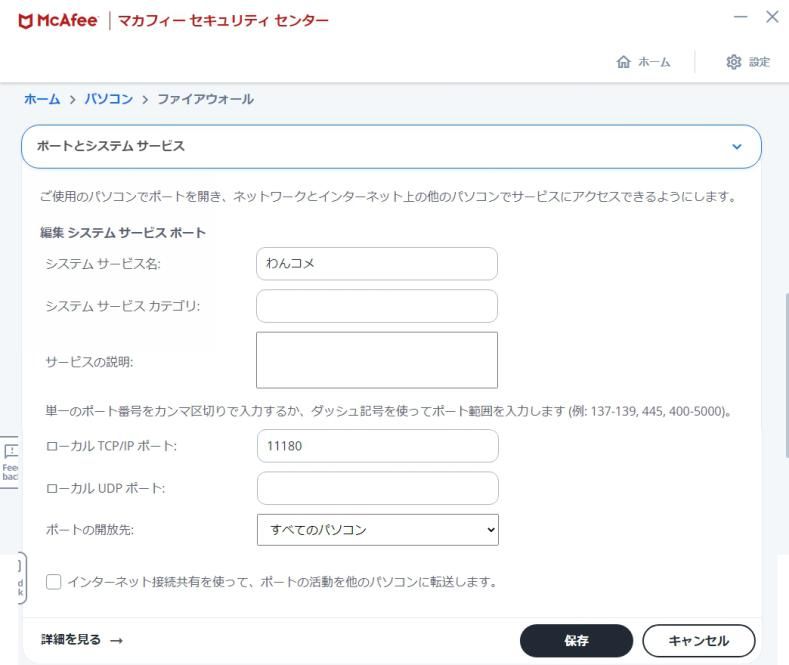 Ports and system servicesOpens ports on your PC so other computers on the network and Internet can access servicesEnter single port numbers separated by commas, or use a dash for ranges (e.g. 137-139,445,400-5000Use Internet Connection Sharing to forward port activity to other computers
In other cases
We're unable to answer network configuration questions on OneComme's behalf, so please contact your network administrator or your security software vendor.
If you find a solution, please share it on the forum.
Remote View settings screen
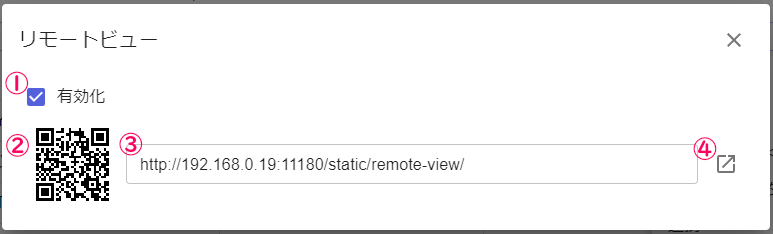 Remote ViewEnabled
| ① | Enables Remote View |
| ② | QR code for the access URL |
| ③ | Access URL for Remote View |
| ④ | Opens Remote View in your browser |