
Comment translation
Automatically translates received comments.
Starting with 9.2, comments can also be translated with a translation engine built into the app, making the feature available in the free version (through 9.1, it was PRO only).
Translation engine
Choose from the following two translation engines.
| Built-in (offline) | Translates within OneComme alone (9.2+) Once you download the translation dictionary for each language you use, no network communication is needed for translation |
| Browser (Chrome) | Translates using the AI translation built into the Chrome browser Chrome must keep a translation page open while translating |
Translation uses CPU and memory, so check beforehand that your system has enough headroom.
Caution
If translation is enabled in the YUKARINETTE CONNECTOR NEO integration, that takes priority and this Machine Translation is not performed. → YUKARINETTE CONNECTOR NEO integration
Translation settings
Open the OneComme top-right menu > Settings > "Translation" tab (9.2+; through 9.1 it was in the "Comments" tab).
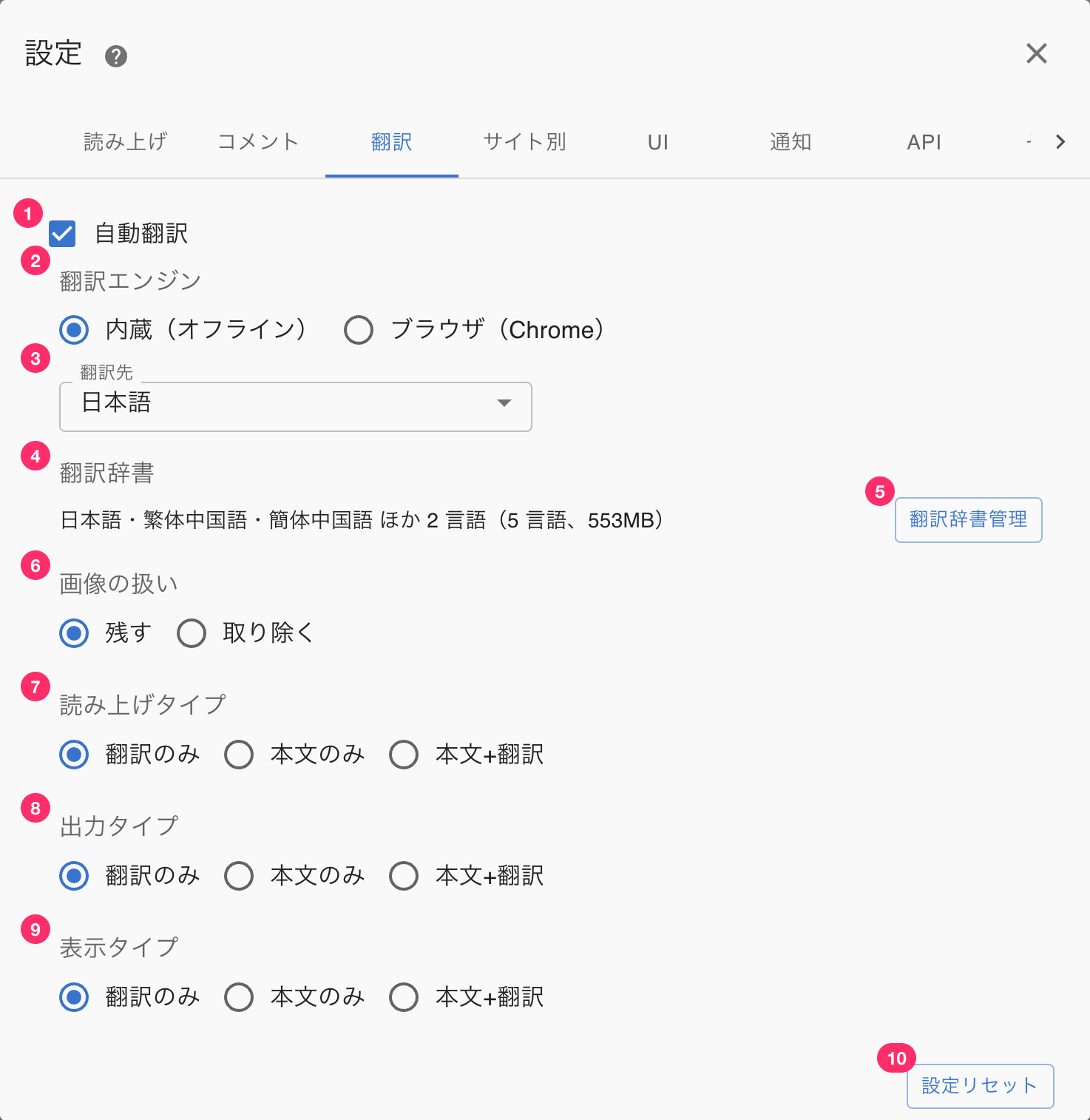 SettingsSpeechCommentsTranslateWebsite specificNotificationMachine TranslationTranslation engineBuilt-in (offline)Browser (Chrome)Translate intoJapaneseJapanese, Traditional Chinese, Simplified Chinese +2 more (5 languages, 553MBImage HandlingReading typeTranslated OnlyOriginal OnlyOriginal & TranslatedOutput typeOriginal & TranslatedDisplay typeTranslated OnlyOriginal OnlyOriginal & TranslatedManage translation dictionariesReset Settings
| ① Machine Translation | When checked, received comments are translated automatically |
| ② Translation engine | Select "Built-in (offline)" or "Browser (Chrome)" |
| ③ Target language | When Built-in is selected, choose the language to translate into You can choose from OneComme's display languages (日本語, English, 中文(繁體), 中文(簡体), ภาษาไทย, 한국어). Languages whose translation dictionary has not been downloaded cannot be selected (English needs no dictionary) |
| ④ Translation dictionary | When Built-in is selected, shows the downloaded languages and their size |
| ⑤ Translation dictionary management | Opens the screen for downloading and deleting the translation dictionary for each language (see below) |
| URL (no image) | When Browser is selected, this is shown instead of ③–⑤ Open the displayed URL in Chrome (see below) |
| ⑥ Image handling | Choose whether to "keep" or "remove" emote and emoji images in comments from the translated text |
| ⑦ Reading type | Selects what is read aloud when a translated comment is spoken Translated Only - If the comment was translated, only the translation is read (if it was not a translation target, the original text is read) Original Only - Only the original text is read, even if it was translated Original + Translated - Both the original text and the translation are read |
| ⑧ Output type | Choose what is written out to Templates from "Translated Only / Original Only / Original + Translated" (9.2+) |
| ⑨ Display type | Choose what is shown in the in-app comment list from "Translated Only / Original Only / Original + Translated" (9.2+) The text that isn't displayed can be checked by hovering over the comment's translation icon |
| ⑩ Reset Settings | Restores the "Translation" tab settings to their defaults |
You can also toggle Machine Translation on/off per stream → Settings per stream
Translate with Built-in (offline)
Downloading translation dictionaries
To use built-in translation, you need to download the translation dictionary for each language you want to translate.
- In the "Translation" tab, check "Machine Translation" and select "Built-in (offline)" as the translation engine.
- Press "Translation dictionary management".
- Press the download icon in the rows for the source language (the comment's language) and the target language. (You can also check multiple languages and download them together with the download icon at the top.)
- When the download finishes, select the language you want to translate into under "Target language".
Translation works only when the dictionaries for both the source and target languages are already downloaded (or the language is English).
For example, to translate Korean comments into Japanese, you need both the Korean and Japanese dictionaries. To translate English comments into Japanese, the Japanese dictionary alone is enough.
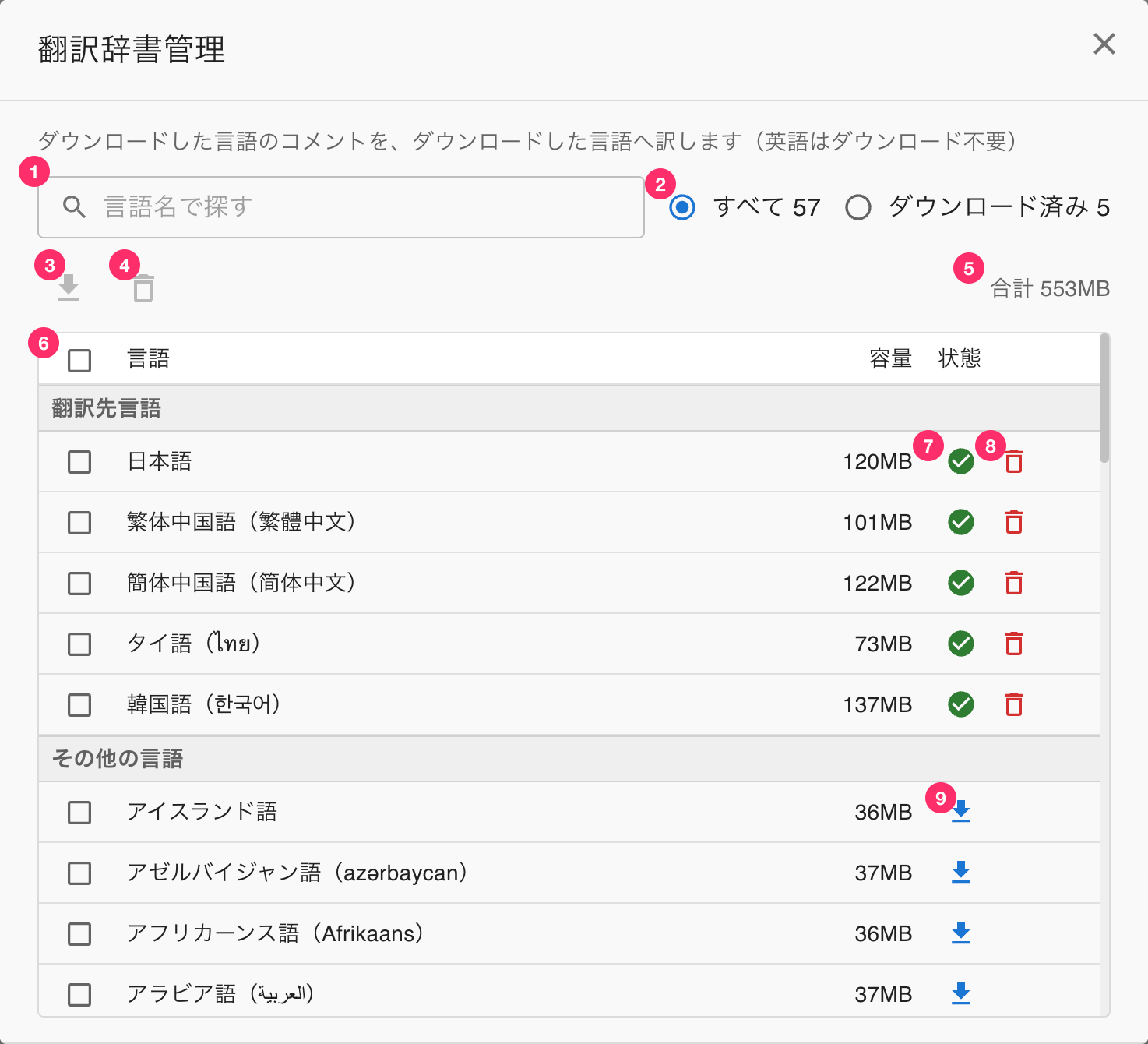 Manage translation dictionariesComments in downloaded languages are translated into downloaded languages (English needs no download).Search by language nameLanguageJapaneseTraditional Chinese (繁體中文Simplified Chinese (简体中文Other languagesIcelandicAzerbaijani (azarbaycanAfrikaans (AfrikaansSizeStatus
| ① Search | Filter the list by language name (its native name, Japanese name, or English name) or language code |
| ② Display toggle | Switch between showing "All" languages or only "Downloaded" languages |
| ③ Download selected languages | Downloads the translation dictionaries for all checked languages at once |
| ④ Delete selected languages | Deletes the translation dictionaries for all checked languages at once |
| ⑤ Total | The total size of the downloaded translation dictionaries |
| ⑥ Select all | Selects all languages currently displayed |
| ⑦ Downloaded | Indicates that the translation dictionary for that language is downloaded If an update is available, an update icon appears; press it to update |
| ⑧ Delete | Deletes the translation dictionary for that language |
| ⑨ Download | Downloads the translation dictionary for that language. Progress is shown during the download, and you can Cancel it |
In the list, OneComme's display languages appear under "Target languages", and all other languages appear under "Other languages".
TIPS
Each dictionary is tens to over a hundred MB per language. Download only the languages you need.
The comment's language is detected automatically. Comments in the same language as the target language, and comments consisting only of numbers, symbols, or emojis, are not translated.
If loading a dictionary takes a while, such as right after enabling translation, comments may be shown untranslated in their original text.
Re-translating by choosing the source language
For short comments or comments consisting only of kanji, the language may not be detected and the comment may go untranslated, or be translated as a different language.
In that case, hover over a comment on the main screen and use the translation icon (re-translate by choosing the source language) at the right end of the buttons that appear to choose the source language and translate again (9.2+).
- The menu shows source and target combinations such as "Chinese (Traditional) → Japanese". Only downloaded languages can be selected.
- For comments that have a translation, choose "Remove translation" to remove the translated text and return to the original only.
Re-translation is available when the translation engine is Built-in and the YUKARINETTE CONNECTOR NEO integration is disabled.
Translate with Browser (Chrome)
In the "Translation" tab, check "Machine Translation" and select "Browser (Chrome)" as the translation engine.
Open the displayed URL in Chrome. (The open icon on the right opens it in your default browser.)
Caution
The languages that can be translated depend on Chrome. It may also not work in some versions, so use the latest version.
Settings on the Chrome side
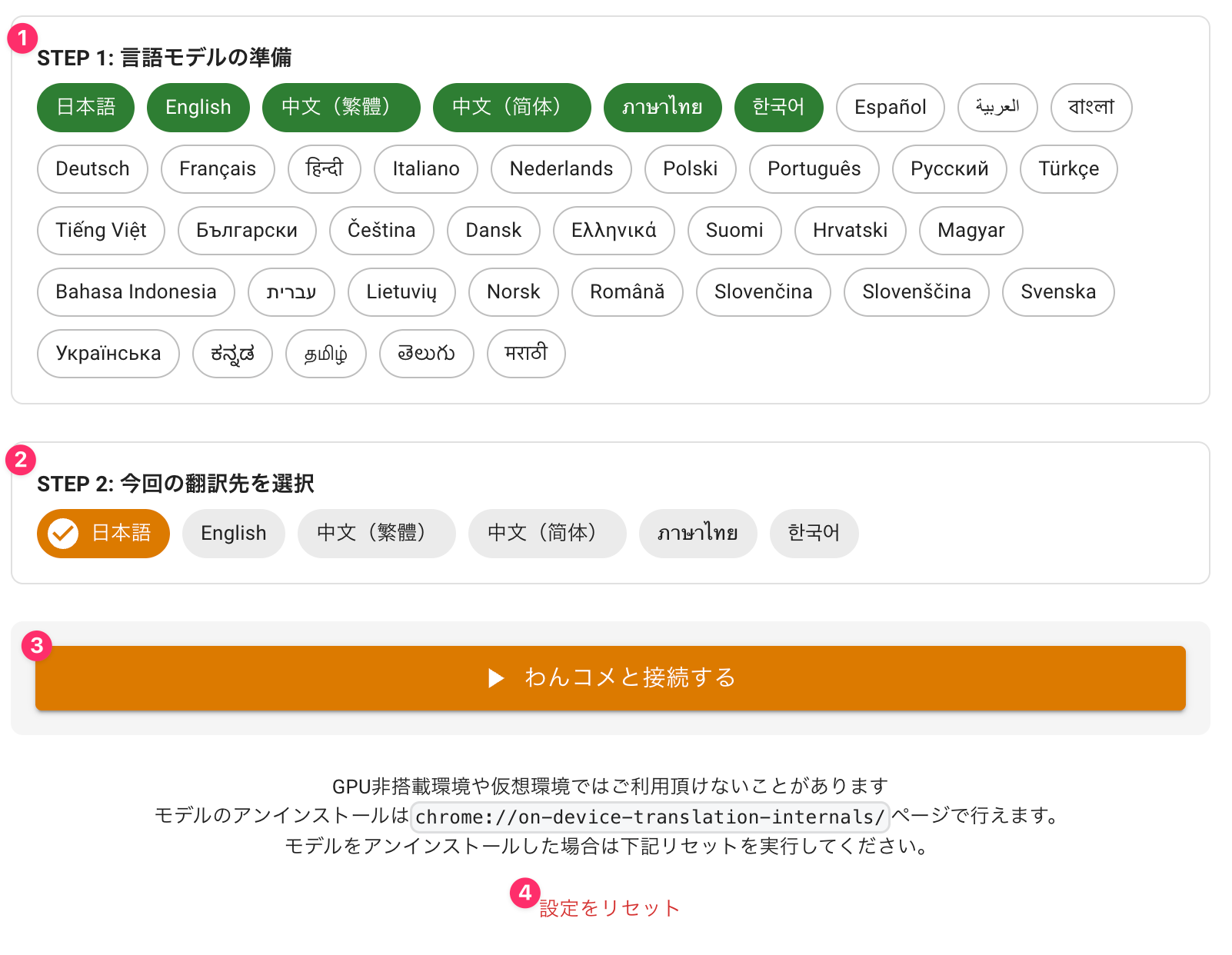 STEP 1: Prepare Language ModelJapaneseSTEP 2: Select Translation TargetJapaneseConnect to OneCommeMay not work without GPU or in virtual environmentsIf you uninstalled the model, run the reset belowReset Settings
In STEP 1, select the languages you want to translate and download the translation models.
TIPS
The more languages you select, the higher the load, so select only what you need.
In STEP 2, specify the target language.
To translate English comments and the like into Japanese, select "日本語".
When setup is complete, press "Connect to OneComme".
If it shows that it is waiting for translation, as in the figure below, you're ready.
 connected: Waiting to translateStop and Reload
Post a comment in English or another language from the Dummy Commenter to test it.
 TesTestUserhello (Hello
Caution
To translate, keep the Chrome browser visible at all times and don't close the page. Translation performance may also drop if the window is minimized or hidden.
Displaying translated comments
In the app, comments are displayed according to the Display type setting.
| Original + Translated | Displayed as "original (translation)" |
| Original Only | Shows the original text; the translation can be checked by hovering over the comment's translation icon |
| Translated Only | Shows the translation; the original text can be checked by hovering over the comment's translation icon |
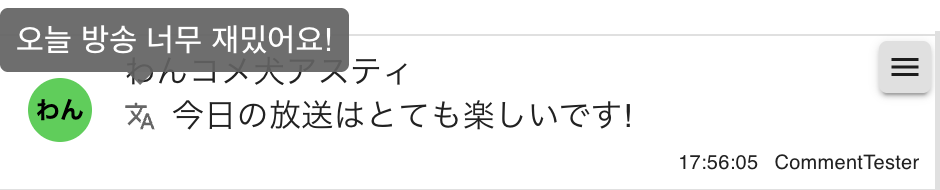 WanStiToday's stream is so fun
For comments with an OneComme translation, YouTube's own translation icon is not shown.
Display in Templates
What is written out to Templates can be switched with "Output type" (9.2+).
You can also adjust the display with the template's CSS.
Show only the translation result
.origin {
  display: none;
}
.par {
  display: none;
}
Hide the translation result
.t {
  display: none;
}