
[Speech] VOICEVOX integration
You can have OneComme's speech voice use the VOICEVOX speech synthesis engine.
VOICEVOX can be downloaded from the following site.
https://voicevox.hiroshiba.jp/
Caution
Version 0.20.0 or later is required for integration with OneComme.
Each speech synthesis voice also has its own license, so make sure to read the VOICEVOX terms of use carefully before using it.
VOICEVOX-side settings
To use the integration, the VOICEVOX app or VOICEVOX Engine must be running (engines other than VOICEVOX Engine are not supported).
Start the engine from the VOICEVOX app, or by using something like vv-engine/run in the VOICEVOX folder.
① Connect via integration
Open Integrations from the menu at the top right of OneComme.
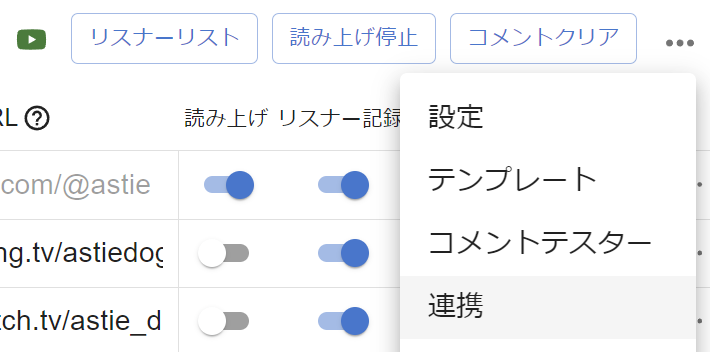 CommentersStop speechClear commentsSpeechPersistSettingsTemplatesDummy CommenterIntegration
Open the "VOICEVOX" tab.
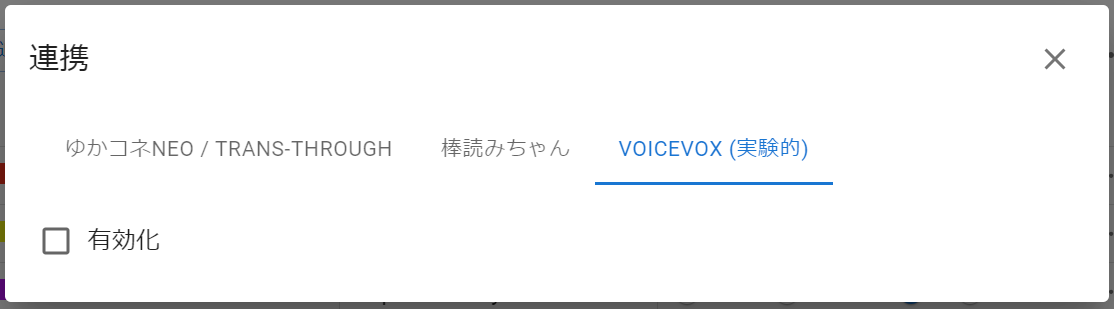 IntegrationYUKARINETTE CONNECTOR NEO / TRANS-THROUGHBouyomiChan
To use the integration, check "Enable".
When the VOICEVOX integration works, a list of Speech Voices is displayed.
If it doesn't appear, make sure VOICEVOX is running, then click the reload button next to the Speech Voice selector to fetch the list again.
Select a voice and click "Test Connection". If the voice is spoken, the connection is complete.
② Select it as the Text-To-Speech Engine
If the Default Text-To-Speech Engine is still "Built-In Voice Engine", VOICEVOX is automatically selected as the Default Text-To-Speech Engine when you enable the integration.
If another engine is already set as the default, it is not switched automatically, so select VOICEVOX using one of the methods below.
Open "Speech Settings" and select VOICEVOX in "Default Text-To-Speech Engine" to use VOICEVOX for all streams. To use different engines per stream, select VOICEVOX in "Text-To-Speech Engine" under "Individual options".
If VOICEVOX isn't selected as the engine anywhere, nothing is spoken with VOICEVOX even if the integration is enabled.
Also, if you disable an integration that was enabled, the Default Text-To-Speech Engine is automatically reselected from the remaining engines.
Settings
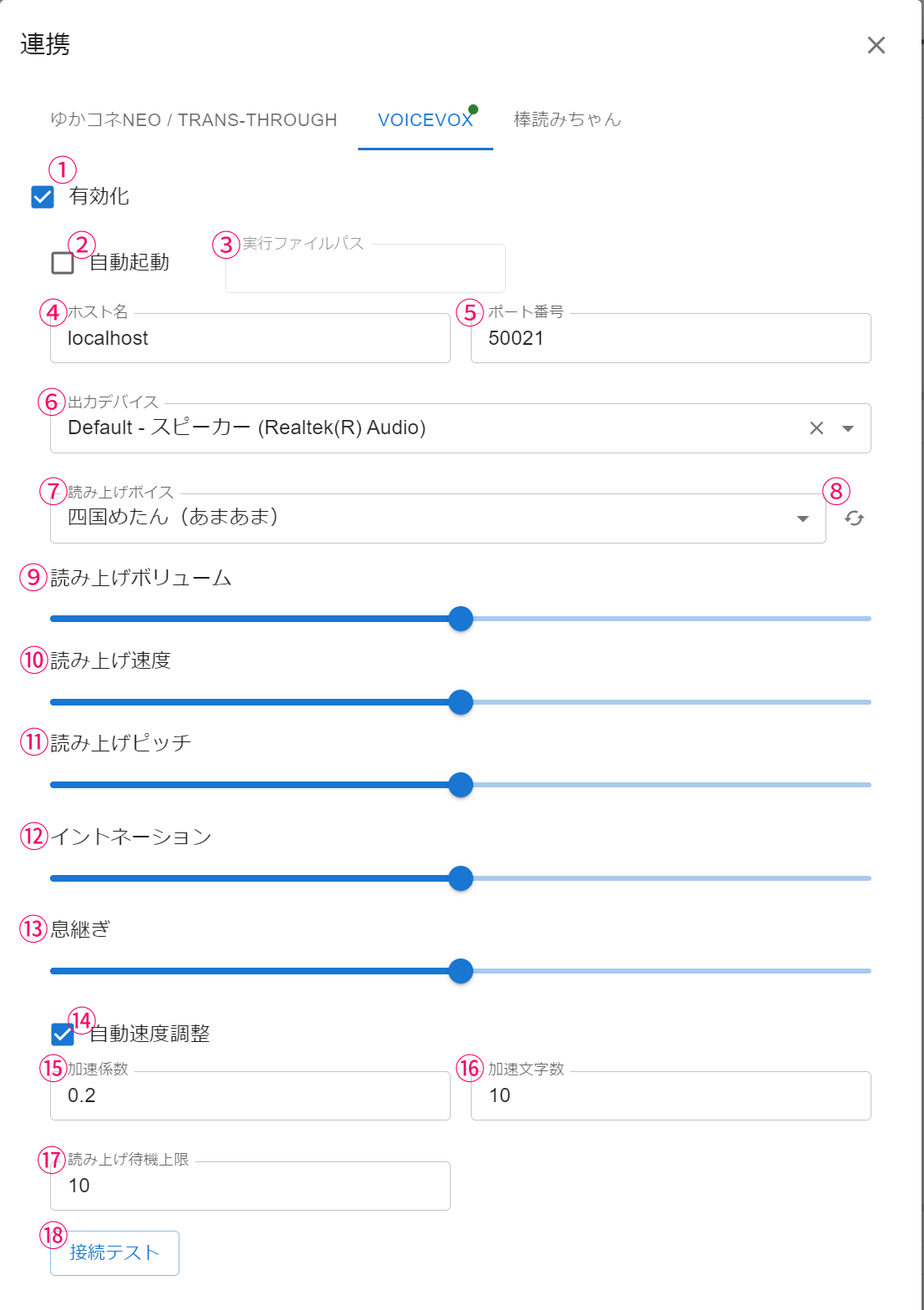 IntegrationYUKARINETTE CONNECTOR NEO /TRANS-THROUGHBouyomiChanEnabledExecutable File PathAuto RunHostnameOutput DeviceSpeech VoiceShikoku Metan (SweetSpeech VolumePort10 Speech SpeedSpeech Voice PitchIntonationAutomatic Speed Adjustment17 Maximum Queued ItemsTest ConnectionAccelerated Character Count
| ① Enable | Enable speech using VOICEVOX |
| ② Auto Run | Launch VOICEVOX when OneComme starts If you don't need the GUI, we recommend setting the engine's executable file *If launched automatically, it closes automatically when OneComme is closed |
| ③ Executable File Path | Specify the VOICEVOX executable file (such as VOICEVOX.exe or run.exe) (*1) |
| ④ Hostname | Hostname to connect to (normally no change needed) |
| ⑤ Port | Port of VOICEVOX's local HTTP server (normally no change needed) |
| ⑥ Output Device | Select the device that plays the Speech Voice If none is selected, playback uses the Default Device |
| ⑦ Speech Voice | Voice used for speech |
| ⑧ Reload | Fetch the list of Speech Voices from VOICEVOX again |
| ⑨ Speech Volume | Adjust the speech volume |
| ⑩ Speech Speed | Adjust the speech speed |
| ⑪ Speech Voice Pitch | Adjust the speech pitch |
| ⑫ Intonation | Adjust the speech intonation |
| ⑬ Taking A Breath | Adjust the pauses for taking a breath in speech |
| ⑭ Automatic Speed Adjustment | Automatically adjust the speech speed according to length |
| ⑮ Acceleration Coefficient | Increases the speed by the specified coefficient for every number of characters set in ⑯ |
| ⑯ Accelerated Character Count | Increases the speed for every specified number of characters |
Streaming playback (9.2+)
Streaming speech synthesis in VOICEVOX 0.26 and later is now supported. Because audio is played while it is being received in small pieces, the wait before speech starts can be shortened.
Under "Speech Voice", choose from the following three options in "Streaming playback" (not shown in the image above).
| Stable | Does not use streaming; generates the entire audio first and then plays it, as before (default) |
| Balanced | Plays with streaming. A setting that balances wait time and stability |
| Low latency | Plays with streaming and minimizes the wait before speech starts |
- This can be selected only when the connected VOICEVOX is 0.26 or later and the selected Speech Voice supports streaming. If it is not supported, the setting is fixed to "Stable".
- If speech is unstable, such as cutting out, switch to "Balanced" or "Stable". | ⑰ Maximum Queued Items | To keep speech from backing up, older items are automatically skipped when the specified number has accumulated | | ⑱ Test Connection | Run a speech connection test |
*1 - On a Mac, you can set up auto-run with the following steps.
- Right Click the VOICEVOX app to open the menu
- While the menu is open, hold down the option key
- Select "Copy "VOICEVOX" as Pathname"
- Paste the copied path into the Executable File Path field for Auto Run
Specifications --
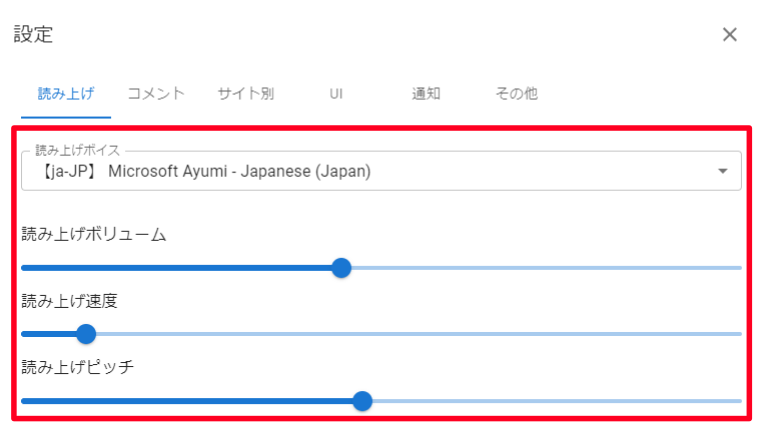
While VOICEVOX is selected as the Text-To-Speech Engine, the settings in the red frame in the image below (Built-In Voice Engine Settings) under Settings > Speech are not used.
 SettingsSpeechCommentsWebsite specificNotificationOthersSpeech VoiceSpeech VolumeSpeech SpeedSpeech Voice Pitch
Settings such as whether to include the name in the spoken text (Syntax for speech) and character limits continue to work regardless of which engine is selected.
Use the preview or similar to check that it works.
Speech settings per stream
If you select VOICEVOX in "Text-To-Speech Engine" under Individual options, you can override the Speech Voice and settings per stream.
For details, see "Individual options".