
初回セットアップ
This page explains the steps for the initial setup that appears the first time you launch the app.
Language selection
When you launch OneComme for the first time, the Initial setup screen appears.
First, choose the language to use in the app, then click "Next" (9.2 and later).
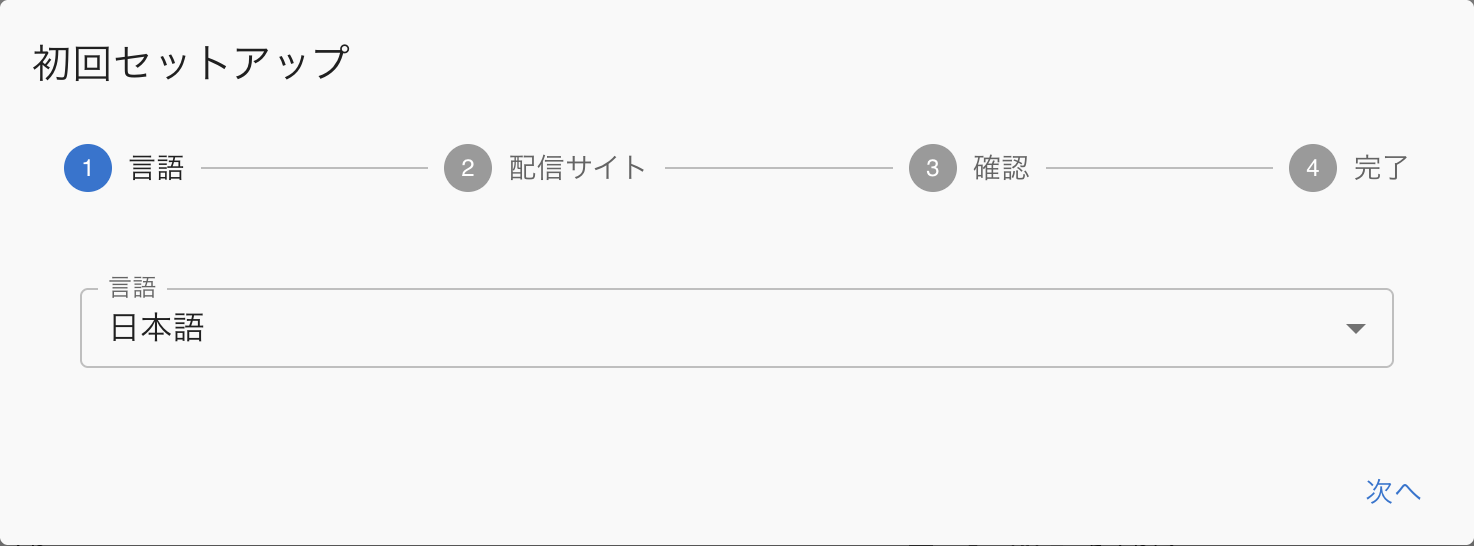 Initial setupLanguageLanguageJapaneseConfirmCompleteNext
TIPS
You can change the language later from Settings > Other.
Platform registration
Next, the screen for registering the platforms you plan to stream on appears.
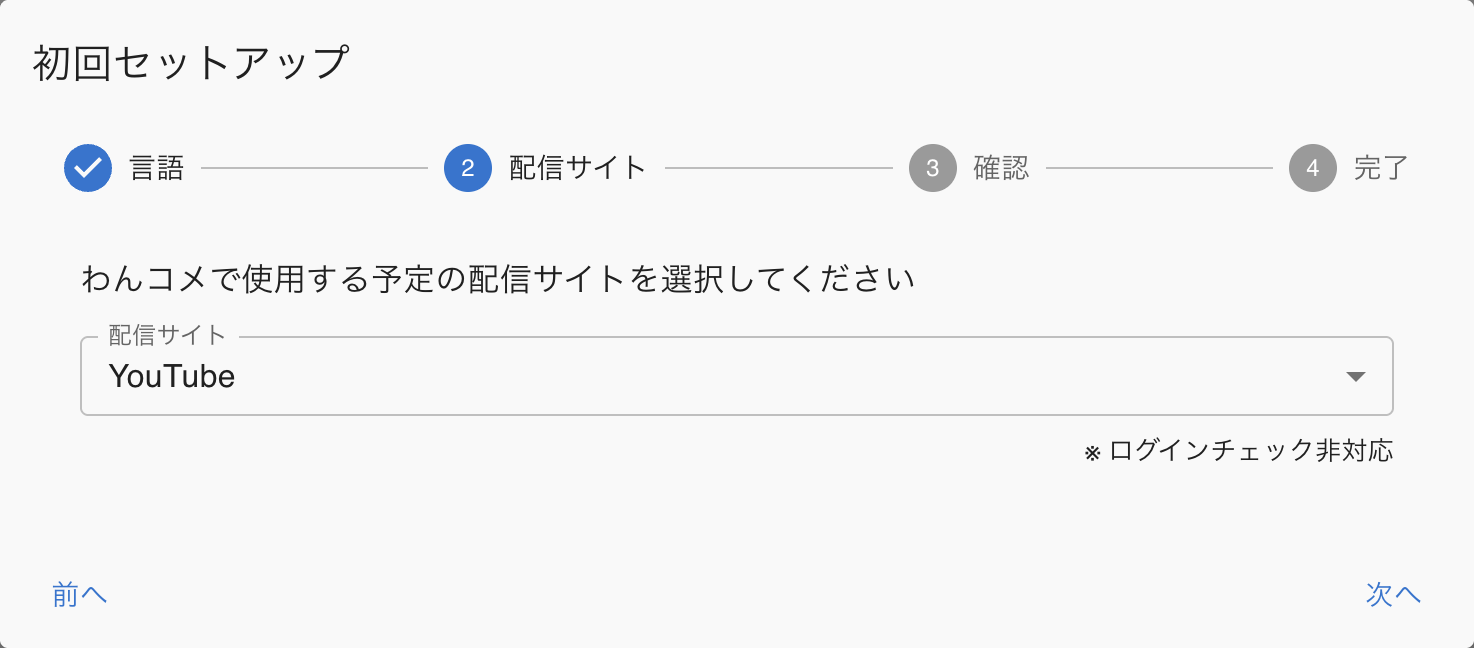 Initial setupLanguagePlease select platforms you broadcast to.Select PlatformsLogin check not supportedPreviousNext
Registering and logging in to the platforms you plan to stream on lets you fetch comments that would otherwise require it (such as held comments on YouTube) and comments from members-only streams, so it's recommended to register them in advance.
TIPS
You can change your registered platforms later from Settings > Website specific.
Click the platforms you plan to stream on to select them.
Caution
Platforms marked with "※" do not support login status checks, so OneComme cannot tell whether you are logged in.
Once you've made your selections, click "Next".
Logging in to streaming platforms
Next, log in to the platforms you registered.
For any platform showing "Not logged in", click "Open in web browser" to open it.
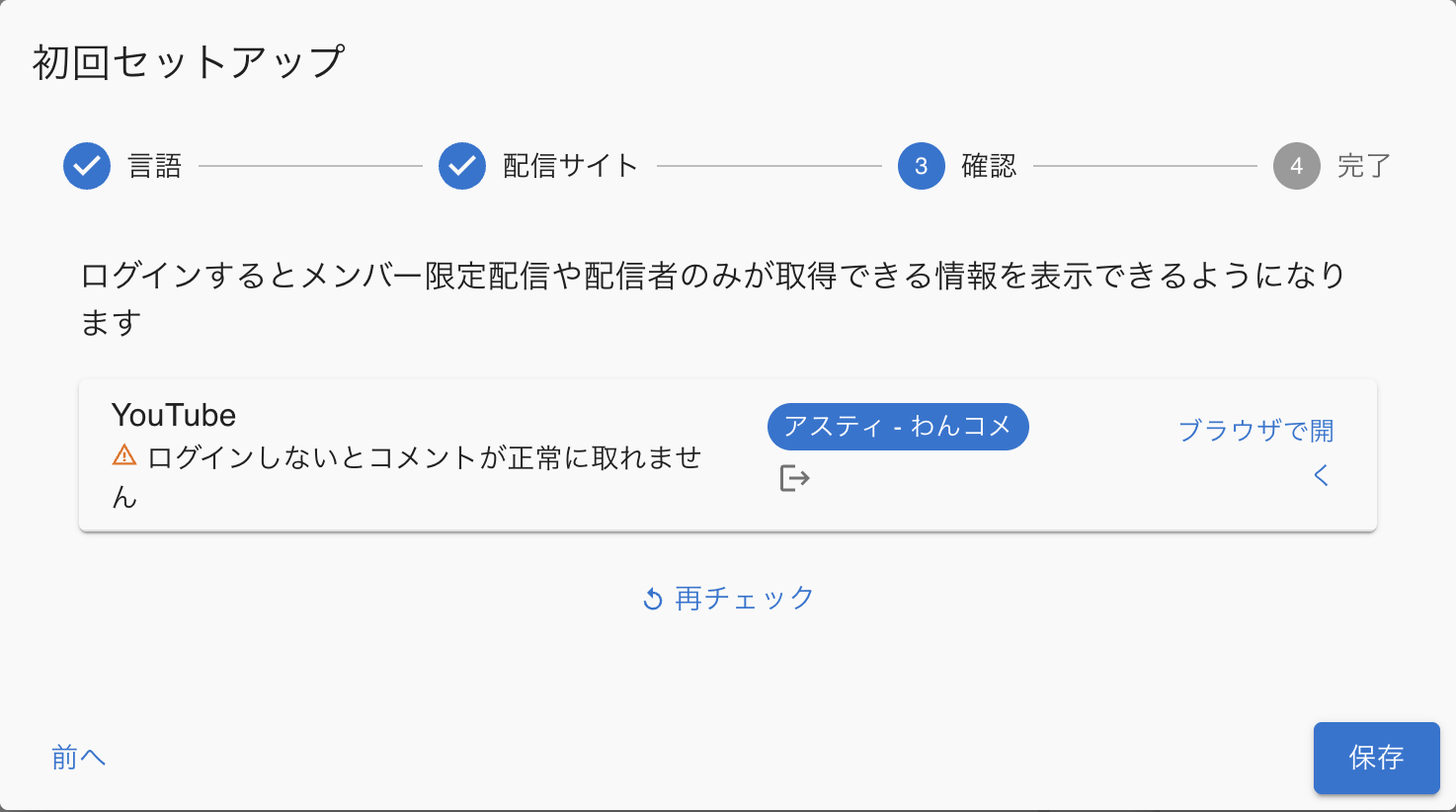 Initial setupLanguageSelect PlatformsConfirmLogging in lets you view member-only streams and streamer-only infosoftwareWithout logging in, comments won't load properlyOpen in web browserRecheckPreviousSave
The platform's login page opens, so log in there.
↓ Example of logging in to YouTube
 AllHomeGamesSearchLiveMusicRecently uploaded videosNew videos
Once login completes successfully, click the x in the top right to close this window.
For platforms that support login checks, the name of the logged-in account is displayed.
(The screenshot above shows a state where you're already logged in to YouTube.)
Caution
If logging in doesn't result in an OK status, click "Recheck" once.
Repeat this for the other platforms to log in to each of them.
Once you're done with all of them, click "Save".
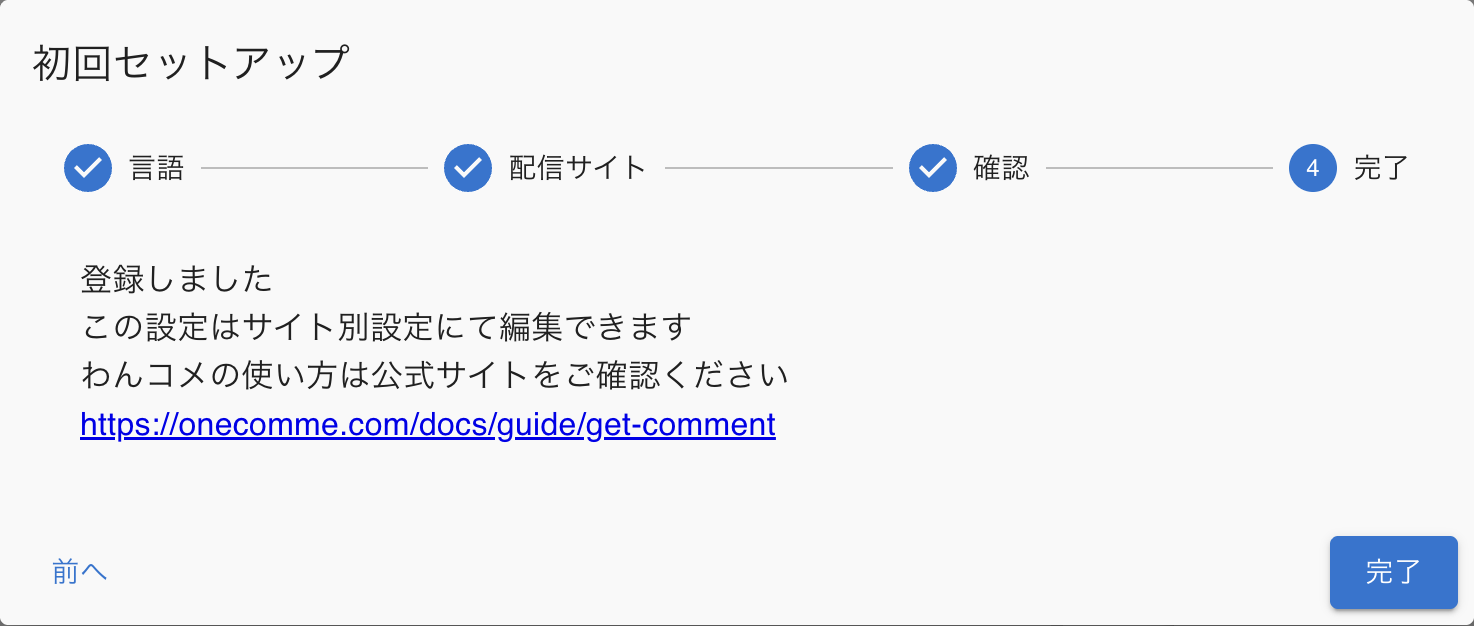 Initial setupLanguageSelect PlatformsSavedEdit this in Website specific settingsPlease visit OneComme's official HP to check how to use it.PreviousCompleteComplete
Click "Finish" to complete the initial setup.
Checking login status
If you have registered platforms, a checkmark or a "!" mark is displayed at the top of OneComme.
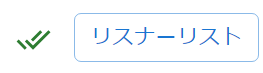 Commenters
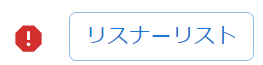 Commenters
If a "!" mark is displayed, there is a platform you aren't logged in to.
Click the "!" mark and log in to the platform that isn't logged in.
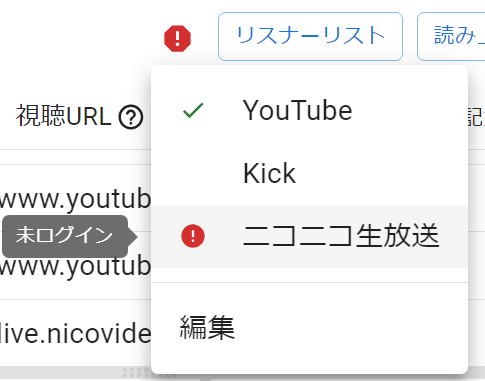 Stream URLCommentersNicoNicoLive
Running the initial setup again
You can run the initial setup again from the top-right menu > Other > Initial setup (this will not reset any of your settings).
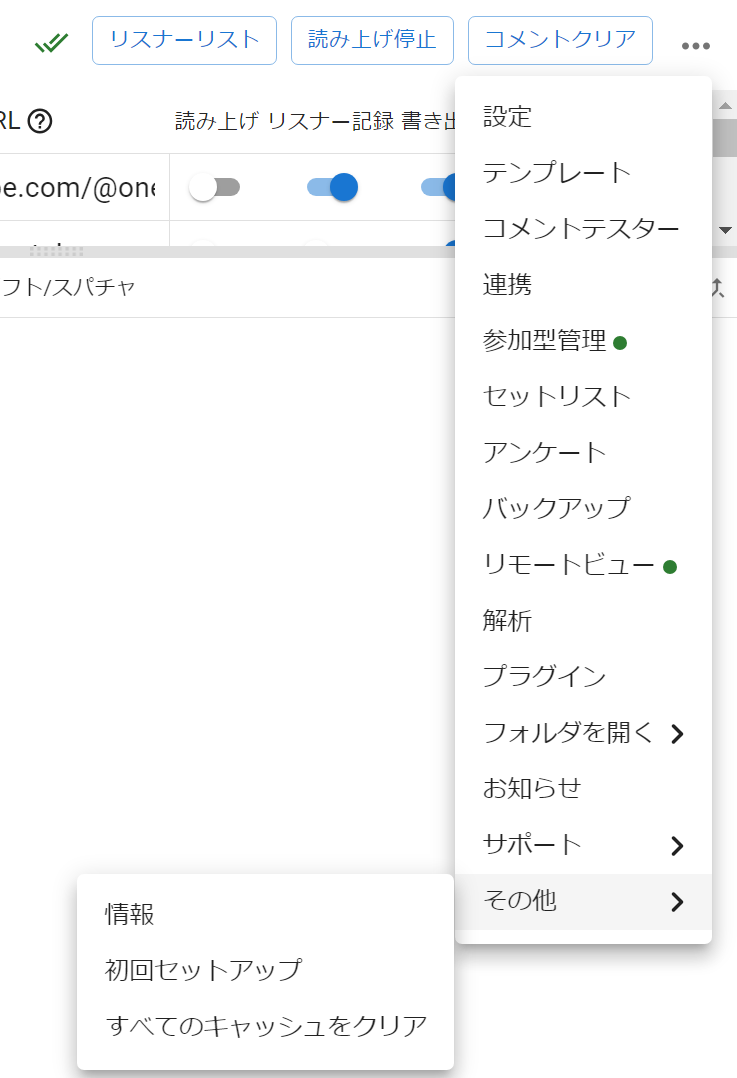 CommentersStop speechGifts/Super ChatInfoInitial setupClear all caches.Clear commentsSettingsTemplatesDummy CommenterIntegrationViewer-participating SystemSetlistPollBackupRemote ViewAnalyticsPluginsOpen folderNoticeSupportOthers
Related information
If you want to add or change platforms later for the settings configured during the initial setup, platform settings can be found under Website specific in Settings.
You can add or remove platforms there.
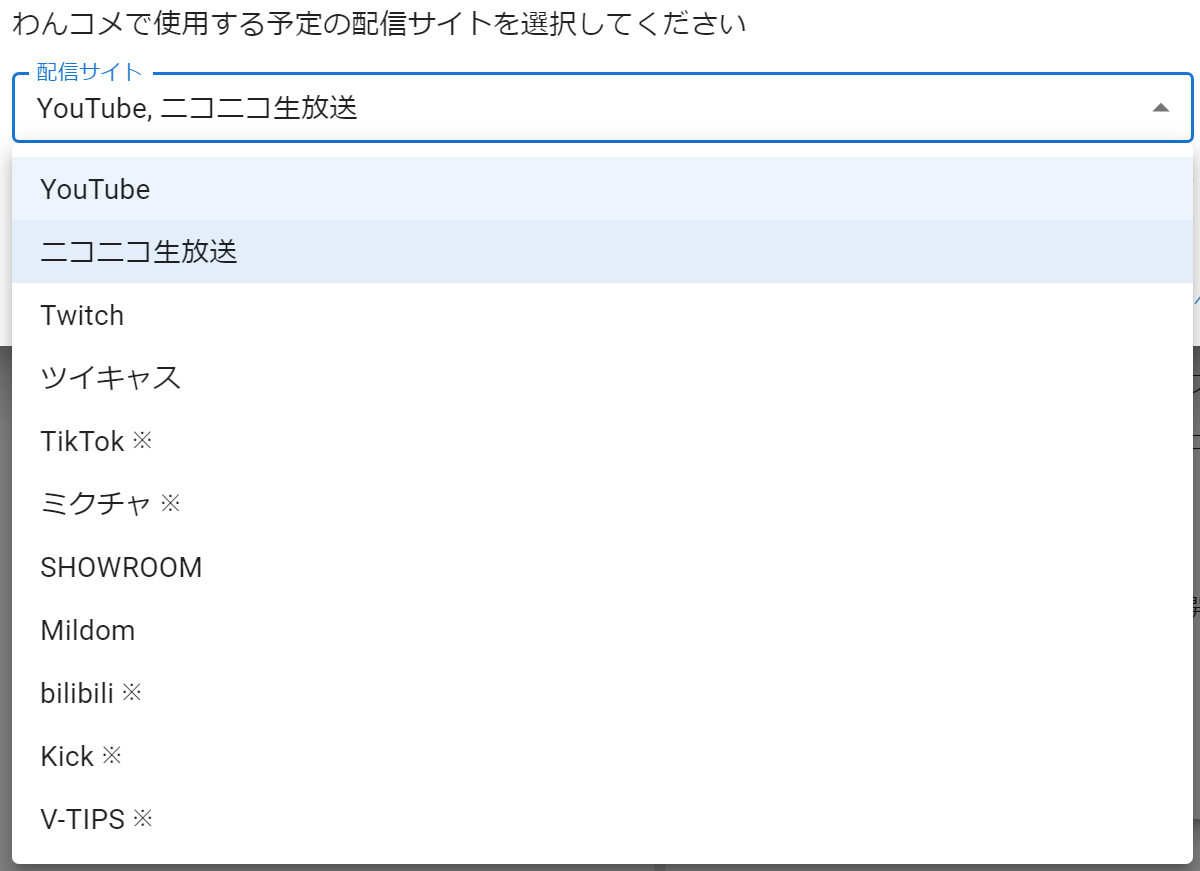 Please select platforms you broadcast to.Select PlatformsYouTube, NicoNicoLiveNicoNicoLiveTwitCastingMIXCHANNEL