
Understanding the main screen
What the main screen of the OneComme app shows and how to read it
App screen (overview)
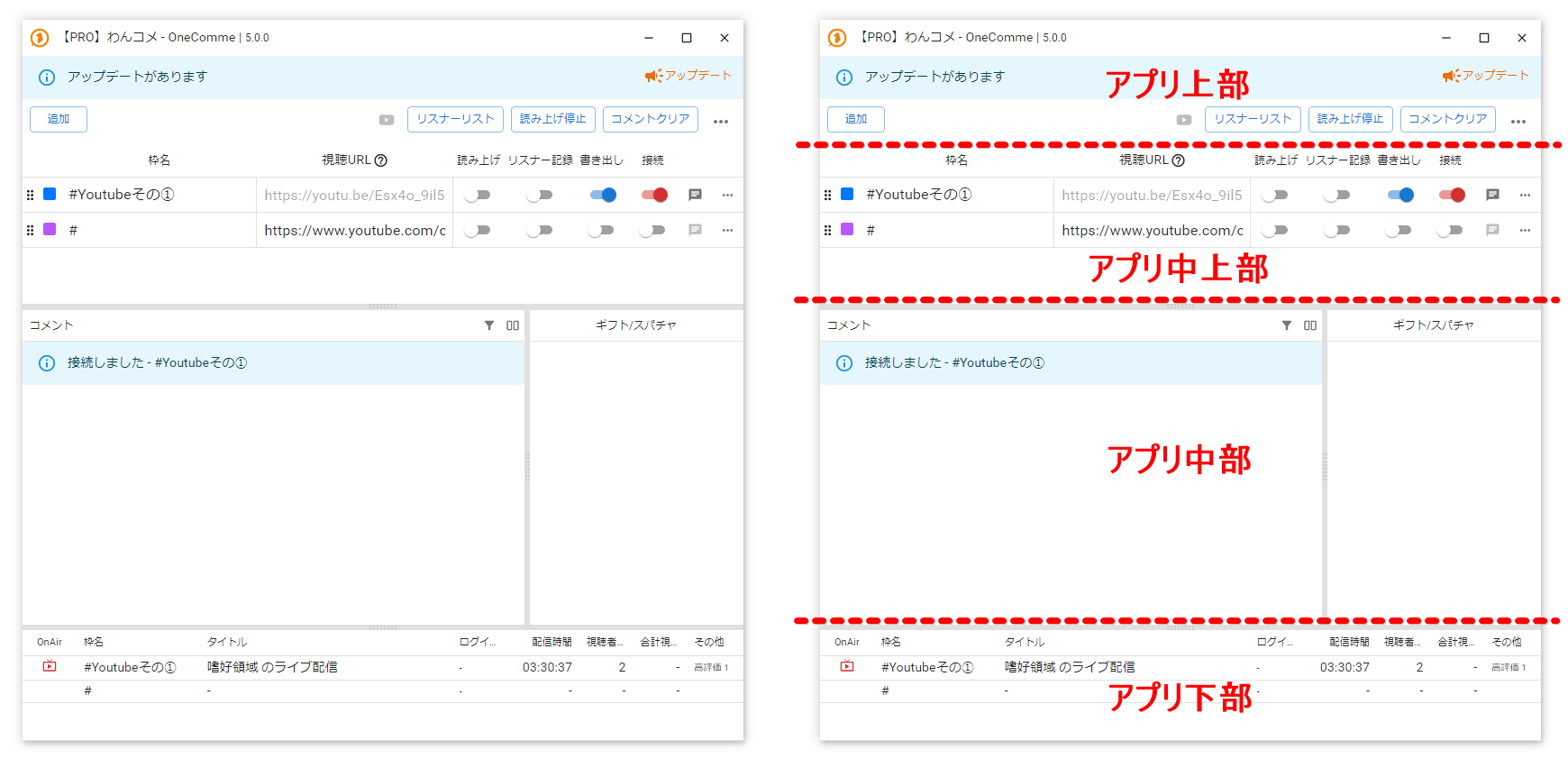 Update(s) availableAddStream NameCommentersStop speechClear commentsStream URLSpeechPersistExportConnectCommentsGift/SuperChatStream NameYouTube etcTitleLive stream in preferred genreUpdate(s) availableAddStream NameCommentersStop speechClear commentsStream URLSpeechPersistExportConnectApp upper-middleCommentsGift/SuperChatApp middleStream NameTitleLive stream in preferred genreApp bottomOthersLike 1
App screen (overview): description of each area
| Top of the app | Contains the title bar, the update notification area, and the menu bar |
| Upper middle of the app | The area with the list of "streams" ※In the OneComme app, "stream" is a specific term: each "stream" is set up and managed with one broadcast (Stream URL) linked to it |
| Middle of the app | Displays the comments retrieved from the broadcasts (Stream URL) set on your "streams" Comments from all "streams" are shown together in order of posting time |
| Bottom of the app | Displays various information obtained from the broadcast (Stream URL) set on each "stream" |
Top of the app
Description of each item at the top of the app

On macOS, it looks like this

Title bar
(Topmost row of the top section)
Shows the OneComme logo, the app name, and version information
If you use PRO, "[PRO]" appears at the beginning of the app name
| ① Version number | The version of the application you are currently using Always required when asking for support on the Forum |
| ② Always on top | Keeps OneComme in front of other windows ※It is not shown above full-screen apps |
| ③ PiP display | Switches the OneComme app to the simple PiP display PiP display automatically keeps the window always on top |
Update notification area
(Middle row of the top section, the light-blue part)
If your current OneComme is not the latest version, a message saying an update is available appears
Click anywhere on the light-blue part to open the "Update available" screen and proceed with the update
If you are using the latest version, the notification area itself is hidden
 Update(s) availableUpdate
・"Update available" screen
Clicking the update notification area displays the screen shown below
Click the "Notice" button to open the Notice screen, where you can check update information and more
(※The Notice screen is the same one opened from "Notice" in the "top-right menu")
Click "Update" and the download starts automatically right away, with no need to choose a save location, and the progress (percentage) is displayed
When the download completes, installation starts automatically without any confirmation or action. "Preparing to install" is displayed for a while (about 30 to 60 seconds), after which the app restarts automatically
※For details on how to update, see the guide page → How to update
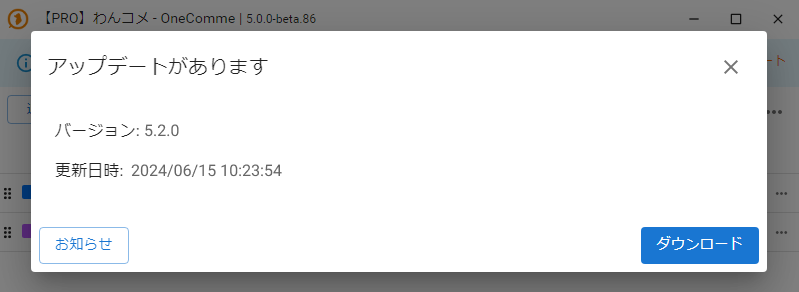 Update(s) availableVersion: 5.2.0Updated: 2024/06/15 10:23:54NoticeDownload
Menu bar
(List of buttons in the bottom row of the top section)
Menu bar screen
 AddCommentersStop speechClear comments
Menu bar button descriptions
| ① Add | Adds a new empty stream to the stream list |
| ② PRO mark | Indicates that you are using PRO |
| ③ (Login icon) (icon position of the [!] mark) | An icon such as [!], ✔, or →] is displayed depending on the Login Status of each platform registered from the OneComme app Clicking it opens a window where you can check the Login Status of each platform and log in (for details, see Checking login status) |
| ④ Commenters | Displays the list of users who have commented (see Commenters screen) |
| ⑤ Stop speech | Clears the text waiting to be spoken and stops Speech Even after clearing, Speech continues with newly retrieved comments (When using BouyomiChan integration, stop it on the BouyomiChan side) |
| ⑥ Clear comments | Deletes the retrieved comments (Nicknames and notes are not deleted) |
| ⑦ ・・・ (top-right menu) | Displays a menu for settings and more (※Details in the next section) |
- - Image of the top-right menu items
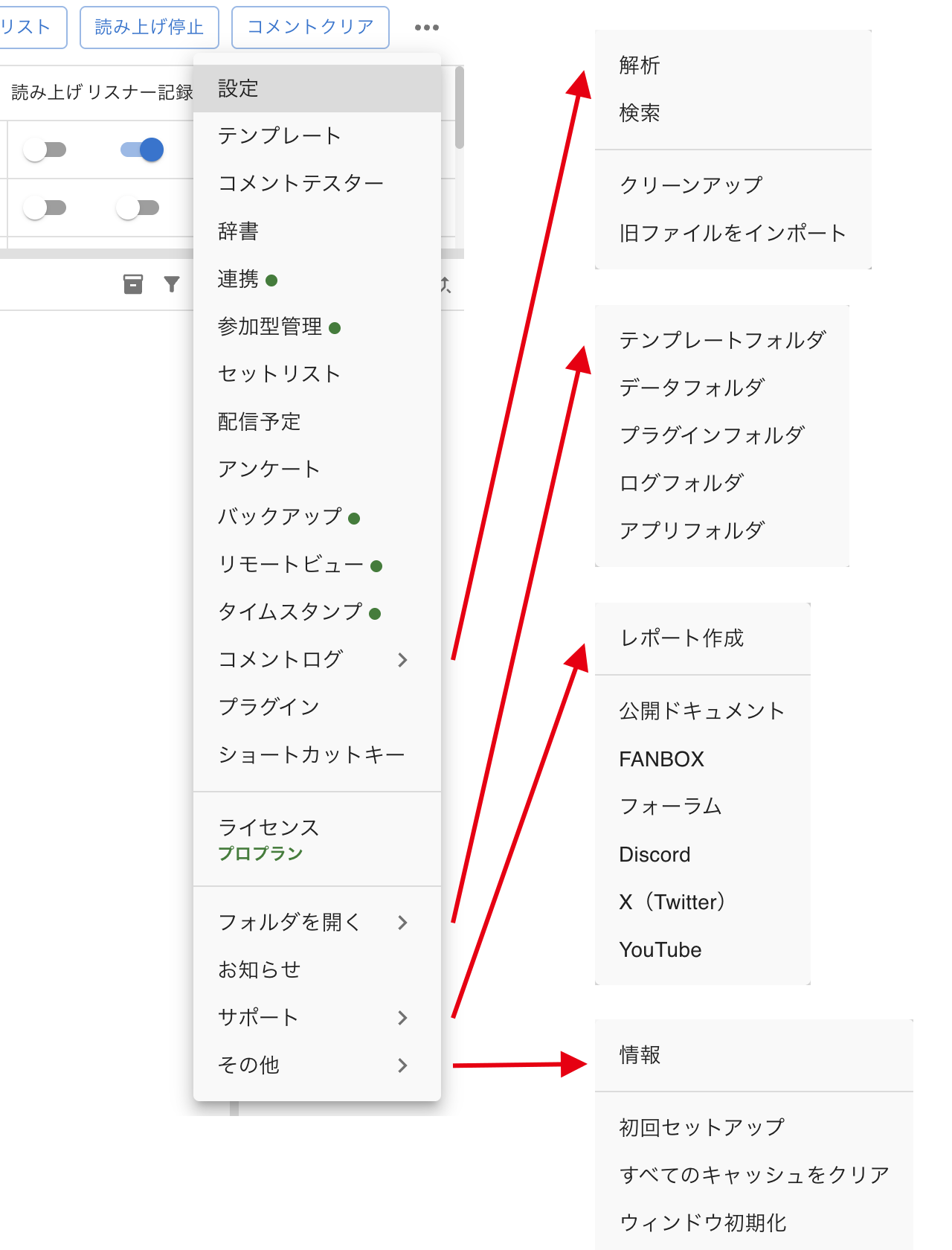 Stop speechSpeechPersistClear commentsSettingsTemplatesDummy CommenterDictionaryIntegrationViewer-participating SystemSetlistStream SchedulePollBackupRemote ViewTimestampsComment LogPluginsShortcut KeysAnalyticsSearchCleanupImport Old FilesTemplatesDataPlugins' FolderLogAppSave report fileLicensePro PlanOpen folderNoticeSupportOthersDocumentationForumX(Twitter)InfoInitial setupClear all caches.Window Initialization
- - Description of the top-right menu items
| Settings | Opens the app settings screen → Screen and settings |
| Templates | Opens the template window for OBS → Templates feature |
| Dummy Commenter | Opens the Dummy Commenter for checking the display → Dummy Commenter feature |
| Dictionary | Opens the dictionary window for Speech and conversion → Dictionary feature |
| Integration | Opens the settings screen for external integration Click the tab for each integration and check "Enable" to configure the settings for that integration The integration tabs are grouped into the categories Speech / Translation / Data retrieval / Other ※Integration is only a gateway for connection to external services. The speech engine itself is selected in "Speech Settings" or "Individual options" → YUKARINETTE CONNECTOR NEO integration / → BouyomiChan integration |
| Viewer-participating System | Opens the screen for the Viewer-participating System → Viewer-participating System |
| Setlist | Opens the Setlist screen → Setlist |
| Stream schedule [PRO] | Opens the list of scheduled streams for authenticated accounts (9.2+) Supports YouTube, NicoNicoLive, Twitch, Fuwatch, bilibili, and TwitCasting, and you can switch platforms to check schedules From the icon at the right end of a row, you can copy the stream information in the format specified by "Copy format" in the UI settings → UI settings |
| Poll | Opens the screen for Poll → [PRO] Poll |
| Backup | Opens the settings for backing up settings, comments, templates, and more → Automatic backup and restore |
| Remote View | Opens the screen for Remote View → [PRO] Remote View |
| Timestamps | Opens the Timestamps support window for YouTube → [PRO] Timestamps |
| Comment Log | List of features related to the Comment Log |
| - Analysis | Opens the comment analysis screen → Log analysis |
| - Search | Lets you search comments in the Comment Log → Log search |
| - Cleanup | Specify a date to delete Comment Log entries older than that date |
| - Import Old Files | Imports Comment Logs left in the 8.x or earlier format |
| Plugins | Opens the Plugins management screen |
| Keyboard shortcuts | Opens the list of available keyboard shortcuts (Keyboard shortcuts) (9.2+) → Keyboard shortcuts |
| License | Opens a dialog for registering a License Key, FANBOX authentication, and comparing plans The name of the plan you are currently using is shown in small text at the bottom of the menu item → How to register PRO |
| Open folder | Opens various folders such as the Templates folder and the Log folder |
| - Templates | Opens the folder where template files are stored |
| - Data folder | Opens the folder where OneComme stores its various data |
| - Plugins' Folder | Opens the folder where OneComme Plugins are stored |
| - Log | Opens the folder where app logs are stored |
| - App folder | Opens the folder containing the OneComme app itself (The only folder that sits in a separate hierarchy from the data folder) |
| Notice | Opens a screen showing update information and other notices |
| Support | Official links such as the official documentation and the Forum |
| - Create report | Creates a report file that you can use when reporting a problem (Save it with a name and attach or upload it to the Forum or Discord) Keyboard shortcut: Ctrl+Shift+R on Windows, ⇧⌘R on Mac (9.2+) |
| - (Other links) | Public documentation, FANBOX, Forum, Discord, X (Twitter), YouTube Clicking each opens the external site |
| Other | |
| - Information | Opens a window with information such as the OneComme app version |
| - Initial setup | Runs the Initial setup performed when the app was installed once more |
| - Clear all caches | Deletes all caches, cookies, and sessions in the app Running this logs you out of all sites |
| - Reset windows | Resets the size and position of the OneComme windows |
Upper-middle app screen (stream list)
(The second image below shows the state with translation integration enabled)
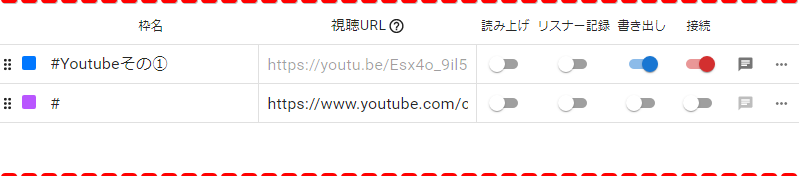 Stream NameYouTube etcStream URLSpeechPersistExportConnect
 Stream NameYouTube etcStream URLSpeechTranslatePersistExportConnect
Description of each item in the upper-middle app screen (stream list)
Reordering streams, identifying streams, and setting the Stream URL
| ⠿ (six-dot mark) | Drag and drop to reorder streams |
| ◼ (colored square icon) | Represents the color of the stream The same color is also displayed at the left edge of comments retrieved by the stream Click it to change the stream color as you like |
| Stream name | You can give each stream any name you like The stream name is also shown in the information field of comments retrieved by this stream |
| Stream URL (?) | Enter the Stream URL of the live broadcast Clicking the "(?)" icon to the right of the label opens a page where you can check the supported platforms and the list of valid URL formats for each |
 Stream NameYouTube etcStream URLSpeechTranslatePersistExportConnect
Platform comment input popup
The 🈪 button (square speech-bubble icon) opens the comment input page of the broadcast at the Stream URL
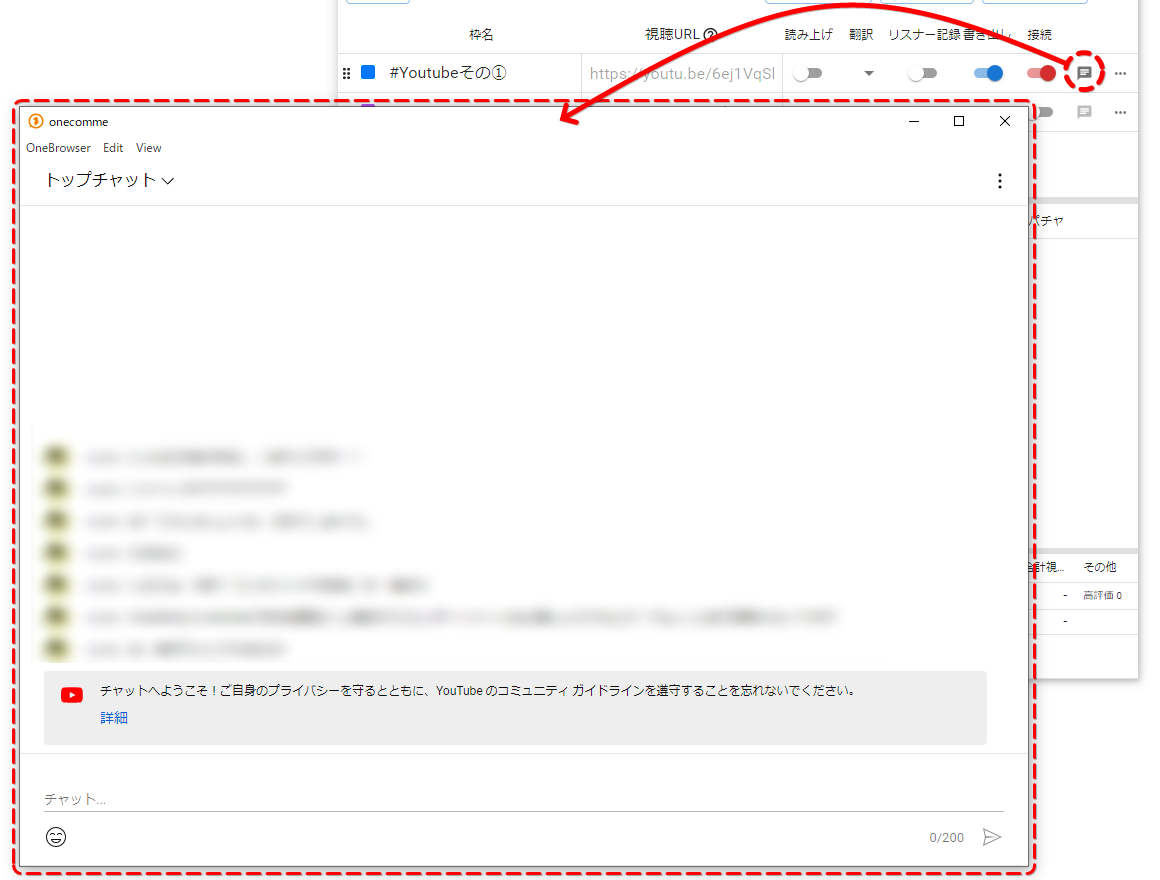 Stream NameYouTube etcTop chatChaOthersWelcome to chat! Please protect your privacy and follow YouTube's Community Guidelines
・・・ button (right end of a stream row)
The "・・・" button at the right end of a stream row displays additional features
It contains features that did not fit because of layout width
 Stream NameYouTube etcStream URLSpeech
- Individual options, Open in web browser, and deleting a stream
List of the contents of the "・・・" button
| Settings | Opens the settings screen for this stream (Individual options) → Individual options (Global settings exist separately, but you can change settings for this stream alone, as in "except that this stream does it this way") |
| Open in web browser | Opens the Stream URL in the OneComme browser (see figure below) Use this to check the display, and also when you want to log in to a platform from OneComme (For members-only broadcasts and similar, you may need to log in to retrieve comments) |
| Delete | Deletes this stream |
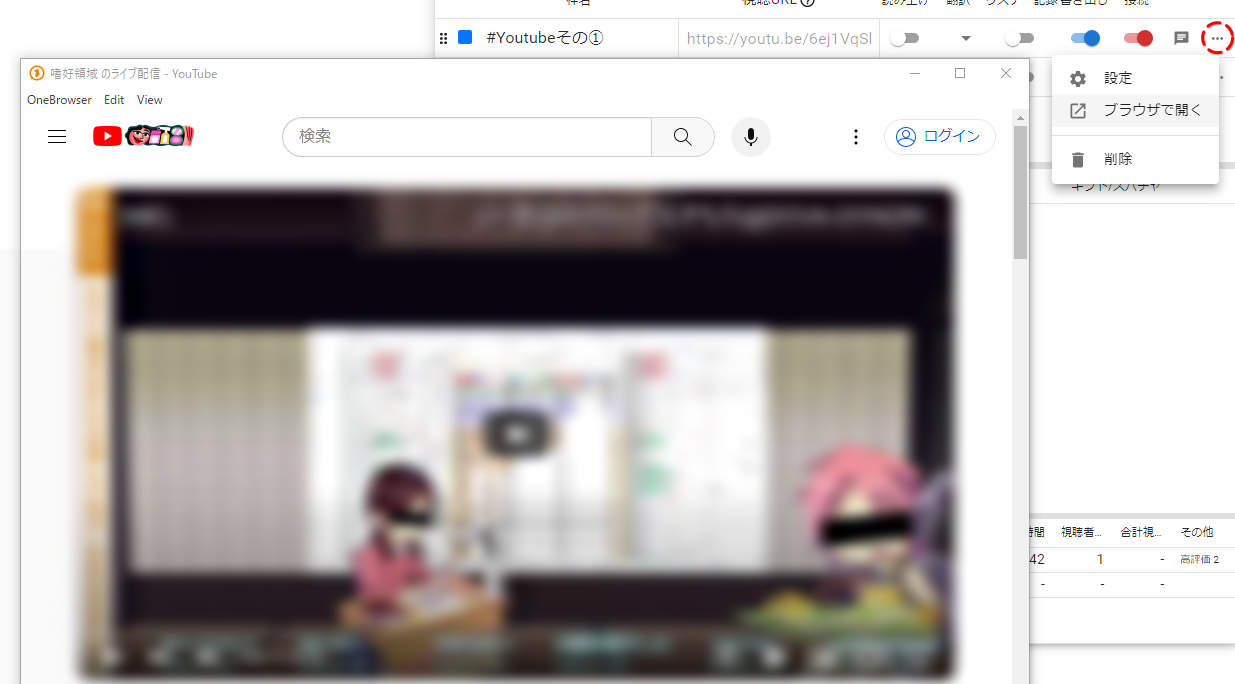 YouTube etcSearchLogged InSettingsRemoveOthers
Switches in a stream
| Speech | Reads comments aloud when they arrive (With BouyomiChan integration, comments are sent to BouyomiChan) |
| Translation (shown only under certain conditions) | Lets you specify the target language per stream Click ▼ to display the list of languages (second image below) (※⚠The Translation item appears only when translation integration is in use) |
| Persist | While checked, records the users who post comments retrieved by this stream Recording lets you tally things such as cumulative comment counts across multiple broadcasts |
| Export | Outputs comment data, usable in templates and more, outside the app (※⚠Must be checked if you want to show comments in OBS, for example) |
| Connection | Connects to the live broadcast (Stream URL) and starts retrieving comments |
 Stream NameYouTube etcStream URLSpeech
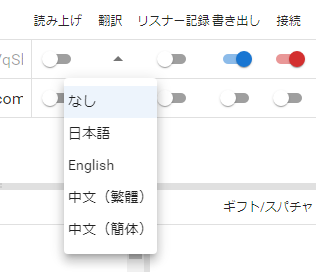 SpeechTranslatePersistExportConnectJapaneseGift/SuperChat
Middle of the app (comment display area)
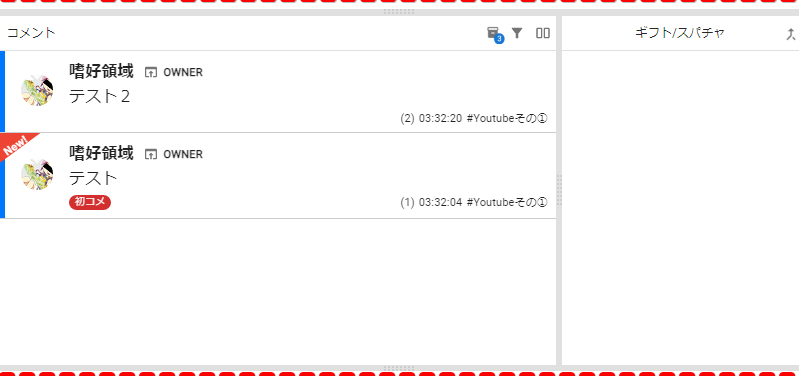 CommentsTest 2TestGift/SuperChat2) 03:32:20 =YouTube etc1) 03:32:04 =YouTube etc
Description of each item in the middle of the app (comment display area)
Menus and operations of the comment display area
- Comments (column)
Both the comment column and the comment lane
display comments retrieved from streams in chronological order
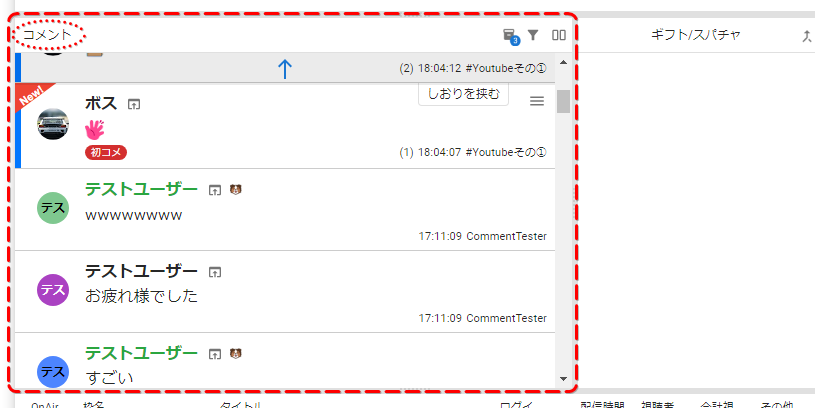 TesNewcomerTestUserTestUserGood workTesTestUserAmazingGift/SuperChat2) 18:04:12 #YouTube etcBookmark1) 18:04:07 =YouTube etc
- Stocked comments
Opens the Stocked comments window
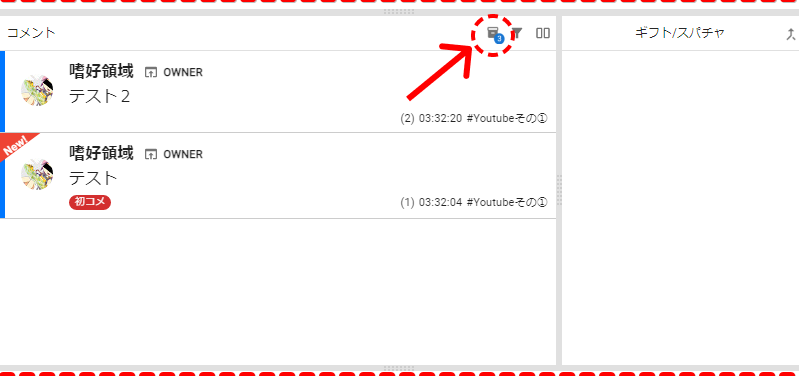 CommentsTest 2TestGift/SuperChat2) 03:32:20 =YouTube etc1) 03:32:04 =YouTube etc
- Conditions
Lets you search comments (filtered display)
Click the conditions icon (arrow in the figure below) to display the search panel (dashed part in the second figure below)
(Each click on the conditions icon toggles the panel on and off)
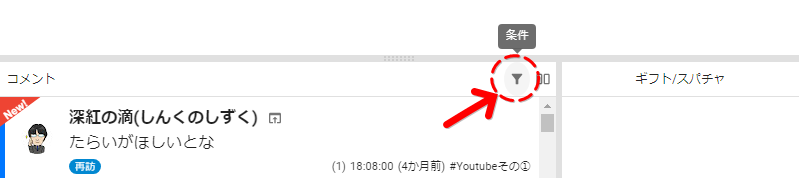 CommentsFilterWant a tubGift/SuperChat
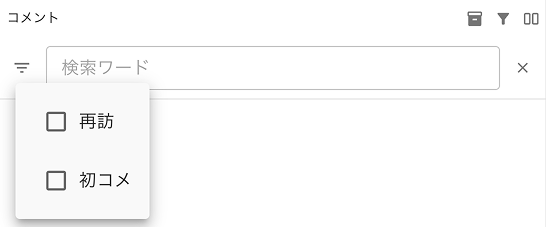 CommentsSearch for...
Description of the conditions (comment filtering) items
| Returning | Displays comments with the "Returning" label |
| Newcomer | Displays comments with the Newcomer label |
| Search for... | Displays only comments whose name or text contains the search word |
| ✕ button | Closes the comment search panel |
- Split in two
Splits the comment display area into two
Click the icon in the figure below to switch to the split layout (second figure)
 CommentsSplitWant a tubGift/SuperChat
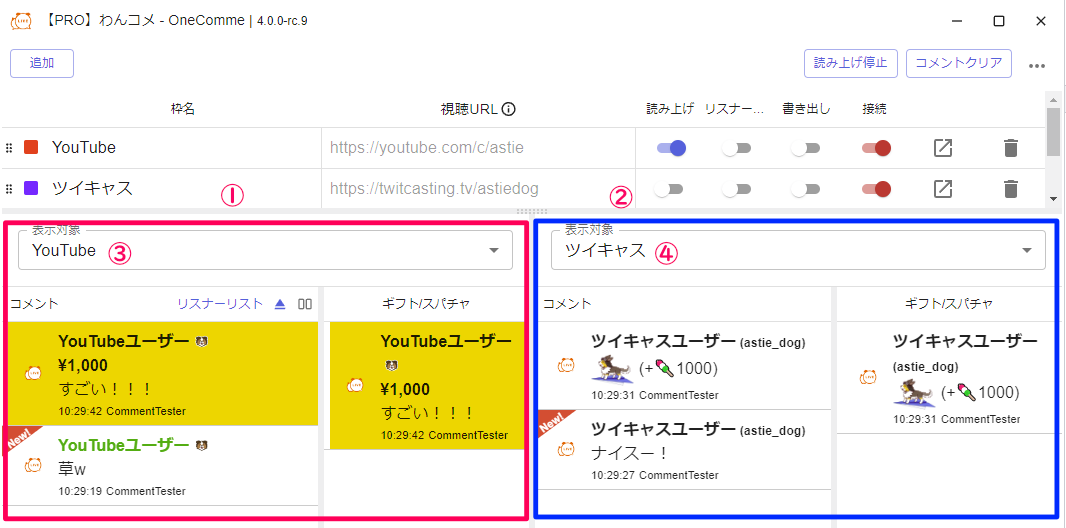 AddStream NameTwitCastingCommentsStop speechConnectClear commentsStream URLExportTarget(s) to displayTwitCastingCommentsGift/SuperChatYouTube UserTwitCasting User (astie_dogTwitCasting User (astie_dogNiceTwitCasting User
Screen description when split
| ① (left comment display area) | The left comment column (red frame in the figure above) |
| ② (right comment display area) | The right comment column (blue frame in the figure above) |
| ③ Target(s) to display (left) | Select the streams to display in the left comment column |
| ④ Target(s) to display (right) | Select the streams to display in the right comment column |
- Gift/SuperChat (column)
Both the Gift/SuperChat column and the Gift/SuperChat lane
collect and display special comments such as Gifts, Super Chats, and point items
※Special comments also appear in the normal comment lane, but checking this lane helps you avoid missing them
TIPS
On platforms with free gifts, such as SHOWROOM, the lane is automatically split into two lanes, free and paid
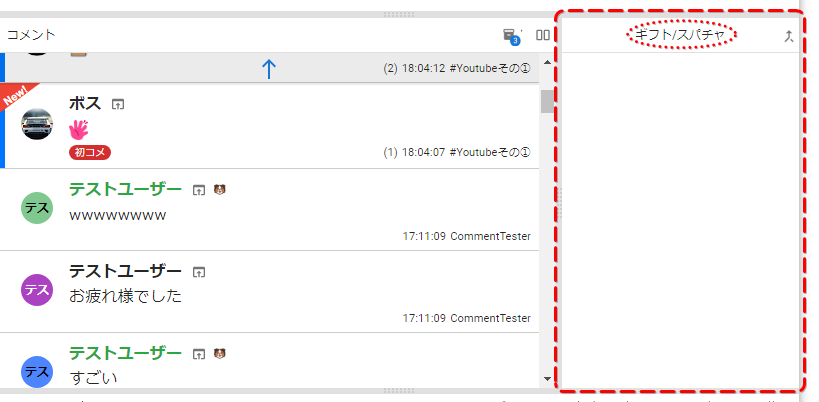 CommentsTesTestUserTesTestUserGood workTestUserAmazing1) 18:04:07 #YouTube etc
Clicking the icon next to Gift/SuperChat opens the per-user gift display window
・Jewel filter (YouTube)
After you receive at least one YouTube Jewel gift, a 💎 icon appears in the header of the Gift/SuperChat column (9.2+)
Click the icon to filter the gift field by "All", "Jewels only", or "Excluding Jewels"
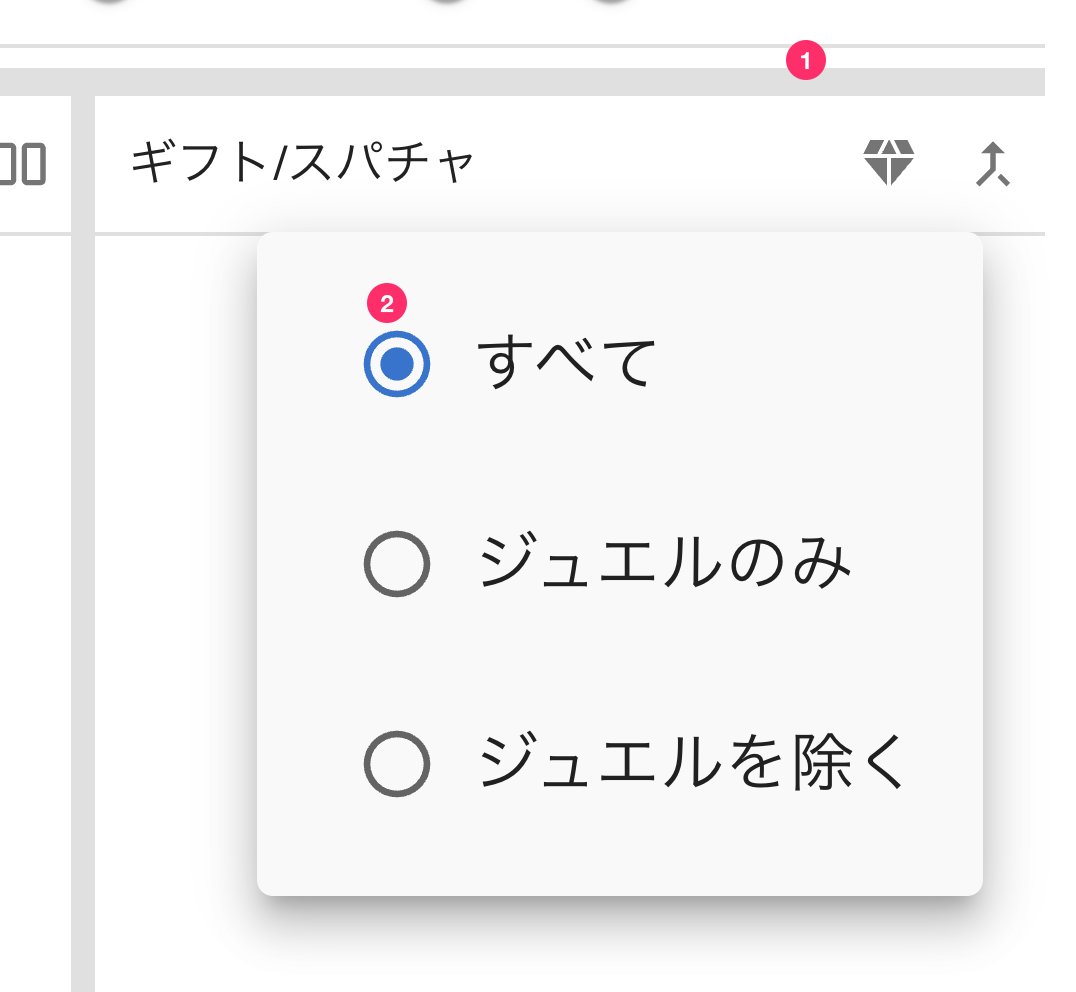 Gift/SuperChatAllJewels OnlyExcluding Jewels
| ① Jewel filter | Click to open the filter menu (shown only after a Jewel gift has been received) |
| ② Filter | Choose from "All", "Jewels only", or "Excluding Jewels" |
- Divider bars
Drag them to adjust the width of each area (each red dotted outline in the figure below)
You can drag the horizontal bars at the top and bottom of the comment display area, as well as the bars dividing the comment display area, such as for Gift/SuperChat or the two-way split
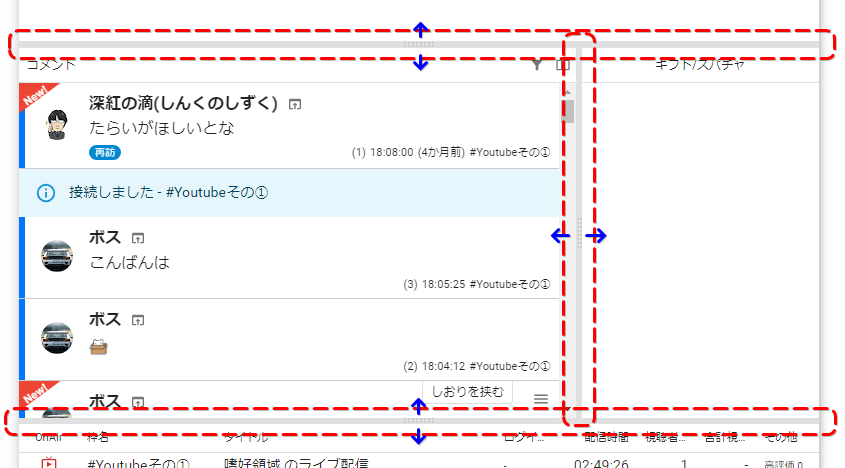 Konun belowWant a tubGood evening2) 18:04:12 =YouTube etcBookmark
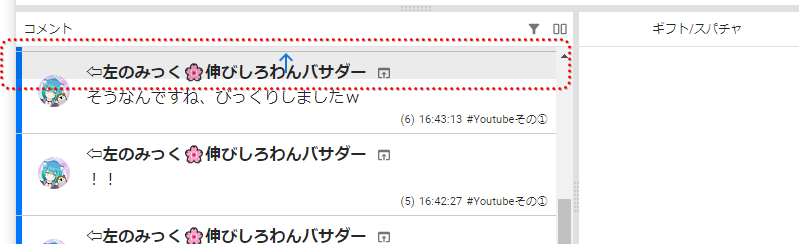
- ↑ (up arrow and gray area)
Click the gray area with the up arrow (↑) to return the comment lane's scroll position to the latest position
While the "≡" button list of a comment or the retranslate menu is open, the comment lane stops scrolling (9.2+)
When you close the menu or move the mouse away, if no new comments arrived in the meantime, the lane returns to the latest view as is
If new comments arrived, this area is displayed while the lane stays stopped at the position you were reading, so click it to return to the latest position
 CommentsGift/SuperChat6) 16:43:13 =YouTube etc5) 16:42:27 #YouTube etc
Comments (displayed information and operations)
- Comment information display (same information as on the platform)
Information equivalent to what you can see on the platform is displayed, such as the Commenter icon, Username, badges (if any), and comment text (see figure below)
 Testest
- New Comment display (New!, Newcomer, Returning)
| "New!" display (top left of the comment) | Displayed for what is called a "New Comment" (top-left position on both the left and right sides of the figure below) Displayed for a commenting user's first comment in that stream Useful as a marker if you don't want to miss greeting comments |
| "Newcomer" display (bottom right of the Commenter icon) | Displayed when the user of a New Comment has no record in Commenters (red icon on the left side of the figure below) |
| "Returning" display (bottom right of the Commenter icon) | Displayed when the user of a New Comment already has a record in Commenters (blue icon on the right side of the figure below) Useful for telling whether someone is a first-time viewer |
 NewcomerTestest
- Special features of the Username
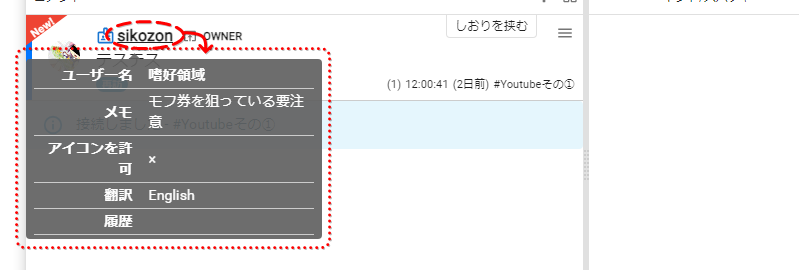
・Mouseover display
While you hover the mouse over a Username, a mini screen appears showing information about that user
The information shown includes the Username※, note, icon permission status, translation settings, and Username change history.
(※The Username can be used to check the original Username when a Nickname is in use)
 UsernameNotesAllow User IconTranslateAfter Mofu ticket, watchYouTube etcBookmark
・Open the dedicated viewer management screen (dedicated display)
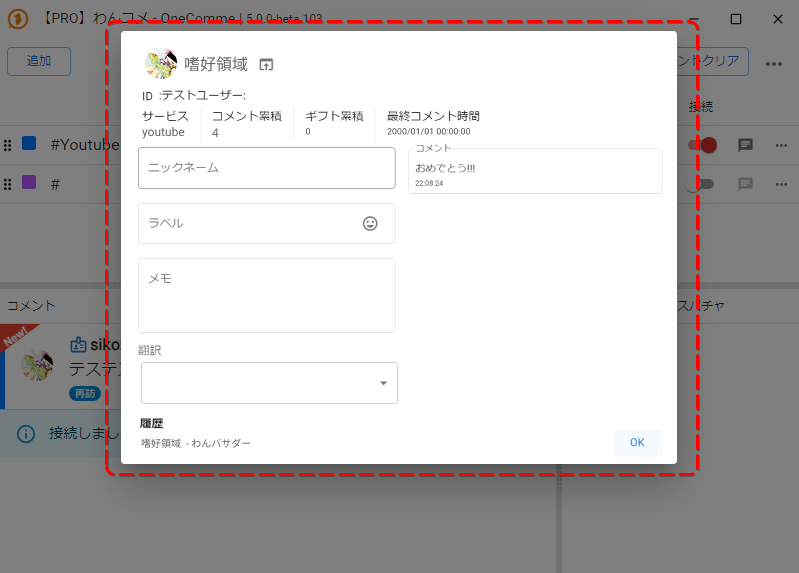
Click the Username or the mini screen of the mouseover display above to display the dedicated user management screen
On this screen (figure below), you can change the Nickname, note, and translation language, and check that user's comment history
 AddServicesComments Count (Total)NicknameGifts Count (Total)Newcomer/RepeaterNotesCommentsTranslateLast Comment TimeCommentsnt Clear
| ID | This user's ID on the platform This ID can also be used when blocking in OneComme |
| Service | The name of the platform this user is on |
| Comments Count (Total) | This user's cumulative comment count (if Persist records exist) |
| Gift total | This user's cumulative number of gifts sent (if Persist records exist) |
| Last Comment Time | The date and time this user last commented |
| First comment time | The date and time of this user's oldest comment among the saved Comment Log entries (9.2+) ※Not recorded if you are not saving the Comment Log |
| Nickname | Give this user any Nickname you like The Nickname can also be used in templates and Speech |
| Label | You can give this user any label (mark) you like |
| Note | You can add a note to this user |
| Translation | Translates this user's comments into the specified language (when translation integration is in use) |
| History | Name history of this user, up to the most recent 5 entries |
| Comments | List of comments posted by this user |
| Comment Log | When the Comment Log is saved, shows a list of this user's past comments You can also search from oldest first using the 🔍 icon at the top right (9.2+) |
| Gift log | When the Comment Log is saved, shows the history of this user's paid gifts (9.2+) Free gifts are not included |
For details, also see "Viewer settings" in "Persist feature"
・Nickname display and Nickname mark (name tag mark)
If a Nickname is set for a commenting user, the Nickname is displayed together with a name tag mark (figure below) instead of the Username
TIPS
If a label is set, the label is displayed instead of the name tag mark
 CommentsTestestGift/SuperChat
- Other comment information display (OneComme-specific)
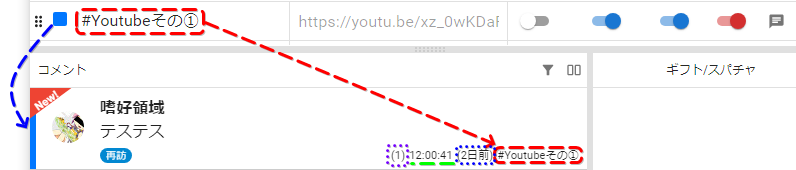
・Screen showing other comment information
 CommentsTestestGift/SuperChat
・Description of the other comment information items
| Comment number count | Shown in parentheses to the left of the timestamp (purple dotted outline in the figure above) Shows which comment this is from the commenting user within that stream |
| Timestamp | Shows the time the comment was posted (green dashed line in the figure above) |
| Time elapsed since the broadcast with the previous comment (※⚠Only for "Returning") | Shown in parentheses to the right of the timestamp. If Persist records exist, shows the time elapsed since the previous comment record (blue dotted outline in the figure above) ※⚠Shown only for "Returning" |
| Stream color | The vertical line at the left edge of each comment (blue arrow in the figure above) Displays the same color as the one set on the stream that retrieved that comment |
| Stream name display | Shows the name of the stream that retrieved that comment (red arrow in the figure above) |
- ≡ (three-line menu)
When you hover over a comment, a "≡" icon appears at the top right of the comment
Hover over the "≡" icon that appears to display a list of action icons for that comment
・Three-line menu screen
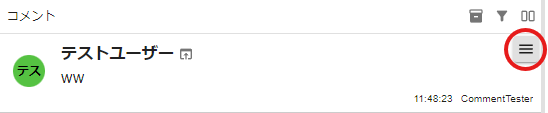 TesTestUser
Hover over "≡" to show the list of icons

Description of the three-line menu items (from the left)
| Delete | Deletes the comment, and also removes it from templates ※Note that it remains on the platform |
| Block | Registers the user as blocked in OneComme ※The user is not blocked on the platform |
| Mute | Adds this user to Exclude from speech |
| Add to participation waiting list | Treats this comment as a participation comment and adds it to the waiting list |
| Translation | Translates this comment into the selected language (when YUKARINETTE CONNECTOR NEO integration is enabled) When Machine Translation is performed with the built-in translator, a "Choose source language and retranslate" button appears in the same position, letting you pick the source language and retranslate, or remove the translation (9.2+) → Comment translation |
| Copy comment | Copies the content of the posted comment |
| Open user page | Opens this user's profile page and similar |
| Insert bookmark | Inserts a bookmark at this comment |
| Stocked comments | Adds this comment to Stocked comments (records it) |
| Pin | Pins the selected comment to the top of the app |
- Bookmark feature
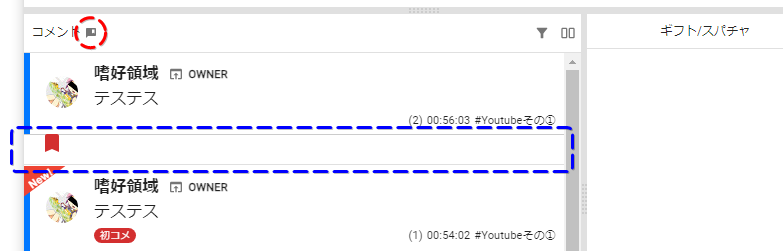
Inserts a bookmark between comments
When a bookmark is inserted, an icon appears in the comment's header, and you can jump to the bookmark you inserted
Click the bookmark (blue dashed line in the figure below) to remove it
・◧(Jump to bookmark button)
While a bookmark exists, a speech-bubble-like icon appears to the right of the comment lane label ("Comments") (red dashed circle in the figure below)
Click this icon to jump to the bookmark position
 CommenTestestTestestNewcomerGift/SuperChat1) 00:54:02 =YouTube etc
Bottom of the app (stream information per stream)
 Stream NameYouTube etcTitleLive stream in preferred genreLogged InOthers
From 9.2, an ⓘ icon is displayed next to the stream title (only for streams that have stream information such as a title and URL)
Hover over the icon to see a preview of what will be copied. "Copy" copies the Streaming information to the clipboard, and "URL only" copies just the Stream URL
You can change the copy format with "Copy format" in the UI settings → UI settings
※The former Stream URL copy button has been integrated into this Streaming information copy
Description of each item at the bottom of the app (stream information per stream)
| OnAir | A red icon appears while the stream is live (it becomes a red loading mark while reconnecting due to network problems) |
| Stream name | The stream name given along with the Stream URL |
| Title | Title of the connected stream You can copy the Streaming information from the ⓘ icon next to it (see above) When you are not streaming on Twitch, the stream title set in your dashboard is displayed (9.2+) |
| Login | Shows the account name if you are logged in to the connected site (when retrieving comments from members-only streams and the like, make sure your own account name is displayed) |
| Streaming time | Time elapsed since the stream started |
| Viewers | The current number of viewers (not shown on some platforms) |
| Total Viewers | The total number of viewers of this stream (not shown on some platforms) |
| Other | Shows other stream information such as the number of Likes and Followers |