
[PRO] Using VTubeStudio integration with comment on-screen effects
How to create moving hit-detection areas with VTubeStudio integration in comment on-screen effects (WordParty)
Using VTubeStudio integration lets you create hit-detection areas for Drop items that move in sync with tracking.
From 9.2, a new on-screen effect type called "VTS Object" has been added, which displays Drop items directly as VTube Studio scene items (see the end of this page).
Preparing VTubeStudio
Launch VTubeStudio and open its settings.
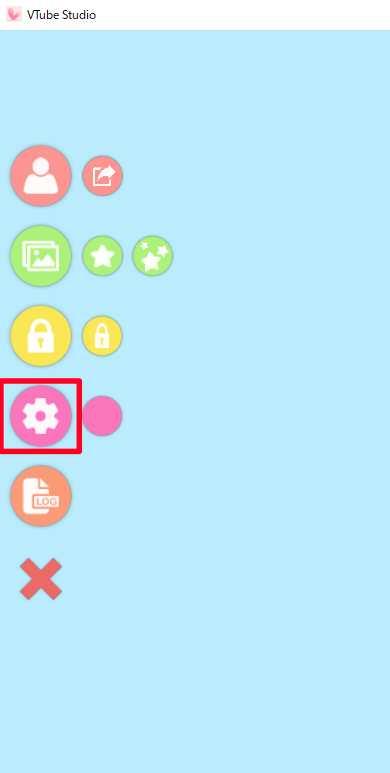
Find the "VTubeStudio Plugins" section around the middle of the settings.
Check "Start API (allow plugins)".
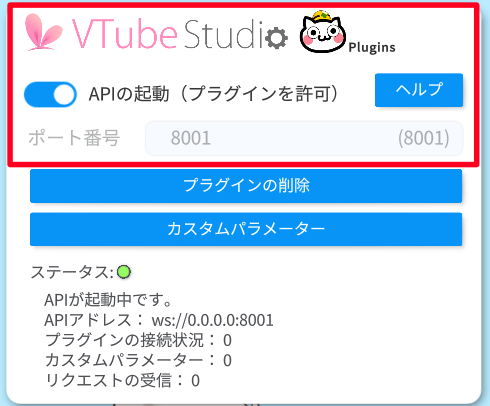 Start API (Allow PluginsPortDelete PluginCustom ParametersHelpAPI is runningAPI Address: ws://0.0.0.0:8001Plugin Connections: 0Custom Parameters: 0Requests Received: 0
* Make sure the port is set to 8001.
* If it's different, close whatever application is using port 8001, then launch VTubeStudio.
Preparing OneComme
Integration settings
Open "Top-right menu > Integration".
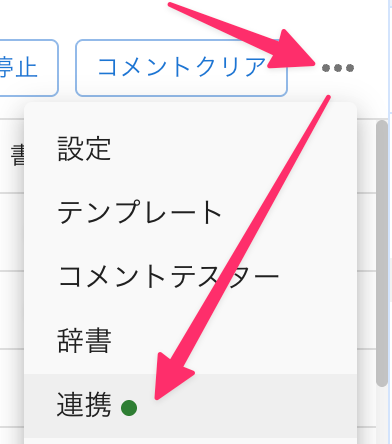 StopClear commentsSettingsTemplatesDummy CommenterDictionaryIntegration
Scroll the top tabs sideways, select "VTubeStudio", and check "Enable".
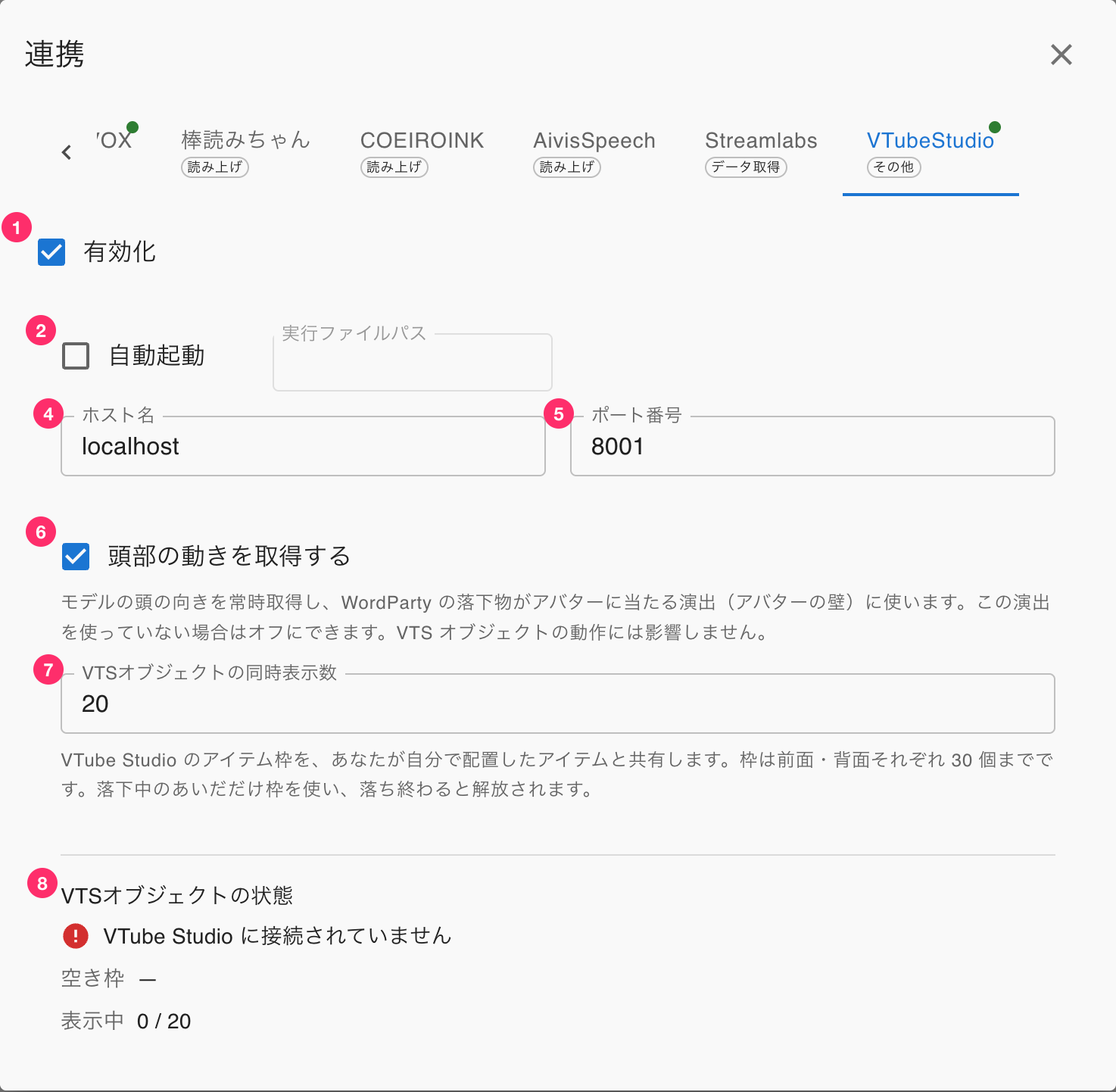 IntegrationBouyomiChanSpeechSpeechSpeechData AcquisitionOthersEnabledExecutable File PathAuto RunHostnameCapture Head MovementsContinuously tracks the model's head direction, used for the effect where WordParty drop items hit the avatar (avatar wall). This effectcan be turned off if unused. Doesn't affect VTS object behaviorNumber Of Vts Objects Displayed SimultaneouslyShares VTube Studio item slots with items you've placed. Up to 30 slots each, front and backSlots are used only while falling, released once it landsVts Object StatusAvailable Slots
| ① Enable | Enables integration with VTube Studio |
| ② Auto Run | Automatically launches VTube Studio when OneComme starts. Specify the VTube Studio executable in "Executable File Path" on the right |
| ④ Hostname | The hostname of the PC running VTube Studio (use localhost if it's the same PC) |
| ⑤ Port | The port number for the VTube Studio API (default is 8001) |
| ⑥ Get head movement | Continuously retrieves the model's head orientation, used for the on-screen effect where Drop items hit the avatar (Fixed Wall with Tracking with VST) (9.2+) You can turn this off if you're not using that effect. It has no effect on how VTS Object works |
| ⑦ Max simultaneous VTS Objects | The maximum number of Drop items displayed at once for the "VTS Object" effect type (9.2+) This shares VTube Studio's item slots (up to 30 each for front and back) with items you've placed yourself |
| ⑧ VTS Object status | Shows the connection status with VTube Studio, the loaded model, whether custom image loading is allowed, available item slots, and the number currently displayed (9.2+) |
After that, make sure the port number matches the one shown in VTubeStudio.
From 9.2, OneComme automatically reconnects if the connection to VTube Studio is lost.
WordParty settings
Open the WordParty editor from Templates.
After clicking the add button, select "Fixed Wall" as the effect.
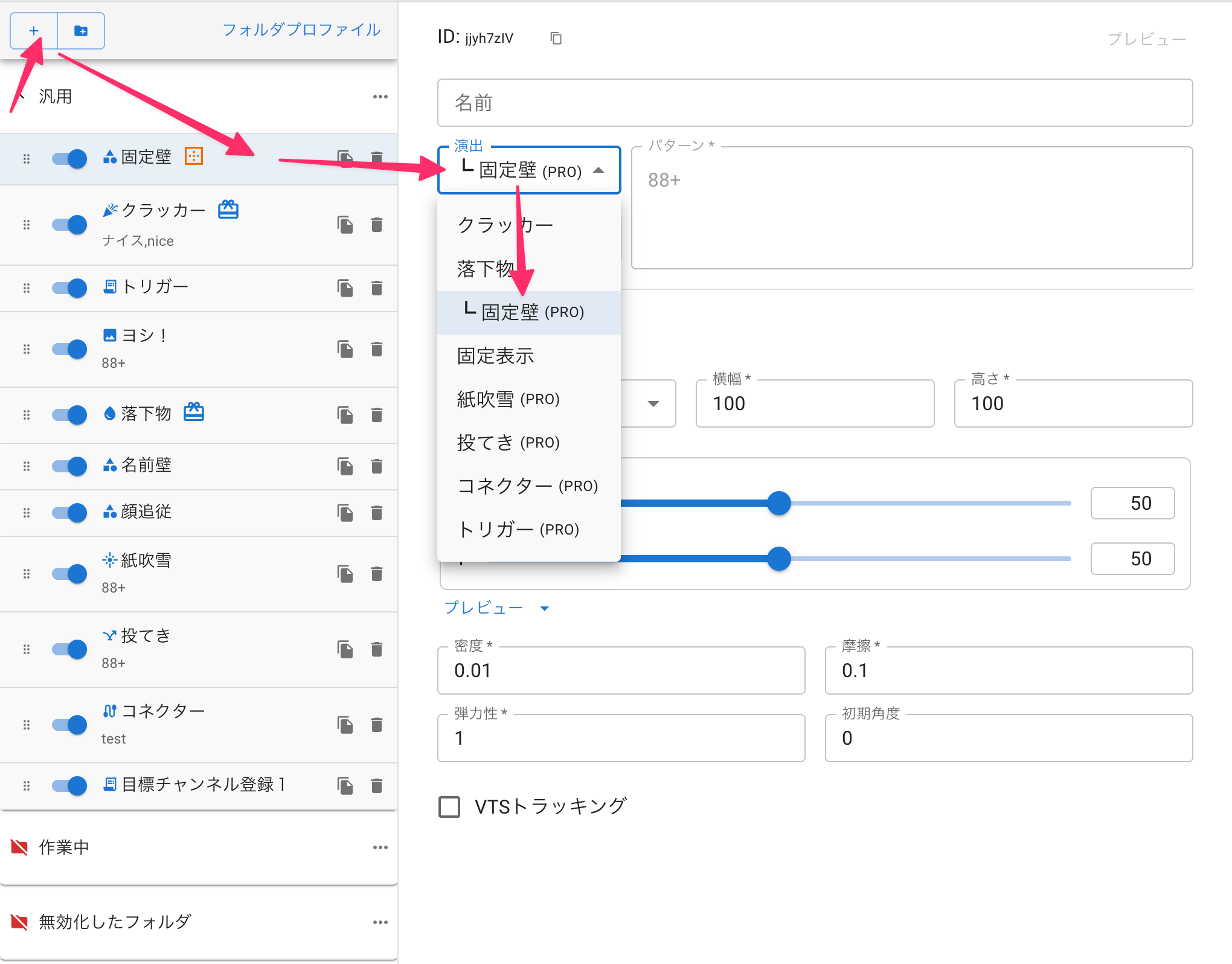 GeneralCrackerNice, niceConfettiConnectorWorkingFolder ProfileNameEffectCrackerFixed coordinatesConfetti (PROThrowing (PROConnector (PROPatternWidthPreviewDentisityCoefficient of restitutionTracking with VSTDisabled FolderFrictionInjection anglePreviewHeight
Check "Tracking with VST".
Also check "Visualization" now, since you'll need it for position adjustment later.
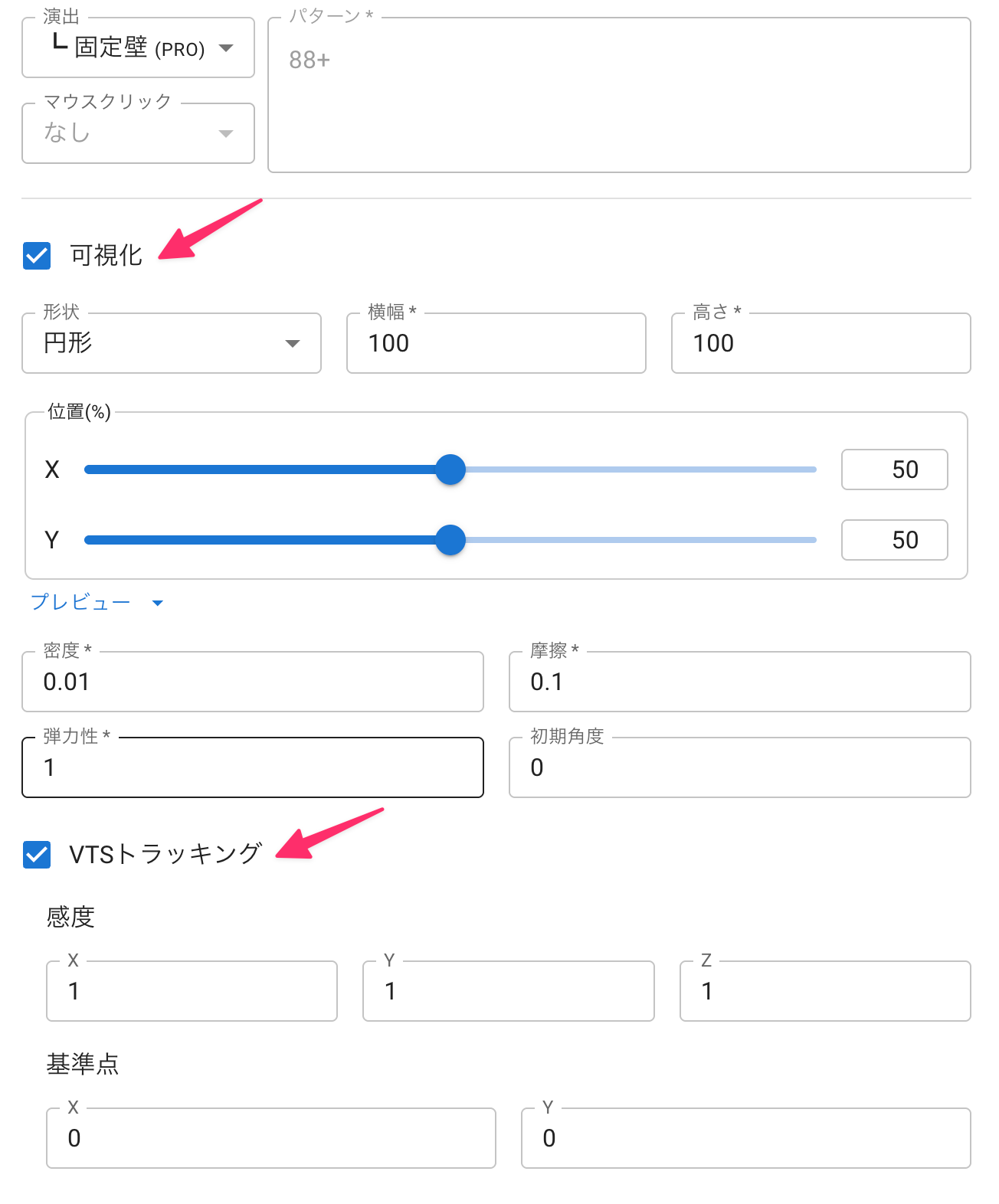 EffectMouse ClickOFFPatternVisualizationshapeRound shapeWidthPositionPreviewDentisityCoefficient of restitutionTracking with VSTSensitivityOriginInjection angleHeight
With Visualization checked, the wall area becomes visible once placed in OBS.
Adjusting the position
When you add the WordParty template to OBS, a visualized circle and an origin point appear as shown below.
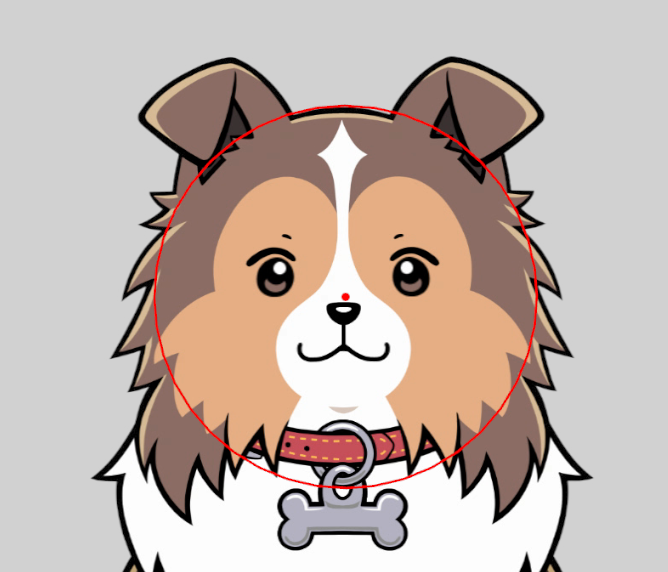
Example settings:
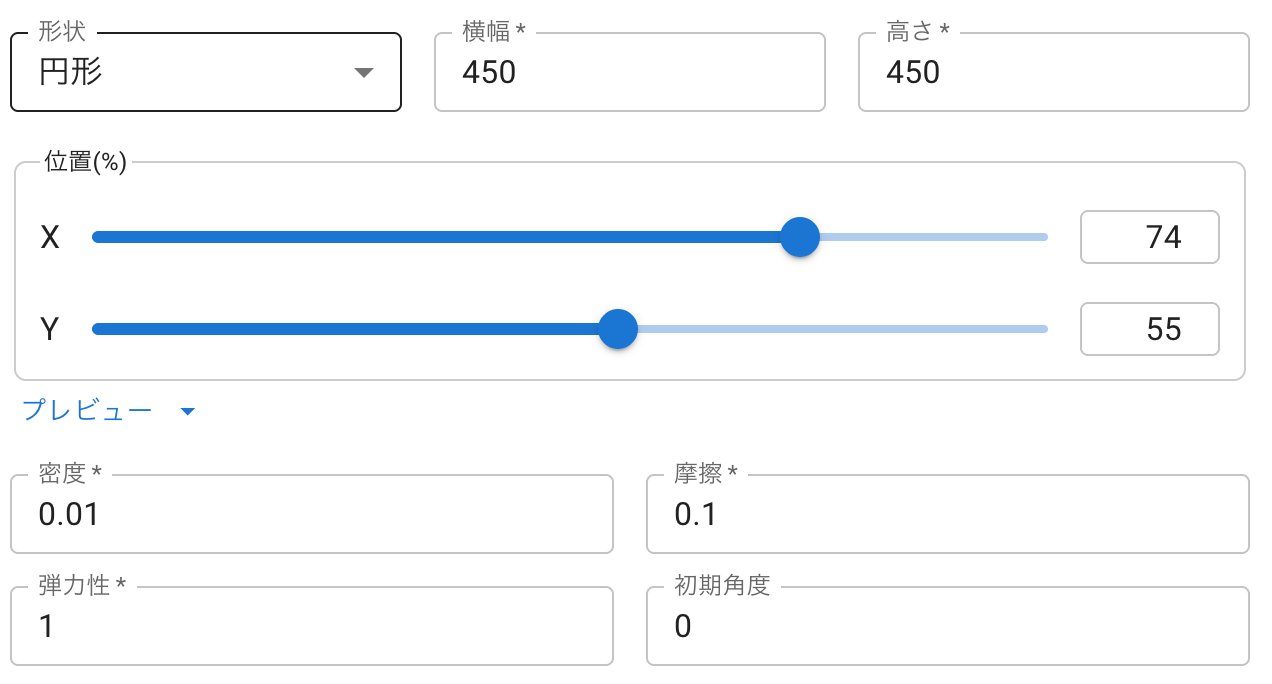 shapeRound shapeWidthHeightPositionPreviewDentisityCoefficient of restitutionInjection angle
Adjusting sensitivity
Launch VTubeStudio, start tracking, and turn your head to the side or up to check how the circle moves.
If the circle moves more than the model does, lower the value below 1 (e.g. 0.8).
If the circle moves less than the model does, raise the value above 1 (e.g. 1.2).
Adjusting the origin
Since the reference angle position varies by model, adjust the origin accordingly.
Changing the origin moves the red dot (it generally works best aligned with the neck position).
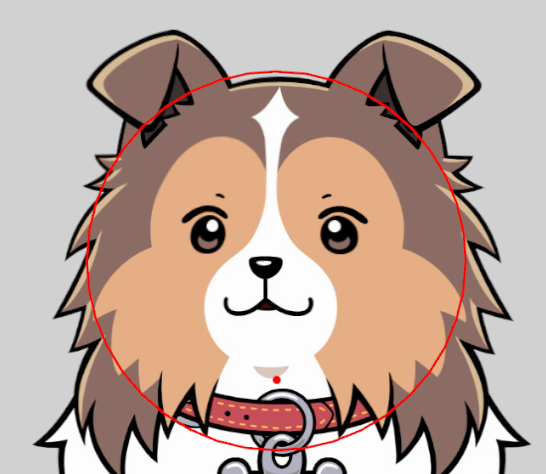
Example settings:
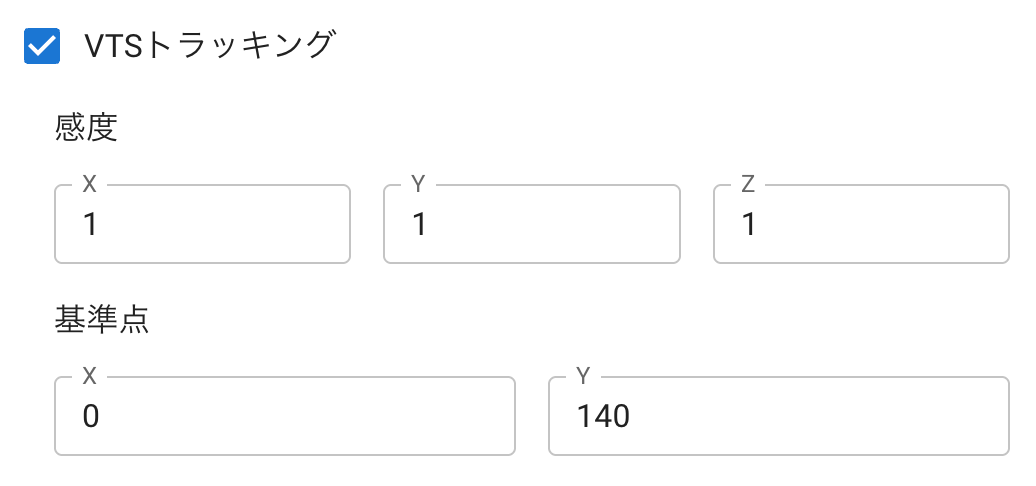 Tracking with VSTSensitivityOrigin
Now, if you turn your head left and right, you'll see the circle rotate around the origin.
Finally, uncheck "Visualization" on the "Fixed Wall" to complete the setup.
Tips
You can place multiple Fixed Walls.
For example, you can add a separate Fixed Wall for the ears to build more complex hit-detection walls.
You can also place a fixed, non-moving wall by turning off Tracking with VST — try experimenting with different setups.
VTS Object (9.2+)
This on-screen effect type displays Drop items as VTube Studio scene items instead of through an OBS browser source.
Since the Drop items appear in the same space as the model, you can set up hit detection against the model's outline within VTube Studio.
- Enable VTube Studio integration using "Integration settings" above.
- Add an effect in the WordParty editor and select "VTS Object" as the effect type.
- The first time, a confirmation dialog appears in VTube Studio asking to allow custom image loading — choose "Allow".
- Set an image file (PNG, JPG, or GIF), and turn on "Hits model" if needed.
- Keep the WordParty template open in a browser or OBS, and the effect will trigger on comments.
For details on each item, see "VTS Object" in "How to read and configure the WordParty editor".