
WordParty editor guide and settings
About the editor and settings for editing WordParty comment on-screen effects
Menu
The left side of the editor is the effects list
TIPS
Effects are evaluated in order from the top
Move the effects you want to prioritize to the top by reordering them
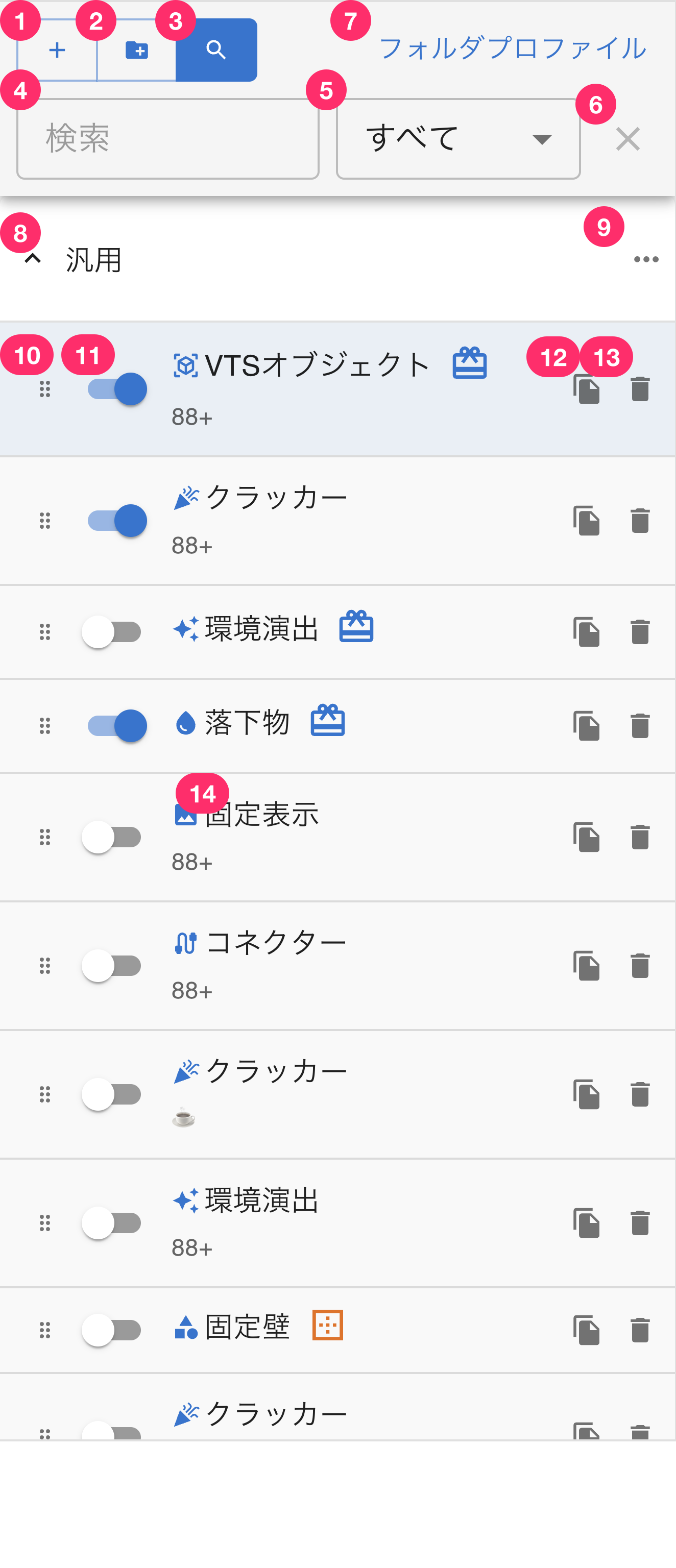 SearchGeneralFolder ProfileAllVTS ObjectCrackerAmbientDropCrackerAmbientCracker
| ① Add effect | Adds a new effect |
| ② Add folder | Adds a new folder |
| ③ Filter | Opens and closes the effects list filter fields (④ to ⑥) (9.2+) |
| ④ Search | Shows only effects whose name or Pattern contains the entered text |
| ⑤ Effect type | Shows only effects of the selected effect type (Cracker, Drop, etc.) |
| ⑥ Clear filters | Clears all filters |
| ⑦ Folder profile | Opens the folder profile |
| ⑧ Open/close folder | Click to open or close a folder You can also reorder folders by drag and drop |
| ⑨ Folder menu | Lets you disable or delete all effects in a folder at once |
| ⑩ Reorder | Drag to move effects and change their order (evaluation order) |
| ⑪ Enable switch | Toggle the switch to enable or disable an effect ※ Disabled effects can still be run from the StreamDeck plugin or the API |
| ⑫ Duplicate | Duplicates the effect |
| ⑬ Delete | Deletes the effect |
| ⑭ Effect name, Pattern, Mouse Click and conditions | Shows the effect type icon, the effect name and the configured Pattern Icons also indicate the state of Mouse Click, conditions and display position (frontmost/backmost). Click to open the settings on the right |
Common settings (shared by all effects)
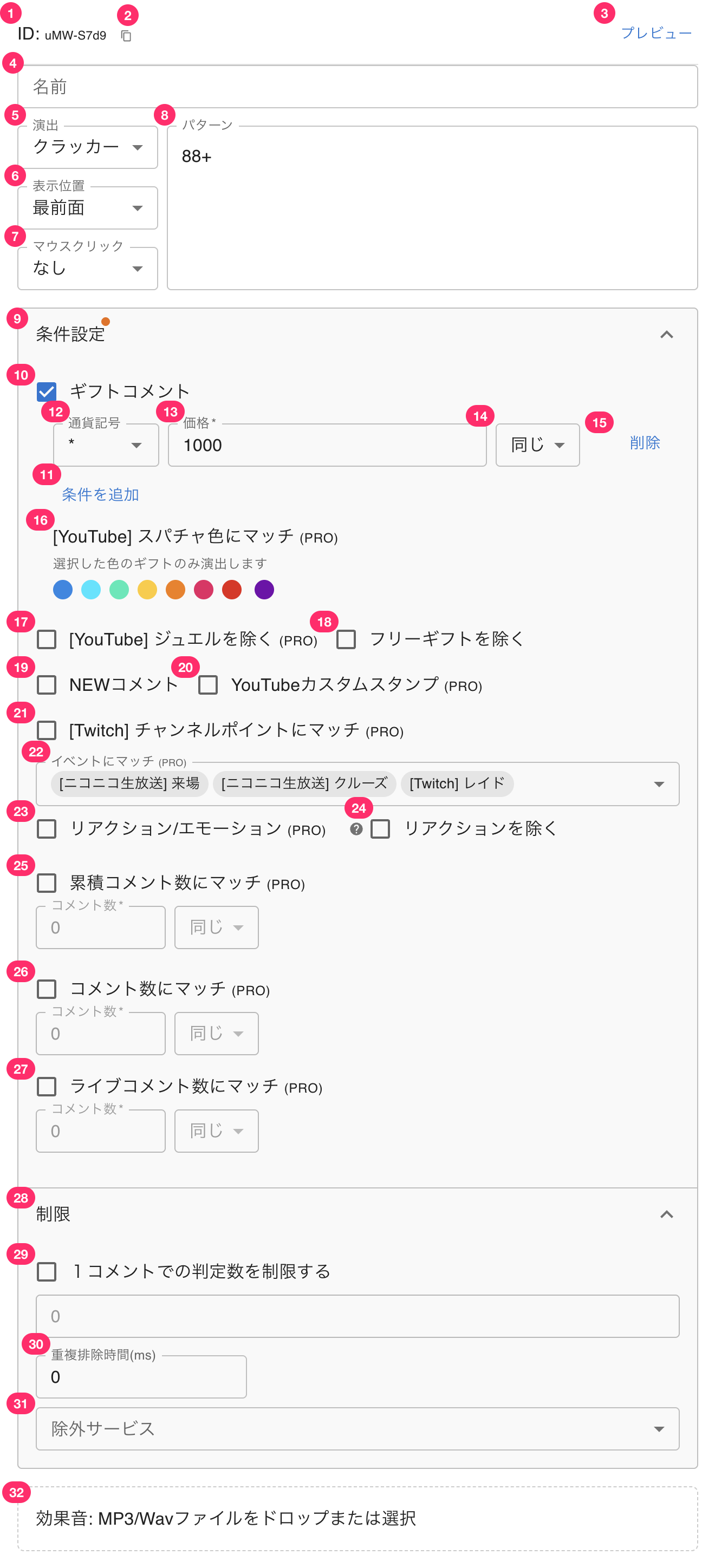
These settings are common to all effect patterns
The ID and preview row is fixed at the top of the screen, so you can always see it even when scrolling
From 9.2, trigger conditions are grouped in a "Conditions" panel, and the evaluation count, duplicate removal and similar options are grouped in a "Limits" panel. Both can be opened and closed by clicking
A dot appears next to the heading of any panel that has at least one condition set
 NameEffectCrackerPatternDisplay layerBring to frontMouse ClickOFFMatch SettingsGift CommentCurrencyPriceequal toAdd conditionsYouTube] Match Super Chat color (PROOnly Gifts Of The Selected Color Will Be Displayed.Excluding free giftsNew CommentYouTube Custom Stamps (PROTwitch] Match Channel Points (PROMatch events (PRONicoNicoLive] CruiseTwitch] RaidReaction/Emotion (PROExclude reactionsComment countequal toComments CountComments Countequal toLimitCount limit per one comment.Dedup time (msServices excludedSound Effects: Drop or select MP3/Wav filesRemove
| ① ID | The effect ID. Used when calling the effect from the StreamDeck plugin or the API |
| ② Copy icon | Copies the ID to the clipboard |
| ③ Preview | Runs the configured effect regardless of its conditions |
| ④ Effect name | Give the effect any name you like |
| ⑤ Effect | Select the effect type Changing the effect resets its settings |
| ⑥ Display position | Choose whether the effect is shown at the "Frontmost" or "Backmost" layer of the screen (9.2+) "Normal" keeps the conventional stacking order. Effects with a display position set show an icon next to the effect name in the list Can be set for Cracker, Drop, Fixed coordinates, Confetti, Throwing and Ambient |
| ⑦ Mouse Click | Select the mouse action used to trigger the effect manually This lets you run the effect with mouse actions in the browser where the template is open, or in the OBS Interact window |
| ⑧ Pattern | Enter the keywords that trigger the effect, one word per line Case is ignored (※ For advanced users - regular expressions can also be used / see How to write patterns below) |
| ⑨ Conditions | Panel for trigger conditions. Click to open or close |
| ⑩ Gift Comment | Triggers the effect for gift comments When turned ON, the gift conditions ⑪ to ⑯ are shown |
| ⑪ Add condition | Adds a price condition (⑫ to ⑮). You can add multiple price conditions |
| ⑫ Currency | The currency symbol of the gift ※ Applies to YouTube only |
| ⑬ Price | The gift price or number of points used as the condition |
| ⑭ Condition | Select a condition such as equal to, less than or equal to, greater than or equal to, or not equal to (9.2+) the set price |
| ⑮ Delete | Deletes the price condition |
| ⑯ [YouTube] Match Super Chat color [PRO] | Uses the color (amount tier) of Super Chats and Super Stickers as the trigger condition (9.2+) Click colors in the palette to select them. If you select several, the effect triggers when any one of the colors matches Jewel gifts are also integrated into this color palette, and selecting a Jewel color triggers the effect for Jewel gifts (the former "Matching Jewels" setting has been merged into this setting) |
| ⑰ [YouTube] Excluding Jewels [PRO] | Triggers the effect for anything other than YouTube Jewel gifts |
| ⑱ Exclude Free gifts | Does not trigger the effect for Free gifts (9.2+) This covers anything treated as a Free gift in the app's Gifts section (Twitch Channel Points, TikTok likes and shares, SHOWROOM free gifts, gifts below the minimum amount, etc.). It takes effect regardless of whether ⑩ Gift Comment is ON or OFF |
| ⑲ New Comment | Triggers the effect for New Comment |
| ⑳ YouTube Custom Stamps [PRO] | Triggers the effect for YouTube Custom Stamps Set the Custom Stamp name in the Pattern |
| ㉑ [Twitch] Match Channel Points [PRO] | Triggers the effect when Twitch Channel Points are used Set the Channel Points reward name in the Pattern |
| ㉒ Match event [PRO] | Triggers the effect when an event such as a raid or subscription is received (9.2+) You can select multiple events, for example to use the same effect for both raids and sub gifts Available events: [Twitch] Raid / New subscription / Resubscription / Sub gift / Viewer milestone, [YouTube] Membership renewal / Redirect, [NicoNicoLive] Niconico Ads / Cruise / Request / Stream extension / Rank-in / Rank change / Visit |
| ㉓ Reaction/Emotion [PRO] | Triggers the effect for YouTube or API Reactions, and NicoNicoLive Emotions |
| ㉔ Exclude Reactions | Triggers the effect for anything other than YouTube or API Reactions and NicoNicoLive emotes |
| ㉕ Match cumulative comments count [PRO] | Triggers the effect when the cumulative comments count reaches the condition |
| ㉖ Match comments count [PRO] | Triggers the effect when a single user's comments count reaches the condition |
| ㉗ Match live comments count [PRO] | Triggers the effect when the comments count per stream reaches the condition (the number of comments since the currently displayed WordParty template started running) |
| ㉘ Limits | Panel for the evaluation count and duplicate removal. Click to open or close |
| ㉙ Limit evaluations per comment | Specifies the maximum number of repeats when a single comment matches the Pattern multiple times When ON, the number input directly below is enabled and you can set the maximum number of repeats When not limited, the effect triggers as many times as the Pattern matches The maximum value you can set is 1000 (9.2+) |
| ㉚ Duplicate removal time | Specifies the time during which the effect is skipped when it is called repeatedly in a short period Evaluation is done separately for each effect (item), so even effects of the same type do not affect each other if they are set up as separate items |
| ㉛ Excluded services | Specifies the streaming platforms where this effect is not shown |
| ㉜ Sound Effects | Drop or select a sound effect (MP3/Wav) to play with the effect |
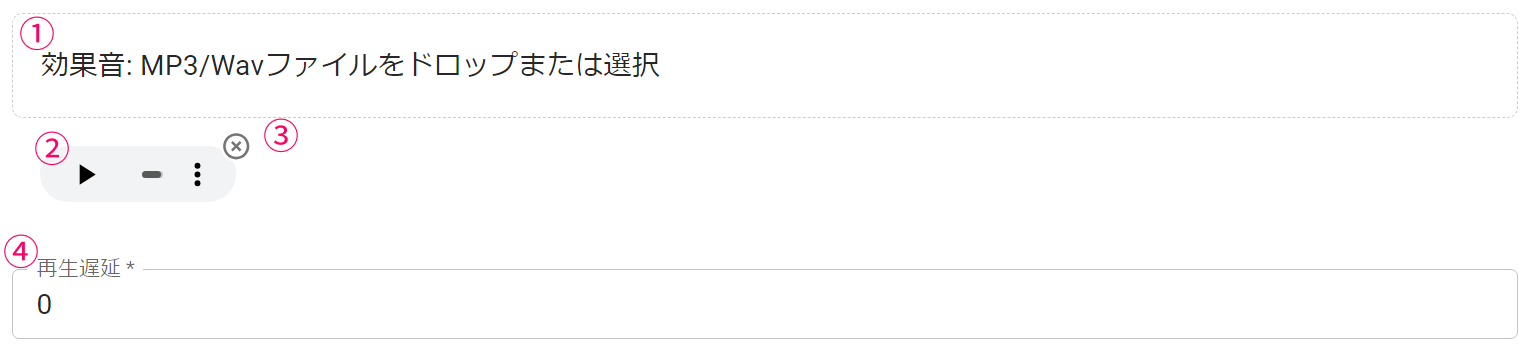
When a sound effect is set, the screen looks like this
 Sound Effects: Drop or select MP3/Wav filesAudio Synchronization
| ① Upload audio | Replaces the current Audio file with another Audio file |
| ② Audio preview | Plays the current Audio file |
| ③ Delete audio | Deletes the current Audio file |
| ④ Playback delay | The delay (in milliseconds) between the effect triggering and the audio playing |
How to write patterns
You can write one pattern per line
Regular expressions can also be used
TIPS
From 9.2, a warning is shown in the editor if you set a regular expression that takes too long to evaluate
Patterns that show a warning can slow down processing when comments are received, so we recommend reviewing the condition
Note
The symbols below have special meanings, so if you want to use them in a Pattern, you need to write them as shown under "How to write"
| Symbol | How to write |
|---|---|
| \ | \\ |
| * | \* |
| + | \+ |
| ? | \? |
| { | \{ |
| } | \} |
| ( | \( |
| ) | \) |
| [ | \[ |
| ] | \] |
| ^ | \^ |
| $ | \$ |
| - | \- |
| \| | \| |
| / | \/ |
"Cracker" effect settings
Cracker makes objects fly out from the left and right like party crackers
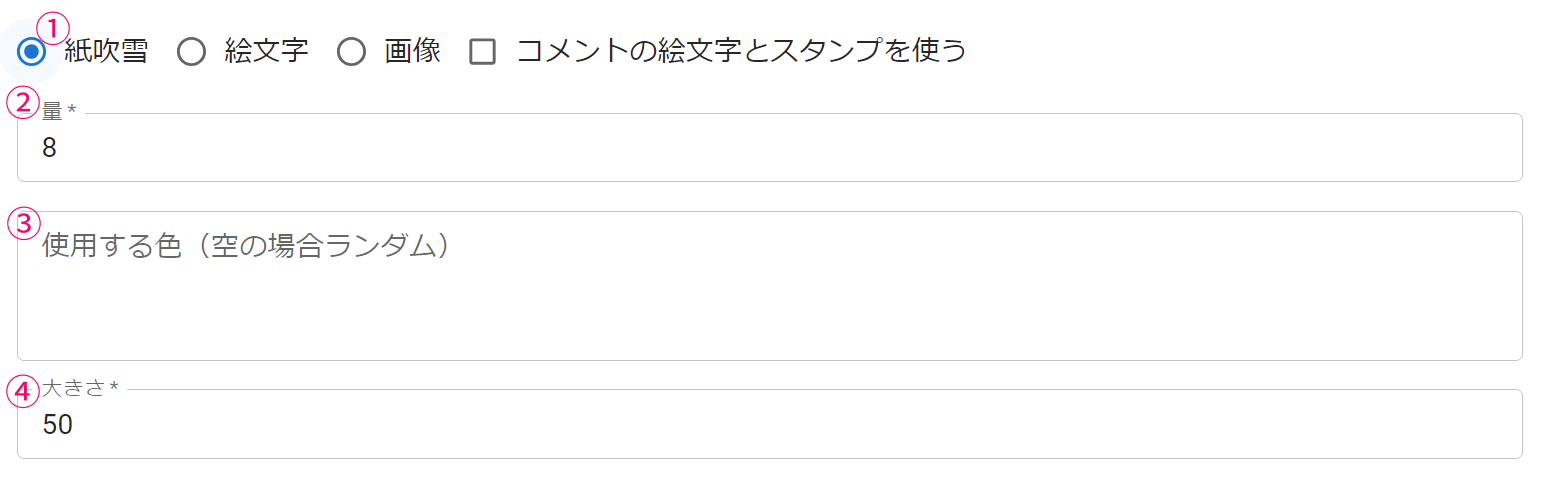 AmountColor(empty for random)Size
■ Common
| ① Material type | The material type of the Cracker effect |
| ② Amount | Sets the number of particles fired per Cracker (common) The maximum is 1000 (9.2+). Above 200, a warning appears saying "Large values may cause stuttering during streams" |
■ Confetti
| ③ Colors to use | Random colors are used by default, but you can limit them to specific colors in the #000000 format Enter one color per line | |
| ④ Size* | Changes the size of the Cracker particles |
■ Emojis
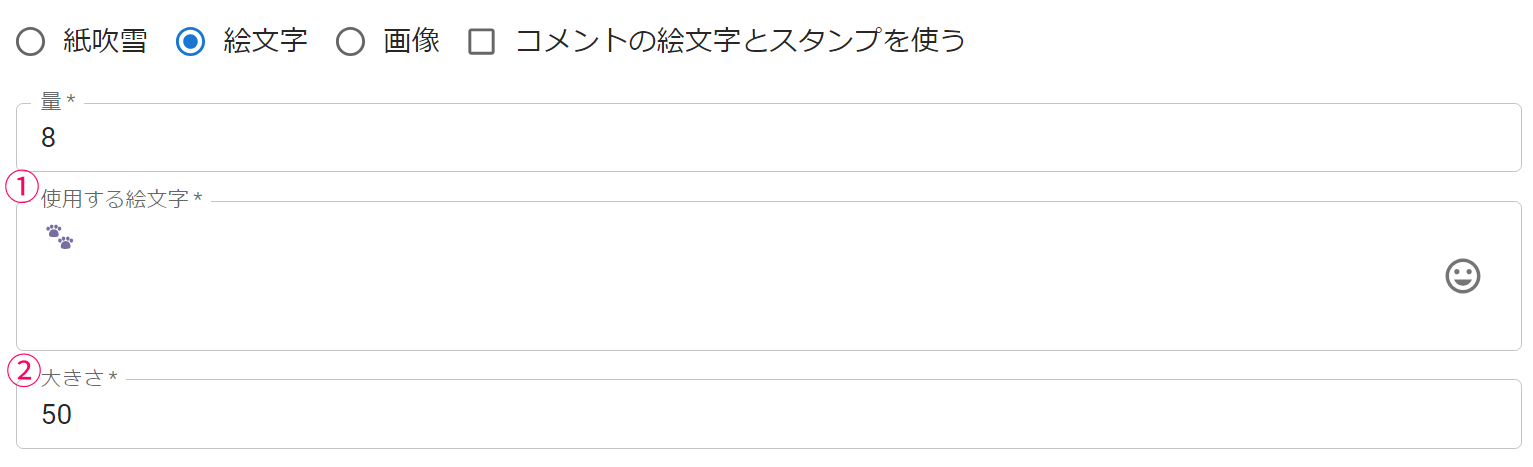 AmountEmojisSize
| ① Emojis* | The emojis the Cracker shoots out Set one emoji per line If there are multiple lines, they are shown at random |
| ② Size* | Changes the size of the emojis |
■ Image
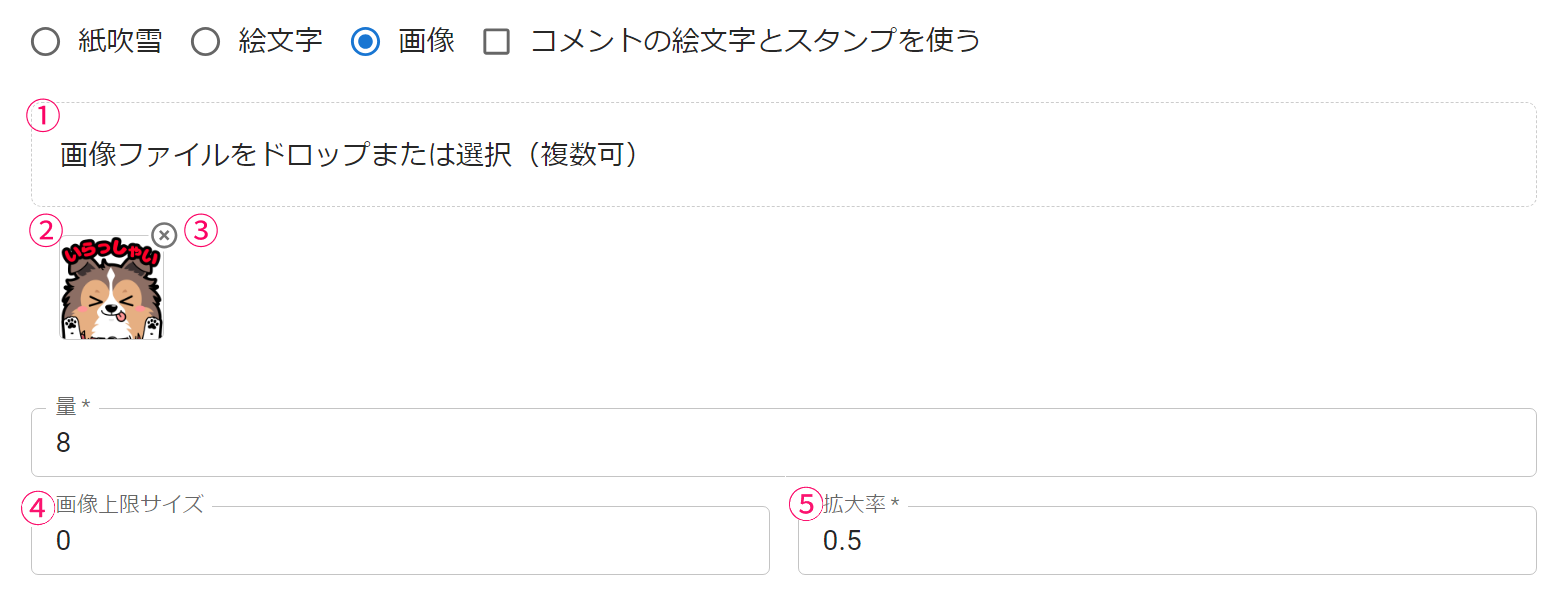 Drop or select image files (multipleAmountScaling
| ① Image* | Upload the Cracker material (multiple files allowed) ※ Animated materials and videos such as animated gif and wav are not supported |
| ② Configured files | The files that have been set |
| ③ Delete button | Deletes the configured file |
| ④ Max image size | Sets the maximum height or width of the displayed image Images exceeding the limit are scaled down while keeping their aspect ratio |
| ⑤ Scaling | The image display scale ※ The rendering load does not change, so we recommend setting it back to 1.0 after adjusting the image |
■ Use emoji and stamps in comments
Triggers the effect using the emoji and stamps contained in the comment
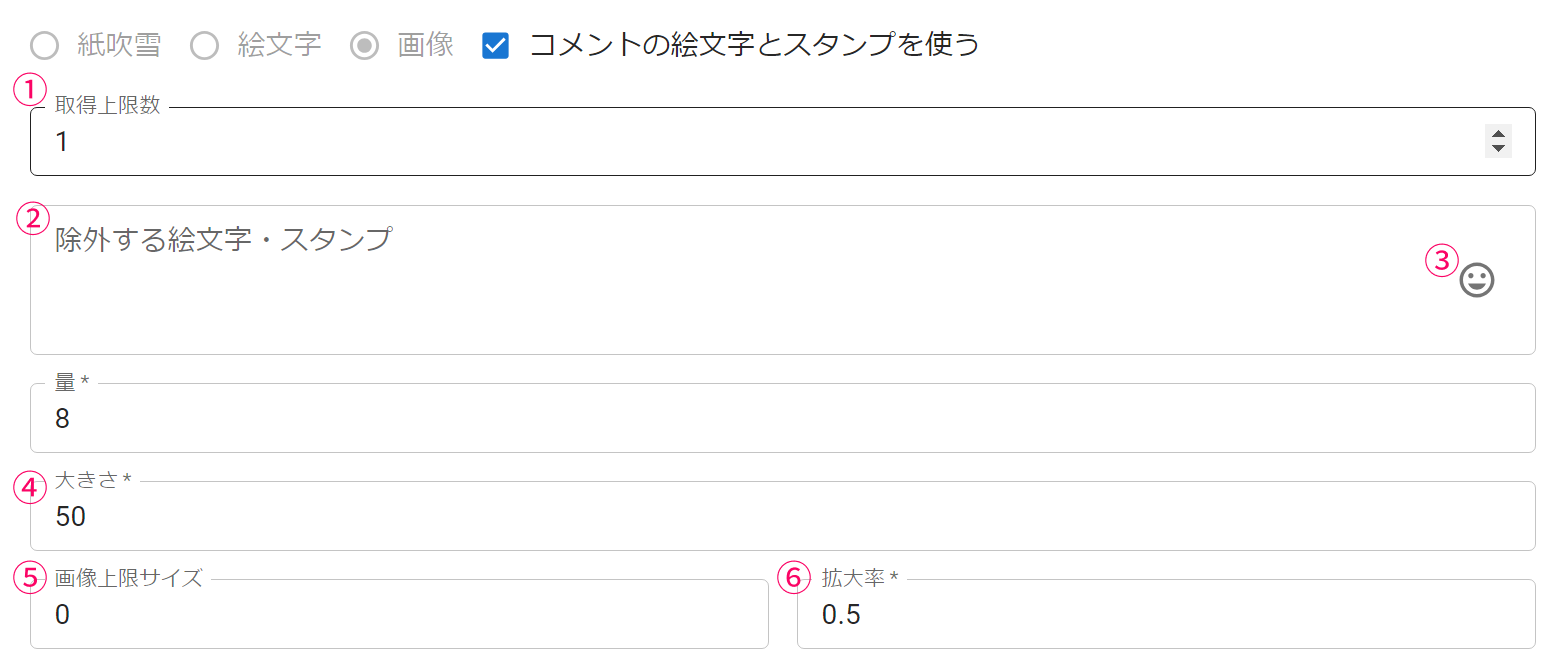 LimitEmoji and stamps to be excludedAmountSizeMax image sizeScaling
| ① Limit* | The maximum number of emoji and stamps taken from one comment If set to 0, all emoji and stamps in the comment are used |
| ② Emoji and stamps to be excluded | Specifies emoji and stamps (stamp names) not to use in the effect |
| ③ Emoji picker | Lets you select the emoji to exclude from the emoji picker |
| ④ Size | The size of the emoji and stamps (based on width) |
| ⑤ Max image size | Sets the maximum height or width of the displayed image Images exceeding the limit are scaled down while keeping their aspect ratio |
| ⑥ Scaling | The image display scale ※ The rendering load does not change, so we recommend setting it back to 1.0 after adjusting the image |
"Drop" effect settings
Drop displays objects processed with physics simulation
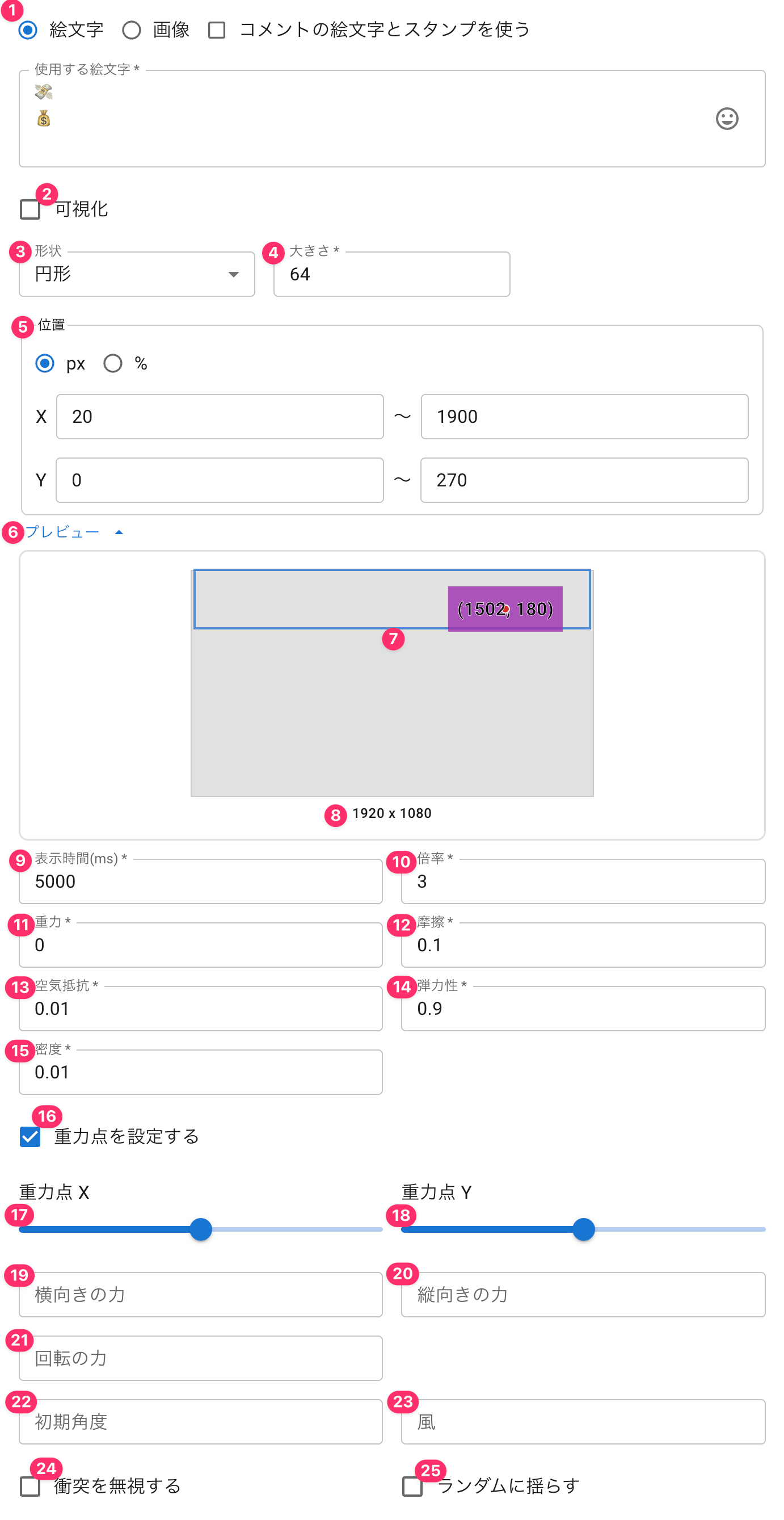 EmojisVisualizationRound shapePreviewSizeSet gravity pointGravity pointHorizontal forceForce for roationInjection angleNo CollisionGravity point YVertical forceWindShaked Randomly
■ Common
| ① Material type | The material type of the Drop |
| ② Visualization | Shows the collision area of the Drop Use it to adjust size and position |
| ③ Shape | The shape of the collision area |
| ④ Size | The size of the collision area For a rectangle, you can specify the width and height |
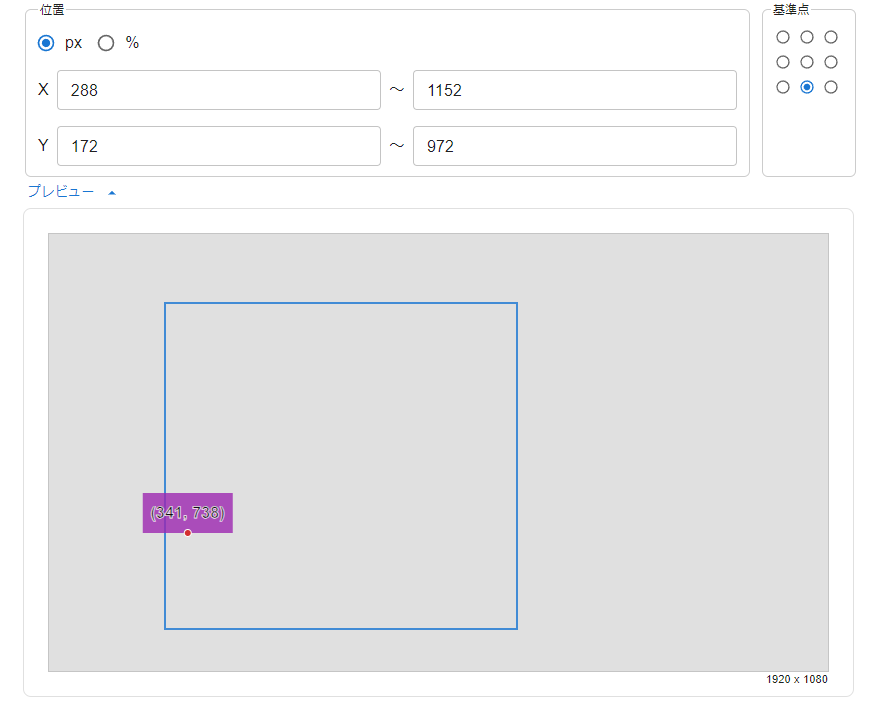
| ⑤ Position | Sets where the Drop appears |
| ⑥ Preview | Shows a preview of roughly where it will appear See "Origin explained" and "About the preview" below for details |
| ⑦ Position preview | The blue area is the display area, red dots are the actual randomly chosen position coordinates, and the purple area represents the displayed object Use it to check roughly where things will appear in your placed template |
| ⑧ Preview resolution | The resolution emulated in the preview Switch it for vertical streams, for example, to understand the positional relationship |
| ⑨ Life time | Specifies how long the Drop stays on the screen (in milliseconds) |
| ⑩ Multiplier | The number of Drops shown is the number of Pattern matches × the multiplier The maximum is 100 (9.2+). Above 20, a warning appears saying "Large values may cause stuttering during streams" |
| ⑪ Gravity | The gravity value of the Drop |
| ⑫ Friction | The friction value of the Drop |
| ⑬ Air resistance | The air resistance value of the Drop |
| ⑭ Coefficient of restitution | The coefficient of restitution of the Drop |
| ⑮ Density | The density of the Drop |
| ⑯ Set gravity point | Specifies the position that serves as the center of gravity With X: 0.5, Y: 0.5, Drops gather at the center of the screen |
| ⑰ Gravity point X | Specifies gravity point X as a number where left is 0 and right is 1 |
| ⑱ Gravity point Y | Specifies gravity point Y as a number where top is 0 and bottom is 1 |
| ⑲ Horizontal force | The horizontal force applied when the Drop appears |
| ⑳ Vertical force | The vertical force applied when the Drop appears |
| ㉑ Rotational force | Applies a constant rotational force to the Drop (positive values rotate clockwise, negative values counterclockwise) |
| ㉒ Initial angle | The initial display angle |
| ㉓ Wind | A horizontal force applied intermittently to the Drop |
| ㉔ Ignore collisions | Disables collision detection with other Drops and walls |
| ㉕ Random sway | Sways the Drop randomly left and right |
■ Emojis
 Emojis
| ① Emojis | Specify the emojis to display, one per line If you write multiple lines, they are shown at random |
| ② Emoji picker | Lets you select the emojis to display from the emoji picker |
■ Image
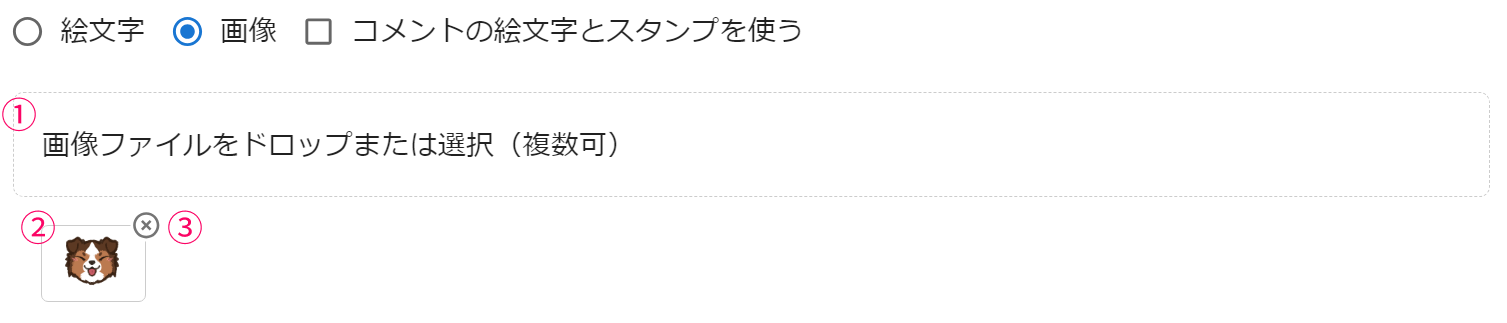 Drop or select image files (multiple
| ① Image file | The image displayed as the Drop If you set multiple files, one is chosen at random |
| ② Configured files | The files that have been set |
| ③ Delete | Deletes the configured file |
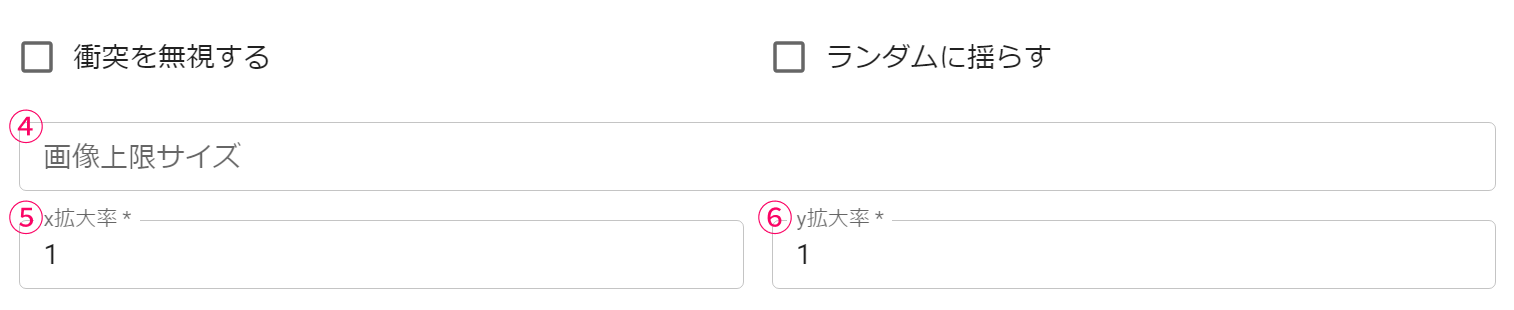 No CollisionMax image sizeX scalingY scaling
| ④ Max image size | Sets the maximum height or width of the displayed image Images exceeding the limit are scaled down while keeping their aspect ratio |
| ⑤ x scaling | The horizontal display scale of the image Use it for temporary image size adjustments |
| ⑥ y scaling | The vertical display scale of the image Use it for temporary image size adjustments |
■ Use emoji and stamps in comments
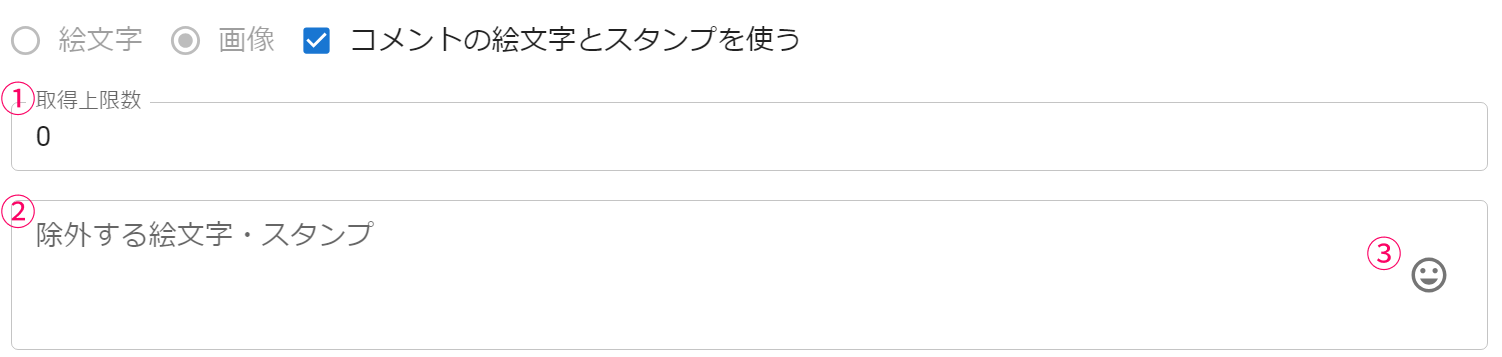 LimitEmoji and stamps to be excluded
| ① Limit* | The maximum number of emoji and stamps taken from one comment If set to 0, all emoji and stamps in the comment are used |
| ② Emoji and stamps to be excluded | Specifies emoji and stamps (stamp names) not to use in the effect |
| ③ Emoji picker | Lets you select the emoji to exclude from the emoji picker |
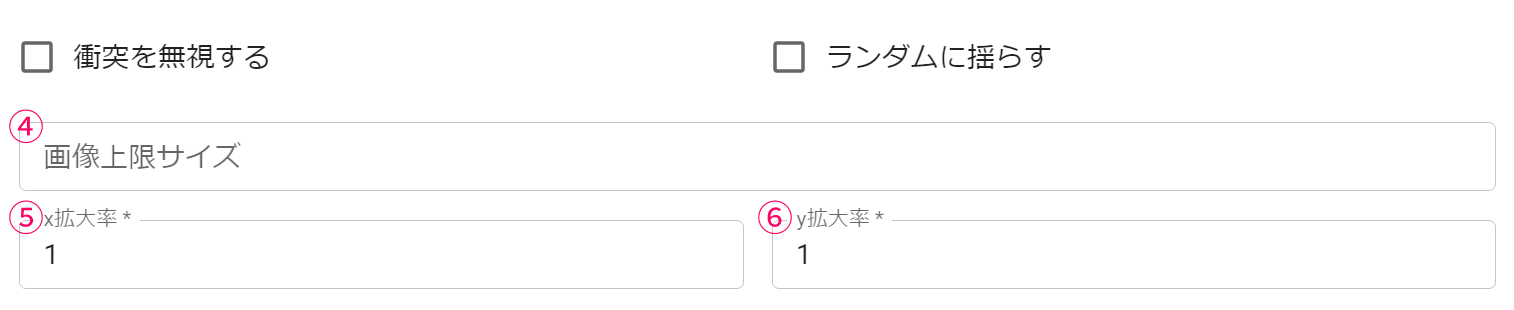 No CollisionMax image sizeX scalingY scaling
| ④ Max image size | Sets the maximum height or width of the displayed image Images exceeding the limit are scaled down while keeping their aspect ratio |
| ⑤ x scaling | The horizontal display scale of the image Use it for temporary image size adjustments |
| ⑥ y scaling | The vertical display scale of the image Use it for temporary image size adjustments |
"Fixed coordinates" effect settings
Fixed coordinates lets you display an image within a specified area
You can also specify an Audio file to play audio only
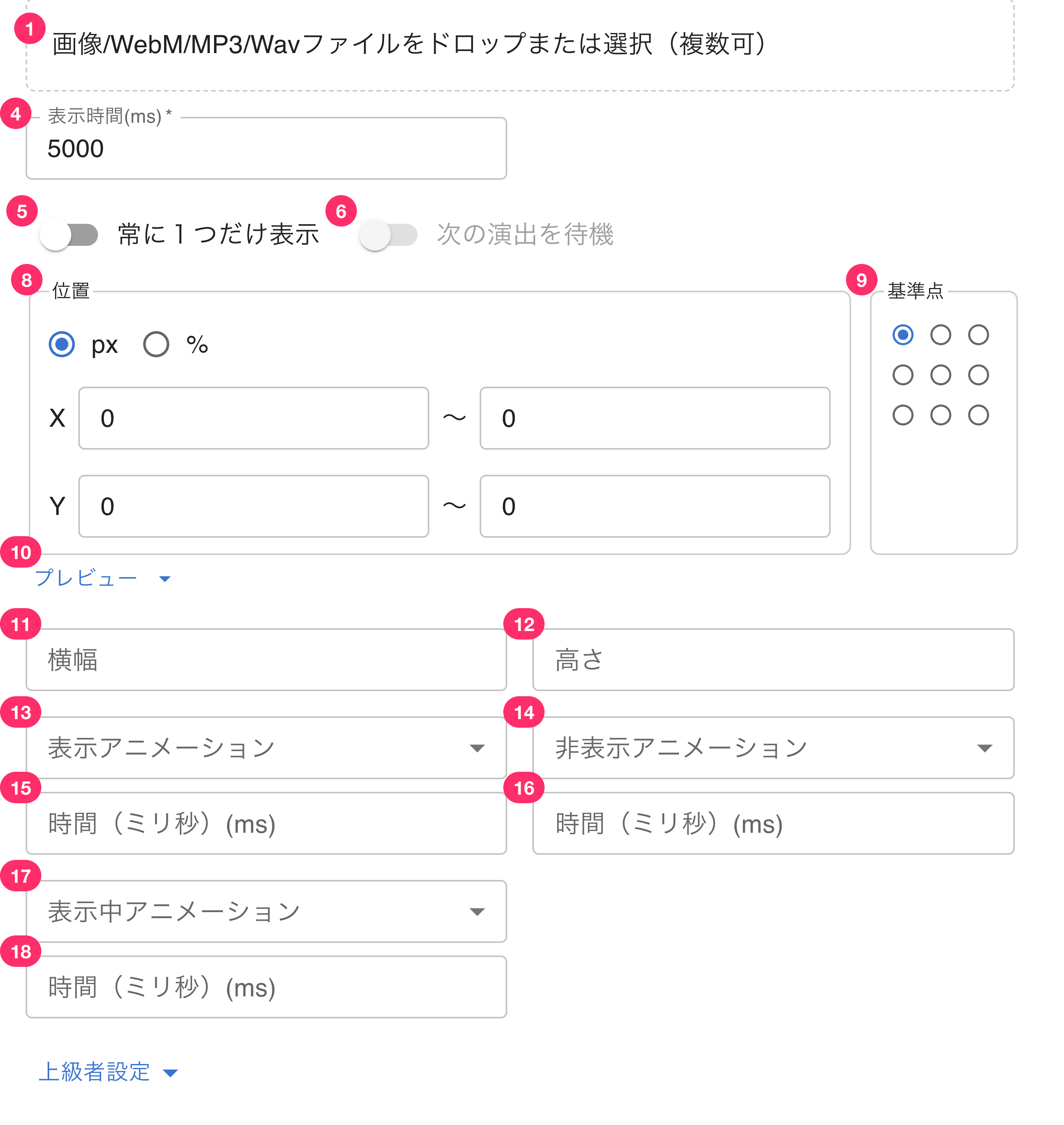 Drop or select image/WebM/MP3/Wav files (multipleLife time (ms)Always Display Only OneWait for the next effectPositionPreviewWidthShow transitionHeightHide transitionAnimationAdvanced settingsOrigin
| ① Image/audio files | Set the image to display, or the video or Audio file to play You can select multiple files |
| ② Probability [PRO] | Shown once a file is set. The higher the value, the more likely this file is to be shown This setting only matters when there are multiple files |
| ③ Sound Effects [PRO] | Shown once a file is set. You can set a sound effect to play for each file If not set, the sound effect set for the effect is played |
| ④ Life time | Specifies how long to display or play (in milliseconds) |
| ⑤ Always show only one | When the effect runs again while one is being displayed, the previous one is forcibly ended so that only one is shown |
| ⑥ Wait for next effect | Available when ⑤ is ON (9.2+) When ON, if the effect runs again while one is being displayed, the previous one is not ended; the next effect is shown in order after the current one finishes The maximum number that can wait can be changed in "Settings > Fixed coordinates standby limit" |
| ⑦ Play video to the end | Shown only when a webm video material is set When ON, the video plays to the end and then disappears, and the "Life time" setting is ignored in the meantime |
| ⑧ Position | Specifies the display position and its range (px or % can be used) ※ To display at a fixed position, enter the same value for left and right |
| ⑨ Origin | Specifies the origin used when displaying the selected material Example: Setting the origin to the center at coordinates (0, 0) displays the center of the material at position (0, 0) ※ An explanatory image is attached separately |
| ⑩ Preview | Using the specified stream screen size as an example, lets you check where the material will be displayed ※ See "About the preview" below for how to read the preview |
| ⑪ Width | Specifies the image width in px |
| ⑫ Height | Specifies the image height in px |
| ⑬ Show transition | Select the animation used when the image is shown |
| ⑭ Hide transition | Select the animation used when the image is hidden |
| ⑮ Show transition time | Specifies the duration of the show animation (in milliseconds) |
| ⑯ Hide transition time | Specifies the duration of the hide animation (in milliseconds) |
| ⑰ Animation | Select the animation used while the image is displayed |
| ⑱ Animation time | Specifies the duration of the animation while the image is displayed (in milliseconds) |
TIPS
When Life time is 5000 (5 seconds) and the show and hide transitions are each 1000 (1 second), the Animation lasts 3000 (3 seconds)
If the Animation time is set to 1000 (1 second), the Animation repeats 3 times
■ Advanced settings
You can display arbitrary text together with the fixed effect
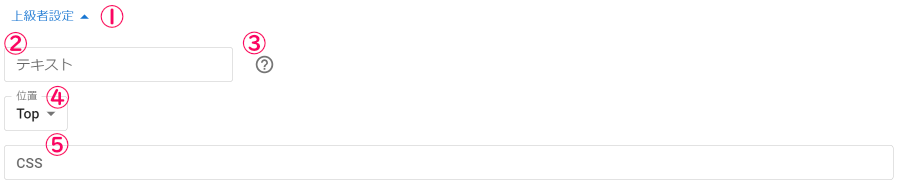 Advanced settingsTextPosition
| ① Advanced settings | Click to show the settings for advanced users |
| ② Text | Enter text to display along with the image (HTML can be used) The text can also use the template placeholders described below (※1) |
| ③ Help | Opens the manual page for Advanced settings |
| ④ Position | Sets where the text is placed relative to the image |
| ⑤ CSS (※2) | Write the CSS applied to the text |
※1 Template placeholders usable in text
| {name} | Username |
| {streamingName} | Name of the stream |
| {paidText} | Gift amount or points |
| {comment} | Comment |
※2 CSS
The text is output as HTML like the following
<div class="notify-text">The content specified in Text</div>
Write your CSS so that it includes at least the following class
.notify-text {}
Origin explained
In the figure below, red is the placed material and the black frame is the stream screen frame (1920x1080)
If you set the origin to the bottom left with 0.0, it is placed at the top left of the figure, which is off-screen (not visible)
Adjust the position so that the origin matches where you want to place it
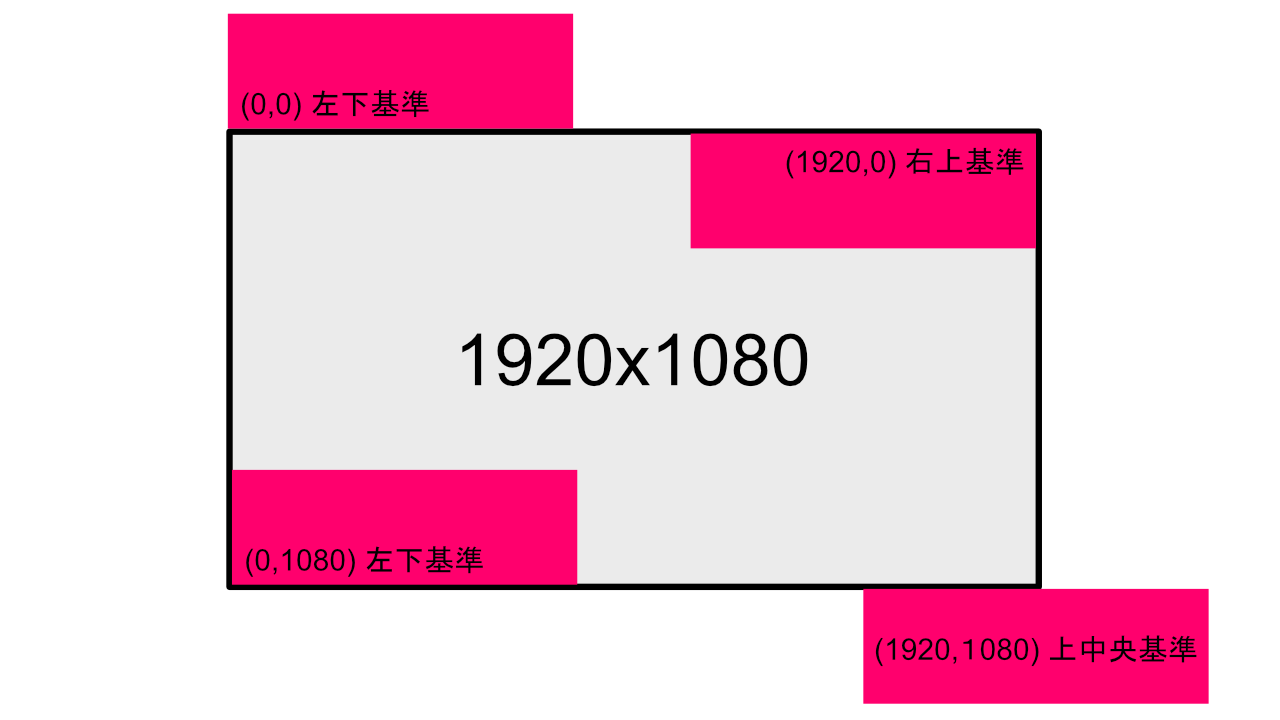 1920,1080) top center
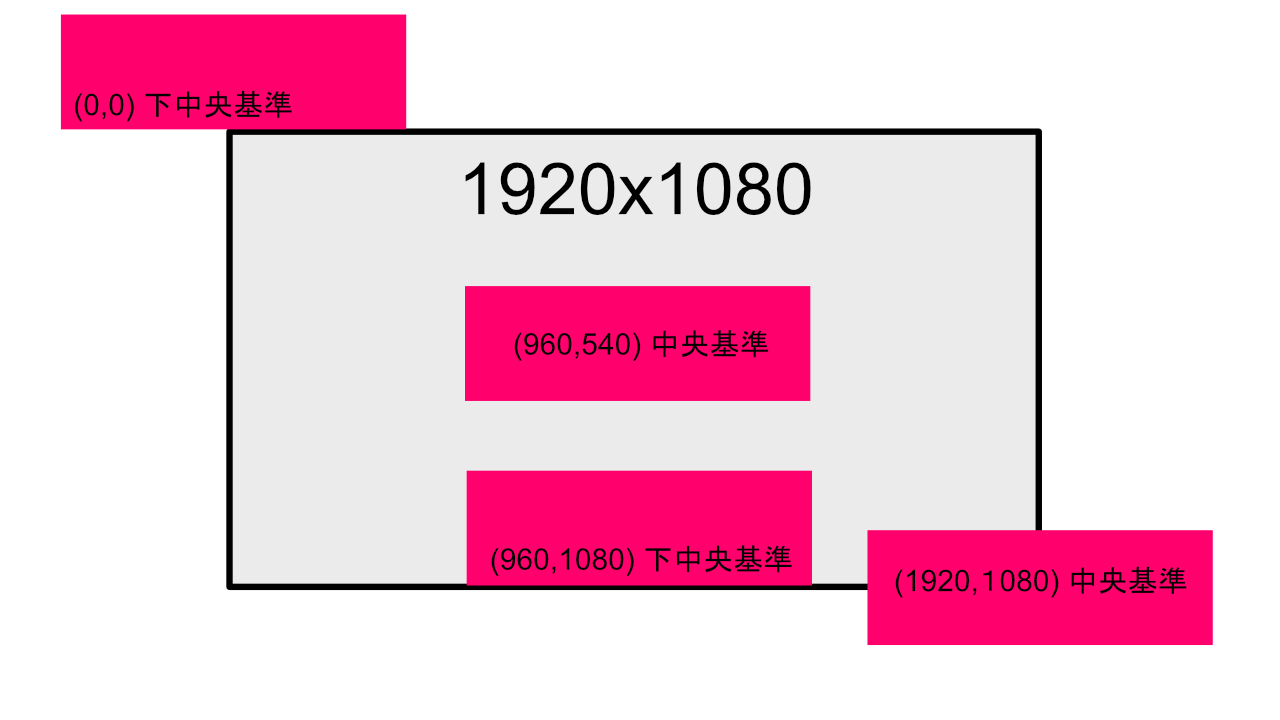 960,540) center960,1080) bottom center
"Confetti" effect settings
Confetti lets you display celebratory confetti
You can also make it burst in a circle like fireworks
■ When not using emoji and stamps in comments
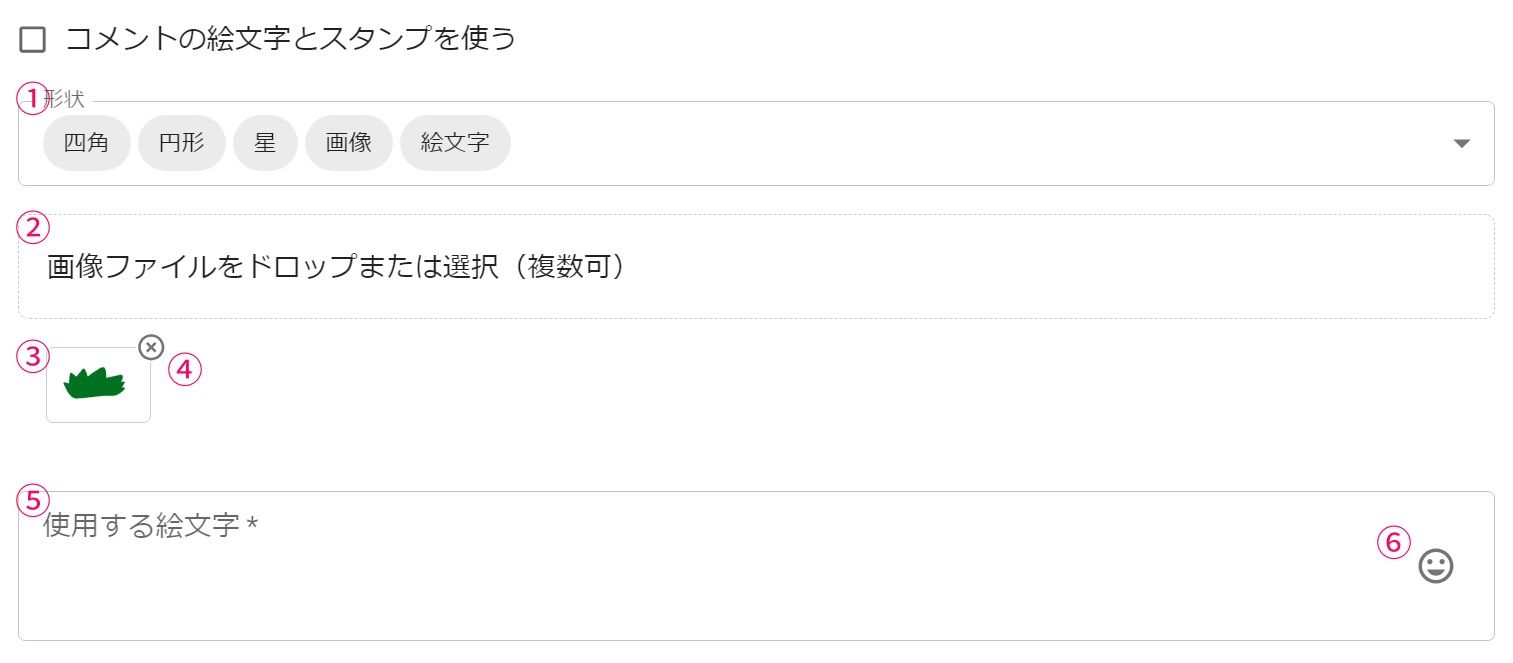 Use emoji and stamps in commentsImagesEmojisDrop or select image files (multipleEmojis
| ① Shape | Specifies the shape of the confetti Add an image file only when an image is specified |
| ② Image file (when the shape includes an image) | Select the image applied to the confetti Can be set only when the shape includes an image |
| ③ Configured image file (when the shape includes an image) | The image file that has been set |
| ④ Delete button | Deletes the configured image file |
| ⑤ Emojis (when the shape includes an emoji) | Write the emojis used in the effect, one per line |
| ⑥ Emoji picker | Lets you select the emojis to use from the emoji picker |
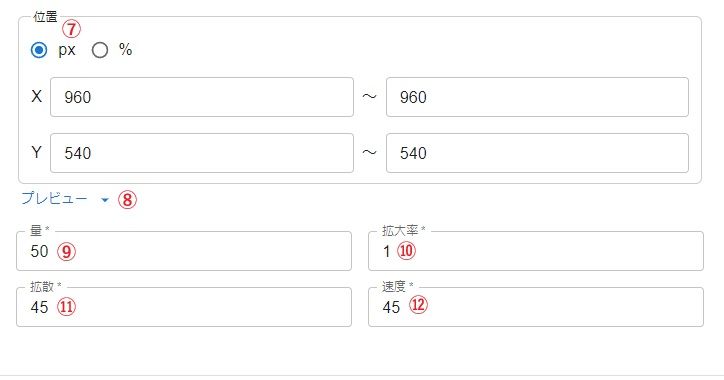
| ⑦ Position | Specifies the position and range where the confetti is shown |
| ⑧ Preview | Using a 1920×1080 stream screen as an example, lets you check where the material will be displayed ※ See "About the preview" below for how to read the preview |
| ⑨ Amount | The number of confetti pieces per effect The maximum is 1000 (9.2+). Above 500, a warning appears saying "Large values may cause stuttering during streams" |
| ⑩ Scaling | The size of the confetti If an image is specified, a larger value makes it look rougher |
| ⑪ Spread | The angle at which the confetti spreads when it bursts At 360 it spreads in a circle |
| ⑫ Speed | Specifies the speed at burst Larger values spread faster and wider |
■ When using emoji and stamps in comments
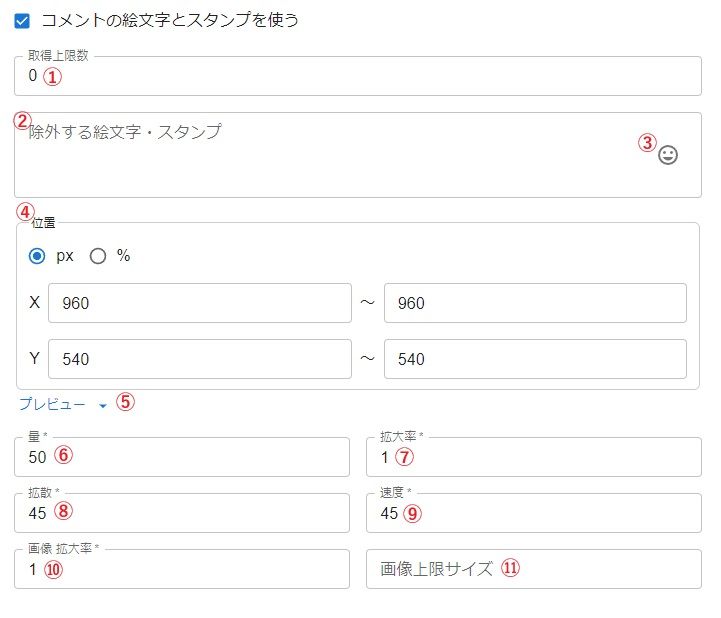 Emoji and stamps to be excludedPreview
| ① Limit | The maximum number of emoji and stamps taken from one comment If set to 0, all emoji and stamps in the comment are used |
| ② Emoji and stamps to be excluded | Specifies emoji and stamps (stamp names) not to use in the effect |
| ③ Emoji picker | Lets you select the emoji to exclude from the emoji picker |
| ④ Position | Specifies the position and range where the confetti is shown |
| ⑤ Preview | Using a 1920×1080 stream screen as an example, lets you check where the material will be displayed ※ See "About the preview" below for how to read the preview |
| ⑥ Amount | The number of confetti pieces per effect The maximum is 1000 (9.2+). Above 500, a warning appears saying "Large values may cause stuttering during streams" |
| ⑦ Scaling | The size of the confetti If an image is specified, a larger value makes it look rougher |
| ⑧ Spread | The angle at which the confetti spreads when it bursts At 360 it spreads in a circle |
| ⑨ Speed | Specifies the speed at burst Larger values spread faster and wider |
| ⑩ Image scaling (when the shape is an image) | Specifies the proportion of the image size applied to the confetti Can be set only when the shape includes an image |
| ⑪ Max image size | Sets the maximum height or width of the displayed image Images exceeding the limit are scaled down while keeping their aspect ratio |
"Throwing" effect settings
Displays objects as if they were being thrown
■ When not using emoji and stamps in comments
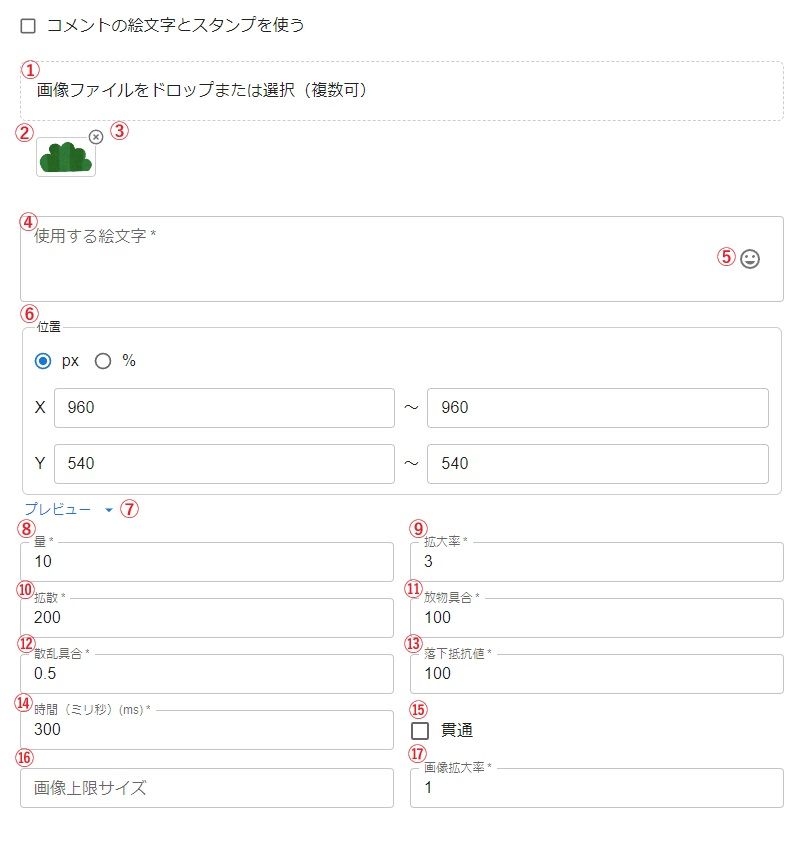 Use emoji and stamps in comments
| ① Image file | Select the image to throw |
| ② Configured image file | The image file that has been set |
| ③ Delete button | Deletes the configured image file |
| ④ Emojis (when the shape includes an emoji) | Write the emojis used in the effect, one per line |
| ⑤ Emoji picker | Lets you select the emojis to use from the emoji picker |
| ⑥ Position | Specifies the position and range where things are thrown |
| ⑦ Preview | Using a 1920×1080 stream screen as an example, lets you check where the material will be displayed ※ See "About the preview" below for how to read the preview |
| ⑧ Amount | Specifies how many objects are thrown per effect The maximum is 500 (9.2+). Above 100, a warning appears saying "Large values may cause stuttering during streams" |
| ⑨ Scaling | Specifies the initial scale when thrown Larger values make the throw look more dynamic |
| ⑩ Spread | Specifies how much the thrown objects deviate Larger values make them stray further from the specified position |
| ⑪ Arc | Specifies how much of an arc the thrown objects travel in |
| ⑫ Scatter | Specifies how widely the thrown objects scatter when they hit |
| ⑬ Fall resistance | Specifies how much resistance the thrown objects have when falling after they hit Larger values make them look like they drag and catch |
| ⑭ Time | The duration of the throwing effect |
| ⑮ Penetrate | Thrown objects pass through without hitting anything |
| ⑯ Max image size | Sets the maximum height or width of the displayed image Images exceeding the limit are scaled down while keeping their aspect ratio |
| ⑰ Image scaling | Specifies the size of the specified image Ultimately, adjust the size of the image itself |
■ When using emoji and stamps in comments
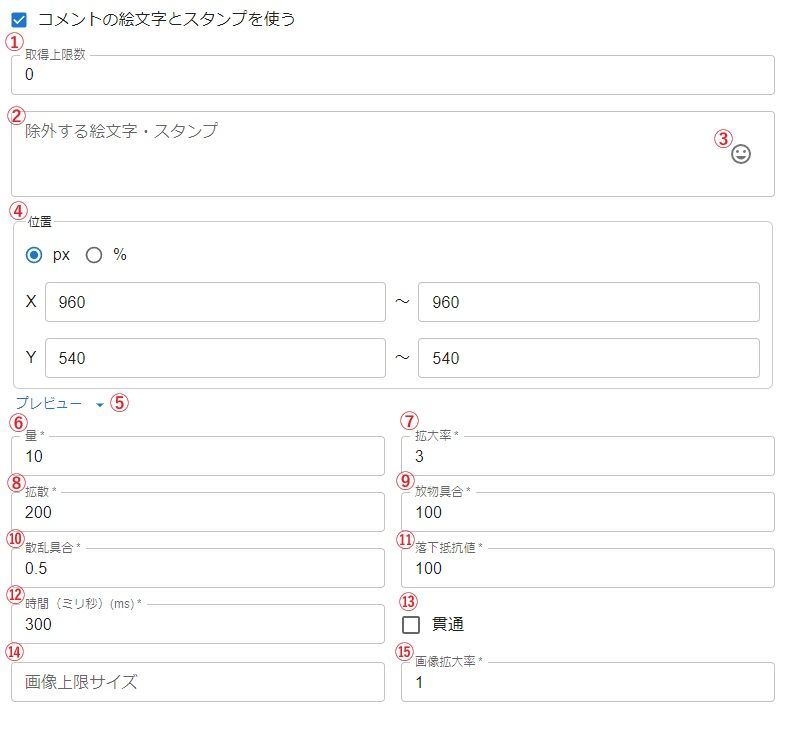 Use emoji and stamps in commentsEmoji and stamps to be excluded
| ① Limit | The maximum number of emoji and stamps taken from one comment If set to 0, all emoji and stamps in the comment are used |
| ② Emoji and stamps to be excluded | Specifies emoji and stamps (stamp names) not to use in the effect |
| ③ Emoji picker | Lets you select the emoji to exclude from the emoji picker |
| ④ Position | Specifies the position and range where things are thrown |
| ⑤ Preview | Using a 1920×1080 stream screen as an example, lets you check where the material will be displayed ※ See "About the preview" below for how to read the preview |
| ⑥ Amount | Specifies how many objects are thrown per effect The maximum is 500 (9.2+). Above 100, a warning appears saying "Large values may cause stuttering during streams" |
| ⑦ Scaling | Specifies the initial scale when thrown Larger values make the throw look more dynamic |
| ⑧ Spread | Specifies how much the thrown objects deviate Larger values make them stray further from the specified position |
| ⑨ Arc | Specifies how much of an arc the thrown objects travel in |
| ⑩ Scatter | Specifies how widely the thrown objects scatter when they hit |
| ⑪ Fall resistance | Specifies how much resistance the thrown objects have when falling after they hit Larger values make them look like they drag and catch |
| ⑫ Time | The duration of the throwing effect |
| ⑬ Penetrate | Thrown objects pass through without hitting anything |
| ⑭ Max image size | Sets the maximum height or width of the displayed image Images exceeding the limit are scaled down while keeping their aspect ratio |
| ⑮ Image scaling | Specifies the size of the specified image Ultimately, adjust the size of the image itself |
"Connector" effect settings
Connector is a special effect that runs other effects when its conditions are met
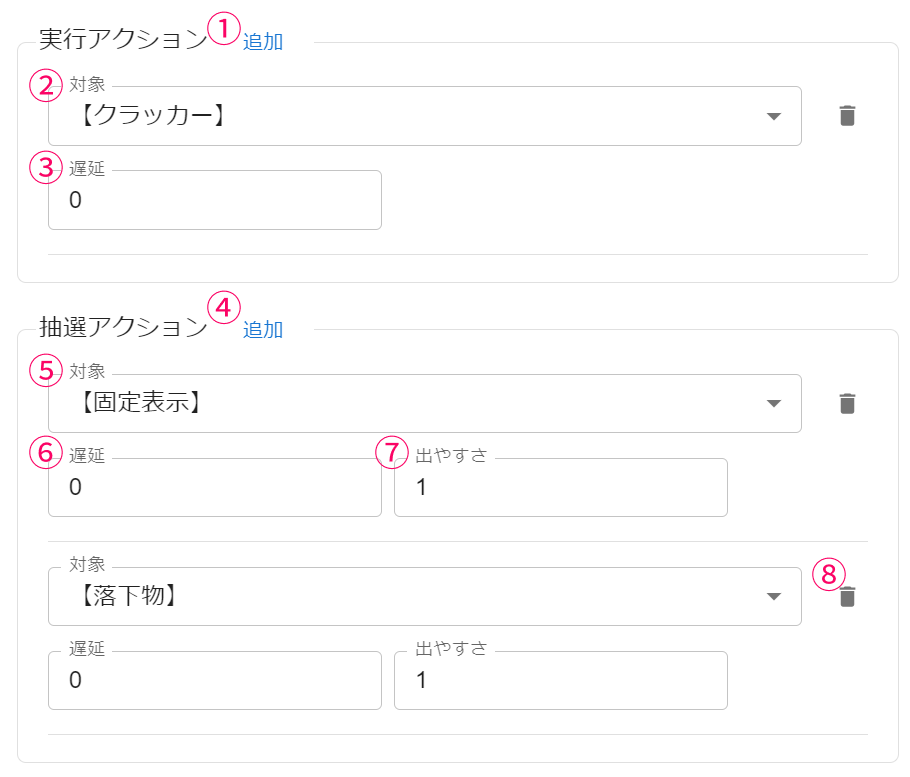 Action To ExecuteAddCrackerDelayLottery ActionTargetFixed coordinatesAddTargetDropDelayProbabilityProbability
| ① Run action | An action that is always run when the Connector effect conditions are met |
| ② Target (run action) | Select the effect to run You can choose from existing effects, and even disabled effects can be run |
| ③ Delay | Delays execution by the specified time (in milliseconds) after the Connector effect conditions are met |
| ④ Lottery Action | An action where only one of the configured actions is run when the Connector effect conditions are met |
| ⑤ Target (Lottery Action) | Select the effects to draw from You can choose from existing effects, and even disabled effects can be run |
| ⑥ Delay | Delays execution by the specified time (in milliseconds) when the action is drawn and run |
| ⑦ Probability | The relative likelihood of this effect The larger it is compared with the Probability of other Lottery Actions, the more likely it is to be drawn |
| ⑧ Delete action | Deletes the action |
"Trigger" effect settings
Trigger is a special effect that runs other effects when special conditions are met
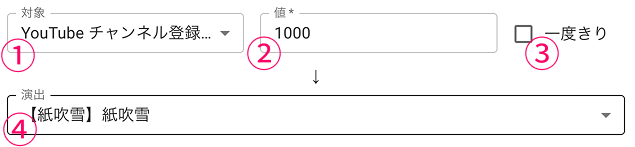 TargetSubscribe To Our Youtube ChannelEffect
| ① Target | Select what you want to use as the condition |
| ② Value | The number used as the trigger condition |
| ③ Once only | After the condition has been met once, prevents the effect from triggering again if the value drops below it for some reason and then meets the condition again |
| ④ Effect | Select the effect to run when the condition is met |
"VTS Object" effect settings [PRO]
VTS Object is an effect that displays Drops as scene items in VTube Studio instead of an OBS browser source (9.2+)
Because the Drops appear in the same space as your VTube Studio model, you can create effects that use collisions with the model's outline
To use it, enable the integration under "Top-right menu > Integrations > VTubeStudio" and allow custom images on the VTube Studio side → [PRO] VTubeStudio integration with comment effects
Note
- To work, the WordParty template must be open in a browser, OBS, or similar (the effect itself is displayed in VTube Studio)
- Only image files are supported as material (PNG, JPG, GIF, 64 to 2048 pixels, under 5 MB). Emojis and text cannot be used
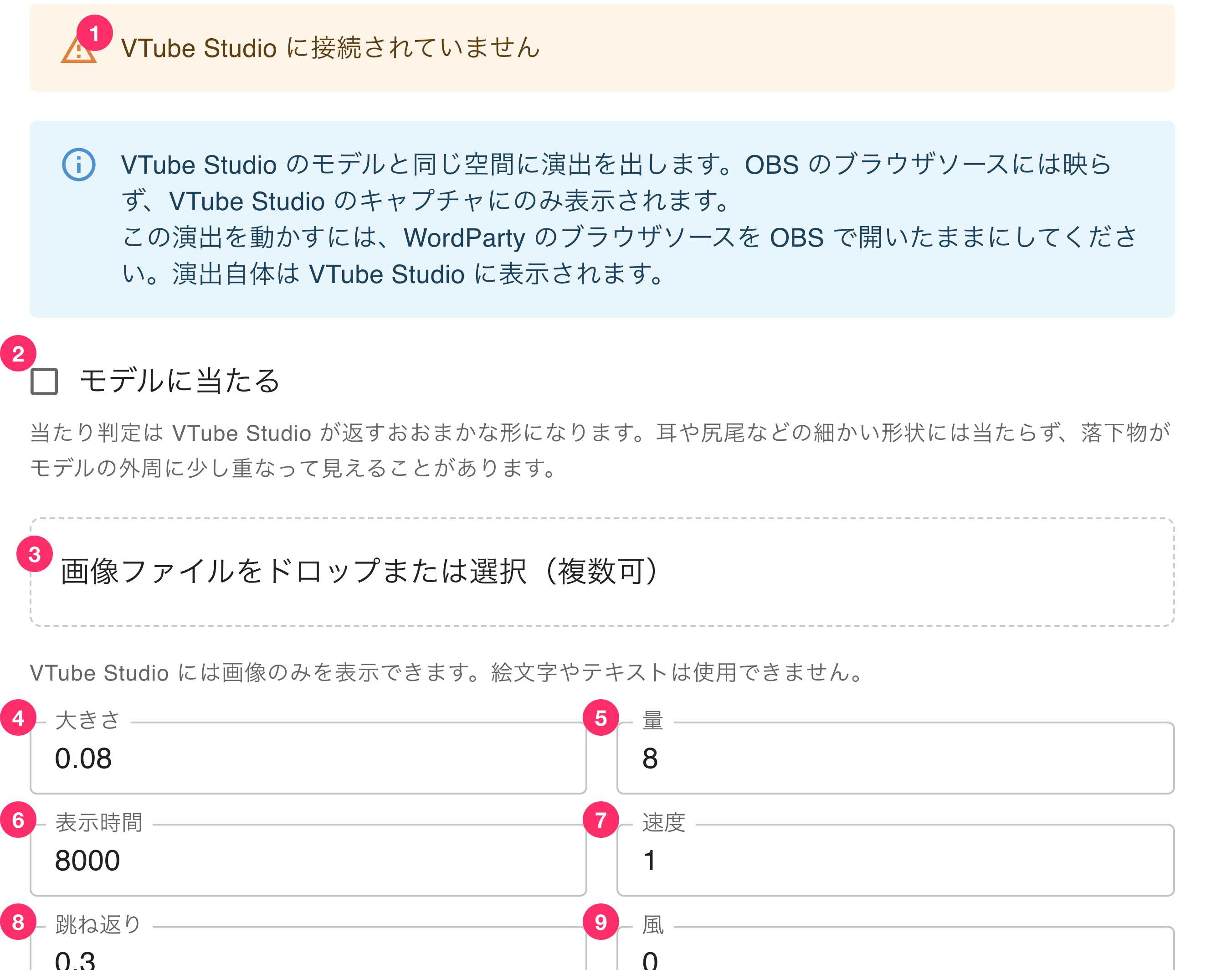 Not Connected To Vtube StudioShows the effect in the same space as your VTube Studio model. Won't appearin OBS's browser source, only in VTube Studio's captureTo run this effect, keep WordParty's browser source open in OBSThe effect itself appears in VTube StudioCollide with ModelHit detection uses the rough shape VTube Studio returns. Fine parts like ears or tails aren't detected, so drop itemsmay appear to slightly overlap the model's outlineDrop or select image files (multipleVtube Studio Can Only Display Images; Emojis And Text Cannot Be Used.SizeLife timeBounceVelocityWind
| ① Connection status | The connection status with VTube Studio. Guidance is shown if it cannot connect, if no model is loaded, or if custom images need to be allowed |
| ② Collide with model | When ON, Drops collide with the model's outline Collision uses the rough shape returned by VTube Studio, so fine details such as ears and tails are not collided with |
| ③ Image file | The image displayed as the Drop. If you set multiple files, one is chosen at random |
| ④ Size | The size of the Drop |
| ⑤ Amount | The number of Drops shown when the Pattern matches |
| ⑥ Life time | How long the Drop is displayed (in milliseconds) |
| ⑦ Speed | The falling speed |
| ⑧ Bounce | The strength of the bounce when hitting the model or the screen edge |
| ⑨ Wind | A horizontal force applied to the Drop |
The number of items that can be shown at once can be changed with "Max simultaneous VTS Objects" under "Integrations > VTubeStudio"
VTube Studio's item slots (up to 30 each for front and back) are shared with items you place yourself, so if no slots are free, the effect will not be shown
About the preview
- About the blue frame
Shows the range of the X and Y values
The selected material moves randomly within that range each time its display time elapses - About the purple square
Shows the coordinates currently displayed within the blue frame, and how the material is displayed relative to the red origin point - About the red dot
The red dot indicates the origin, the position on the selected material (the purple one) that serves as its center
 PositionPreview
Settings --
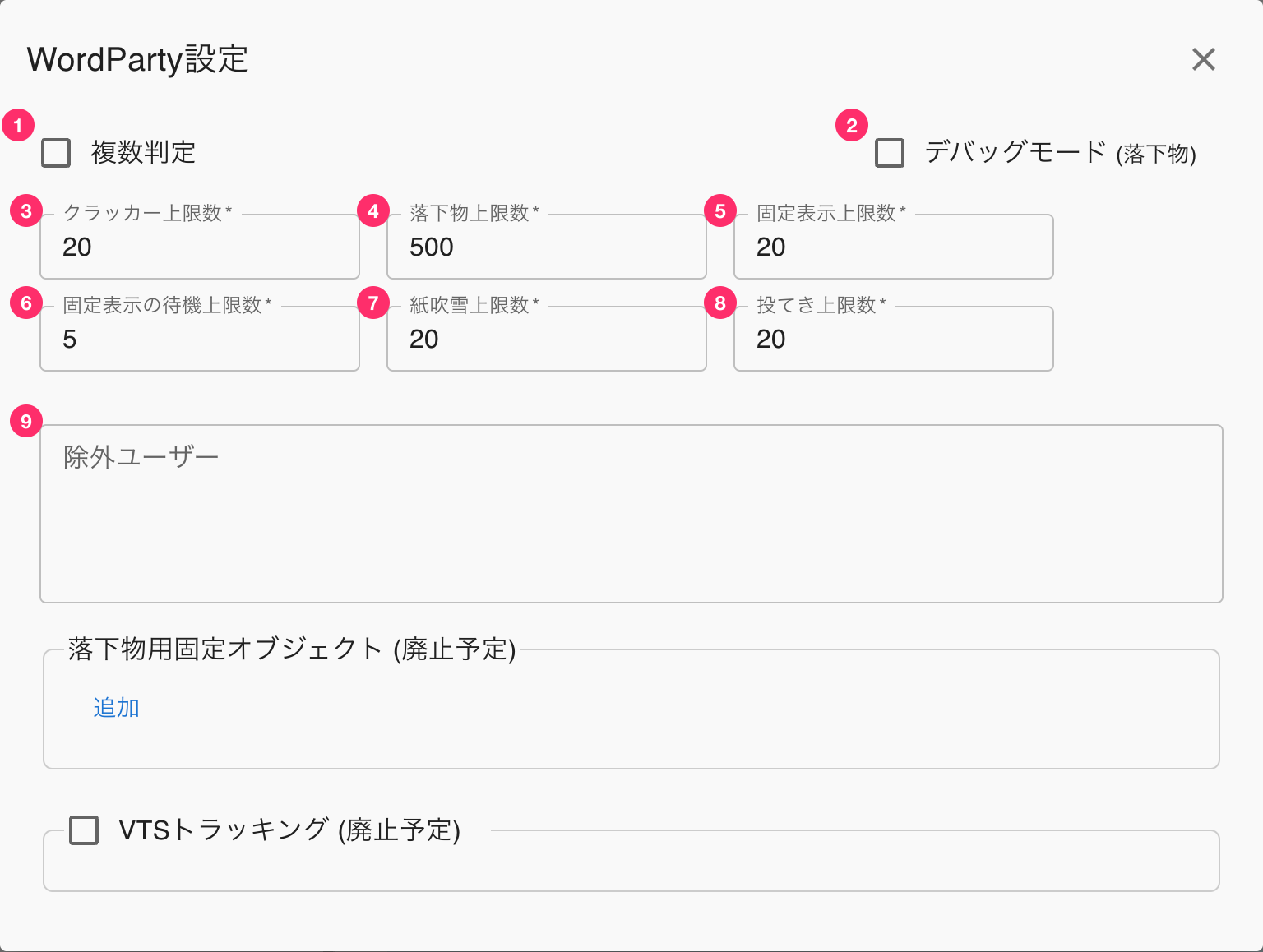
In Settings, you can configure options for WordParty as a whole and for all effects
 Word Party SettingsEvaluate allMax cracker countMax count of waiting notifiesMax count of particlesConfetti max limitExcluded usersFixed object for drop items (to be removed)AddTracking with VST (to be removed)Max fixed coordinates countMax throws
General settings
| ① Multiple matching | When enabled, multiple effects can trigger at the same time for a single comment The default is off, in which case only one effect (the one higher in the list takes priority) is shown per comment |
| ② Debug mode (Drop) | Enables Debug mode, which visualizes Drop positions, the size of collision areas, performance status and so on |
| ③ Cracker limit | The maximum number of Cracker effects displayed on the screen |
| ④ Drop limit | The maximum number of Drop effects displayed on the screen |
| ⑤ Fixed coordinates limit | The maximum number of Fixed coordinates effects displayed on the screen |
| ⑥ Fixed coordinates standby limit | The maximum number of effects that can be kept waiting by "Wait for next effect" in Fixed coordinates (9.2+) |
| ⑦ Confetti limit | The maximum number of Confetti effects displayed on the screen |
| ⑧ Throwing limit | The maximum number of Throwing effects displayed on the screen |
| ⑨ Excluded | Specifies usernames (the commenter's name) for which effects are not triggered. Using "*" as part of a username excludes by partial match (example: Nightbot-*) Enter one username per line |
Fixed objects for Drop (to be deprecated)
Note
"Fixed objects for Drop" and "Tracking with VST" are settings scheduled to be deprecated in 9.2
We recommend using the "Fixed Wall" effect type (the setting below Drop) or "VTS Object" going forward
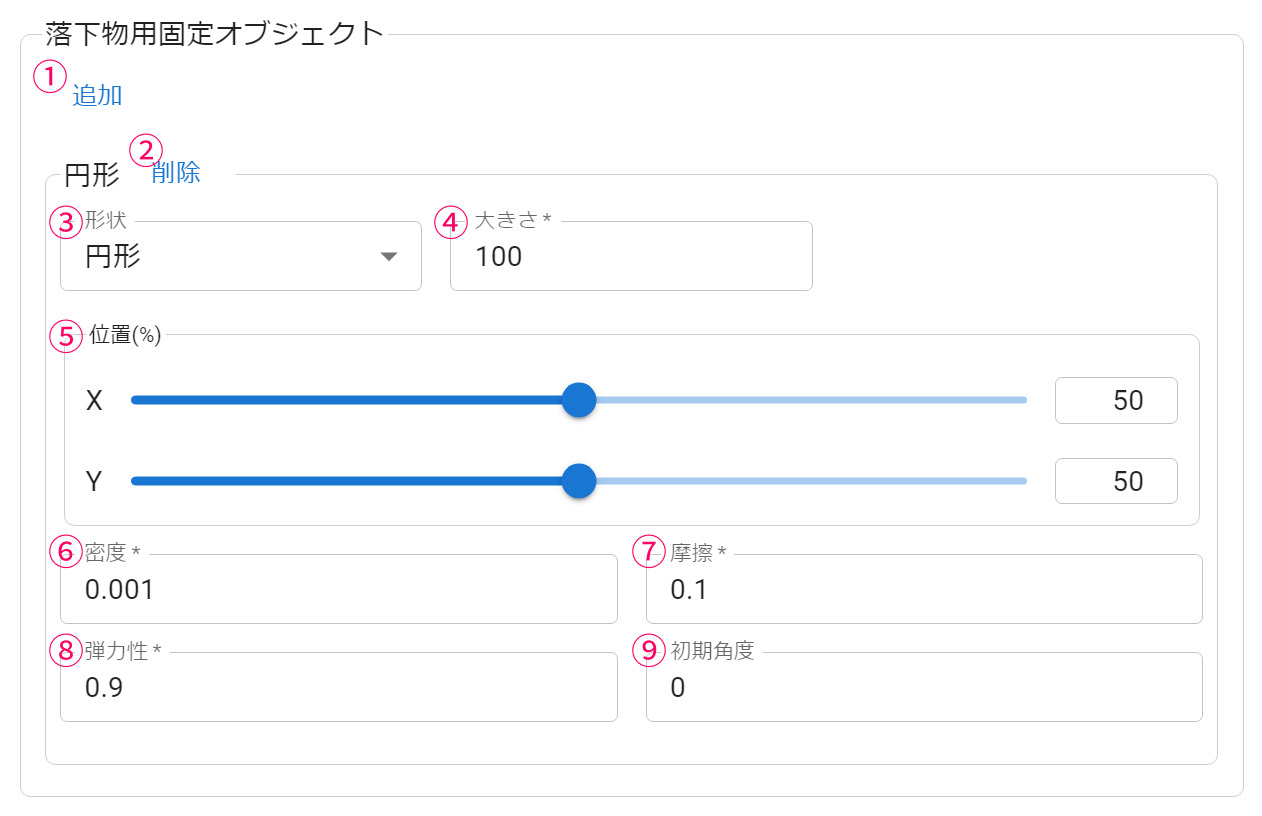
You can place transparent walls in the area specified for Drop effects
 Static collider for droppingsAddRound shapeshapeRound shapeRemovePositionDentisityCoefficient of restitutionSizeFrictionInjection angle
| ① Add | Adds a fixed object |
| ② Delete | Deletes a fixed object |
| ③ Shape | Choose the object shape: circle or rectangle |
| ④ Size | The size of the object For a circle, set the diameter; for a rectangle, set the width and height |
| ⑤ Position | Specifies where to place the object X sets the display position as a percentage (%) where the left of the screen is 0 and the right is 100 Y sets the display position as a percentage (%) where the top of the screen is 0 and the bottom is 100 |
| ⑥ Density | The density value of the object |
| ⑦ Friction | The friction value of the object |
| ⑧ Coefficient of restitution | The coefficient of restitution of the object |
| ⑨ Initial angle | The angle at which the object is placed |
Tracking with VST (to be deprecated)
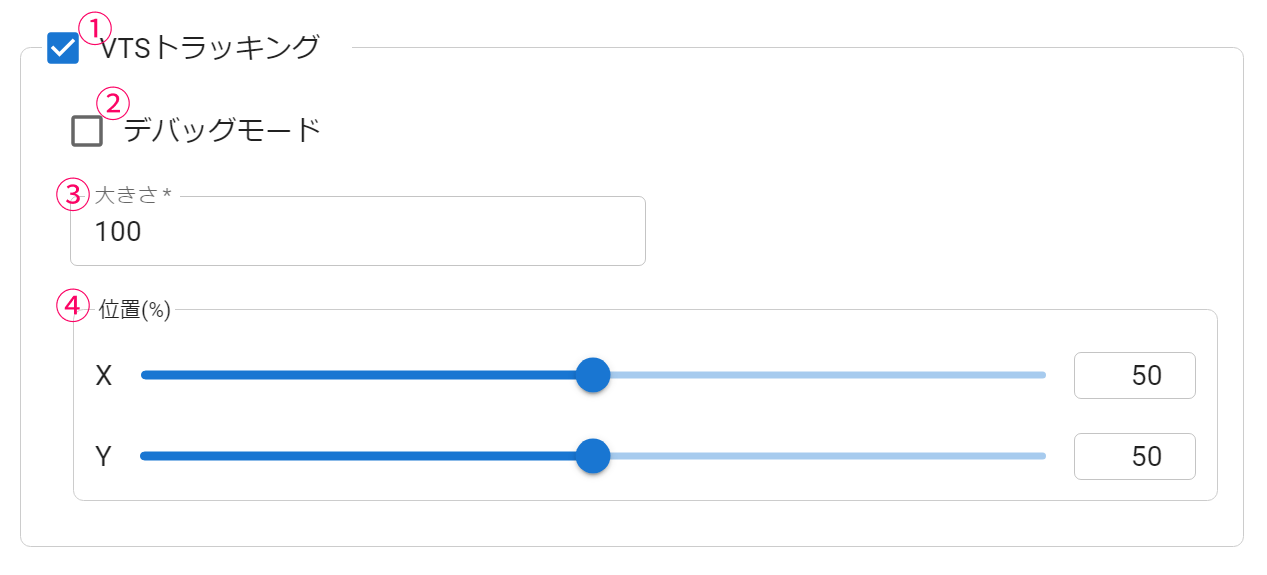
Integrates with VTubeStudio so you can place a wall that moves roughly in line with your face movements
 Debug modeSizePosition
| ① Tracking with VST | Integrates with VTubeStudio and tracks the approximate position |
| ② Debug mode | Shows the tracked position and the moving wall part as a red circle |
| ③ Size | Specifies the diameter of the collision area |
| ④ Position | Specifies where to place the wall Specify it as a percentage (%) where the left of the screen is 0 and the right is 100 ※ Adjust it so that the red circle in Debug mode sits at the center of your face |
For custom creators
You can write filter options in start() defined in WordParty's config.js
It receives the comment and the information of the effect item about to trigger as arguments, and returning false cancels that effect (async/await supported)
This lets you freely prevent effects from running under conditions that WordParty does not implement
There are two kinds of filters, called at different timings
| Option | When it is called | Version |
|---|---|---|
commentFilter | After the per-effect conditions (enabled, folder, gift, excluded services, etc.) are met and before Pattern matching. It is called for each enabled effect, even for comments that do not match the Pattern | 8.0 or later |
customFilter | Right before an effect triggers after matching the Pattern (for effects without a Pattern, after the conditions are met). It is called only for effects that matched | 9.2 or later |
An effect for which either filter returns false does not trigger, and evaluation moves on to the next effect (even with Multiple matching off, another effect will trigger if it meets its conditions)
This applies to triggers from comments, Reactions and events. It is not called for triggers from Trigger effect meta information, soundboard, or chained triggers from Connector
.start({
  // Called after other conditions are met, before Pattern matching (also called for comments that do not match the Pattern)
  // @param comment Comment data
  // @param item Effect settings
  // @return boolean or Promise<boolean>
  commentFilter: async (comment, item) => {
    return true
  },
  // Called right before triggering after the Pattern matches (9.2 or later)
  // @param comment Comment data
  // @param item Effect settings
  // @return boolean or Promise<boolean>
  customFilter: async (comment, item) => {
    return true
  }
})