
[PRO] Comment translation
Comment translation using the Chrome browser
Translates chat using the AI translation feature built into the Chrome browser
Translation uses CPU and GPU resources, so check in advance whether your system has enough spec headroom
Caution
The languages you can translate depend on Chrome. Also, some versions may not work correctly, so use the latest version
Translation settings
In OneComme's top-right menu > Settings > Comments, check "Comment translation"
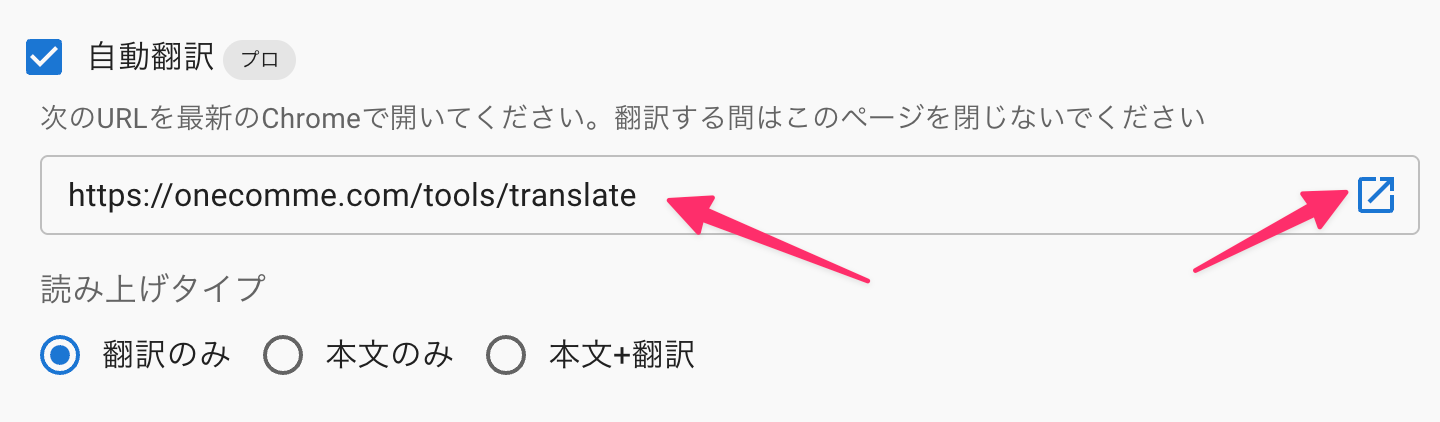 "다음 URL을 최신 버전의 Chrome에서 열어 주세요.읽어주기 유형번역만원문만
Then open the displayed URL in Chrome (the open icon on the right opens it in your default browser instead)
Settings on the Chrome side
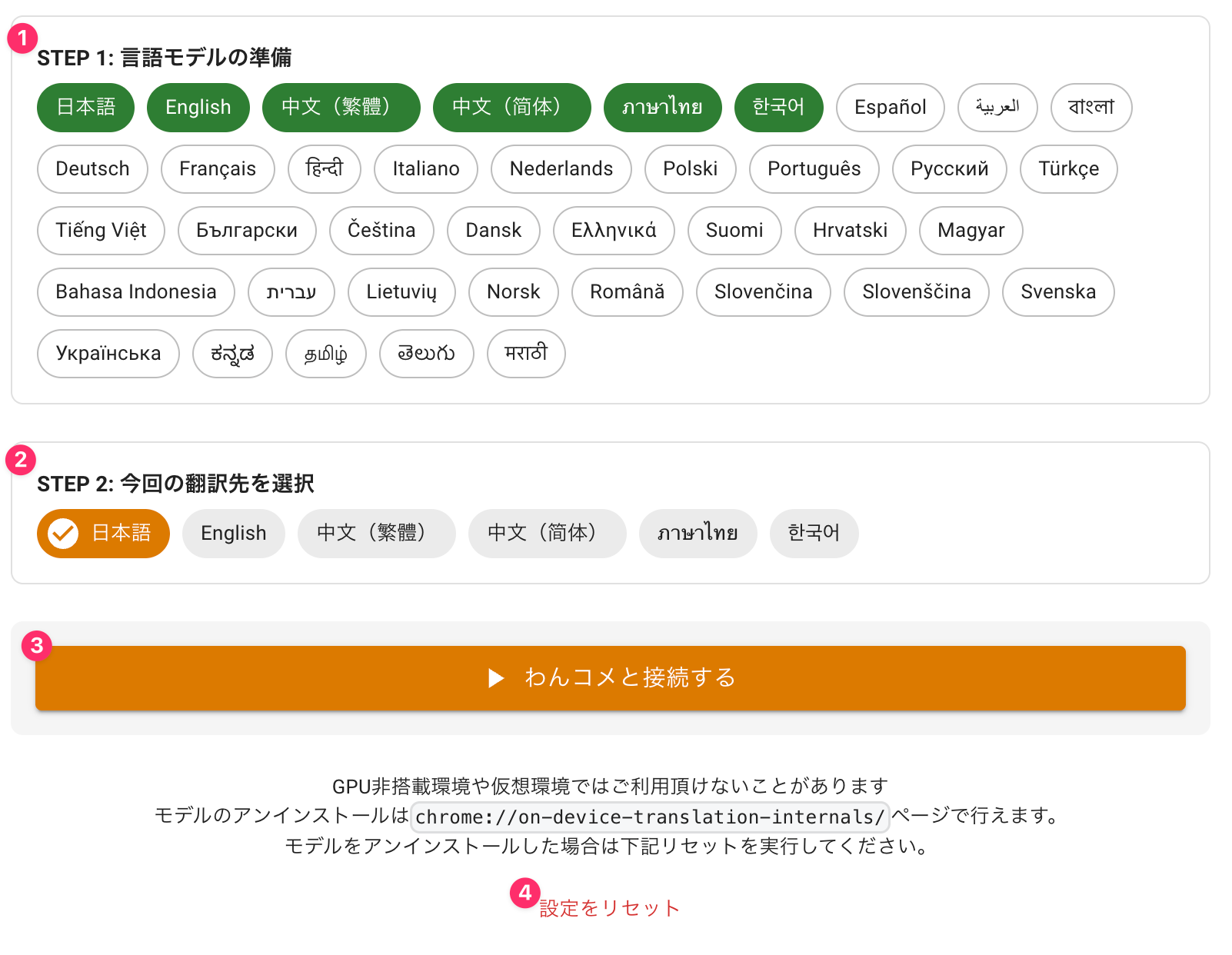 STEP 1: 언어 모델 준비일본어STEP 2: 번역할 언어 선택일본어OneComme와 연결하기GPU 미탑재/가상 환경에서는 사용 불가할 수 있음모델 삭제 시 아래 초기화를 실행하세요설정 초기화
In STEP 1, select the language you want to translate and download the translation model
TIPS
The more languages you select, the higher the load, so only select the ones you need
In STEP 2, specify the target language for translation
If you want to translate English comments into Japanese, select "Japanese"
Once you've finished the settings, click "Connect to OneComme"
If it shows as waiting for translation as in the image below, you're ready to go
 개 연결됨: 번역 대기중중지 후 새로고침
Try testing it by posting comments in English, etc., using tools like the Dummy Commenter
 테스테스트 유저hello(안녕하세요
Caution
For translation to work, keep the Chrome browser visible at all times and avoid closing the page
Also, translation performance may drop if the window is minimized or otherwise not visible
읽어주기 설정
Let's set up how translated comments should be read aloud
읽어주기 유형
번역만 - If a comment has been translated, only the translation is read aloud. If a comment isn't a translation target, the original text is read aloud instead
원문만 - Only the original text is read aloud, even if a translation exists
Original + translation - Both the original text and the translation are read aloud
Adjusting in the OBS template
Translated results are also output as comments
You can change how the translated results are displayed by referring to the examples below
Show only the translation result
.origin {
  display: none;
}
.par {
  display: none;
}
Hide the translation result
.t {
  display: none;
}