
[Speech] COEIROINK integration
OneComme's Speech Voice can be driven by COEIROINK's speech synthesis engine
COEIROINK can be downloaded from the site below
Note
Version 2.8.2 or later is required to integrate with OneComme
Each speech synthesis engine has its own license, so make sure to review COEIROINK's terms of use before using it
COEIROINK settings
The COEIROINK app must be running for the integration to work
① Connect via Integrations
Open Integrations from the menu at the top right of OneComme
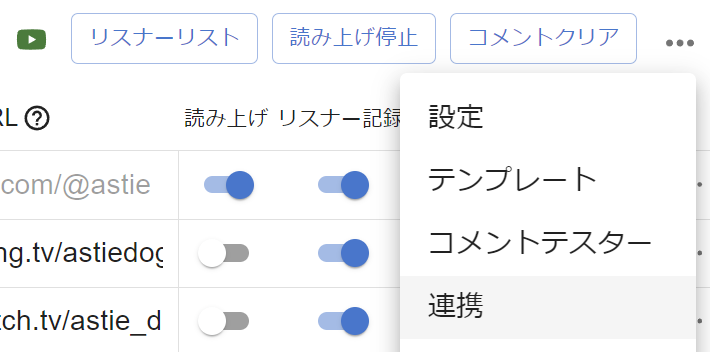 CommentersStop speechClear commentsSpeechPersistSettingsTemplatesDummy CommenterIntegration
Open the "COEIROINK" tab
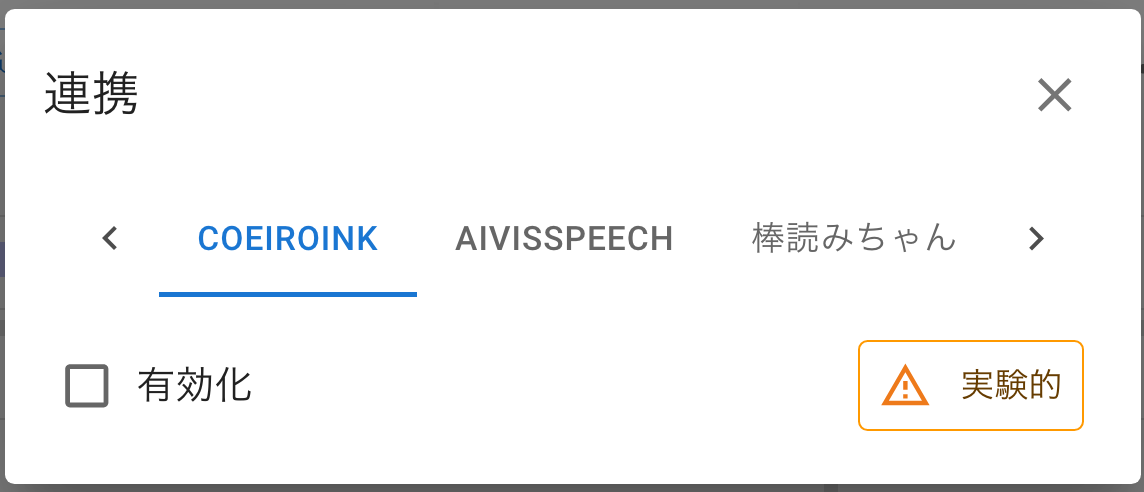 IntegrationEnabledBouyomiChanExperimental
To integrate, check "Enable"
Once integrated, the list of Speech Voices will be displayed
If it isn't, check that COEIROINK is running, then click the reload button next to the Speech Voice selector to fetch it again
Select a voice and click "Test Connection" — if it reads text aloud, the connection is complete
② Select it as the text-to-speech engine
If the Default Text-To-Speech Engine is still set to "Built-In Voice Engine", COEIROINK is automatically selected as the default text-to-speech engine as soon as you enable the integration
If another engine is already set as default, it won't switch automatically, so select COEIROINK using one of the methods below
Open "Speech Settings" and select COEIROINK under "Default Text-To-Speech Engine" to use COEIROINK for all streams To use it only for a specific stream, select COEIROINK under "Text-To-Speech Engine" in "Individual options"
If COEIROINK isn't selected as the engine anywhere, it won't be used for speech even if the integration is enabled
Note that if you disable an integration that was previously enabled, the default text-to-speech engine is automatically reselected from the remaining engines
Settings
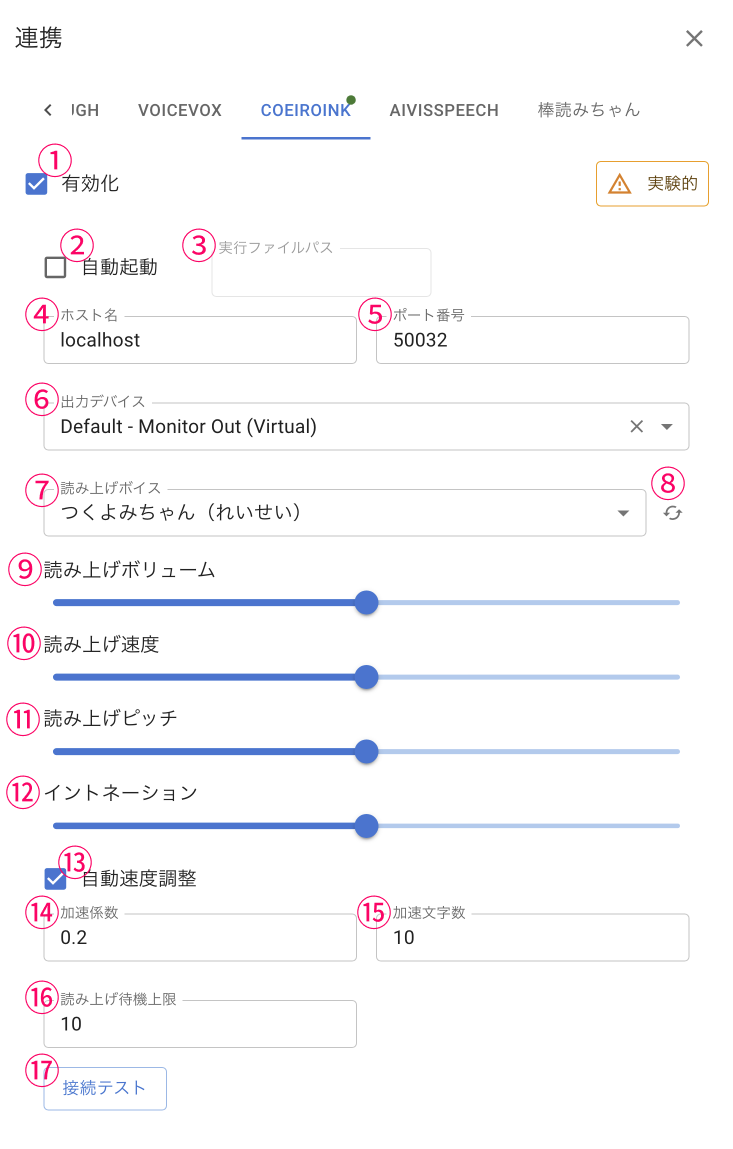 IntegrationEnabledBouyomiChanExperimentalExecutable File PathAuto RunHostnameOutput DeviceSpeech VoiceTsukuyomi-chan (CalmSpeech VolumePort10 Speech SpeedSpeech Voice PitchAutomatic Speed AdjustmentTest Connection
| ① Enable | Enable speech using COEIROINK |
| ② Auto Run | Launch COEIROINK when OneComme starts ※If auto-launched, it will automatically close when OneComme is closed |
| ③ Executable File Path | Specify COEIROINK's executable file (※1) |
| ④ Hostname | Hostname to connect to (usually no need to change) |
| ⑤ Port | Port number for COEIROINK's local HTTP server (usually no need to change) |
| ⑥ Output Device | Select the device to play the Speech Voice on If not selected, it plays on the default device |
| ⑦ Speech Voice | The voice used for speech |
| ⑧ Reload | Fetches the list of Speech Voices again |
| ⑨ Speech Volume | Adjust speech volume |
| ⑩ Speech Speed | Adjust speech speed |
| ⑪ Speech Voice Pitch | Adjust speech pitch |
| ⑫ Intonation | Adjust speech intonation |
| ⑬ Automatic Speed Adjustment | Automatically adjusts speech speed based on length |
| ⑭ Acceleration Coefficient | Increases speed by the specified coefficient for every ⑯ characters |
| ⑮ Accelerated Character Count | Increases speed for every specified number of characters |
| ⑯ Maximum Queued Items | Automatically skips older items once the specified number builds up, so speech doesn't get too backed up |
| ⑰ Test Connection | Runs a speech connection test |
※1 - On Mac, this can be filled in automatically using the steps below
- Right-click the COEIROINK app to open the menu
- While the menu is open, hold down the option key
- Select "Copy 'COEIROINK' as Pathname"
- Paste the copied path into the Executable File Path field for Auto Run
Specification --
While COEIROINK is selected as the text-to-speech engine, the settings highlighted in red below under Settings > Speech (Built-In Voice Engine Settings) are not used
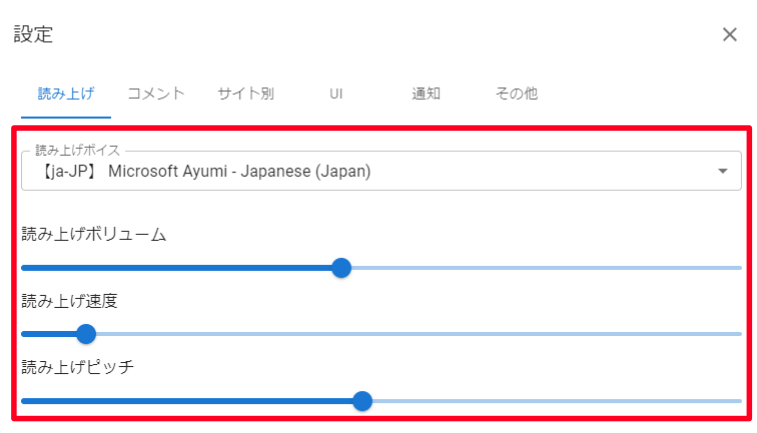 SettingsSpeechCommentsWebsite specificNotificationOthersSpeech VoiceSpeech VolumeSpeech SpeedSpeech Voice Pitch
Settings such as whether to include the name in the spoken text (Syntax for speech) and character limits continue to work regardless of which engine is selected
Use the preview to check that everything works as expected
Per-stream speech settings
If you select COEIROINK under "Text-To-Speech Engine" in Individual options, you can override the Speech Voice and settings for each stream individually
See "Individual options" for details