
Split layout
You can display comments split by stream.
How to use
How to split into two
Click the [][] icon (circled in red in the image below) next to the comment heading on the main screen.
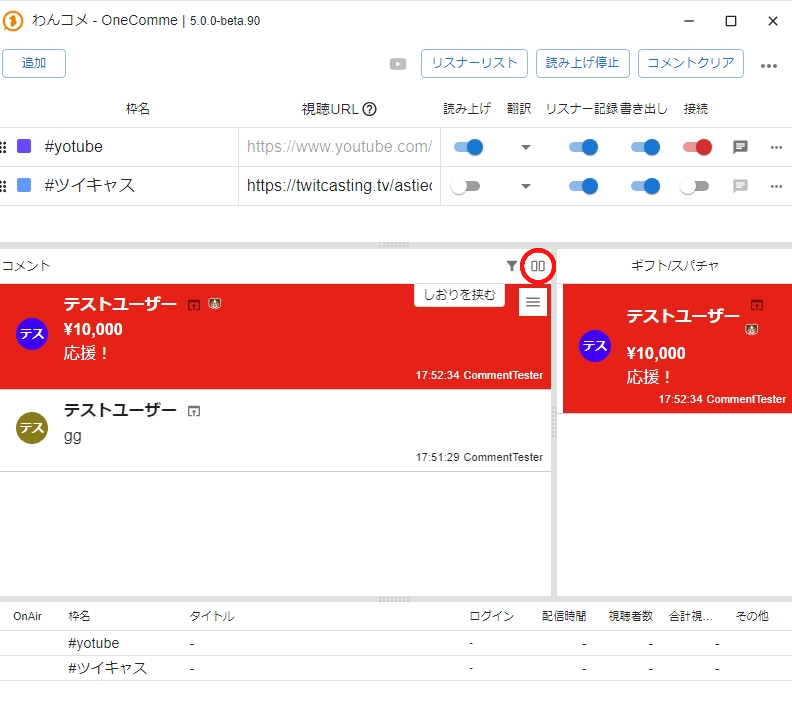 Stream NameTwitCastingStream URLCommentersStop speechClear commentsSpeechPersistExportConnectBookmarkTestUserStream NameTwitCastingTitleLogged InOthers
Clicking the [][] icon splits the comment column into two, as shown below.
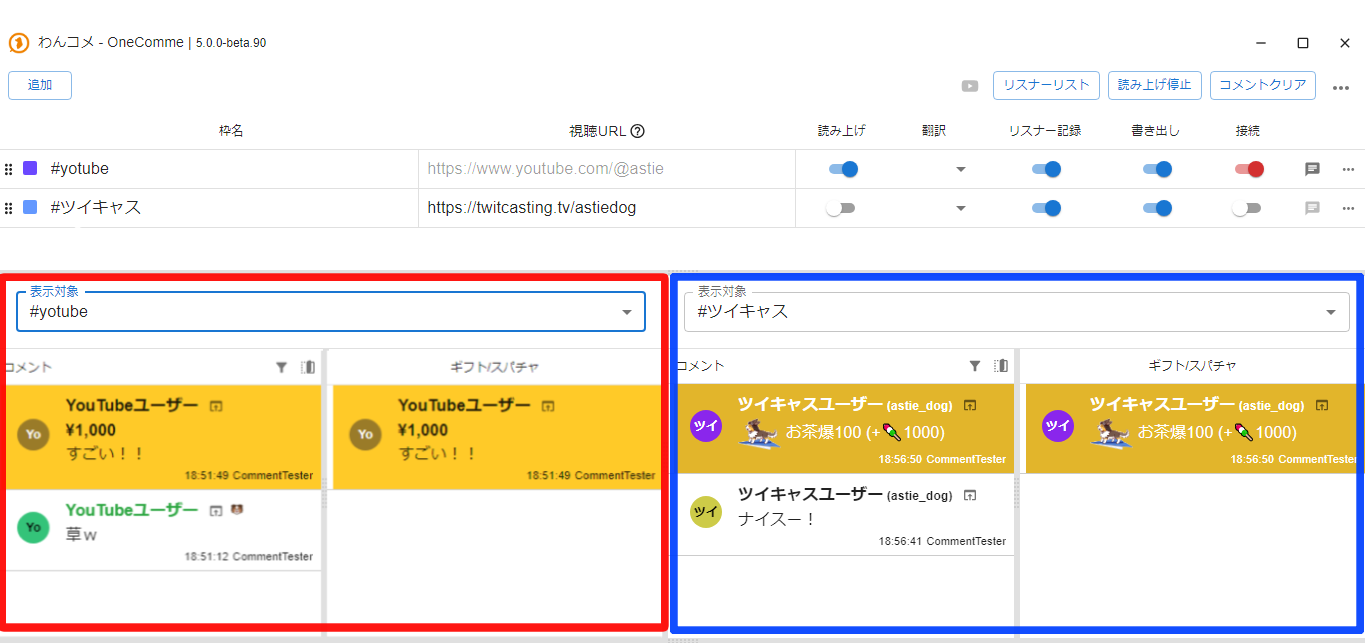 OneComme - OneComme | 5.0.0-beta.90AddStream NameTwitCastingTarget(s) to displayCommenStream URLAmazingSpeechTranslateCommentersPersistStop speechExportClear commentsTarget(s) to displayTwitCastingCommentsTwitCasting User (astie_dogNiceGift/SuperChatTwitCasting User (astte_dog
Specifying which stream to display
Click the select box indicated by the red arrow below.
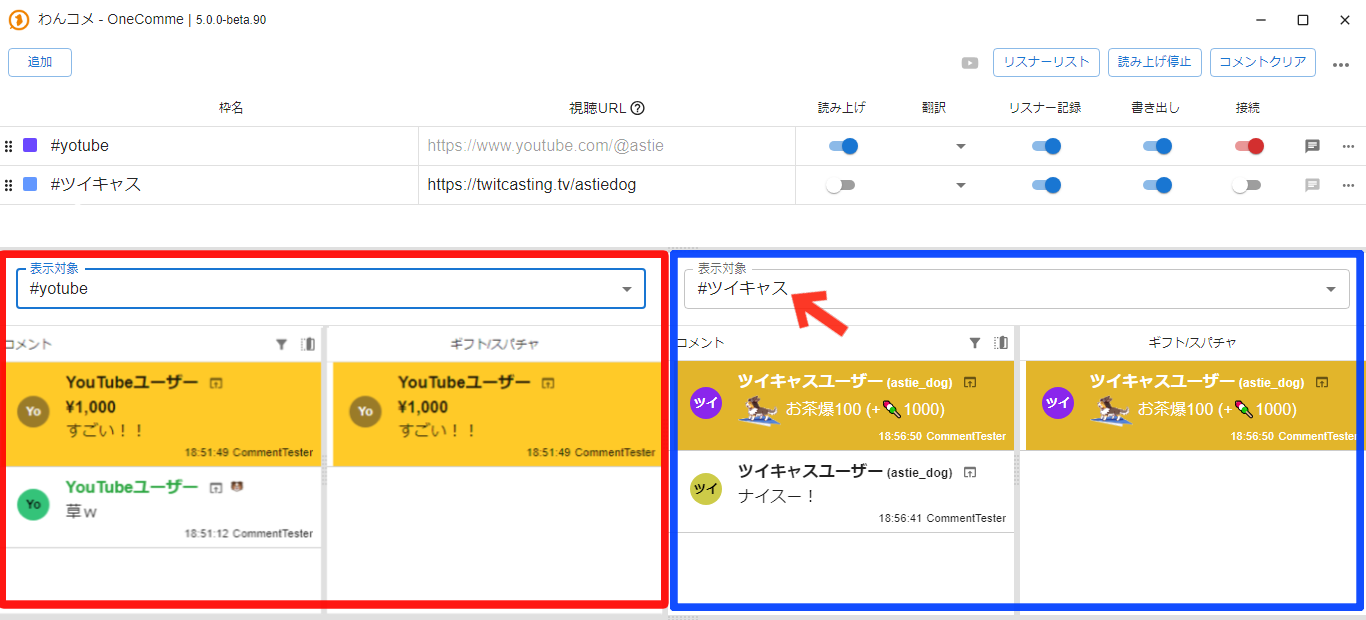 OneComme - OneComme | 5.0.0-beta.90AddStream NameTwitCastingTarget(s) to displayCommentsAmazingStream URLGift/SuperChatAmazingSpeechCommentersPersistStop speechExportClear commentsTarget(s) to displayTwitCastingCommenTwiTwiTwitCasting User (asfie_dogTwitCasting User (astie_dogNiceTwiGift/SuperChatTwitCasting User (asfie_dog
A list of stream names appears. Select the stream whose comments you want to display, as shown by the red arrow below.
Unchecking a stream will stop its comments from appearing in that column.
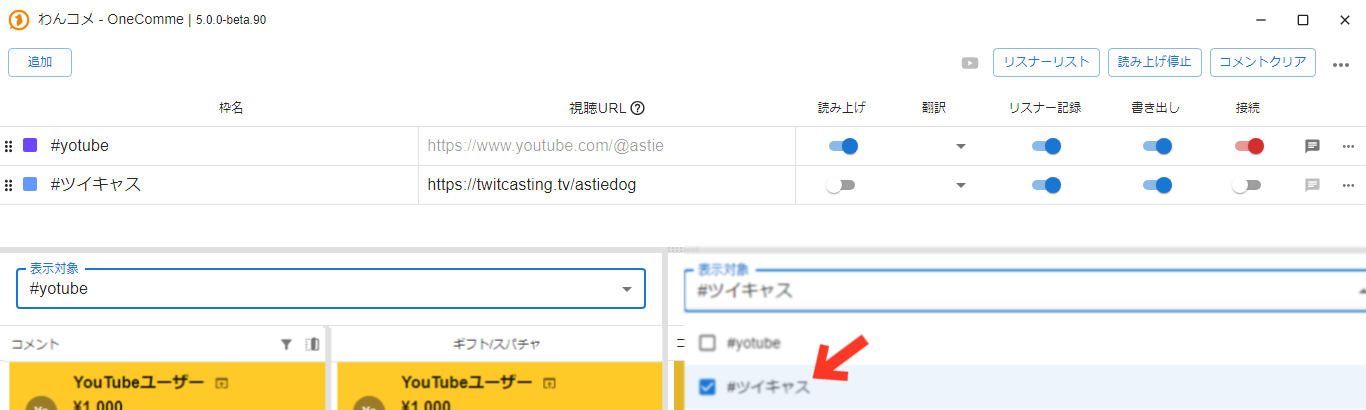 OneComme - OneComme | 5.0.0-beta.90AddStream NameTwitCastingTarget(s) to displayCommentsStream URLGift/SuperChatSpeechCommentersStop speechClear commentsTranslatePersistExport
How to exit the split layout
Click either of the circled buttons below to close the split layout.
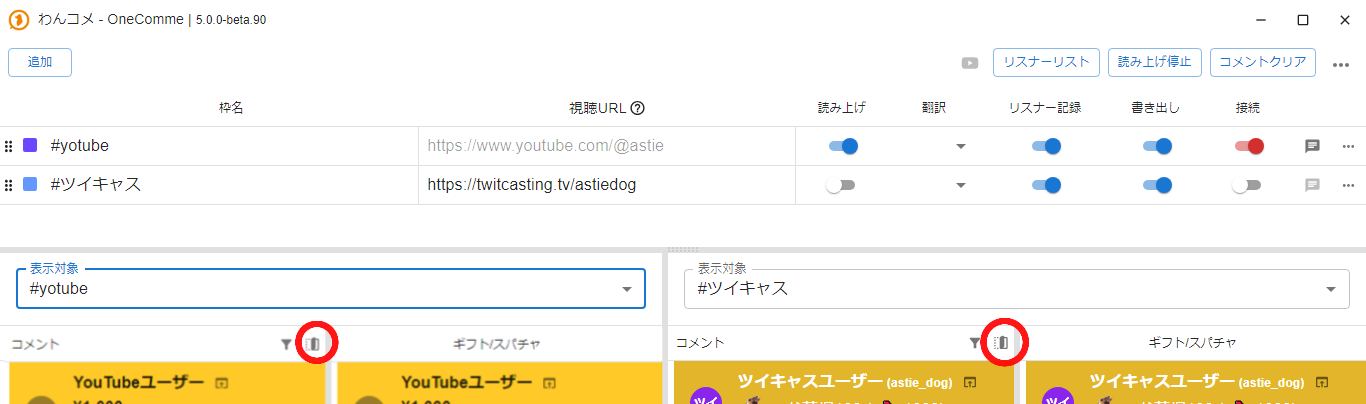 OneComme - OneComme | 5.0.0-beta.90AddCommentersStream NameTwitCastingStream URLSpeechTranslatePersistStop speechExportClear commentsTarget(s) to displayTarget(s) to displayTwitCastingCommentsCommentsTwitCasting User (asfie_dogGift/SuperChat