
How to read and configure the WordParty editor
About the editor and settings for editing WordParty comment on-screen effects
Menu
The left side of the editor shows the list of on-screen effects
TIPS
On-screen effects are evaluated in order from the top
Reorder an on-screen effect to move it up if you want it prioritized
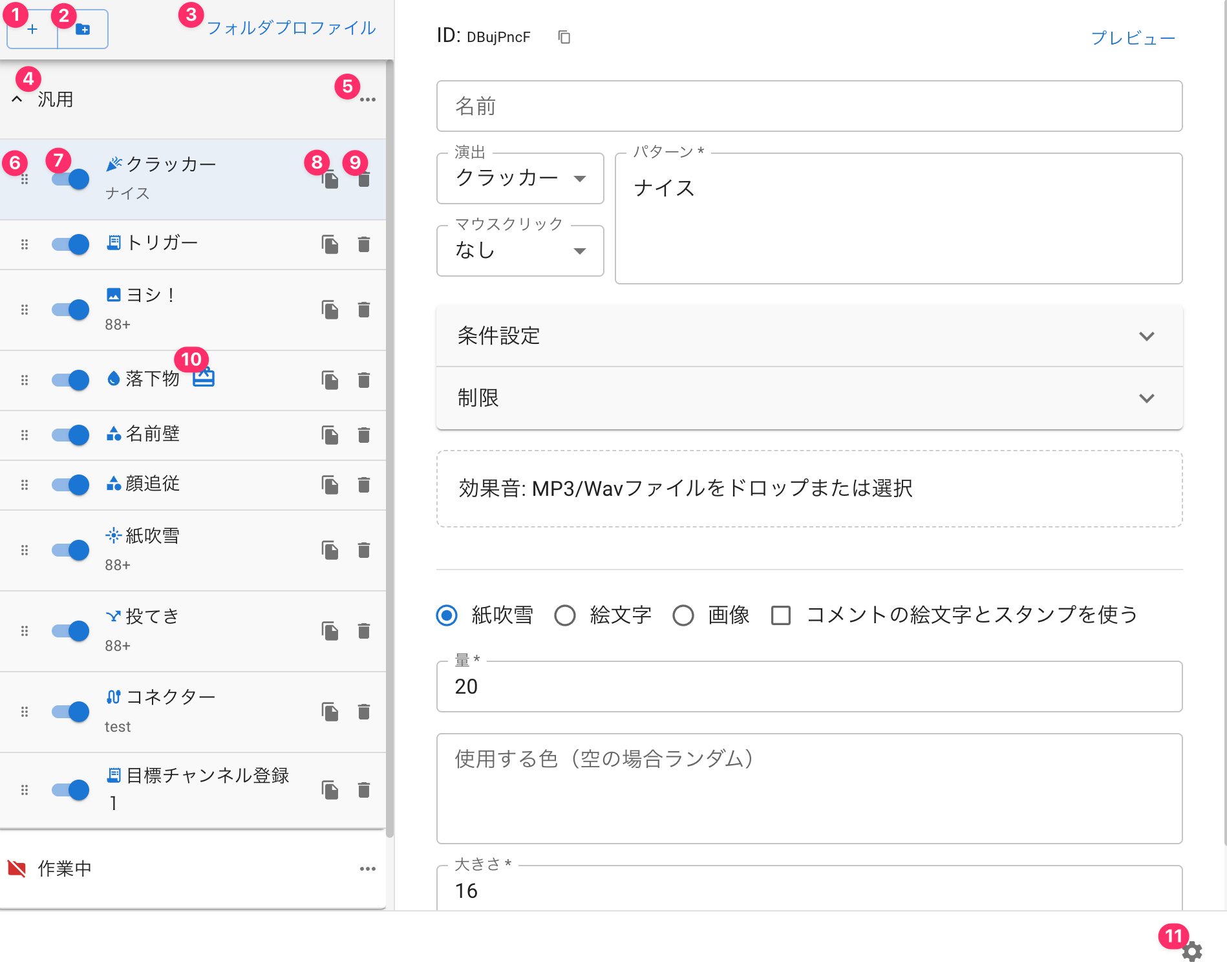 GeneralFolder ProfileCrackerNiceAuto TriggerDropConfettiConnectorChannel Sub GoalNameEffectCrackerMouse ClickOFFMatch SettingsLimitPreviewPatternNiceSound Effects: Drop or select MP3/Wav filesAmountColor(empty for random)WorkingSize
| ① Add effect | Adds a new on-screen effect |
| ② Add folder | Adds a new folder |
| ③ Folder profile | Opens the folder profile |
| ④ Open/close folder | Click to open or close the folder You can also drag and drop to reorder folders |
| ⑤ Folder menu | Lets you disable or delete all items in a folder at once |
| ⑥ Reorder | Drag to move an on-screen effect and change its order (evaluation order) |
| ⑦ Enable switch | Toggle the switch to enable or disable an on-screen effect * Note: even when disabled, it can still be triggered via the StreamDeck plugin or the API |
| ⑧ Duplicate | Duplicates the on-screen effect |
| ⑨ Delete | Deletes the on-screen effect |
| ⑩ Effect name, pattern, mouse click and conditions | Shows the effect name and configured pattern Also shows the state of the mouse click and conditions |
| ⑪ Settings | Opens the settings |
Common settings (shared by all on-screen effects)
Settings shared by every on-screen effect pattern
The ID and preview row are fixed at the top of the screen and remain visible while scrolling
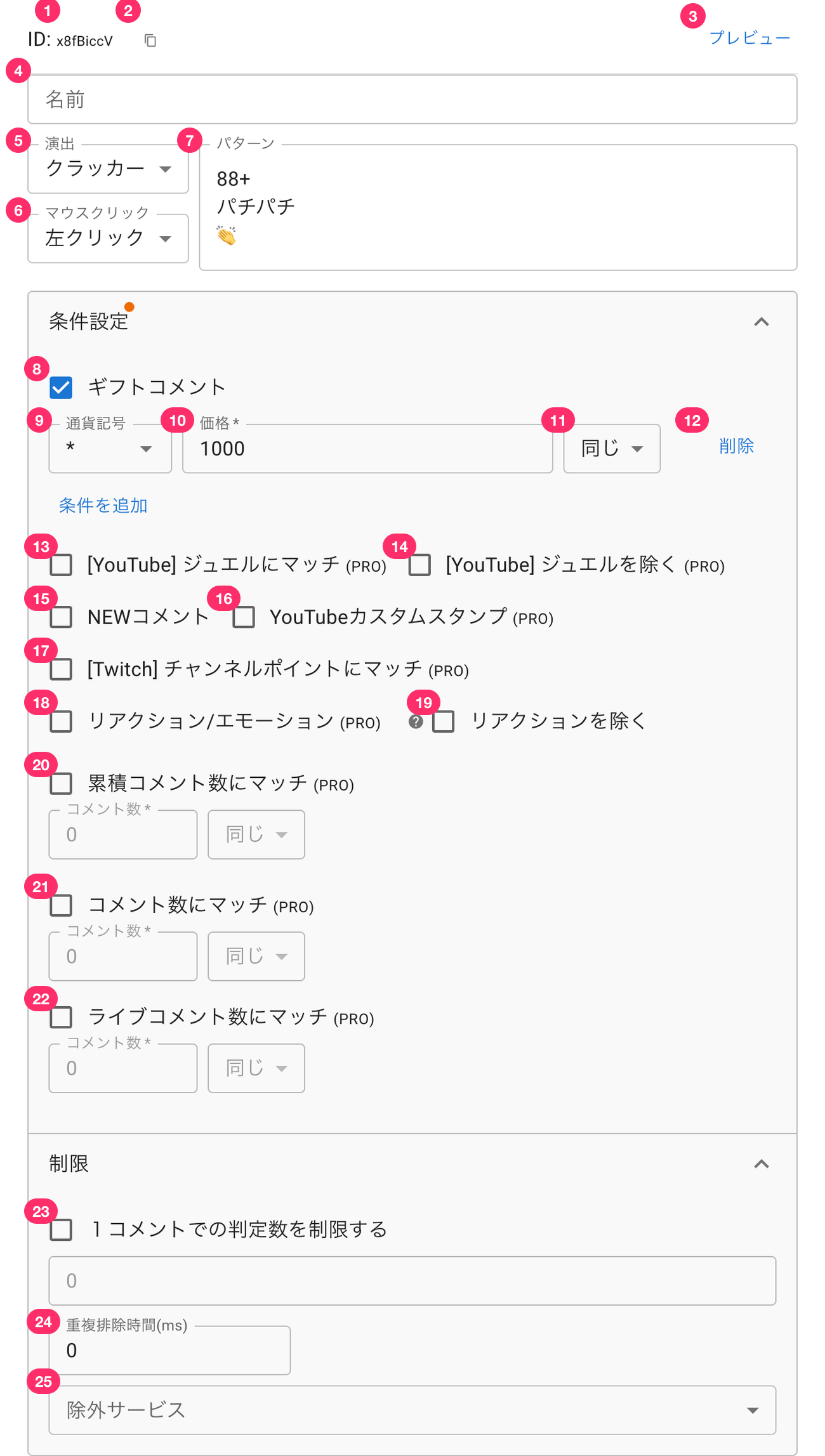 NameEffectCrackerMouse ClickLeft ClickPreviewPatternClap ClapCurrencyGift CommentPriceequal toAdd conditionsNew CommentYouTube Custom Stamps (PROReaction/Emotion (PROExclude reactionsMatch total comments count (PROComments Countequal toMatch comments count (PROComments Countequal toMatch live comments count (PROComments Countequal toCount limit per one comment.Services excluded
| ① ID | The effect ID. Used when calling it from the StreamDeck plugin or the API |
| ② Copy icon | Copies the ID to the clipboard |
| ③ Preview | Runs the configured effect regardless of its conditions |
| ④ Effect name | Lets you give the effect any name you like |
| ⑤ Effect | Lets you choose the effect type Changing the effect resets its settings |
| ⑥ Mouse Click | Selects the mouse action used to manually trigger the effect Lets you trigger the effect with a mouse action in the browser showing the template, or in OBS's interact window |
| ⑦ Pattern | Enter one keyword per line that triggers the effect Not case-sensitive (* For advanced users - you can also specify a regular expression string / see How to write patterns below for details) |
| ⑧ Gift Comment | Triggers the effect for gift comments |
| ⑨ Currency | The currency symbol for the gift * Applies to YouTube only |
| ⑩ Price | The gift price or point amount used as the condition for the effect |
| ⑪ Condition | Choose a condition such as equal to, less than or equal to, or greater than or equal to the set price |
| ⑫ Delete | Deletes the configured condition |
| ⑬ [YouTube] Matching Jewels [PRO] | Triggers the effect for YouTube jewel gifts Cannot be used together with "Excluding Jewels" (turning one ON automatically turns the other OFF) |
| ⑭ [YouTube] Excluding Jewels [PRO] | Triggers the effect for anything other than YouTube jewel gifts Cannot be used together with "Matching Jewels" |
| ⑮ New Comment | Triggers the effect for New Comments |
| ⑯ YouTube Custom Stamps [PRO] | Triggers the effect for YouTube custom stamps Set the custom stamp name in the pattern |
| ⑰ [Twitch] Matching Channel Points [PRO] | Triggers the effect when Twitch channel points are used Set the channel points name in the pattern |
| ⑱ Reaction/Emotion [PRO] | Triggers on YouTube or API reactions, or NicoNicoLive emotions |
| ⑲ Excluding reactions | Triggers for anything other than YouTube or API reactions, or NicoNicoLive emotes |
| ⑳ Matching cumulative comment count [PRO] | Triggers when the cumulative comment count reaches the condition |
| ㉑ Matching comments count [PRO] | Triggers when a single user's comment count reaches the condition |
| ㉒ Matching live comment count [PRO] | Triggers when the comment count reaches the condition for the current stream (comment count since the currently displayed WordParty template started running) |
| ㉓ Limit the number of matches per comment | Specifies the maximum number of times to repeat when a pattern matches multiple times within a single comment When ON, the number field below becomes active, letting you set the maximum repeat count If not limited, the effect fires once for each match |
| ㉔ Deduplication time | Specifies how long to skip the same effect when it's triggered again in a short period This is evaluated per on-screen effect (item), so even the same effect type set up as a separate item is not affected by another item's setting |
| ㉕ Excluded services | Specifies platforms on which this effect should not appear |
If a sound effect is configured, the screen looks like this
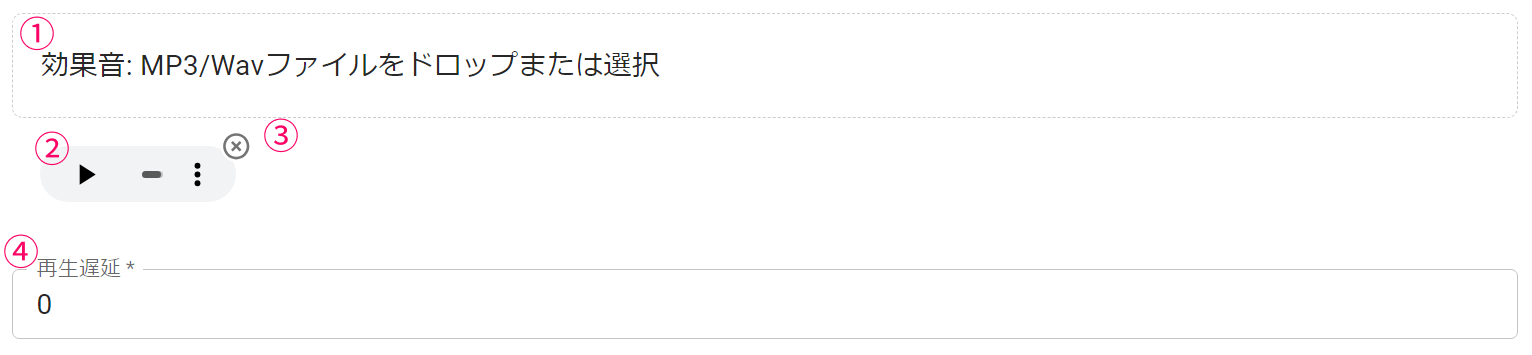 Sound Effects: Drop or select MP3/Wav filesAudio Synchronization
| ① Audio upload | Replaces the configured audio file with a different one |
| ② Audio preview | Plays the configured audio file |
| ③ Audio delete | Deletes the configured audio file |
| ④ Playback delay | The delay (in milliseconds) between the effect firing and the audio starting to play |
How to write patterns
You can write one pattern per line
You can also use regular expressions
Note
The following symbols have special meaning, so if you want to use them in a pattern, you need to escape them as shown below
| Symbol | How to write it |
|---|---|
| \ | \\ |
| * | \* |
| + | \+ |
| ? | \? |
| { | \{ |
| } | \} |
| ( | \( |
| ) | \) |
| [ | \[ |
| ] | \] |
| ^ | \^ |
| $ | \$ |
| - | \- |
| \| | \| |
| / | \/ |
"Cracker" effect settings in detail
Cracker sends objects flying across the screen from left and right, like a party cracker
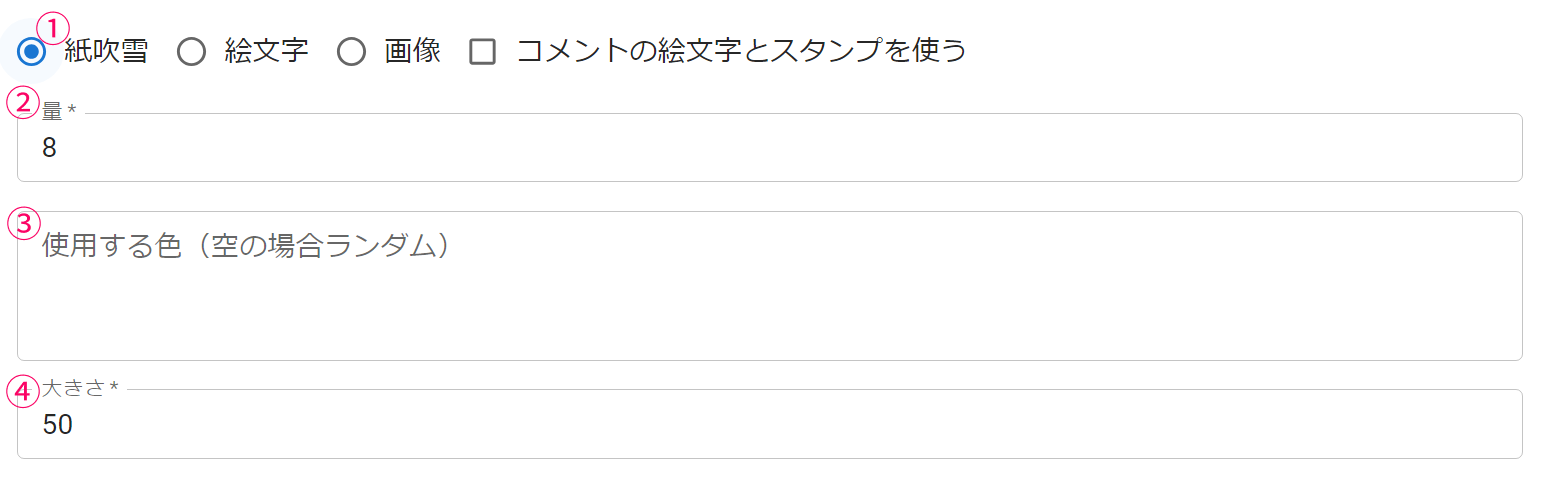 AmountColor(empty for random)Size
■ Common
| ① Material type | The material type for the cracker effect |
| ② Amount | Sets the number of particles fired per cracker (common) |
■ Confetti
| ③ Colors to use | Random colors are used by default, but you can restrict it to specific colors in the format #000000 Enter one color per line | |
| ④ Size* | Changes the size of the cracker particles |
■ Emoji
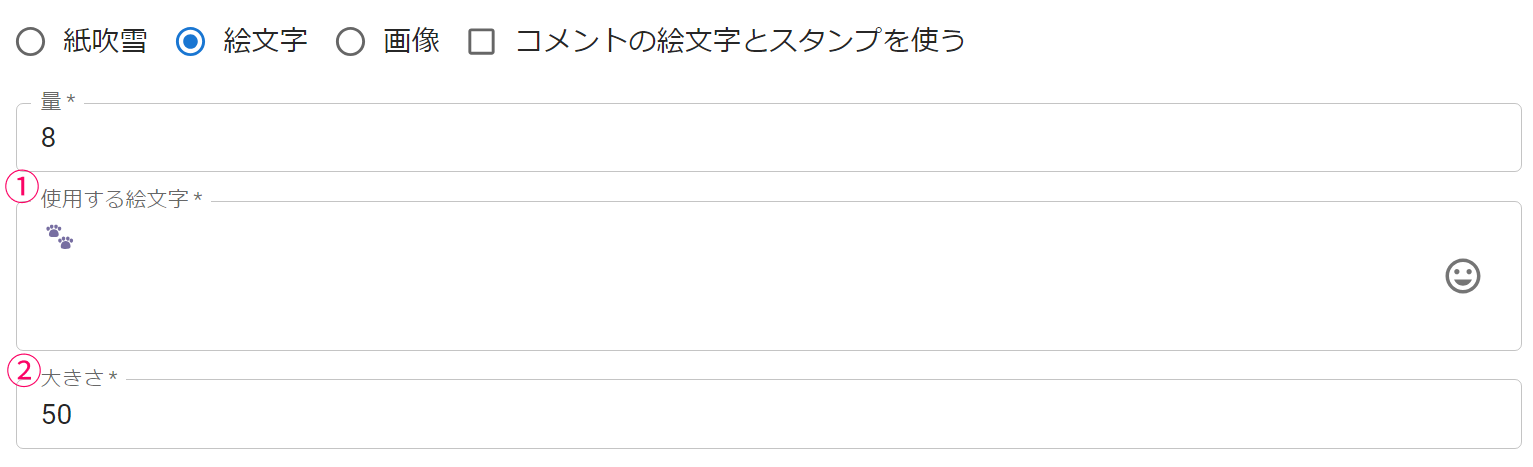 AmountEmojisSize
| ① Emojis to use* | The emojis fired by the cracker Set one emoji per line If there are multiple lines, one is shown at random |
| ② Size* | Changes the size of the emojis |
■ Image
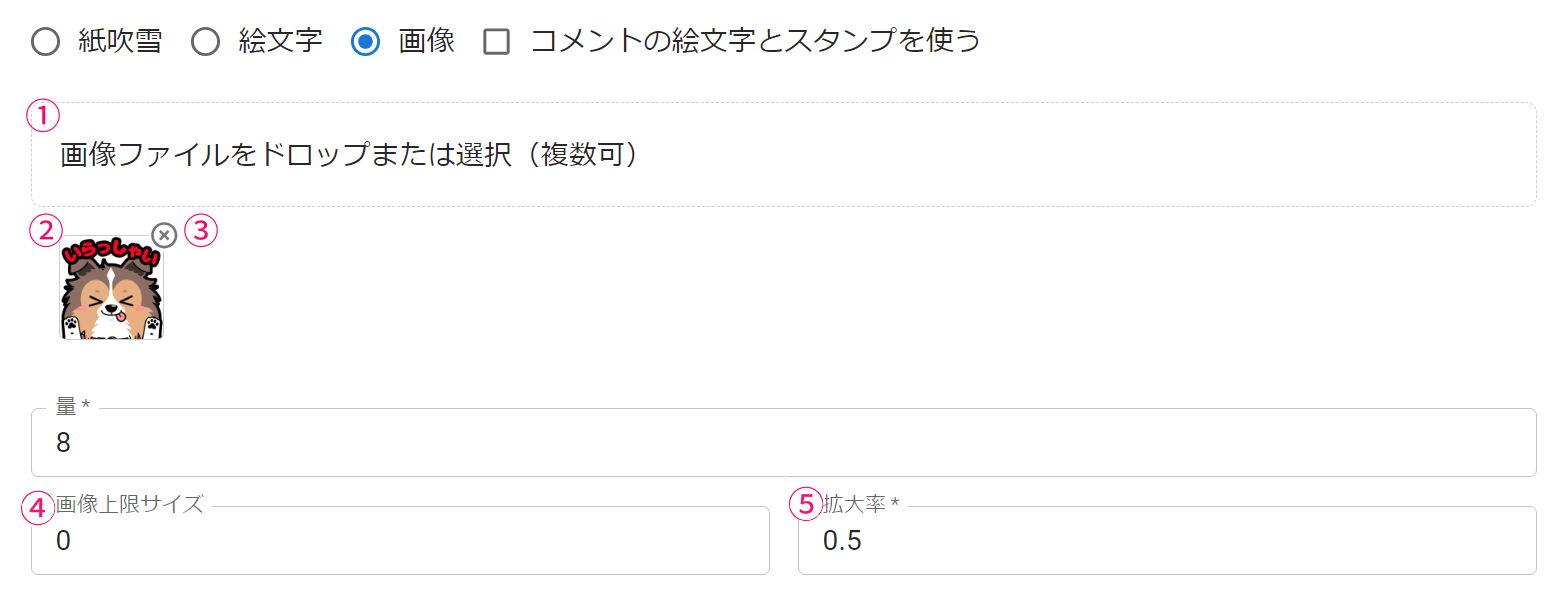 Drop or select image files (multipleAmountScaling
| ① Image* | Uploads the material for the cracker (multiple allowed) * Animated materials such as animated GIFs, WAV, or video are not supported |
| ② Configured files | The files already configured |
| ③ Delete button | Deletes the configured file |
| ④ Max image size | Sets the maximum height or width for the displayed image If the configured limit is exceeded, the image is scaled down while keeping its aspect ratio |
| ⑤ Scaling | The display scale of the image * The rendering load stays the same regardless of scale, so it's recommended to set this to 1.0 after adjusting the image |
■ Use emoji and stamps in comments
Uses the emojis and stamps included in the comment to produce the effect
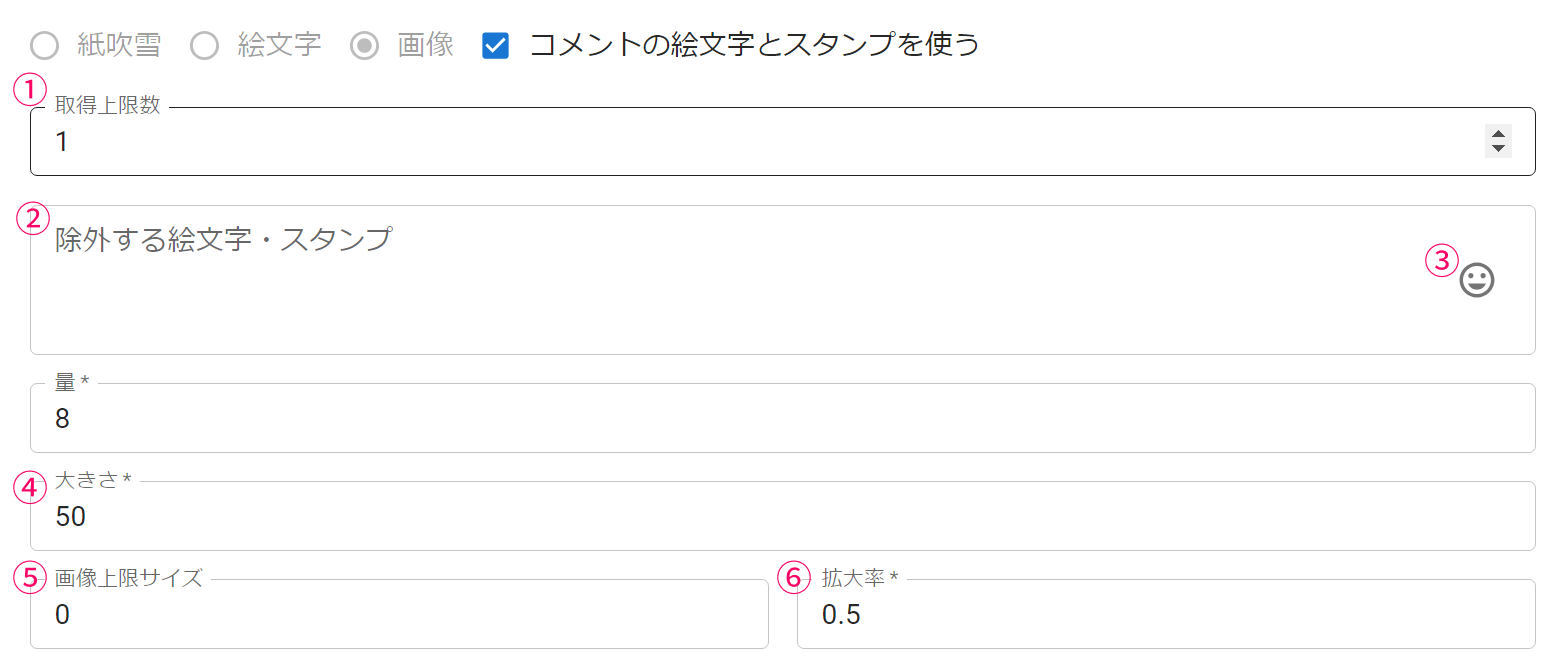 LimitEmoji and stamps to be excludedAmountSizeMax image sizeScaling
| ① Limit* | The maximum number of emojis/stamps taken from a single comment If set to 0, all emojis/stamps included in the comment are used |
| ② Emoji and stamps to be excluded | Specifies emojis or stamps (stamp names) not to use in the effect |
| ③ Emoji picker | Lets you choose emojis to exclude from the emoji picker |
| ④ Size | The size of the emoji/stamp (based on width) |
| ⑤ Max image size | Sets the maximum height or width for the displayed image If the configured limit is exceeded, the image is scaled down while keeping its aspect ratio |
| ⑥ Scaling | The display scale of the image * The rendering load stays the same regardless of scale, so it's recommended to set this to 1.0 after adjusting the image |
"Drop" effect settings in detail
Drop displays objects with physics simulation applied
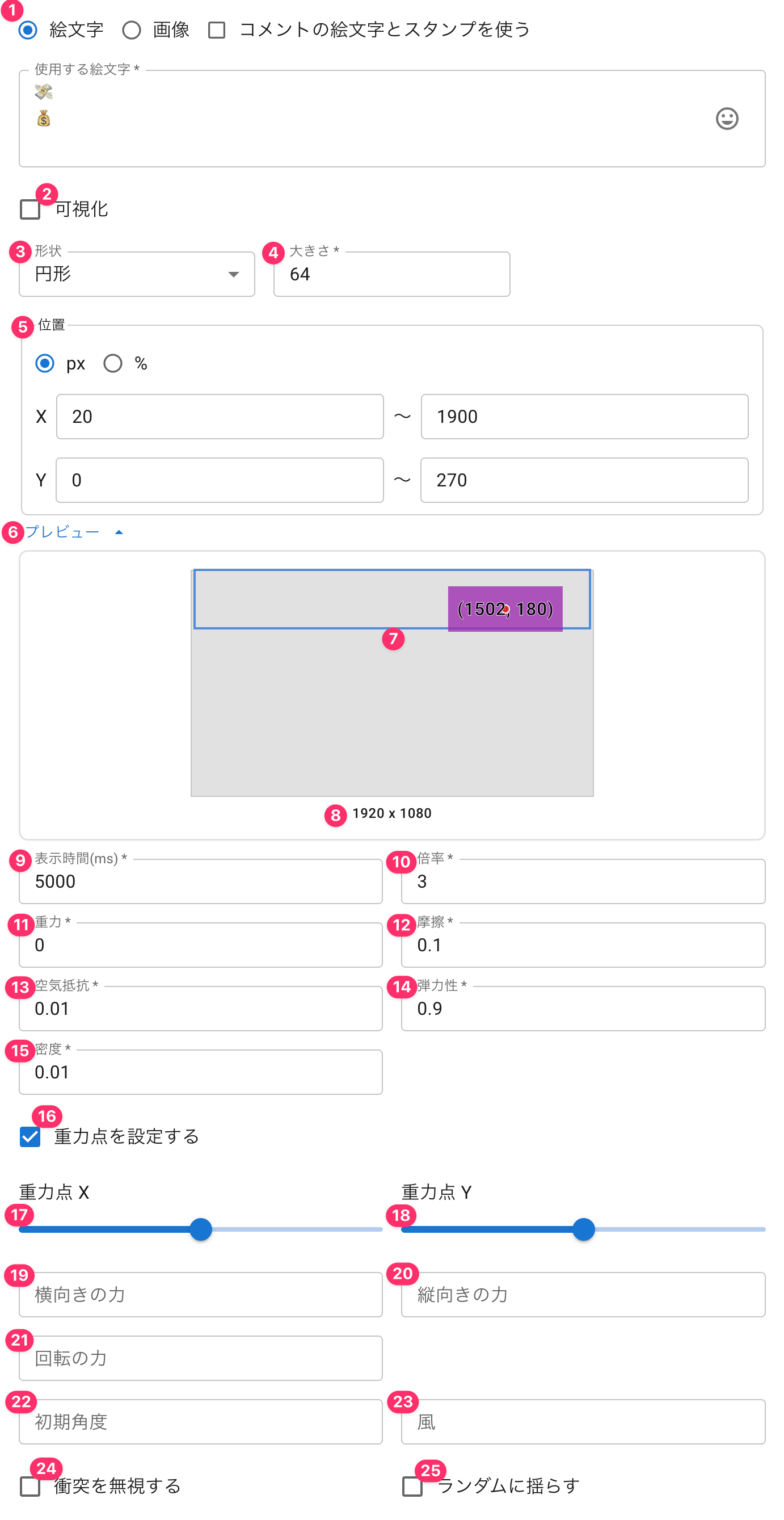 EmojisVisualizationRound shapePreviewSizeSet gravity pointGravity pointHorizontal forceForce for roationInjection angleNo CollisionGravity point YVertical forceWindShaked Randomly
■ Common
| ① Material type | The material type for the drop |
| ② Visualization | Shows the drop's collision area Use this to adjust size and position |
| ③ Shape | The shape of the collision area |
| ④ Size | The size of the collision area If set to rectangle, you can specify width and height |
| ⑤ Position | Sets where the drop appears |
| ⑥ Preview | Shows a preview of roughly where it will appear See "Explanation of the origin" and "About the preview" below for details |
| ⑦ Position preview | The blue area is the display area, the red dot is the actual randomly chosen display coordinate, and the purple-filled area represents the displayed object Use this to check roughly where the object will appear in your configured template |
| ⑧ Preview resolution | The resolution emulated in the preview Switch this to check the layout for vertical streams, for example |
| ⑨ Life time | Specifies how long (in milliseconds) it stays on screen |
| ⑩ Multiplier | Displays the number of matches × the multiplier as the number of drops |
| ⑪ Gravity | The gravity value applied to the drop |
| ⑫ Friction | The friction value applied to the drop |
| ⑬ Air resistance | The air resistance value applied to the drop |
| ⑭ Coefficient of restitution | The bounciness of the drop |
| ⑮ Density | The density of the drop |
| ⑯ Set gravity point | Specifies the position that acts as the center of gravity At X: 0.5, Y: 0.5, drops gather at the center of the screen |
| ⑰ Gravity point X | Specifies the gravity point X as a number where left is 0 and right is 1 |
| ⑱ Gravity point Y | Specifies the gravity point Y as a number where top is 0 and bottom is 1 |
| ⑲ Horizontal force | The horizontal force applied when the drop appears |
| ⑳ Vertical force | The vertical force applied when the drop appears |
| ㉑ Rotational force | Applies a constant rotational force to the drop (positive value rotates right, negative value rotates left) |
| ㉒ Initial angle | The initial display angle |
| ㉓ Wind | An intermittent horizontal force applied to the drop |
| ㉔ Ignore collisions | Removes collision detection with other drops or walls |
| ㉕ Randomize sway | Randomly sways the drop left and right |
■ Emoji
 Emojis
| ① Emojis to use | Specifies one emoji to display per line If multiple lines are entered, one is shown at random |
| ② Emoji picker | Lets you choose emojis to display from the emoji picker |
■ Image
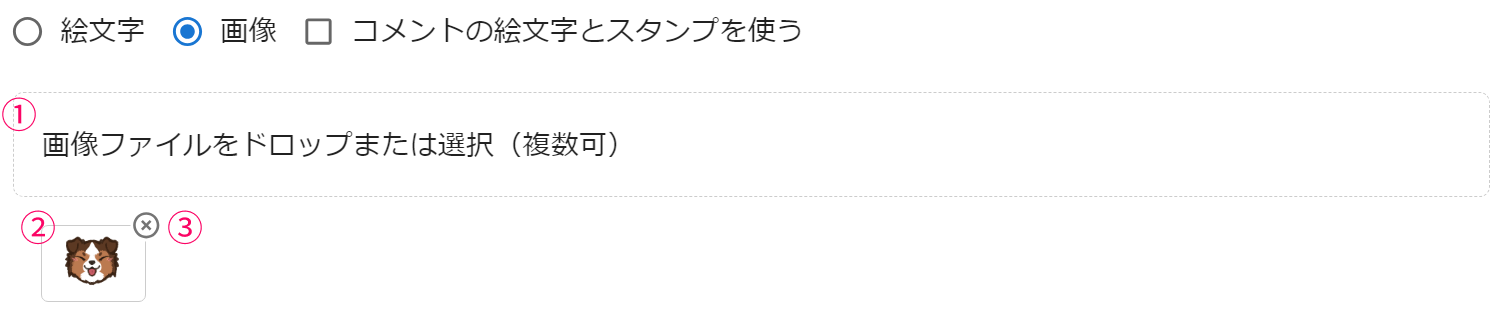 Drop or select image files (multiple
| ① Image file | The image displayed as the drop If multiple are set, one is chosen at random |
| ② Configured files | The configured files |
| ③ Delete | Deletes the configured file |
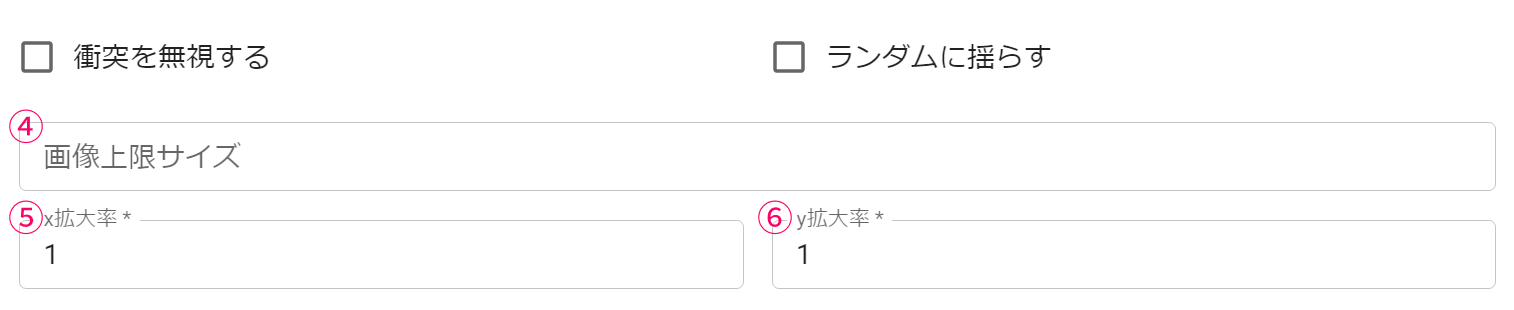 No CollisionMax image sizeX scalingY scaling
| ④ Max image size | Sets the maximum height or width for the displayed image If the configured limit is exceeded, the image is scaled down while keeping its aspect ratio |
| ⑤ X scaling | The x display scale of the image Used for temporarily adjusting the image size |
| ⑥ Y scaling | The y display scale of the image Used for temporarily adjusting the image size |
■ Use emoji and stamps in comments
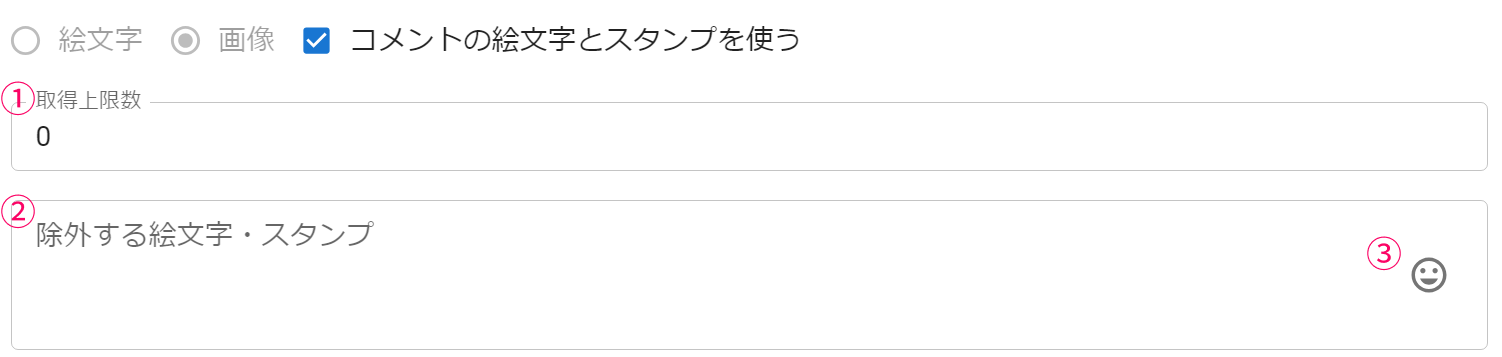 LimitEmoji and stamps to be excluded
| ① Limit* | The maximum number of emojis/stamps taken from a single comment If set to 0, all emojis/stamps included in the comment are used |
| ② Emoji and stamps to be excluded | Specifies emojis or stamps (stamp names) not to use in the effect |
| ③ Emoji picker | Lets you choose emojis to exclude from the emoji picker |
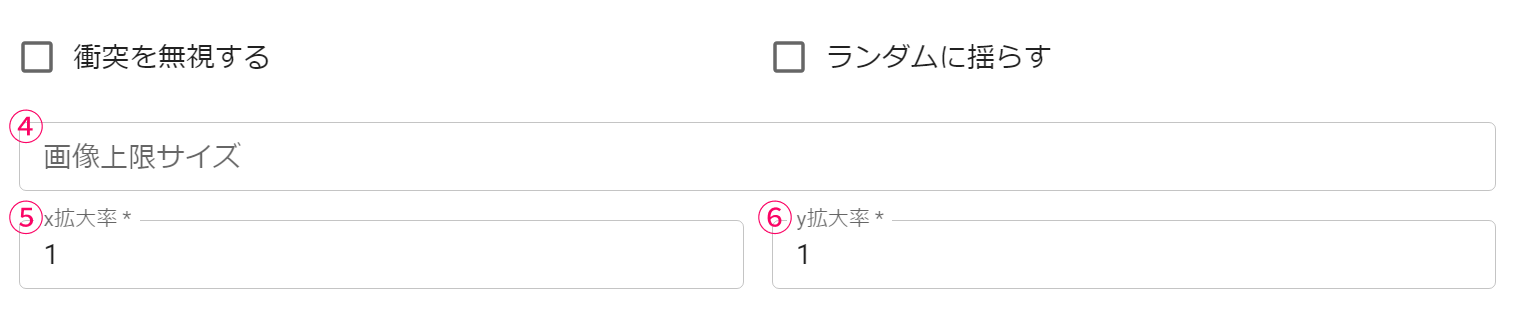 No CollisionMax image sizeX scalingY scaling
| ④ Max image size | Sets the maximum height or width for the displayed image If the configured limit is exceeded, the image is scaled down while keeping its aspect ratio |
| ⑤ X scaling | The x display scale of the image Used for temporarily adjusting the image size |
| ⑥ Y scaling | The y display scale of the image Used for temporarily adjusting the image size |
"Fixed coordinates" effect settings in detail
Fixed coordinates lets you display an image within a specified range
You can also specify an audio file to just play a sound
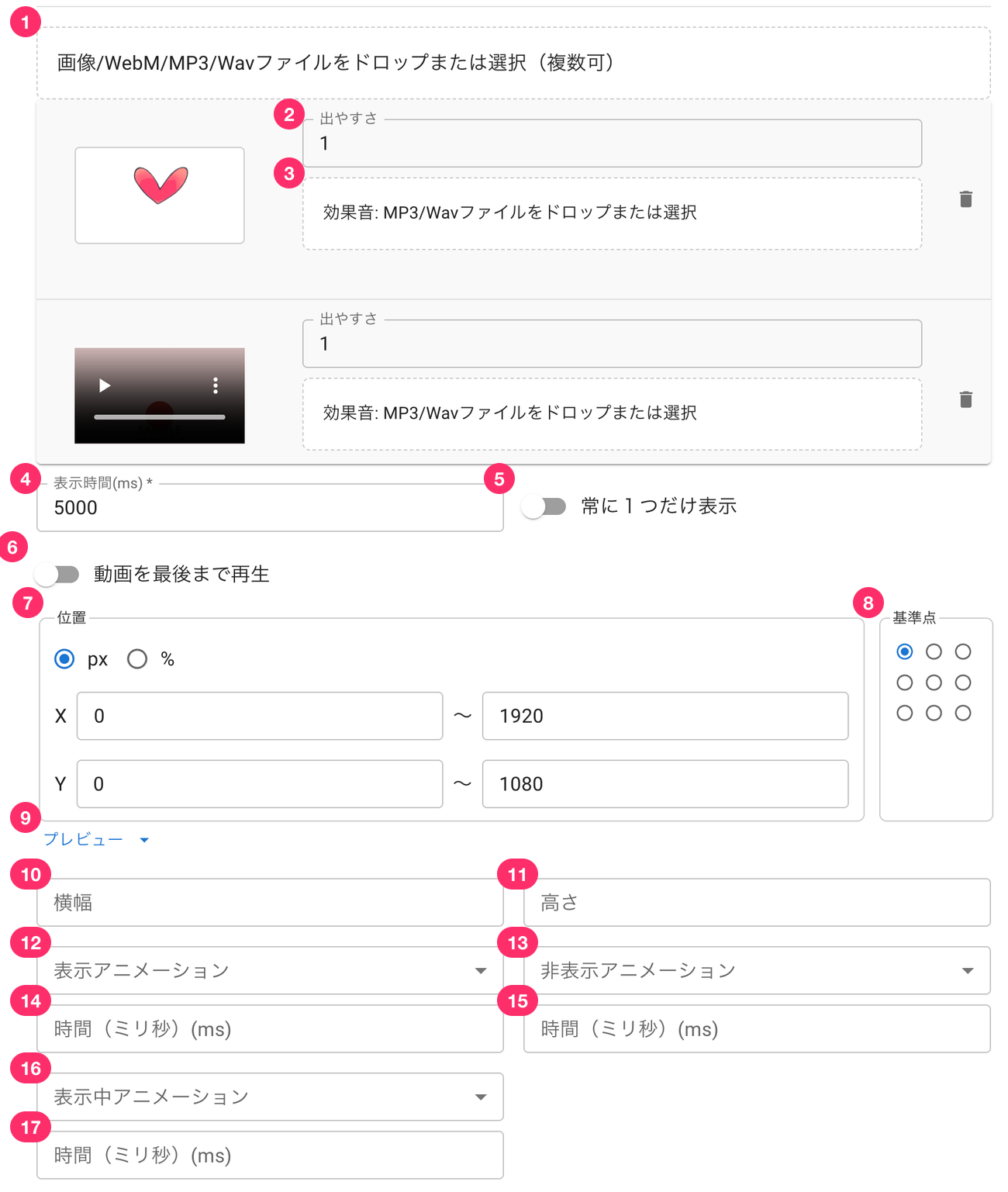 Drop or select image/WebM/MP3/Wav files (multipleProbabilitySound Effects: Drop or select MP3/Wav filesProbabilitySound Effects: Drop or select MP3/Wav filesPlay The Video To The End.PositionPreviewWidthShow transitionAnimationDuration(mili sec.)(msAlways Display Only OneHeightHide transitionOrigin
| ① Image/audio file | Sets the image to display, or the video/audio file to play You can select multiple files |
| ② Probability [PRO] | How likely this file is to appear — the higher the value, the more likely it is This setting only matters when multiple files are set |
| ③ Sound Effects [PRO] | Lets you set a sound effect to play for each file If not set, the sound effect configured for the on-screen effect plays instead |
| ④ Life time | Specifies how long (in milliseconds) to display or play |
| ⑤ Always show only one | If the effect is triggered again while already displayed, forcibly ends the previous one so only one is ever shown |
| ⑥ Play video to the end | Only shown when a webm video file is set When ON, the video plays to the end before being hidden, and the "Life time" setting is ignored while it does |
| ⑦ Position | Specifies the position and range in which to display it * To keep the position fixed, enter the same value for both left and right |
| ⑧ Origin | Specifies the origin point used when displaying the selected material Example: if the origin is centered at coordinates (0, 0), the center of the material is displayed at position (0,0) * See the diagram below for details |
| ⑨ Preview | Lets you check where the material will appear, using a sample stream screen size * See "About the preview" below for how to read the preview |
| ⑩ Width | Specifies the image width in px |
| ⑪ Height | Specifies the image height in px |
| ⑫ Show transition | Lets you choose the animation used when the image appears |
| ⑬ Hide transition | Lets you choose the animation used when the image disappears |
| ⑭ Show transition duration | Specifies how long (in milliseconds) the show animation runs |
| ⑮ Hide transition duration | Specifies how long (in milliseconds) the hide animation runs |
| ⑯ Animation | Lets you choose the animation played while the image is displayed |
| ⑰ Animation duration | Specifies how long (in milliseconds) the animation played while displayed runs |
TIPS
If life time is set to 5000 (5 seconds) and the show/hide transitions are each set to 1000 (1 second), the animation shown while displayed runs for 3000 (3 seconds)
If the duration of that animation is set to 1000 (1 second), it repeats 3 times while displayed
■ Advanced settings
You can display arbitrary text alongside the fixed coordinates effect
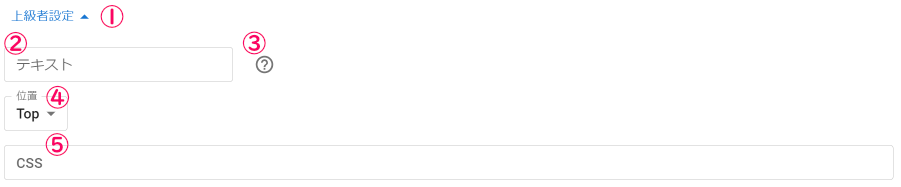 Advanced settingsTextPosition
| ① Advanced settings | Click to show advanced settings |
| ② Text | Enter the text to display alongside the image (HTML is supported) You can also use the templates described below (*1) in the text |
| ③ Help | Opens the manual page for advanced settings |
| ④ Position | Sets which position on the image the text is anchored to |
| ⑤ CSS (*2) | The CSS applied to the text |
*1 Templates you can use in the text
| {name} | The commenter's name |
| {streamingName} | The name of the stream |
| {paidText} | The gift amount or points |
| {comment} | The comment |
*2 CSS
The text is output as the following HTML
<div class="notify-text">The content specified in the text</div>
Make sure your CSS includes at least the following class
.notify-text {}
Explanation of the origin
In the diagram below, red represents the placed material, and the black frame represents the stream screen frame (1920x1080)
If the origin is set to 0,0 at the bottom-left, the material is placed in the upper-left of the diagram and ends up off-screen (invisible)
Adjust the position so that the origin lines up with where you want it placed
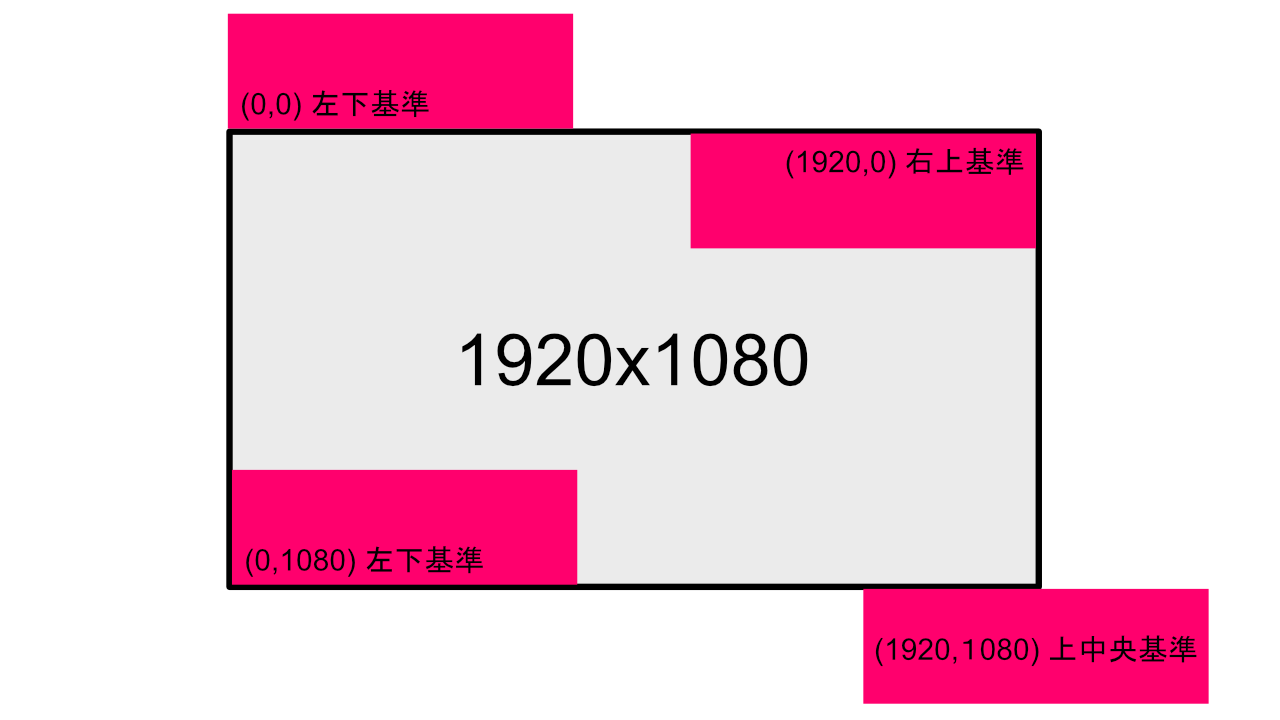 1920,1080) top center
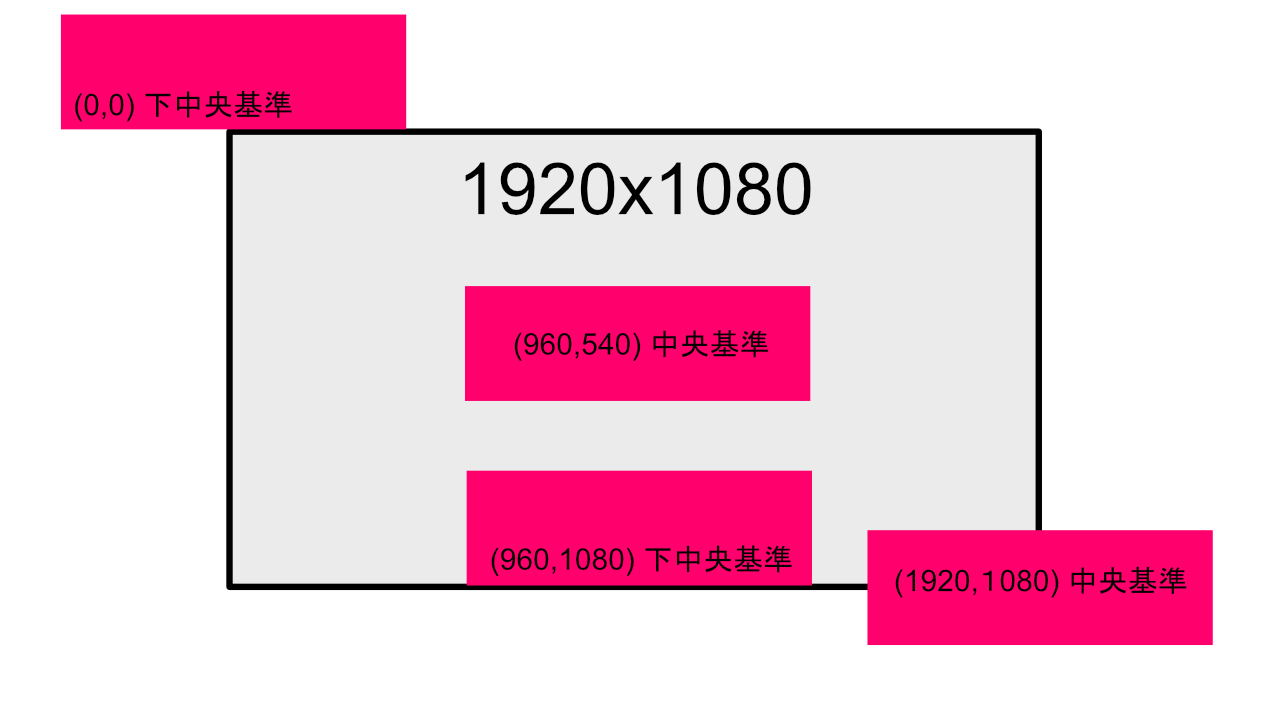 960,540) center960,1080) bottom center
"Confetti" effect settings in detail
Confetti lets you display celebratory confetti
It can also spread out in a circular pattern like fireworks
■ When not using emoji and stamps from comments
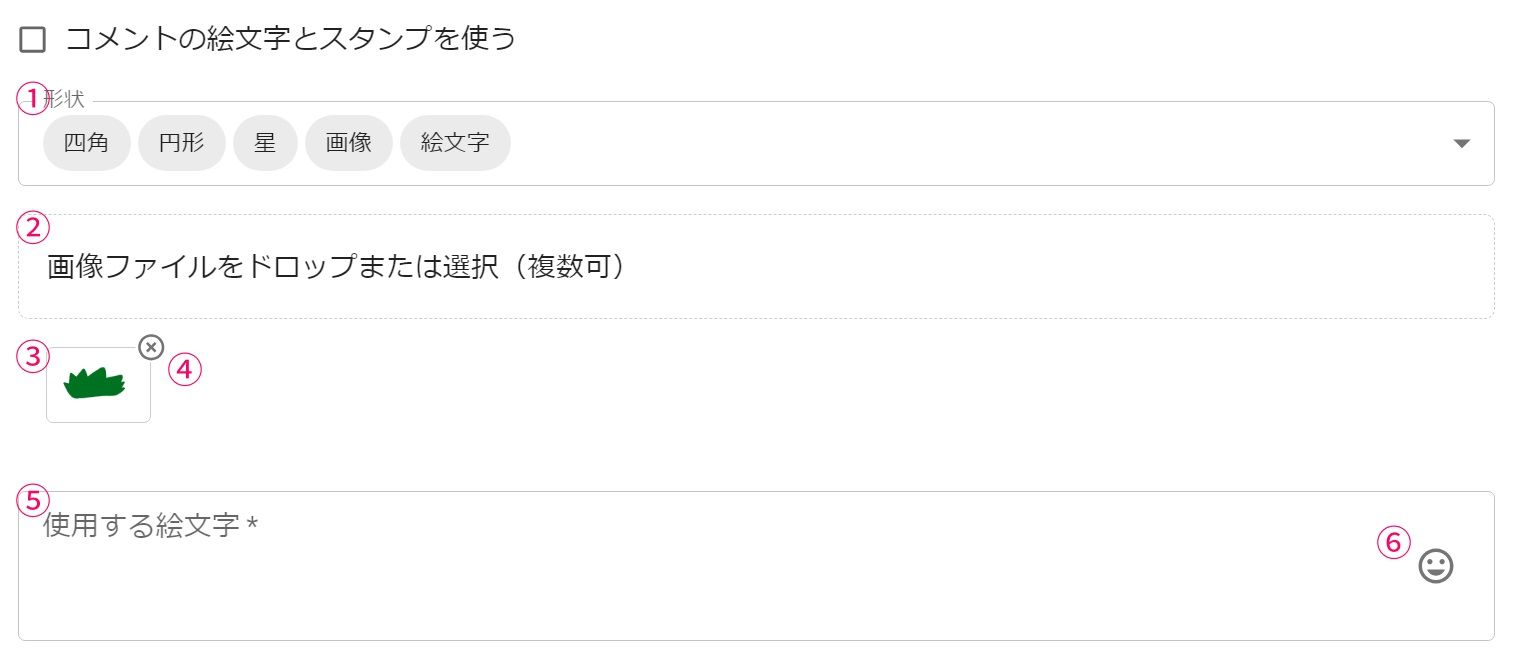 Use emoji and stamps in commentsImagesEmojisDrop or select image files (multipleEmojis
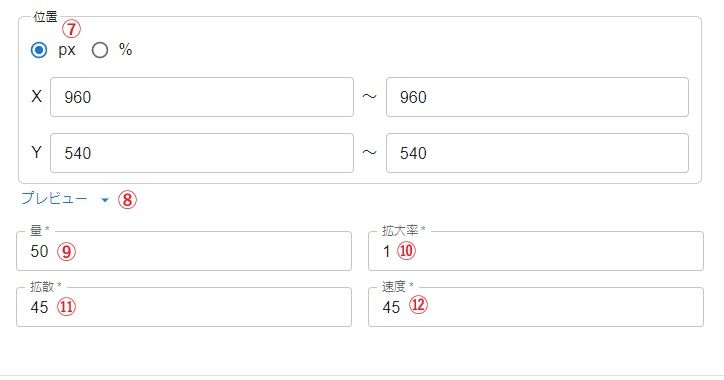
| ① Shape | Specifies the shape of the confetti Only add an image file if you select the image shape |
| ② Image file (when the shape includes an image) | Selects the image applied to the confetti Only configurable when the shape includes an image |
| ③ Configured image file (when the shape includes an image) | The already-configured image file |
| ④ Delete button | Deletes the configured image file |
| ⑤ Emojis to use (when the shape includes emojis) | Enter the emojis to use in the effect, one per line |
| ⑥ Emoji picker | Lets you choose emojis to use from the emoji picker |
| ⑦ Position | Specifies the position and range where the confetti appears |
| ⑧ Preview | Lets you check where the material will appear, using a sample 1920×1080 stream screen * See "About the preview" below for how to read the preview |
| ⑨ Amount | The number of confetti pieces per effect |
| ⑩ Scaling | The size of the confetti If an image is specified, increasing this makes it look coarser |
| ⑪ Spread | The spread angle when the confetti bursts Setting this to 360 spreads it in a full circle |
| ⑫ Speed | Specifies the speed at which it bursts Increasing this makes it spread faster and wider |
■ When using emoji and stamps from comments
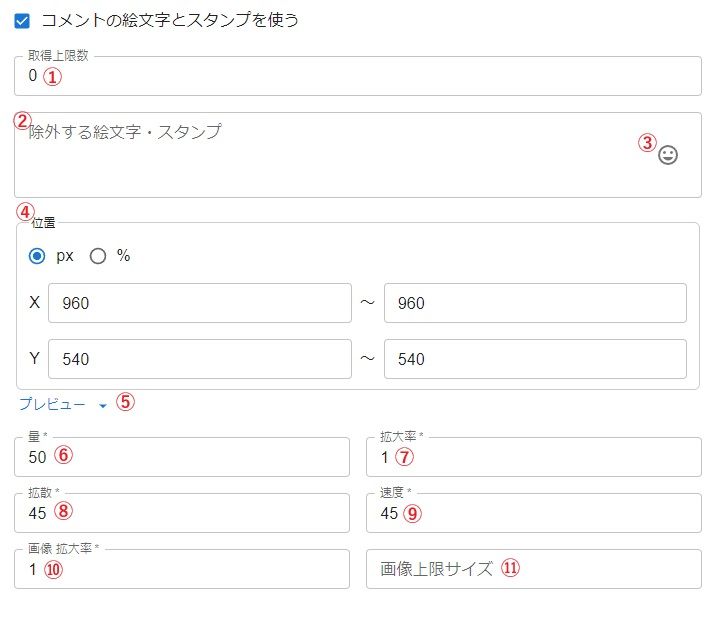 Emoji and stamps to be excludedPreview
| ① Limit | The maximum number of emojis/stamps taken from a single comment If set to 0, all emojis/stamps included in the comment are used |
| ② Emoji and stamps to be excluded | Specifies emojis or stamps (stamp names) not to use in the effect |
| ③ Emoji picker | Lets you choose emojis to exclude from the emoji picker |
| ④ Position | Specifies the position and range where the confetti appears |
| ⑤ Preview | Lets you check where the material will appear, using a sample 1920×1080 stream screen * See "About the preview" below for how to read the preview |
| ⑥ Amount | The number of confetti pieces per effect |
| ⑦ Scaling | The size of the confetti If an image is specified, increasing this makes it look coarser |
| ⑧ Spread | The spread angle when the confetti bursts Setting this to 360 spreads it in a full circle |
| ⑨ Speed | Specifies the speed at which it bursts Increasing this makes it spread faster and wider |
| ⑩ Image scaling (when the shape is an image) | Specifies the scale of the image applied to the confetti Only configurable when the shape includes an image |
| ⑪ Max image size | Sets the maximum height or width for the displayed image If the configured limit is exceeded, the image is scaled down while keeping its aspect ratio |
"Throwing" effect settings in detail
Displays objects as if they are being thrown
■ When not using emoji and stamps from comments
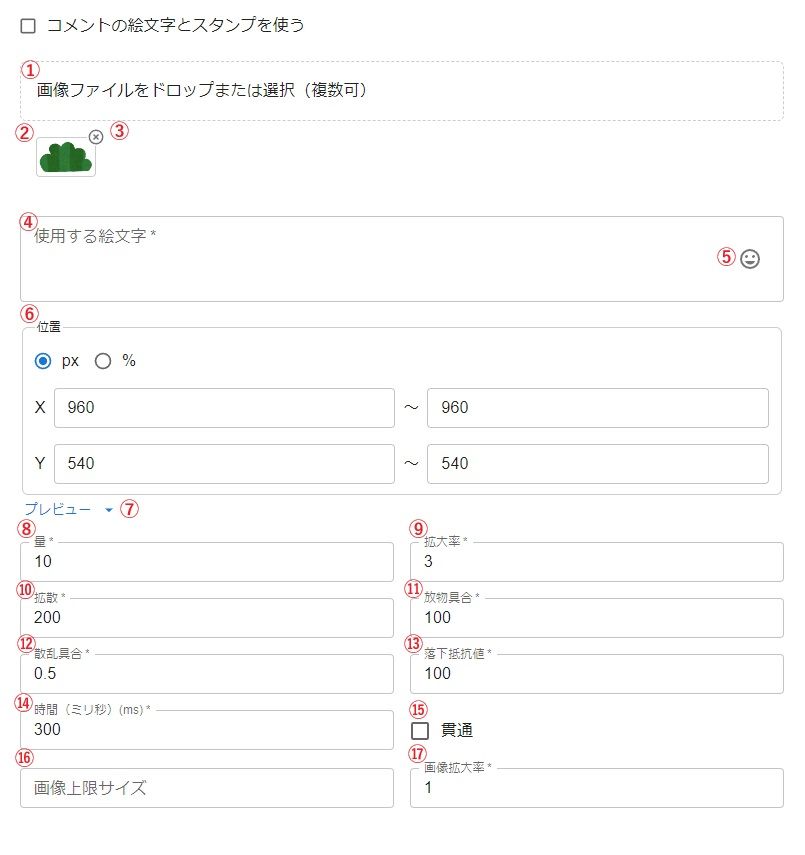 Use emoji and stamps in comments
| ① Image file | Selects the image to throw |
| ② Configured image file | The already-configured image file |
| ③ Delete button | Deletes the configured image file |
| ④ Emojis to use (when the shape includes emojis) | Enter the emojis to use in the effect, one per line |
| ⑤ Emoji picker | Lets you choose emojis to use from the emoji picker |
| ⑥ Position | Specifies the position and range for throwing |
| ⑦ Preview | Lets you check where the material will appear, using a sample 1920×1080 stream screen * See "About the preview" below for how to read the preview |
| ⑧ Amount | Specifies how many are thrown per effect |
| ⑨ Scaling | Specifies the initial scale when thrown Increasing this makes the throw look more dynamic |
| ⑩ Spread | Specifies how much the thrown object deviates Increasing this makes it deviate more from the specified position |
| ⑪ Arc | Specifies how much of an arc the thrown object traces as it flies |
| ⑫ Scatter | Specifies how much the thrown object scatters on impact |
| ⑬ Drop resistance | Specifies how much resistance the thrown object experiences as it falls after impact Increasing this makes it look like it's dragging as it falls |
| ⑭ Duration | The duration of the throwing effect |
| ⑮ Penetration | Makes the thrown object pass through instead of colliding |
| ⑯ Max image size | Sets the maximum height or width for the displayed image If the configured limit is exceeded, the image is scaled down while keeping its aspect ratio |
| ⑰ Image scaling | Specifies the size of the specified image Ultimately, adjust the size of the image itself as needed |
■ When using emoji and stamps from comments
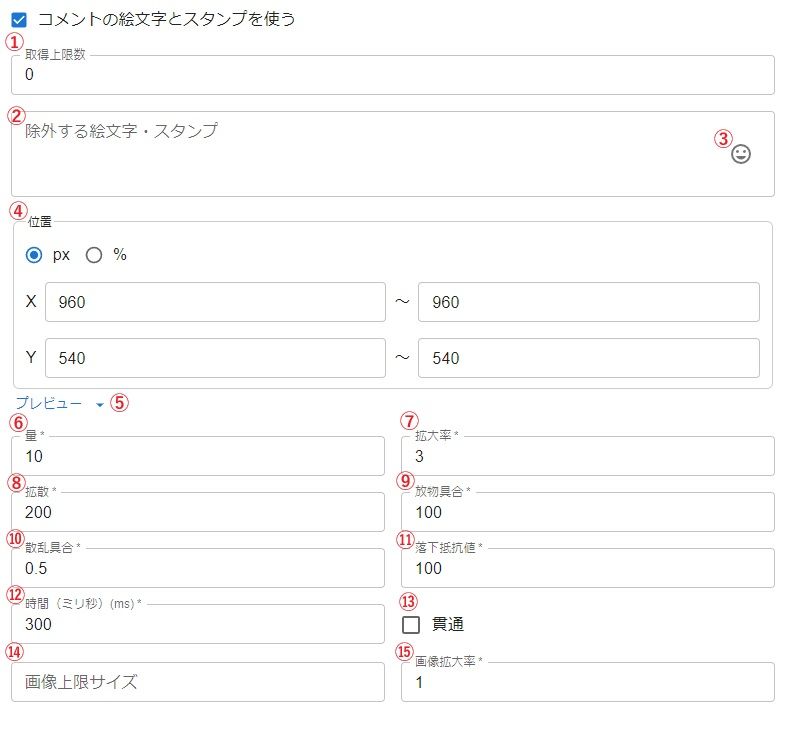 Use emoji and stamps in commentsEmoji and stamps to be excluded
| ① Limit | The maximum number of emojis/stamps taken from a single comment If set to 0, all emojis/stamps included in the comment are used |
| ② Emoji and stamps to be excluded | Specifies emojis or stamps (stamp names) not to use in the effect |
| ③ Emoji picker | Lets you choose emojis to exclude from the emoji picker |
| ④ Position | Specifies the position and range for throwing |
| ⑤ Preview | Lets you check where the material will appear, using a sample 1920×1080 stream screen * See "About the preview" below for how to read the preview |
| ⑥ Amount | Specifies how many are thrown per effect |
| ⑦ Scaling | Specifies the initial scale when thrown Increasing this makes the throw look more dynamic |
| ⑧ Spread | Specifies how much the thrown object deviates Increasing this makes it deviate more from the specified position |
| ⑨ Arc | Specifies how much of an arc the thrown object traces as it flies |
| ⑩ Scatter | Specifies how much the thrown object scatters on impact |
| ⑪ Drop resistance | Specifies how much resistance the thrown object experiences as it falls after impact Increasing this makes it look like it's dragging as it falls |
| ⑫ Duration | The duration of the throwing effect |
| ⑬ Penetration | Makes the thrown object pass through instead of colliding |
| ⑭ Max image size | Sets the maximum height or width for the displayed image If the configured limit is exceeded, the image is scaled down while keeping its aspect ratio |
| ⑮ Image scaling | Specifies the size of the specified image Ultimately, adjust the size of the image itself as needed |
"Connector" effect settings in detail
Connector is a special effect that triggers another effect when its conditions are met
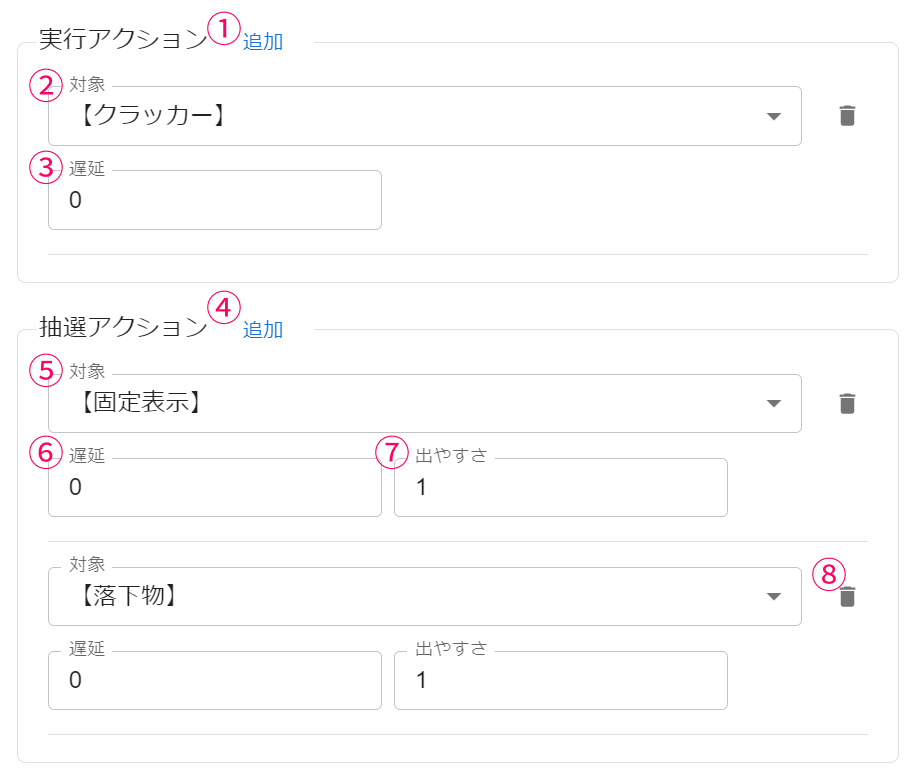 Action To ExecuteAddCrackerDelayLottery ActionTargetFixed coordinatesAddTargetDropDelayProbabilityProbability
| ① Actions to run | Actions that always run once the connector effect's conditions are met |
| ② Target (actions to run) | Selects the effect to run You can choose from any created effect, including disabled ones |
| ③ Delay | Runs after a specified delay (in milliseconds) once the connector effect's conditions are met |
| ④ Lottery Action | An action chosen at random from the configured set to run when the connector effect's conditions are met |
| ⑤ Target (lottery action) | Selects the effect to run via the lottery You can choose from any created effect, including disabled ones |
| ⑥ Delay | Runs after a specified delay (in milliseconds) once the lottery selects it to run |
| ⑦ Probability | The relative probability of this effect appearing The higher this is relative to other lottery actions, the more likely it is to appear |
| ⑧ Delete action | Deletes the target action |
"Trigger" effect settings in detail
Trigger is a special effect that runs another effect when a special condition is met
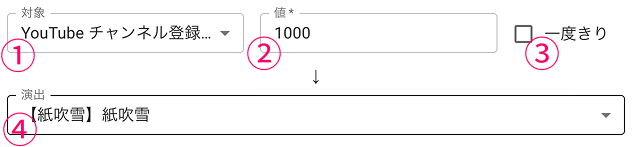 TargetSubscribe To Our Youtube ChannelEffect
| ① Target | Selects what to use as the condition |
| ② Value | The numeric value used as the trigger condition |
| ③ Once only | Prevents it from firing again if, after the condition is first met, the value drops below the threshold and later meets the condition again for some reason |
| ④ Effect | Selects the effect to run when the condition is met |
About the preview
- About the blue frame
Shows the range of the X and Y values
Within that range, the selected material moves to a random position each time the life time elapses - About the purple rectangle
Shows how the material is displayed relative to its currently displayed coordinates within the blue frame and the red origin point - About the red dot
The red dot represents the reference position of the selected material (the purple material) — i.e., which point is treated as its center
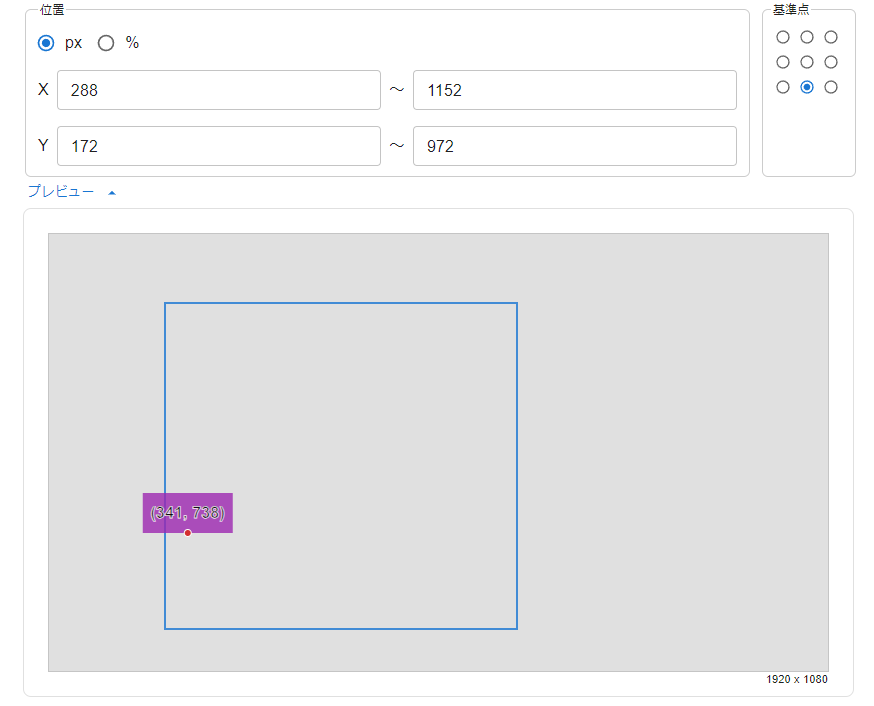 PositionPreview
Settings --
Settings let you configure WordParty as a whole and settings that apply across all on-screen effects
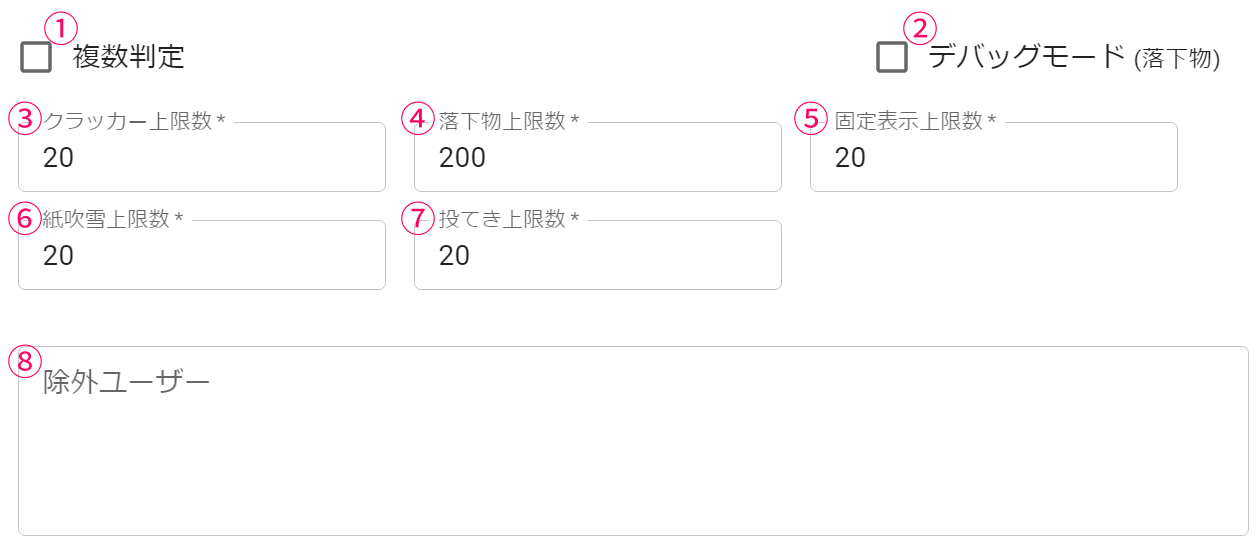 Evaluate allMax cracker countMax confetti countExcluded usersMax count of particlesMax throwsMax fixed coordinates count
Global settings
| ① Multiple matches | When enabled, multiple on-screen effects can fire at the same time for a single comment Off by default, meaning only one effect (the one higher in the list takes priority) is shown per comment |
| ② Debug mode (drop) | Enables a debug mode that visualizes the drop's position, collision size, and performance status |
| ③ Cracker limit | The maximum number of cracker effects shown on screen at once |
| ④ Drop limit | The maximum number of drops shown on screen at once |
| ⑤ Fixed coordinates limit | The maximum number of fixed coordinates effects shown on screen at once |
| ⑥ Confetti limit | The maximum number of confetti effects shown on screen at once |
| ⑦ Throwing limit | The maximum number of throwing effects shown on screen at once |
| ⑧ Excluded | Specifies usernames (commenter names) to exclude from on-screen effects. Using "" in part of a username excludes it as a partial match (e.g., Nightbot-) Enter one username per line |
Fixed objects for drop
You can place invisible walls within the range specified by the drop effect
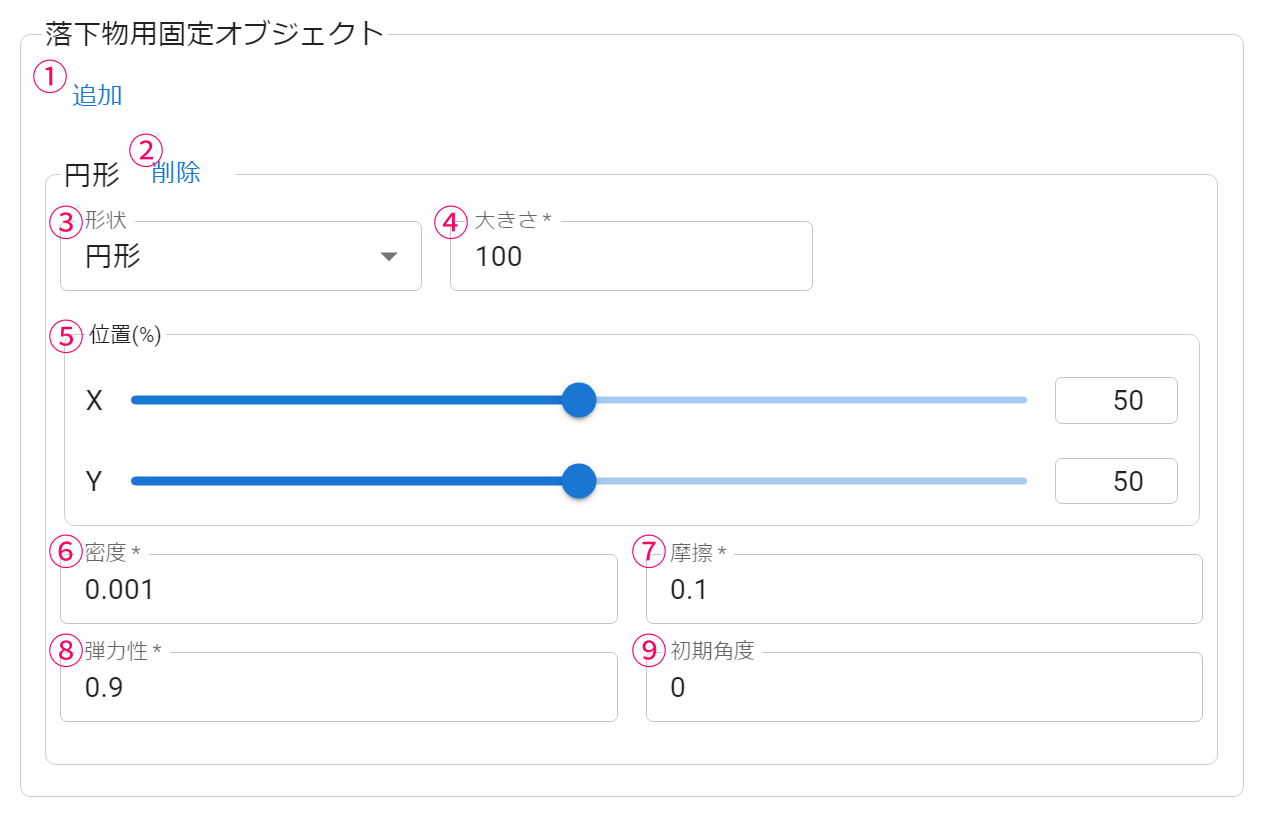 Static collider for droppingsAddRound shapeshapeRound shapeRemovePositionDentisityCoefficient of restitutionSizeFrictionInjection angle
| ① Add | Adds a fixed object |
| ② Delete | Deletes a fixed object |
| ③ Shape | Chooses the shape of the object — circle or rectangle |
| ④ Size | The size of the object For a circle, this is the diameter; for a rectangle, you set the width and height separately |
| ⑤ Position | Specifies where the object is placed X determines the position as a percentage (%) where the left of the screen is 0 and the right is 100 Y determines the position as a percentage (%) where the top of the screen is 0 and the bottom is 100 |
| ⑥ Density | The density value of the object |
| ⑦ Friction | The friction value of the object |
| ⑧ Coefficient of restitution | The bounciness of the object |
| ⑨ Initial angle | The angle at which the object is placed |
Tracking with VST
Lets you set up a wall that roughly follows facial movement, integrated with VTubeStudio
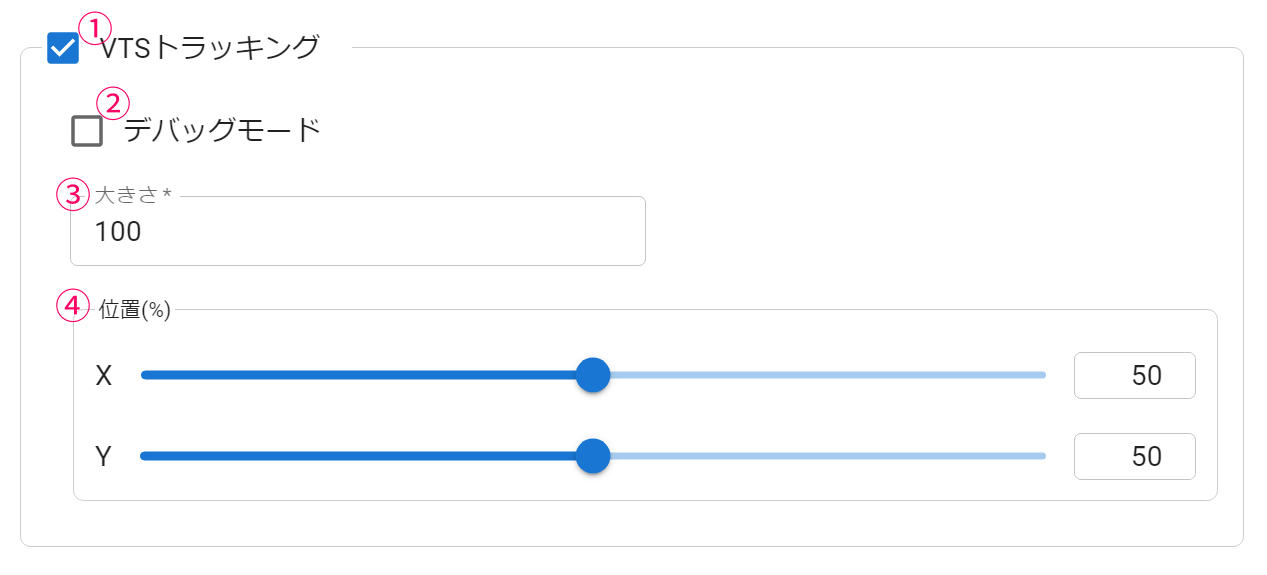 Debug modeSizePosition
| ① VTS tracking | Integrates with VTubeStudio to roughly track position |
| ② Debug mode | Shows the tracked position and the moving wall as a red circle |
| ③ Size | Specifies the diameter of the collision area |
| ④ Position | Specifies where the wall is placed Specified as a percentage (%) where the left of the screen is 0 and the right is 100 * Adjust so the debug mode's red circle stays centered on the face |
For custom creators
You can add a filter option inside start(), defined in WordParty's config.js (8.0 and later)
It is called when other conditions are met, and receives the comment and the on-screen effect item scheduled to fire as arguments
This lets you freely prevent an on-screen effect from firing under conditions not implemented in WordParty
.start({
  // Called right before firing, once other conditions are met. Return false to cancel the effect (async/await supported)
  // @param comment Comment data
  // @item Effect settings
  // @return boolean or Promise
  customFilter: async (comment, item) => {
	  return true
  }
})