
Platform-specific settings
Change settings specific to each streaming platform.
Open the top-right menu > Settings > the "Website specific" tab.
Site settings
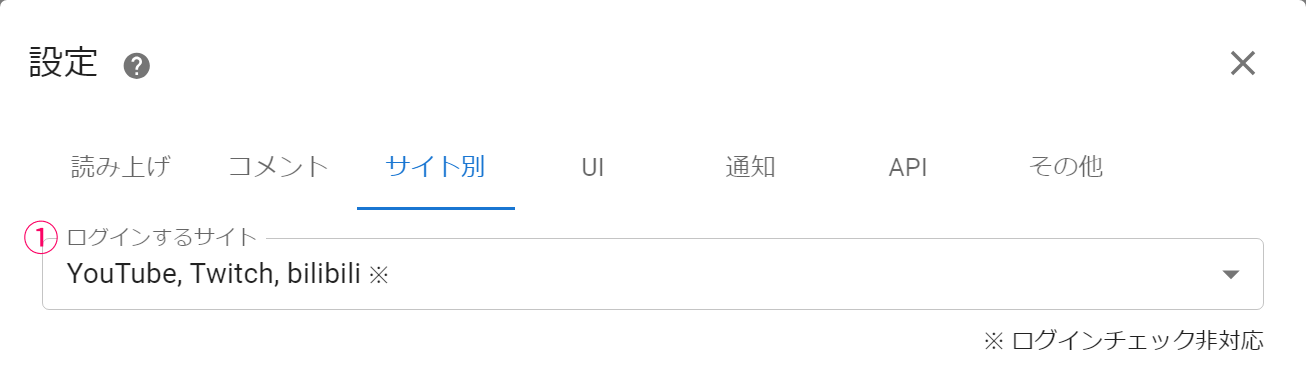 SettingsSpeechCommentsPlatform to loginWebsite specificNotificationOthersLogin check not supported
| ① Platforms to log in to | Register the streaming platforms you normally use with OneComme For platforms that support login checks, you can check the Login Status on the main screen |
YouTube
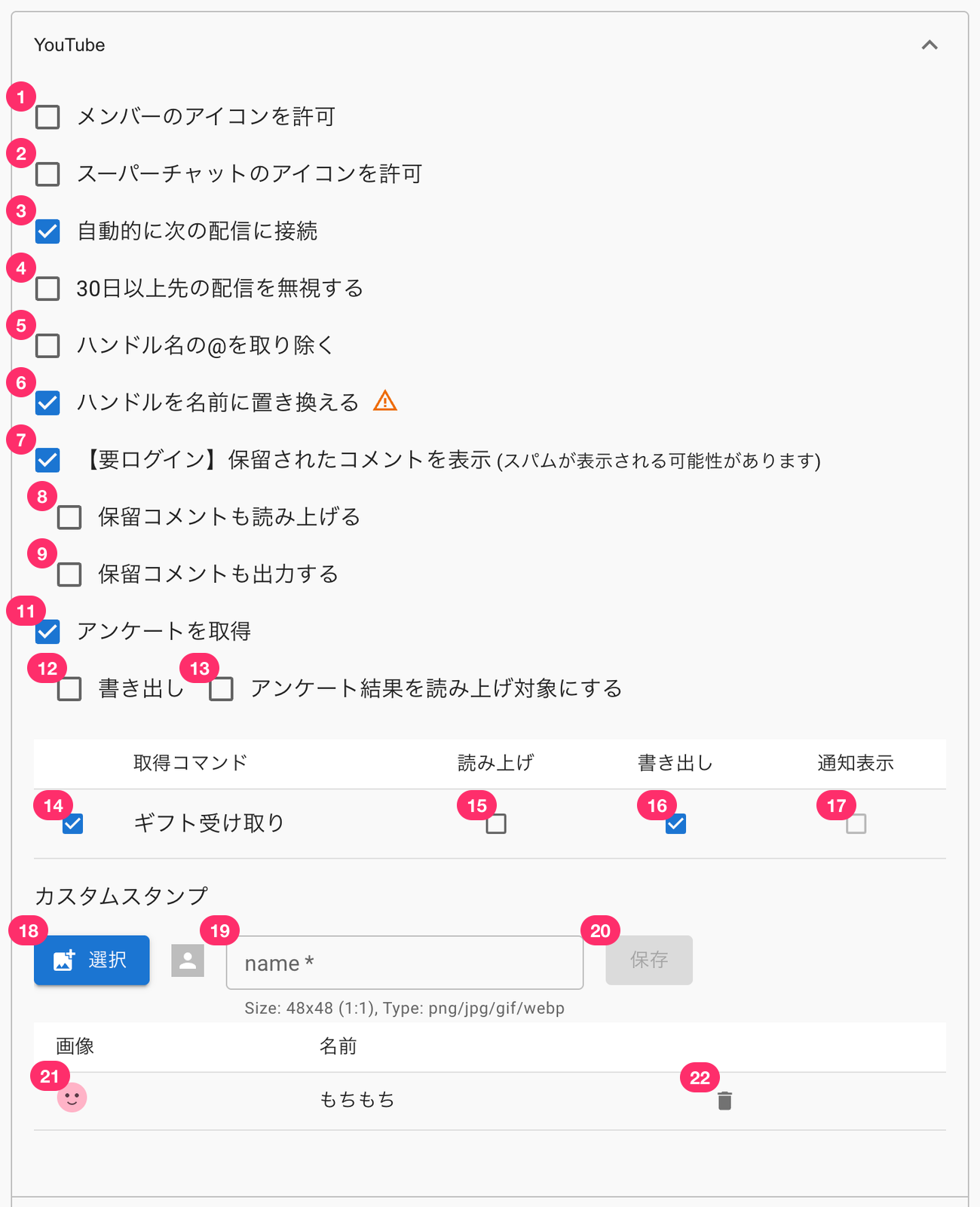 Allow Members IconAllow Icon of SuperChatAutomatically Connects To The Next BroadcastIgnores Deliveries Scheduled More Than 30 Days In Advance.Remove The @ From The Handle NameReplace The Handle With The Name.[Login required] Show auto-moderated comments (spam may show)Read held commentsExport held commentsObtain The SurveyExportSelect The Survey Results To Be Read Aloud.Acquisition CommandSpeechExportGift ReceiptCustom StampsSaveNameMochi mochiNotification Display
| ① Allow member icons | Allows the icons of users who are members of your YouTube membership to be shown |
| ② Allow Super Chat icons | Allows the icons of users who send Super Chats to be shown |
| ③ Automatically connect to the next stream | |
| ④ Ignore streams more than 30 days out | |
| ⑤ Remove the @ from handles | |
| ⑥ Replace handle with name | |
| ⑦ [Login required] Show auto-moderated comments (may display spam) | Fetches comments that YouTube has held for moderation Even when this setting is off, if a moderator approves a held comment, it is fetched as a normal comment at that point Approved held comments are not read aloud by default (you can enable speech for them in ⑩). An icon indicating approval is shown in the comment panel |
| ⑧ Also read out held comments | Reads aloud the comments held in ⑦ |
| ⑨ Also output held comments | Outputs the comments held in ⑦ to templates |
| ⑩ Read out approved held comments | This item is shown when ⑦ is off Controls whether comments approved by a moderator are read aloud Off by default; even if an approved comment is fetched while ⑦ remains off, it will not be read aloud |
| ⑪ Fetch polls | Fetches YouTube polls in OneComme |
| ⑫ Poll output | Also outputs poll results as comments to templates This must be turned on if you want to fetch it with an external app as well |
| ⑬ Read out poll results | Reads aloud the results when a poll ends |
| ⑭ Gift Receipt (receiving a Membership Gift) | Controls whether receiving a Membership Gift is shown in the comment panel The on-screen label is "Gift Receipt", but this only covers receiving a Membership Gift, and displays content such as "OO received a Membership Gift from OO" |
| ⑮ Speech | Whether to read this event aloud when received |
| ⑯ Output | Whether to output this event as a comment when received |
| ⑰ Notification Display | Whether to show a notification when this event is received |
| ⑱ Custom Stamps selection | Upload your own custom stamp |
| ⑲ Custom Stamps name | The name to assign to the stamp |
| ⑳ Save | Saves the custom stamp |
| ㉑ Configured custom stamps | Stamps that have already been configured |
| ㉒ Delete custom stamp | Deletes a configured stamp |
Switching between held-comment items
Which items are shown below ⑦ "[Login required] Show auto-moderated comments" changes depending on whether it is on or off
- When ⑦ is on: ⑧ and ⑨ are shown, and ⑩ is not shown (this is the state in the screenshot above)
- When ⑦ is off: ⑧ and ⑨ are not shown, and ⑩ "Read out approved held comments" is shown instead
Here is how it looks when ⑦ is turned off:
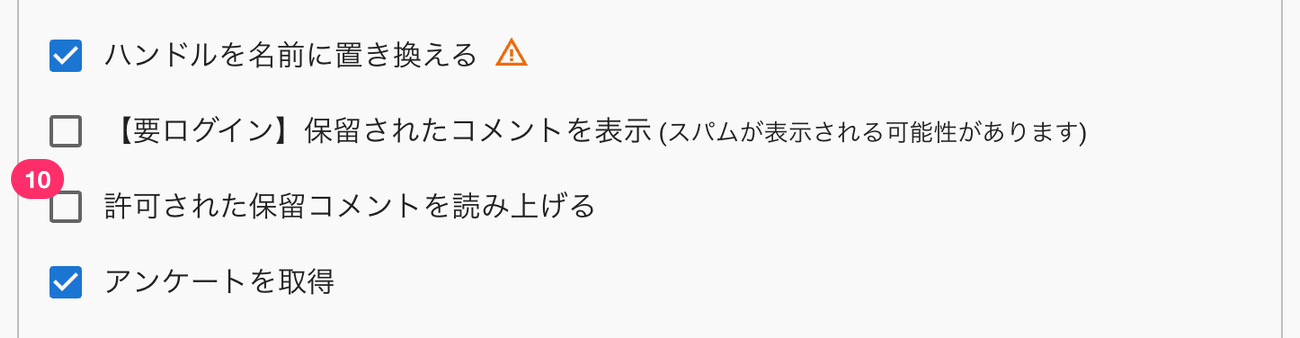 Replace The Handle With The Name.[Login required] Show auto-moderated comments (spam may show)Read Out The Approved Pending Comments.
About Jewel Gifts
OneComme supports YouTube's tipping feature, "Jewel Gifts"
There is no ON/OFF setting for receiving Jewel Gifts — they are always received
- The gift name is shown exactly as it appears in YouTube's chat text
- Consecutive gifts are treated as a combo, with the count tracked precisely
- Jewel comments get a background color (dark purple #7406ac with white text), shown consistently in both the app's comment panel and OBS templates
- Because YouTube does not return price or currency fields, no monetary conversion (e.g., to yen) is shown (OneComme cannot calculate this on its own)
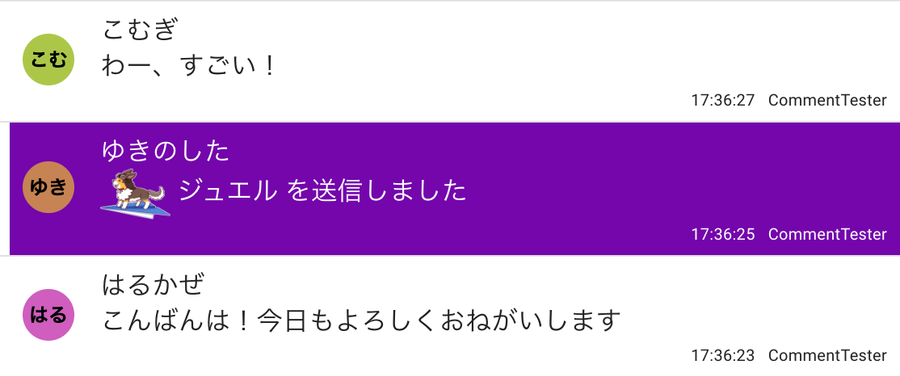 KomugiWow, amazingYukinoshitaSpring BreezeGood evening! Thanks for today too
NicoNicoLive
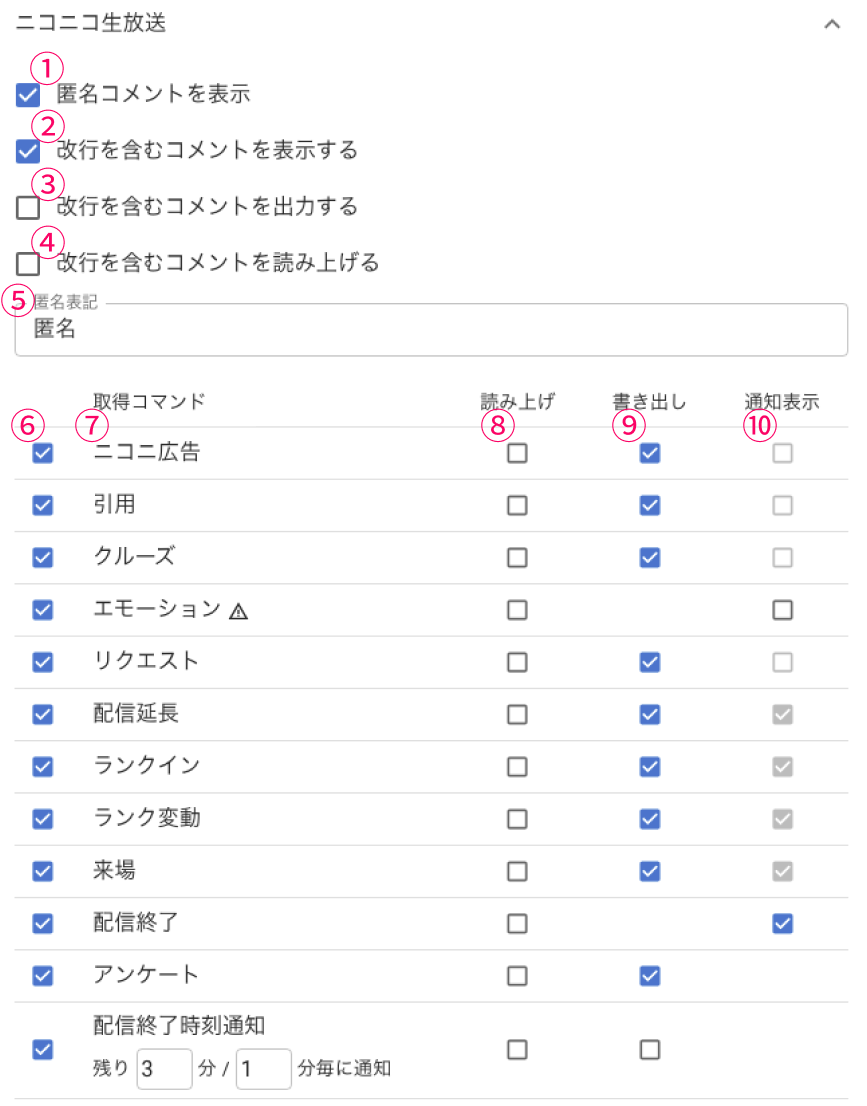 NicoNicoLiveShow Anonymous CommentsShow comments including line breaksOutput comments including line breaksReading ccomments including line breaksAcquisition CommandNiconico AdsRequestStreaming ExtendedRankedVisitorPollSpeech
| ① Show anonymous comments | Whether to show anonymous comments |
| ② Show comments containing line breaks | Whether to show comments containing line breaks in the app |
| ③ Output comments containing line breaks | Whether to output comments containing line breaks to templates |
| ④ Read out comments containing line breaks | Whether to read aloud comments containing line breaks |
| ⑤ Anonymous label | The text used as the name for anonymous comments The default is "Anonymous" |
| ⑥ Command fetch switch | Fetches checked commands in OneComme |
| ⑦ Acquisition Command | A list of supported Niconico commands |
| ⑧ Speech | Reads aloud the content of the command ※ Speech must also be enabled for the stream |
| ⑨ Output | Also outputs the fetched command information to templates and WordParty |
| ⑩ Notification Display | Instead of showing the fetched command as a comment in the app or templates, shows it in the app's notification UI |
About Emotion
The "Emotion" item in the ⑦ Acquisition Command list has been changed to a method that fetches it per broadcast from the official API
Using the official API requires logging in to a Niconico account, and the "Emotion" item in the ⑦ list shows a [Login required] icon
- If you are not logged in, or if the official API is unavailable, it automatically falls back to the legacy static data
- If the streamer has turned off the Emotion feature, no information is available to fetch, so nothing is shown — this is normal behavior, not an error
About the stream-end-time notification
The "Streaming Ended time notification" item in the ⑦ Acquisition Command list shows a notification in the app's notification UI reading something like "X minutes until the stream ends" as the end approaches
This was temporarily not showing, but it has been working again since 9.1
- By default, notifications are shown every 2 minutes starting 5 minutes before the end (and automatically follow the remaining time if the stream is extended)
- The notification timing can be adjusted within the ⑦ item
- Following the ⑧ Speech / ⑨ Output settings, this can also be read aloud or output to templates
Twitch
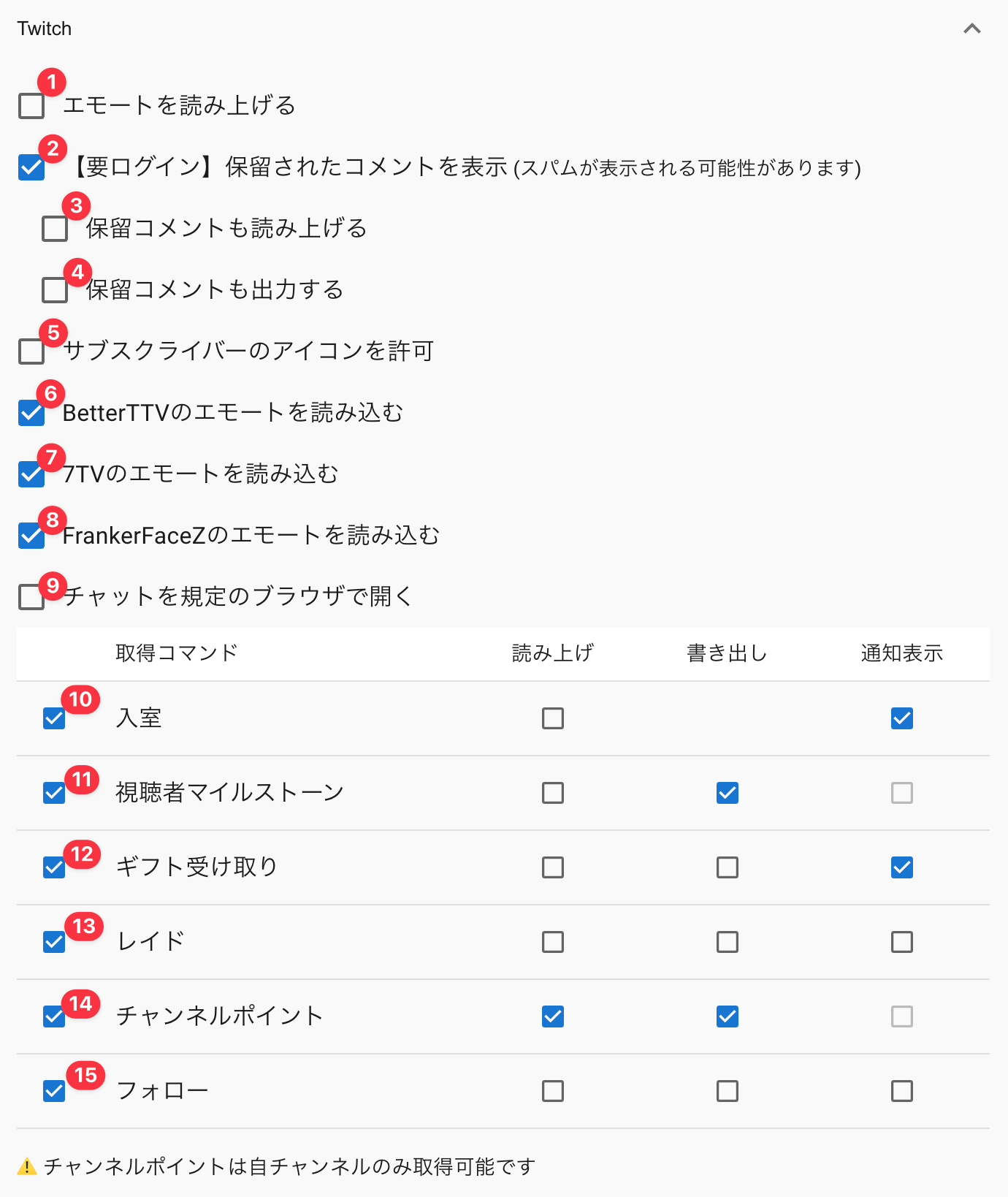 Read name of emote[Login required] Show auto-moderated comments (spam may show)Read held commentsExport held commentsAllow Subscribers IconEnable emotes of BetterTTVEnable emotes of 7TVEnable emotes of FrankerFaceZOpen The Chat In Your Default Browser.Acquisition CommandSpeechExportEntering The RoomNotification DisplayViewer MilestonesGift ReceiptRaidChannel PointsFollowChannel Points Can Only Be Earned On Your Own Channel.
| ① Read out emotes | Whether to read aloud emotes on Twitch |
| ② [Login required] Show auto-moderated comments | Lets you choose whether comments held due to settings such as blocked words are also shown in OneComme |
| ③ Read out held comments | Whether to read aloud the held comments received in ⑤ |
| ④ Also output held comments | Whether to output the held comments received in ⑤ to templates, etc. |
| ⑤ Allow subscriber icons | Automatically allows icons for subscribers' comments |
| ⑥ Load BetterTTV emotes | Loads BetterTTV emote data so it can be shown This increases the amount of data loaded Channel-specific emotes are also shown correctly |
| ⑦ Load 7TV emotes | Loads 7TV emote data so it can be shown This increases the amount of data loaded Channel-specific emotes are also shown correctly |
| ⑧ Load FrankerFaceZ emotes | Loads FrankerFaceZ emote data so it can be shown This increases the amount of data loaded Channel-specific emotes are also shown correctly |
| ⑨ Open chat in default browser | If Twitch security prevents login in OneComme's browser, this lets you open the chat panel in your default browser instead |
| ⑩ Join | Notifies you when a user accesses the stream (grouped and notified at set intervals due to platform limitations) |
| ⑪ Viewer milestone | Settings for how viewer milestone events are handled |
| ⑫ Gift Receipt | Settings for how gift receipt events are handled |
| ⑬ Raid | Settings for receiving raid events |
| ⑭ Channel Points | Settings for receiving Channel Points events |
| ⑮ Follow | Settings for receiving follow events |
SHOWROOM
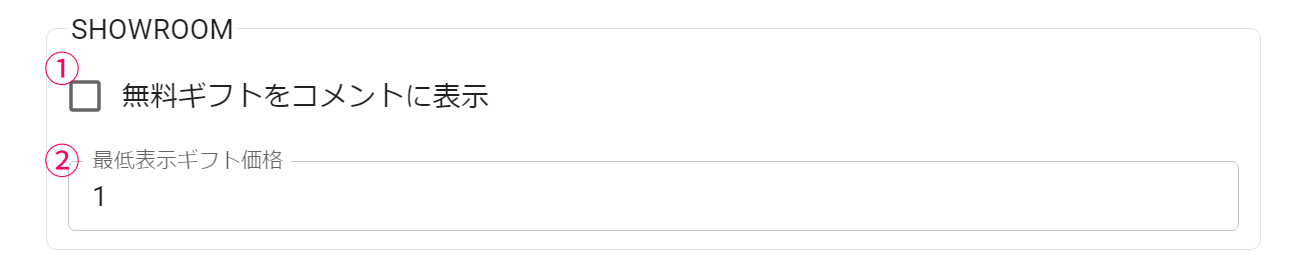 Display free gifts in commentsmin price to show
| ① Show free gifts as comments | Whether to treat SHOWROOM free gifts as comments |
| ② Min price to show | The minimum price of gifts to show as comments (gifts below this go in the free gifts column) |
MIXCHANNEL
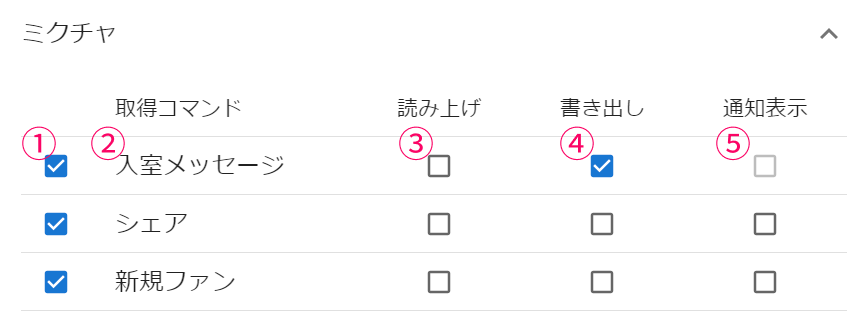 MIXCHANNELAcquisition CommandEntry MessageSpeechExportNotification Display
| ① Command fetch switch | Fetches checked commands in OneComme |
| ② Acquisition Command | Supported commands |
| ③ Speech | Reads aloud the content of the command ※ Speech must also be enabled for the stream |
| ④ Output | Also outputs the fetched command information to templates and WordParty |
| ⑤ Notification Display | Instead of showing the fetched command as a comment in the app or templates, shows it in the app's notification UI |
TikTok
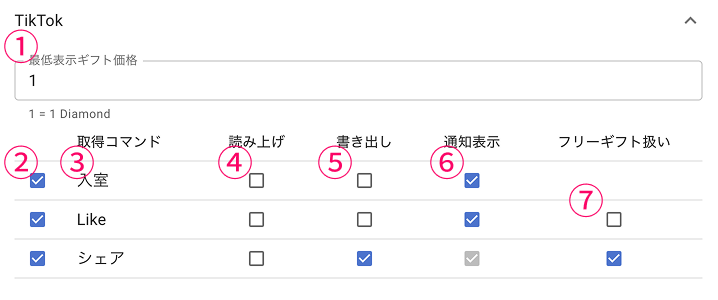 min price to showAcquisition CommandShareSpeechNotification DisplayTreated As A Free Gift
| ① Min price to show | Enter the minimum amount for gifts to be shown as comments on TikTok 1 = 1 Diamond |
| ② Command fetch switch | Fetches checked commands in OneComme |
| ③ Acquisition Command | Supported commands |
| ④ Speech | Reads aloud the content of the command ※ Speech must also be enabled for the stream |
| ⑤ Output | Also outputs the fetched command information to templates and WordParty |
| ⑥ Notification Display | Instead of showing the fetched command as a comment in the app or templates, shows it in the app's notification UI |
| ⑦ Treat as free gift | Treats this command the same as a free gift and shows it in the free gifts column |
BiliBili
 min price to show
| ① Min price to show | Enter the minimum amount for gifts to be shown as comments on BiliBili 1000 = 1 CNY |
Mirrative
 Mirrativmin price to show
| ① Min price to show | Enter the minimum amount for gifts to be shown as comments on Mirrative 1 = 1 Coin |
Reset Settings
| Reset Settings | Restores the "Website specific" settings to their default values |