
UI settings
Configure settings related to the OneComme app's UI.
App screen
Open the top-right menu > Settings > the "UI" tab.
Field descriptions
App
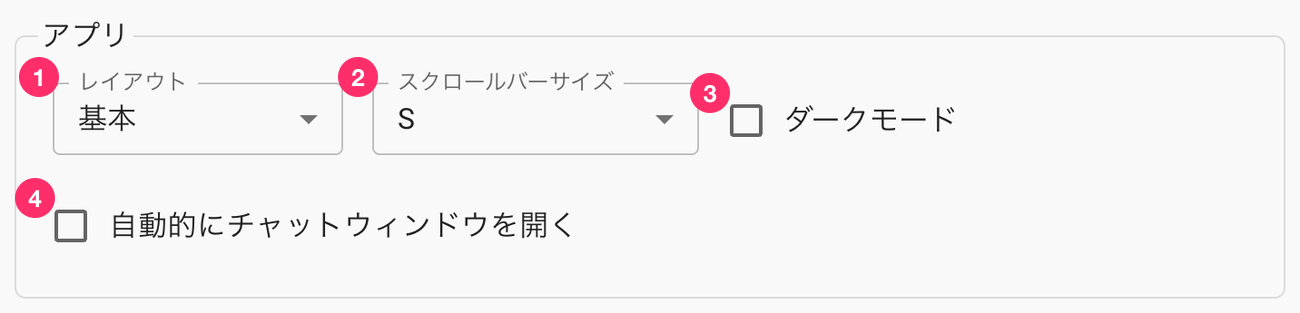 AppLayoutBasicScrollbar SizeAutomatically open chat windowDark theme
| ① Layout | Change the layout of the main screen |
| ② Scrollbar size | Change the thickness of scrollbars in the comment panel and elsewhere (choose from S, M, L, or Native (OS default)) |
| ③ Dark theme | Switch the application to dark mode |
| ④ Automatically open chat window | Automatically opens the streaming platform's chat window once connected to the stream |
Comments
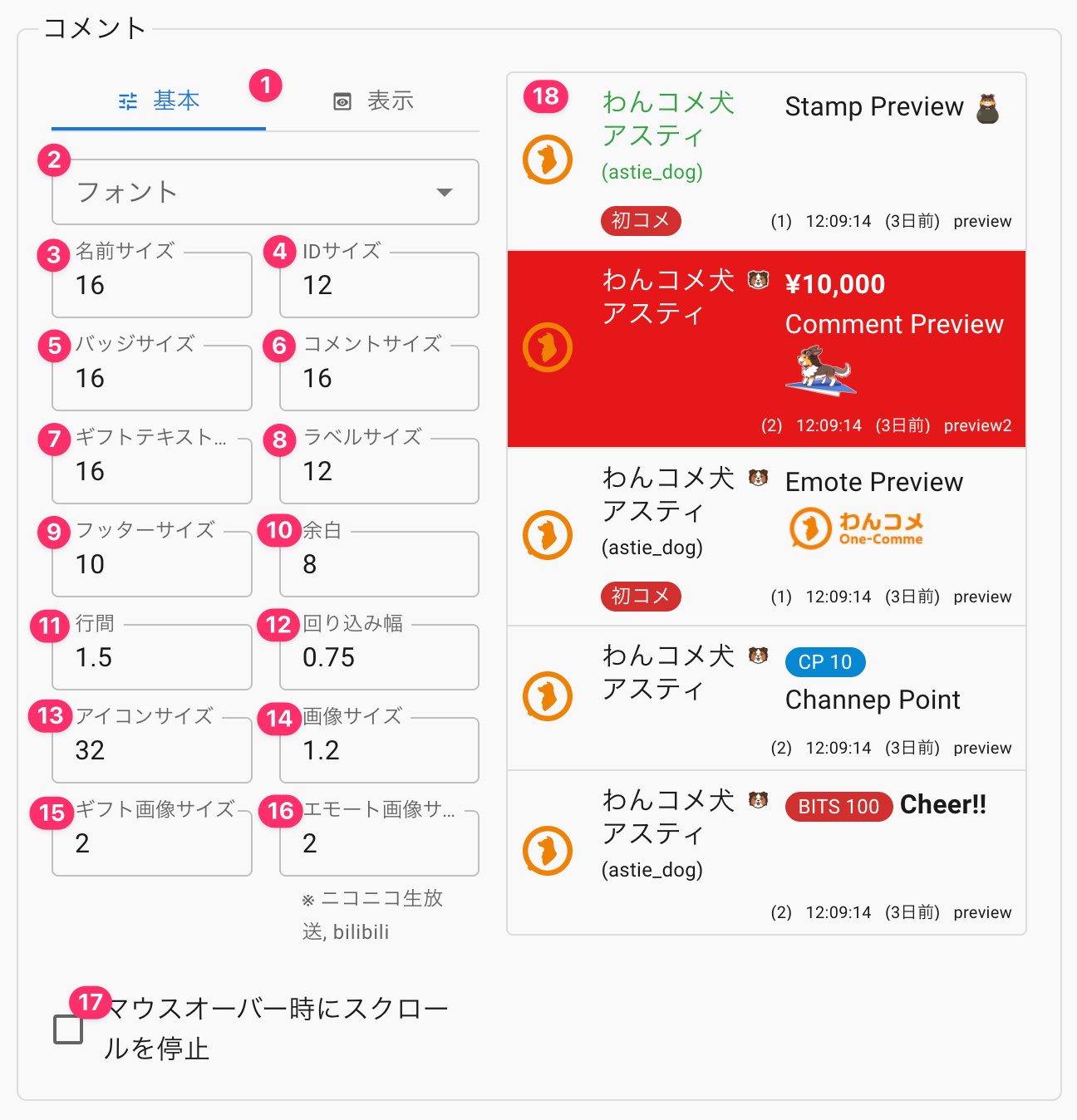 CommentsFontsName SizeId SizeBadge SizeComment SizeGiftsTextLabel SizeFooter SizeMarginHeightWrap WidthIcon sizeImage sizeNicoNicoLive17 Stop scroll on mouseoverOneComme DogAstieNewcomerAstieNewcomerOneComme DogAstie1) 12:09:14 (3 days ago) preview3 days agoOneComme DogAstie
| ① Basic / Display tabs | Switch between the basic UI settings display and the UI display toggle settings |
| ② Fonts | Choose the font used in the comment panel (also applied to Remote View) |
| ③ Name size | Font size of the commenter's name |
| ④ ID size | Size of the user ID, screen ID, and similar text |
| ⑤ Badge size | Display size of membership and subscriber badges |
| ⑥ Comment size | Font size of the comment text |
| ⑦ Gift text size | Font size of amounts shown for YouTube and similar platforms |
| ⑧ Label size | Size of labels such as "newcomer" and "returning viewer" |
| ⑨ Footer size | Font size of the comment footer info (stream name, time, etc.) |
| ⑩ Padding | Top, bottom, left, and right padding of the comment frame |
| ⑪ Line spacing | Line spacing of comments |
| ⑫ Wrap width | When "Wrap" is ON in the display settings, sets the width reserved for the name area (0 sets the width automatically to fit the name) |
| ⑬ Icon size | Size of the commenter icon |
| ⑭ Image size | Size of images |
| ⑮ Gift image size | Size of gift images |
| ⑯ Emote image size | Size of emote images |
| ⑰ Stop scrolling on mouseover | Keeps the scroll position fixed when new comments arrive while the mouse cursor is over the OneComme comment panel |
| ⑱ Comment preview | Preview of the comment panel reflecting your changes |
UI display toggle settings
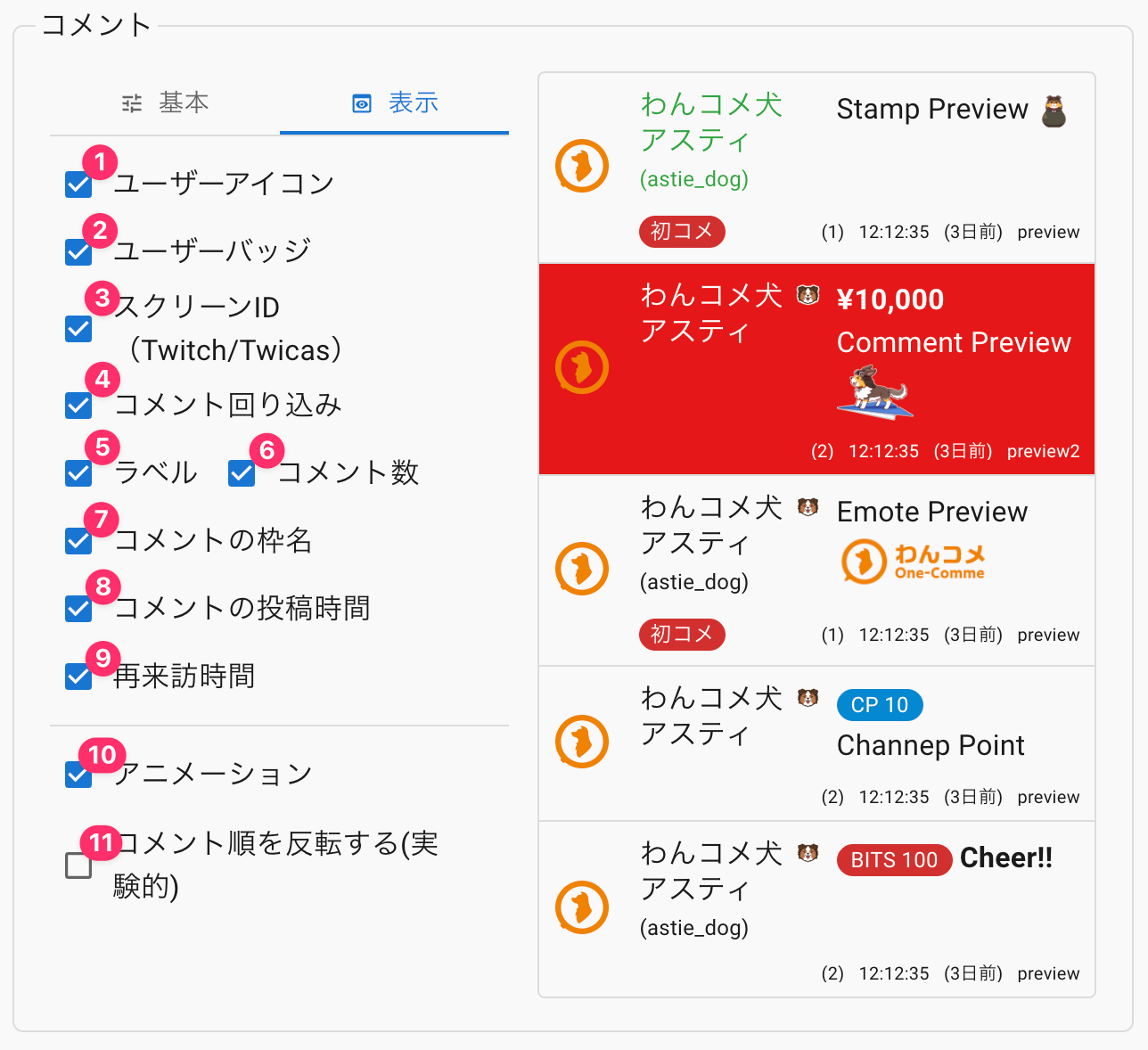 CommentsCommenter iconCommenter badgeScreen IDSlim designNewcomer/RepeaterComments CountService name of each commentTimestampElapsed time since last visitAnimation11 Reverse comment order (implOneComme DogAstieNewcomerAstieNewcomerAstie3 days ago) preview2OneComme DogAstie
| ① User icon | Toggle the display of the "user icon" in comments shown in the app |
| ② User badge | Toggle the display of the "user badge" in comments shown in the app |
| ③ Screen ID | Toggle the display of the "screen ID" in comments shown in the app |
| ④ Comment wrap | Turn off comment wrapping to reduce the number of lines displayed |
| ⑤ Label | Toggle the display of "labels" in comments shown in the app |
| ⑥ Comments count | Toggle the display of "comments count" in comments shown in the app |
| ⑦ Comment's stream name | Toggle the display of the "comment's stream name" in comments shown in the app |
| ⑧ Comment's post time | Toggle the display of the "comment's post time" in comments shown in the app |
| ⑨ Returning time | Toggle the display of "returning time" in comments shown in the app |
| ⑩ Animation (experimental) | Displays comments with an animation. Uncheck this if a large volume of comments appears in a short time |
| ⑪ Reverse comment order (experimental) | Reverses the display order of comments (top/bottom) |
Reaction/Emotion
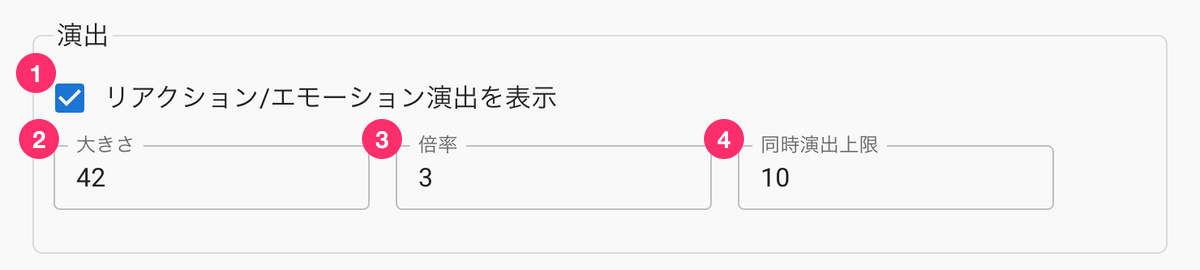 SizeDisplay Reaction/Emotion EffectsMagnificationReactions' max
| ① Show reaction/emotion effects | Displays an on-screen effect in OneComme when a YouTube reaction button is pressed, or when a NicoNicoLive emotion is sent |
| ② Size | Set the size of the emoji shown when a reaction/emotion is sent |
| ③ Multiplier | A coefficient controlling how much of the effect appears when a reaction/emotion is sent |
| ④ Max simultaneous effects | Limits the number of effects that can appear at the same time |
Comment screen display
Toggle the display of the comment panel itself.
Unchecking an item stops that part of the UI from being rendered.
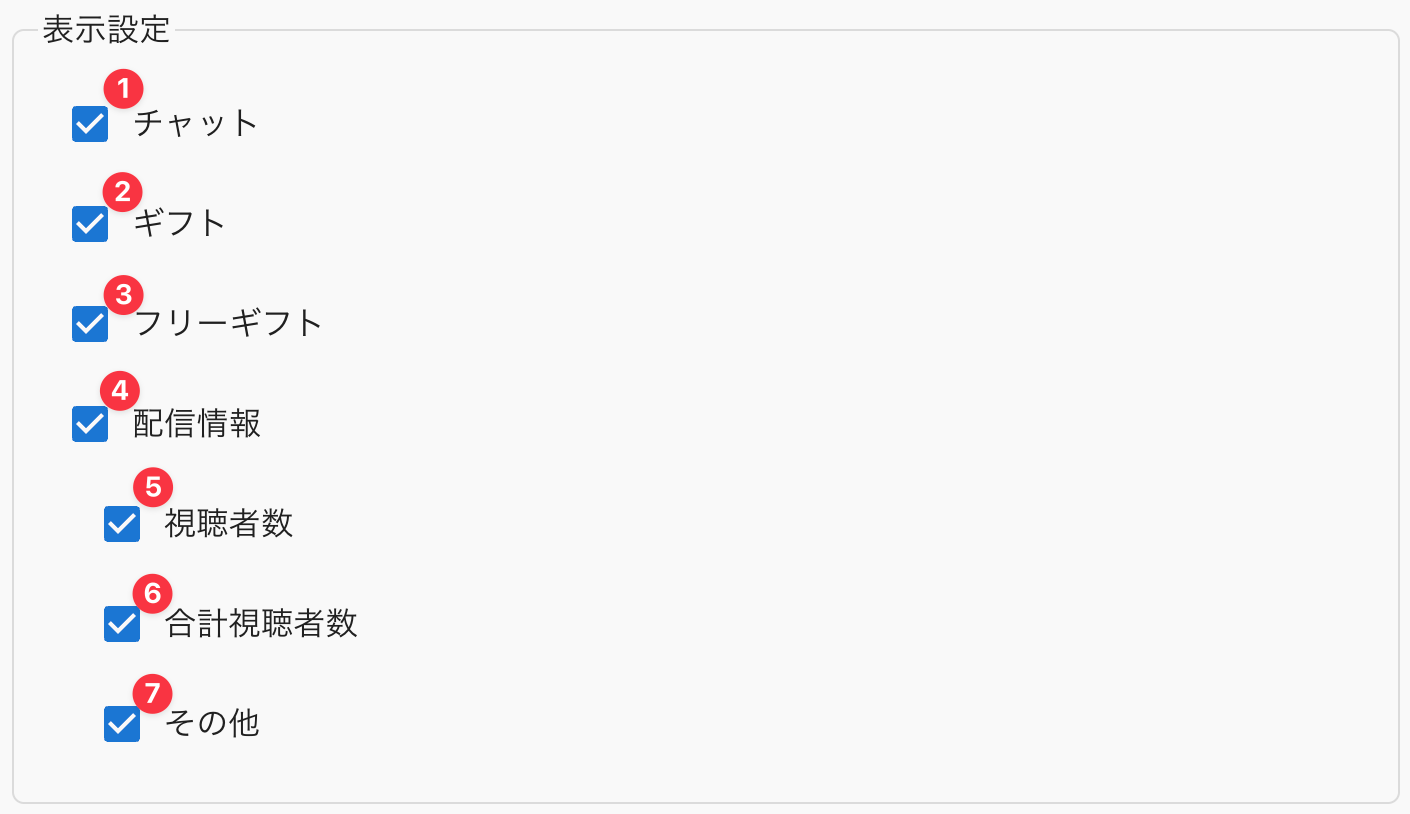 Display SettingsChatsGiftsFree giftsViewersTotal ViewersOthers
| ① Chats | Toggle the display of the chat panel |
| ② Gifts | Toggle the display of the gift panel |
| ③ Free gifts | Toggle the display of the free gifts panel |
| ④ Streaming information | Toggle the display of streaming information |
| ⑤ Viewers | Toggle the display of the viewers column in streaming information |
| ⑥ Total Viewers | Toggle the display of the total viewers column in streaming information |
| ⑦ Other | Toggle the display of the other columns in streaming information |
PiP
 Display Scale
| ① Display scale | The scale of the PiP comment panel Set to 1 to match the size of the normal comment panel |
| ② Opacity | Sets the opacity of the window background 0 is fully transparent, 1 is fully opaque |
| Reset Settings | Reset the UI settings |