
[Speech] BouyomiChan integration
You can have BouyomiChan read out OneComme's speech.
You can download BouyomiChan from the site below.
https://chi.usamimi.info/Program/Application/BouyomiChan/
Note
Ver0.1.11.0 β21 or later is required to integrate with OneComme.
Make sure to download the beta version.
TIPS
On Mac, besides direct integration, you can also integrate via Nimos to use speech engines such as VOICEVOX.
BouyomiChan-side settings
Launch BouyomiChan and open its settings.
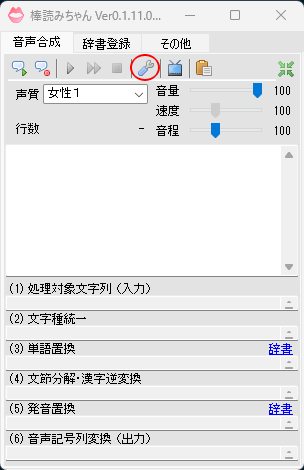 OthersVolumeVelocity1) Target string (input
Under "Application Integration" > "HTTP Integration", confirm that Use local HTTP server function is set to True, and note down the port number.
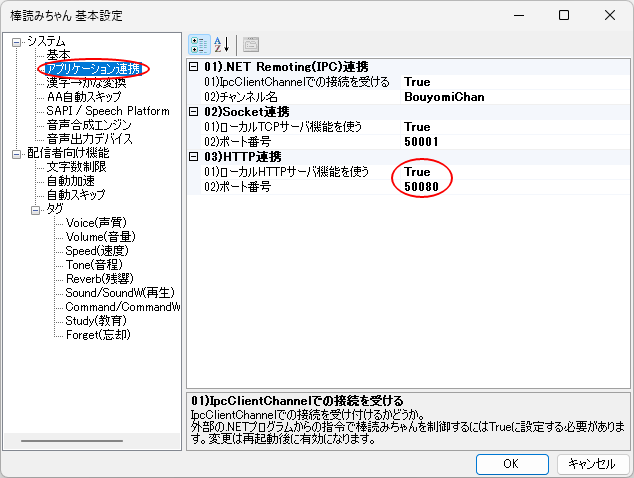 BouyomiChanBasicSettingsBasicAA Auto SkipSpeech Synthesis EngineCharacter LimitAuto Speed UpAuto SkipTagsVolume (VolumeSpeed (Speed01) .NET Remoting (IPC) Integration01) Accept connections via IpcClientChannel02) Channel Name01) Use local TCP server feature02) Port03) HTTP Integration02) Port01) Accept connections via IpcClientChannelWhether to accept connections via IpcClientChannelSet to True to control BouyomiChan via external .NET commandsChanges take effect after restartCancel
① Connect via Integrations
Open Integrations from the menu in the top right of OneComme.
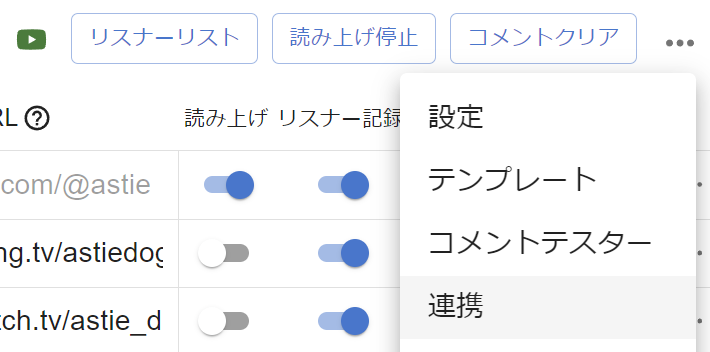 CommentersStop speechClear commentsSpeechPersistSettingsTemplatesDummy CommenterIntegration
Check "Enable".
Enter the BouyomiChan port number you noted down earlier.
Note
If the connection doesn't work, try changing the hostname to localhost or 127.0.0.1.
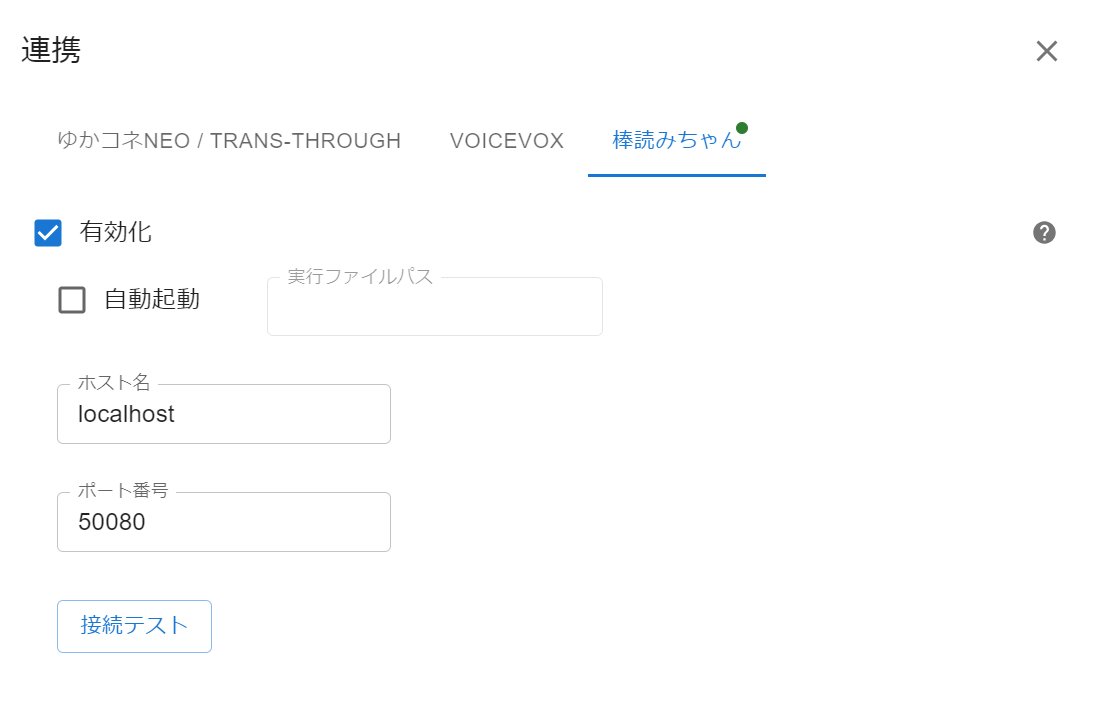 IntegrationYUKARINETTE CONNECTOR NEO /TRANS-THROUGHAuto RunExecutable File PathHostnamePortTest ConnectionBouyomiChan
This completes the connection with BouyomiChan.
② Select it as the Text-To-Speech Engine
If the Default Text-To-Speech Engine is still set to "Built-In Voice Engine", BouyomiChan is automatically selected as the default Text-To-Speech Engine as soon as you enable the integration.
If another engine is already set as the default, it won't switch automatically, so select BouyomiChan using one of the methods below.
Open "Speech Settings" and select BouyomiChan under "Default Text-To-Speech Engine" to use BouyomiChan for all streams. If you want to use different engines per stream, select BouyomiChan under "Text-To-Speech Engine" in "Individual options".
If BouyomiChan isn't selected as the engine anywhere, it won't be used for speech even if the integration is enabled.
Note that if you disable an integration you had enabled, the default Text-To-Speech Engine is automatically reselected from the remaining engines.
Specifications --
While BouyomiChan is selected as the Text-To-Speech Engine, the settings items outlined in red below under Settings > Speech (Built-In Voice Engine Settings) are not used.
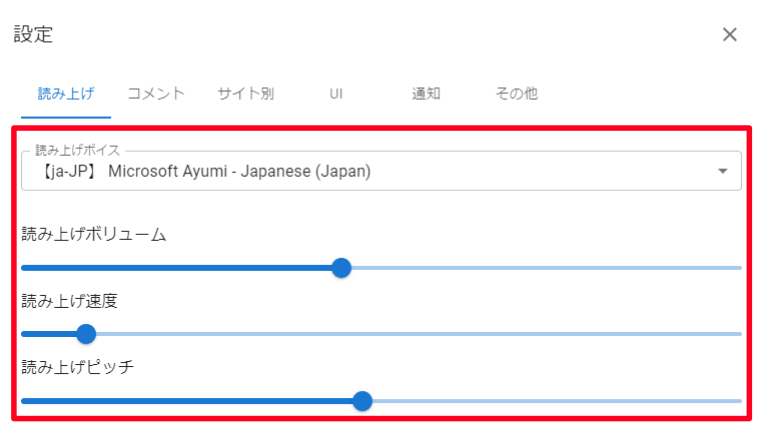 SettingsSpeechCommentsWebsite specificNotificationOthersSpeech VoiceSpeech VolumeSpeech SpeedSpeech Voice Pitch
Control and configure the speech voice itself within BouyomiChan.
Settings such as whether to include the name in the spoken text (Syntax for speech) and character count limits continue to function regardless of which engine is selected.
Use the preview to check that things work as expected.
Settings items
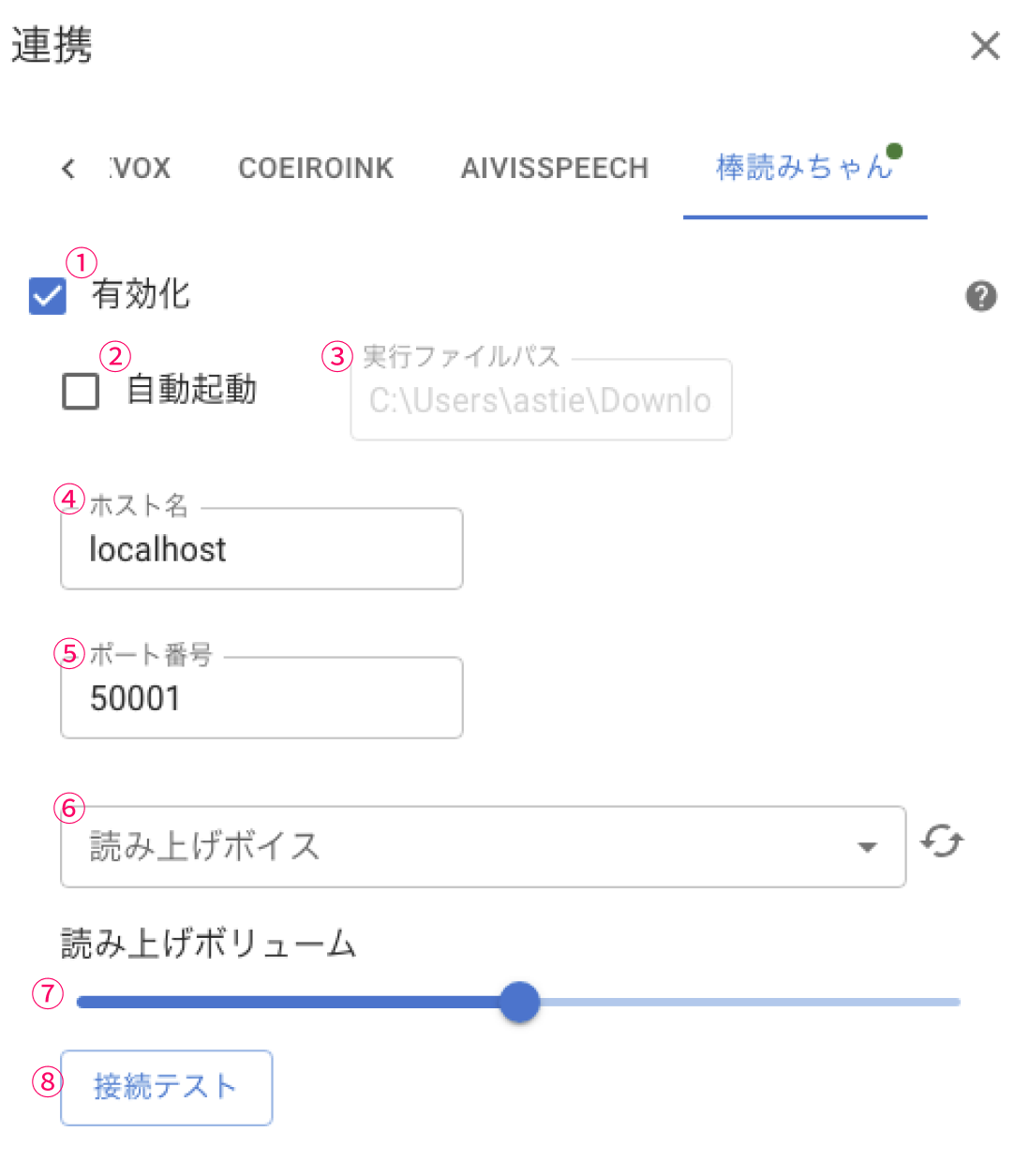 BouyomiChanEnabledHostnameSpeech VoiceSpeech VolumeTest Connection
| ① Enable | Enable speech using BouyomiChan |
| ② Auto Run | Launch BouyomiChan when OneComme starts ※If auto-launched, it will also close when OneComme closes |
| ③ Executable File Path | Specify BouyomiChan's executable file (bouyomichan.exe) |
| ④ Hostname | Hostname to connect to (usually no need to change) |
| ⑤ Port | The port number of BouyomiChan's local HTTP server |
| ⑥ Speech Voice | Select the voice to use for speech If not specified, the voice set in BouyomiChan is used |
| ⑦ Speech Volume | The volume of the spoken voice |
| ⑧ Test Connection | Run a connection test with BouyomiChan |
Things to check if the connection fails
- Is BouyomiChan running?
- Is BouyomiChan's version 0.1.11.0 β21 or later?
- Is "Use local HTTP server function" set to True in BouyomiChan's settings?
- Is BouyomiChan showing a port conflict error?
→ If so, change the port number on both BouyomiChan and OneComme so they match. - Can you connect by setting the hostname to "localhost" or "127.0.0.1"?
- Can you connect with your security software turned off?
→ If you can connect with it off, your security software is blocking the connection, so add an exception for it. - Is BouyomiChan showing any other error?
→ If so, contact BouyomiChan's support. - If none of the above resolves the issue
→ Post the details on the OneComme User Forum.
Per-stream speech settings
If you select BouyomiChan under "Text-To-Speech Engine" in Individual options, you can override the speech voice and settings for each stream individually.
For details, see "Individual options".