
[Translation/Speech] YUKARINETTE CONNECTOR NEO integration comment translation
To use translation and speech, you need YUKARINETTE CONNECTOR NEO developed by *nao*
If you only want to use translation, Trans-through, a translation relay server app, also works
This page explains the steps using YUKARINETTE CONNECTOR NEO
Note
Translation incurs a separate cost, so read the YUKARINETTE CONNECTOR NEO documentation carefully before use
Here's the FANBOX for YUKARINETTE CONNECTOR NEO!
Translation integration
Launch YUKARINETTE CONNECTOR NEO and check the "Translation/Speech Integration Server" plugin
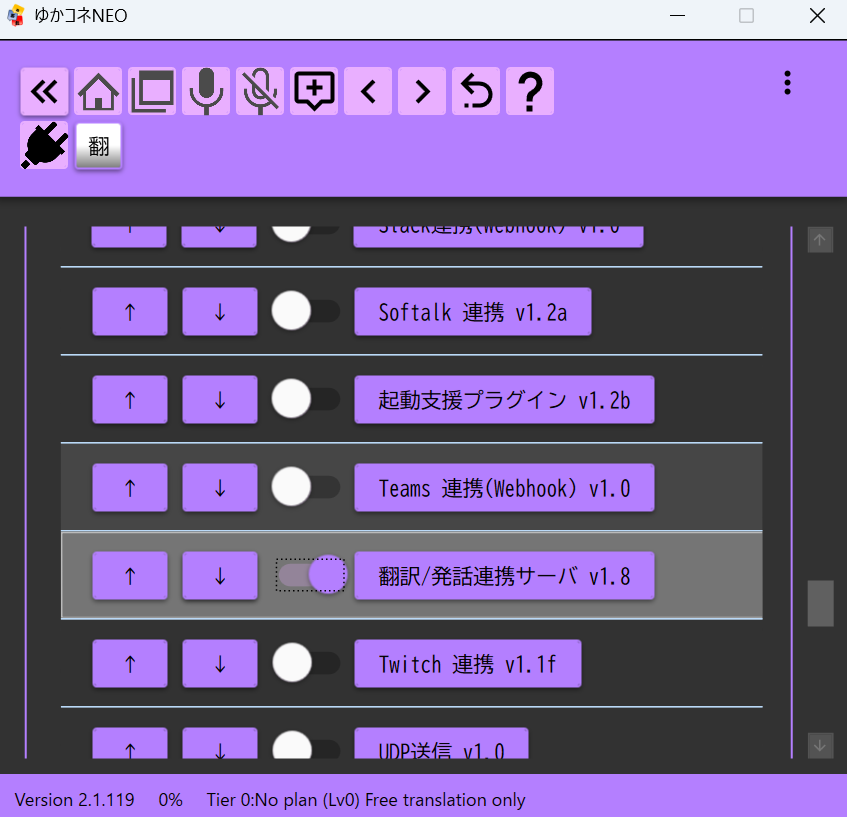 YUKARINETTE CONNECTOR NEOSoftalk integration v1.2aLaunch support plugin v1.2bTeams integration (Webhook) v1.0Translation/Speech integration server v1.8
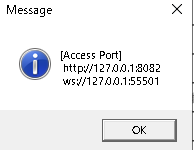
Then click the settings button to check and note the connection information
Open the integrations menu from the top right of OneComme
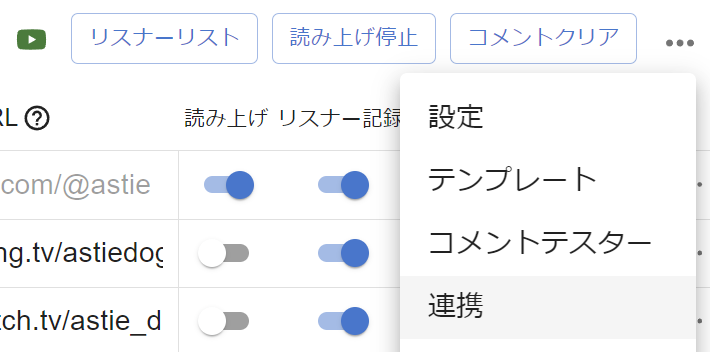 CommentersStop speechClear commentsSpeechPersistSettingsTemplatesDummy CommenterIntegration
Open the "YUKARINETTE CONNECTOR NEO / Trans-through" tab and check "Enable"
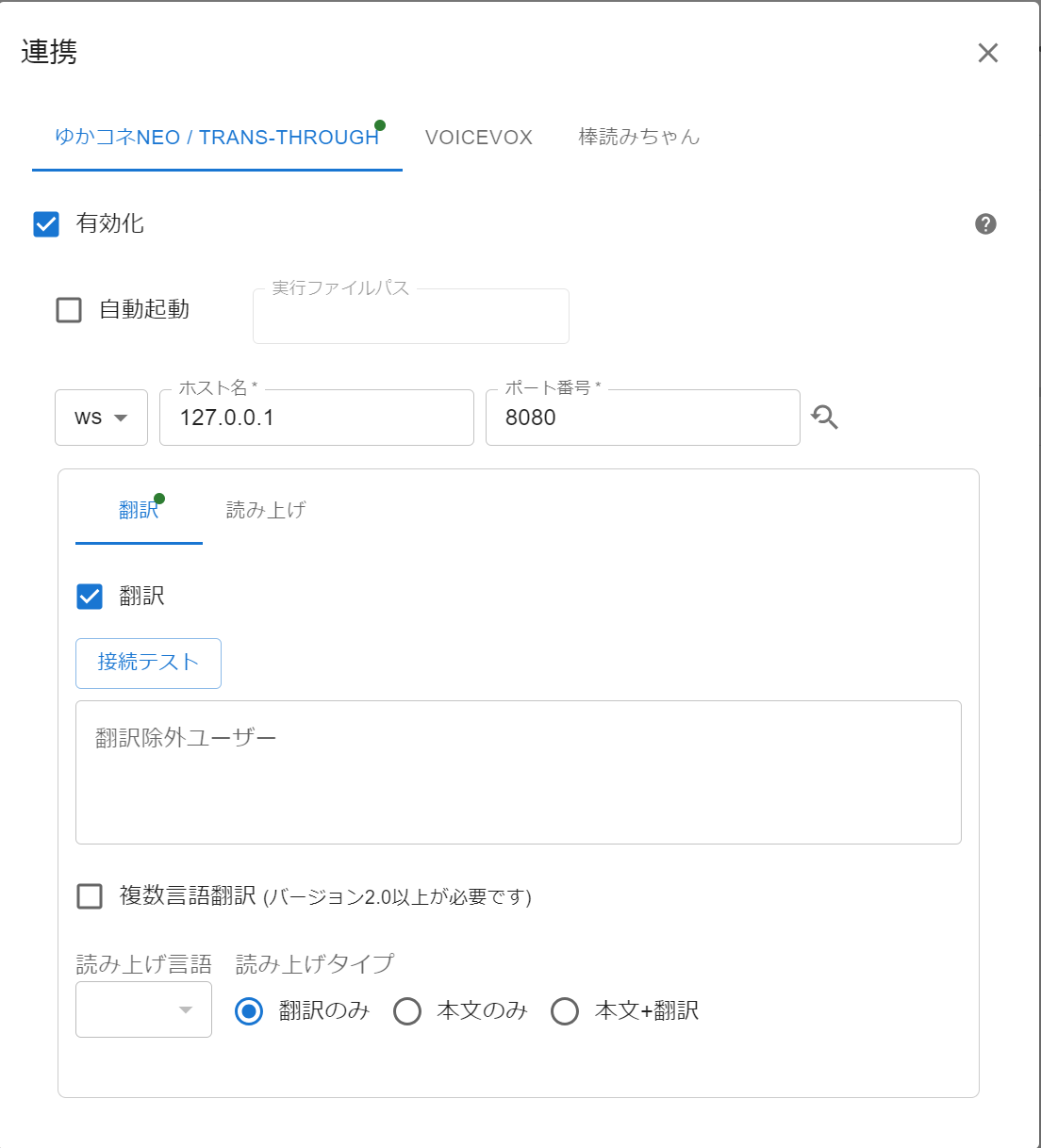 IntegrationYUKARINETTE CONNECTOR NEO /TRANS-THROUGHBouyomiChanEnabledExecutable File PathAuto RunHostnamePortTranslateSpeechTest ConnectionUntranslated CommentersSet multi languages (Requires v2.0+Language for speechReading type
Change the http setting, hostname, port number, etc. to match the connection information you noted earlier
TIPS
With YUKARINETTE CONNECTOR NEO running, click the refresh icon next to the port number to automatically fetch and set the API information
Settings are saved automatically. Once entered, click "Test Connection"
If the translation result is displayed correctly as shown below, the connection is complete

Speech integration
Only when the API connection is in "ws" mode, you can use the speech plugin built into YUKARINETTE CONNECTOR NEO to read out comments
Select the Speech tab and check "Speech Intergration (WebSocket connection only)"
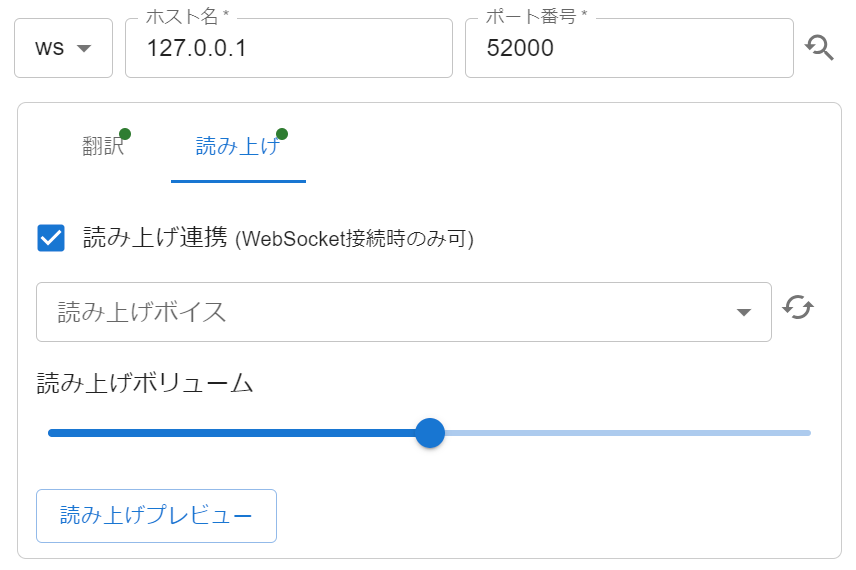 HostnamePortTranslateSpeechSpeech VoiceSpeech VolumeSpeech Preview
Selecting it as the Text-To-Speech Engine
OneComme uses one "Text-To-Speech Engine" at a time to turn comments into speech
If the Default Text-To-Speech Engine is still set to "Built-In Voice Engine," enabling "Speech Intergration" automatically sets YUKARINETTE CONNECTOR NEO as the Default Text-To-Speech Engine
If you already have a different engine set as default, it won't switch automatically, so select YUKARINETTE CONNECTOR NEO using one of the following:
- Selecting YUKARINETTE CONNECTOR NEO under "Default Text-To-Speech Engine" in "Speech Settings" applies it to every stream
- To use it only for specific streams, select YUKARINETTE CONNECTOR NEO under "Text-To-Speech Engine" in "Individual options"
If it isn't selected as the engine anywhere, comments won't be read out via YUKARINETTE CONNECTOR NEO even with "Speech Intergration" enabled
Also, if you turn "Speech Intergration" off again, the Default Text-To-Speech Engine is automatically reselected from the remaining engines
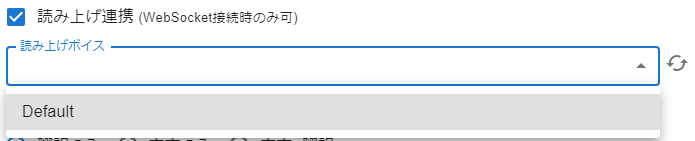
Speech Voice
 Speech Voice
If no voices appear in the Speech Voice list, launch YUKARINETTE CONNECTOR NEO and click the refresh icon on the right
Select the voice you want to use for Speech Voice from the list, and the setup is complete
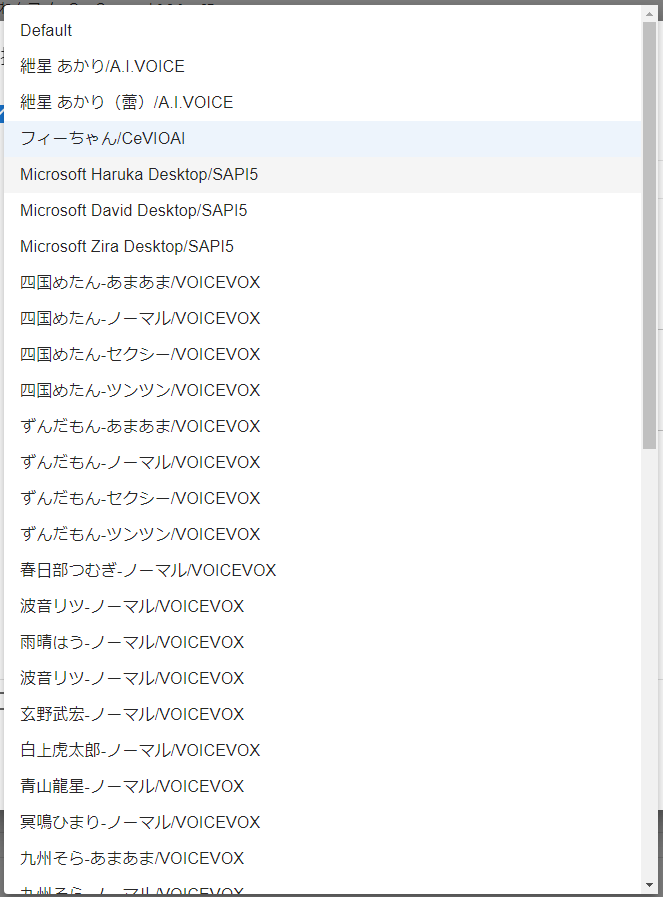 Fie-chan/CeVIOAIShikoku Metan-Amaama/VOICEVOXZundamon-Amaama/VOICEVOXZundamon-Normal/VOICEVOXZundamon-Sexy/VOICEVOXZundamon-Tsuntsun/VOICEVOXKasukabe Tsumugi-Normal/VOICEVOXNamine Ritsu-Normal/VOICEVOXAmehare Hau-Normal/VOICEVOXNamine Ritsu-Normal/VOICEVOXKurono Takehiro-Normal/VOICEVOXShirakami Kotaro-Normal/VOICEVOXRyusei Aoyama - Normal VOICEVOXHimari Meimei - Normal VOICEVOX
Set multi languages
This performs mutual translation, such as translating Japanese comments to English and English comments to Japanese
With the checkbox enabled, select multiple translation targets, such as "Japanese" and "English"
Note
Mutual translation always increases the amount of translation according to the number of languages selected, so be mindful of usage costs
Selecting what to read out
Language for speech
When using Set multi languages, you can limit which language is read out
If you set "Japanese" here, Japanese comments will still be read out in Japanese even after being translated to English, and for English comments translated to Japanese, only the Japanese part will be read out
Reading type
Translated Only - If translated, only the translation is read out. If not a translation target, the original text is read out
Original Only - Only the original text is read out, even if translated
Original + Translated - Both the original text and the translation are read out
*If a language for speech is specified, that language setting always takes priority
Translation settings
Translate all comments in a stream
When integration is on, a "Translation" column is added to the stream settings
Set the target language to translate comments into here (e.g., select Japanese if you want English or Chinese comments translated to Japanese)
 Stream NameStream URLSpeechTranslatePersistExport
Translate per commenter (user)
Click the commenter in the Commenters list, or click the commenter name on a comment, and specify the target language
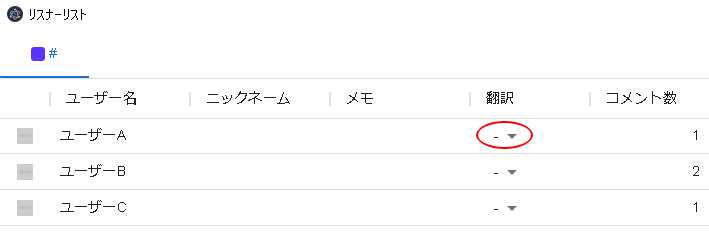 CommentersUsernameUsernameUsernameUsernameNicknameNotesTranslate
Translate per comment
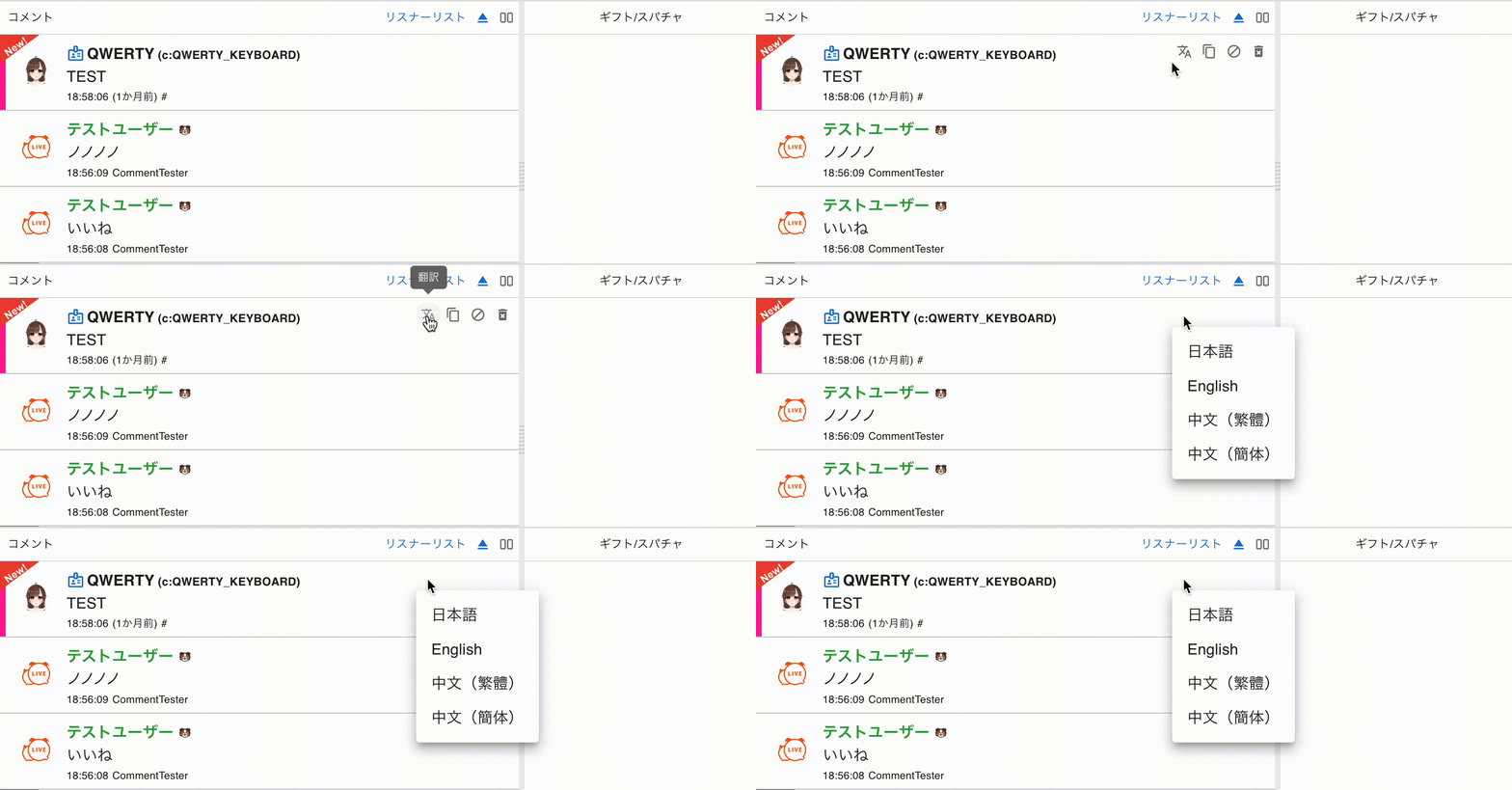
Click "Translate" shown on the comment you want to translate, and select the target language
After a moment, the translation result is displayed
 CommentsGift/SuperChatTestUserTestUserLike
Adjustments in OBS templates
Add the CSS below to the Custom CSS as needed
Show only the translation result
.origin {
  display: none;
}
.par {
  display: none;
}
Hide the translation result
.t {
  display: none;
}
Notes
Translating increases data usage and causes a delay in comment display
When not in regular use, narrow the scope or turn integration off
Integration can be turned on even while comments are being fetched, and per-comment translation can also be applied to past comments
Settings items
 IntegrationYUKARINETTE CONNECTOR NEO /TRANS-THROUGHBouyomiChanEnabledExecutable File PathAuto RunHostnamePortTranslateSpeechTranslateTest ConnectionUntranslated CommentersSet multi languages (Requires v2.0+Reading type
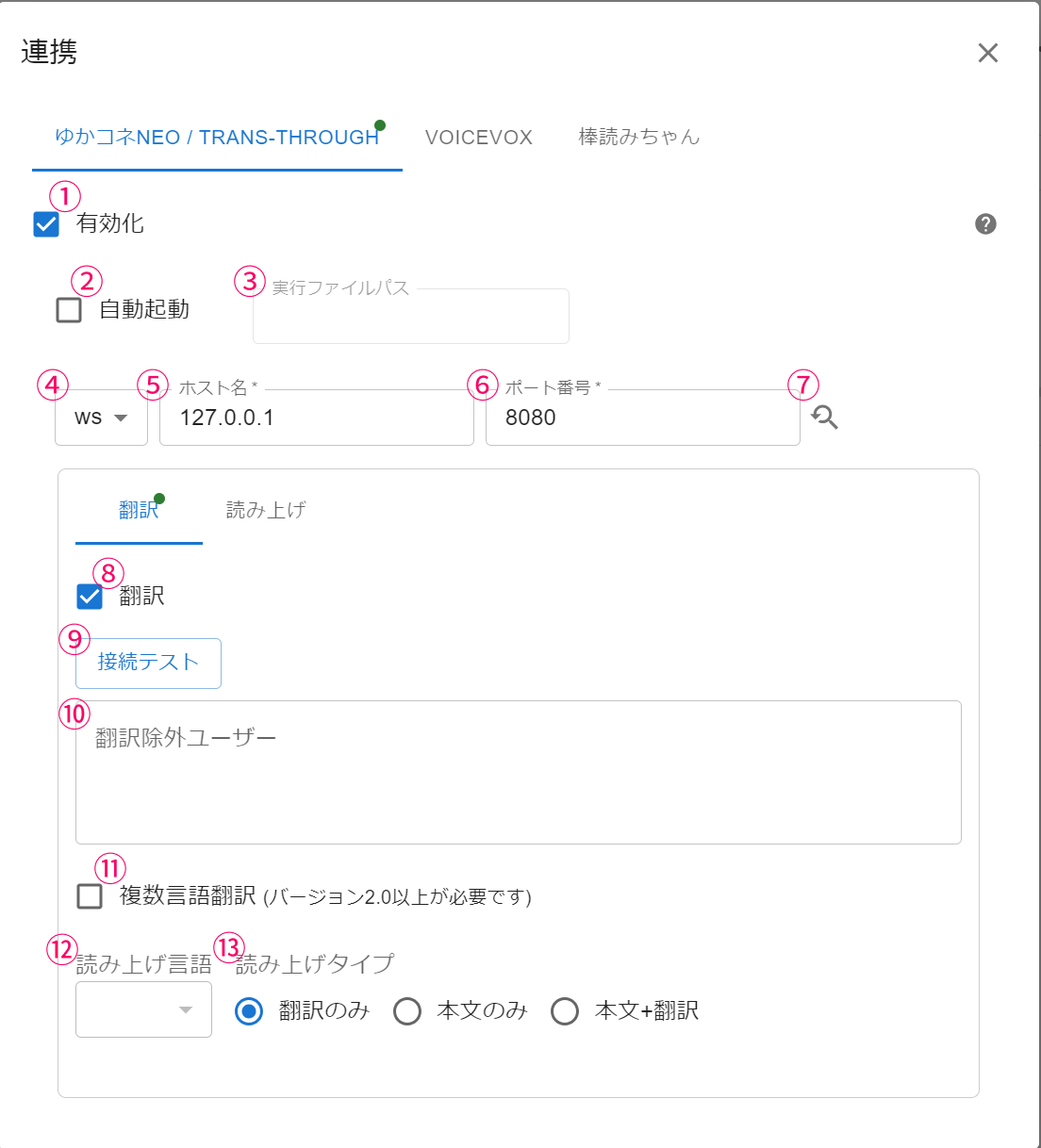
| ① Enable | Enable integration with YUKARINETTE CONNECTOR NEO |
| ② Auto Run | Also launch YUKARINETTE CONNECTOR NEO or Trans-through automatically when OneComme starts *Applications launched automatically this way will also close when OneComme closes |
| ③ Executable File Path | Path to the YUKARINETTE CONNECTOR NEO executable (YNC_Neo.exe) |
| ④ Protocol (ws) | Communication protocol used with YUKARINETTE CONNECTOR NEO (recommended: ws) |
| ⑤ Hostname | Hostname running YUKARINETTE CONNECTOR NEO |
| ⑥ Port | Server port number for YUKARINETTE CONNECTOR NEO |
| ⑦ Auto search | Automatically finds and sets the port number for YUKARINETTE CONNECTOR NEO |
| ⑧ Translation | Enable translation integration |
| ⑨ Test Connection | Run a translation test with YUKARINETTE CONNECTOR NEO |
| ⑩ Excluded translation users | Specify usernames to exclude from translation |
| ⑪ Set multi languages | Use mutual translation, such as Japanese to English and English to Japanese (*Note the amount of translation) |
| ⑫ Language for speech | Specify the language to read out when Set multi languages is enabled |
| ⑬ Reading type | Specify which part is read out when reading translated comments |
| ⑭ Image handling | Specify how images in comments are handled during translation Choose from "Remove," "Convert (A)," or "Convert (B)" *If you choose to convert, images may not convert properly |
 TranslateSpeechSpeech VoiceSpeech VolumeSpeech Preview
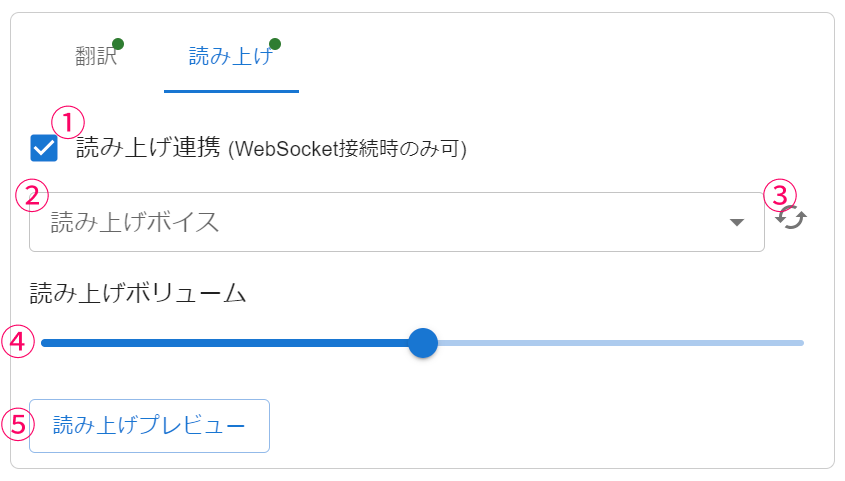
| ① Speech Intergration | Enable Speech Intergration (communication protocol limited to ws) When enabled, YUKARINETTE CONNECTOR NEO is added to the list of Text-To-Speech Engine options |
| ② Speech Voice | Specify the Speech Voice (default: the voice specified in YUKARINETTE CONNECTOR NEO) |
| ③ Refresh button | Refetch the Speech Voice list |
| ④ Speech Volume | Volume of the Speech Voice |
| ⑤ Speech Preview | Run a Speech Preview |
Per-stream speech settings
Selecting YUKARINETTE CONNECTOR NEO under "Text-To-Speech Engine" in Individual options lets you override the Speech Voice and volume for that stream only
For details, see "Individual options"