
Displaying comments in OBS
Let's display comments imported into OneComme in your streaming software
Setup
Add a template to OBS
① From the "..." menu in the top right of the OneComme app, click "Templates".
② Drag and drop the "Drag and Drop this into OBS scene" area of the template you want to use into OBS.
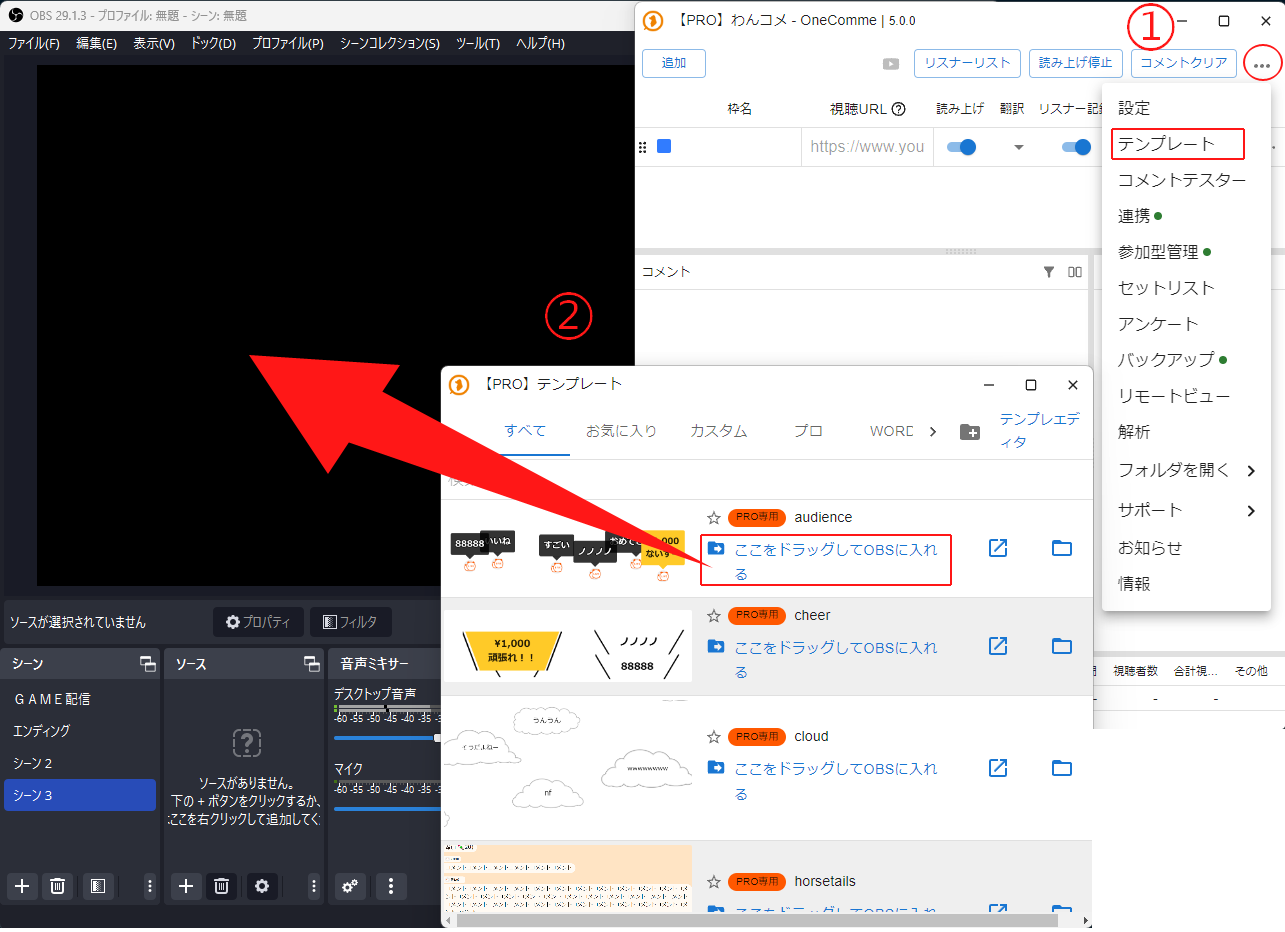 No source selectedSceneGAME StreamEndingScene 2SourceNo sourcesClick the + button below or[PRO] OneComme | 5.0.0AddCommentersStop speechClear commentsStream NameStream URLSettingsComments[PRO] TemplatesAllFavoriteCustomizedPROAmazingPRO onlyDrag and Drop this into OBS sceneGo for itDrag and Drop this into OBS sceneAudio MixerDesktop AudioPRO onlyMicDrag and Drop this into OBS scenePRO onlyTemplate EditorTemplatesDummy CommenterIntegrationViewer-participating SystemSetlistPollBackupRemote ViewAnalyticsOpen folderSupportNoticeInfo
Note
If drag and drop doesn't work, it's likely because only one of OBS or OneComme is running with administrator privileges.
In that case, try launching both with administrator privileges.
Test whether comments are displayed
OneComme has a feature that lets you test comments without an actual stream.
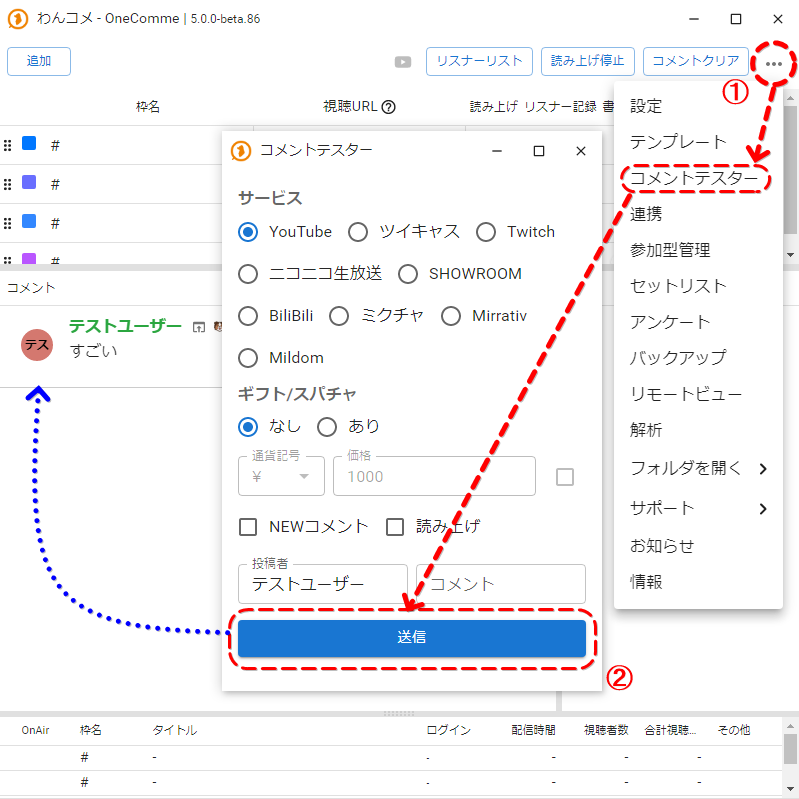
① From the "..." menu in the top right of OneComme, open "Dummy Commenter".
② Press the "Send" button at the bottom of Dummy Commenter.
This sends a test comment, which will also appear in the OBS template.
For details on how to use Dummy Commenter, see "Dummy Commenter".
 OneComme - OneComme | 5.0.0-beta.86AddStream NameCommentsTesAmazingCommentersStop speechClear commentsStream URLSpeech PersistSettingsDummy CommenterServicesTwitCastingNicoNicoLiveGift/SuperChatPriceNew CommentReadTestUserCommentsTemplatesIntegrationViewer-participating SystemSetlistPollBackupRemote ViewAnalyticsOpen folderSupportNoticeInfoSendStream NameTitleLogged InStreaming timeOthers
Adjusting the comment display size
Use this state to adjust the size and position as needed.
The size of the browser source can be controlled by changing the width and height in the settings of the index.html (browser source) added to OBS.
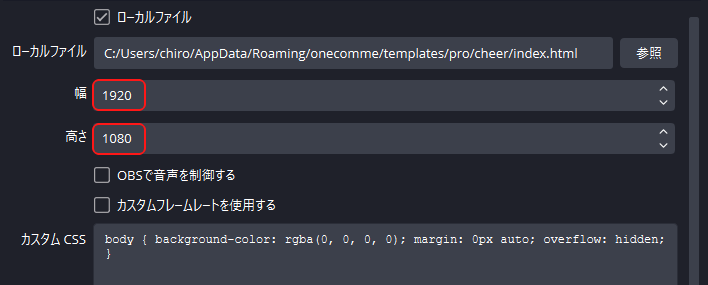 Local FileHeightCustom CSSBrowseControl audio in OBSUse custom frame rate
You've now successfully displayed comments in OBS