
Understanding the main screen
About the display content and how to read the main screen of the OneComme app
App screen (overview)
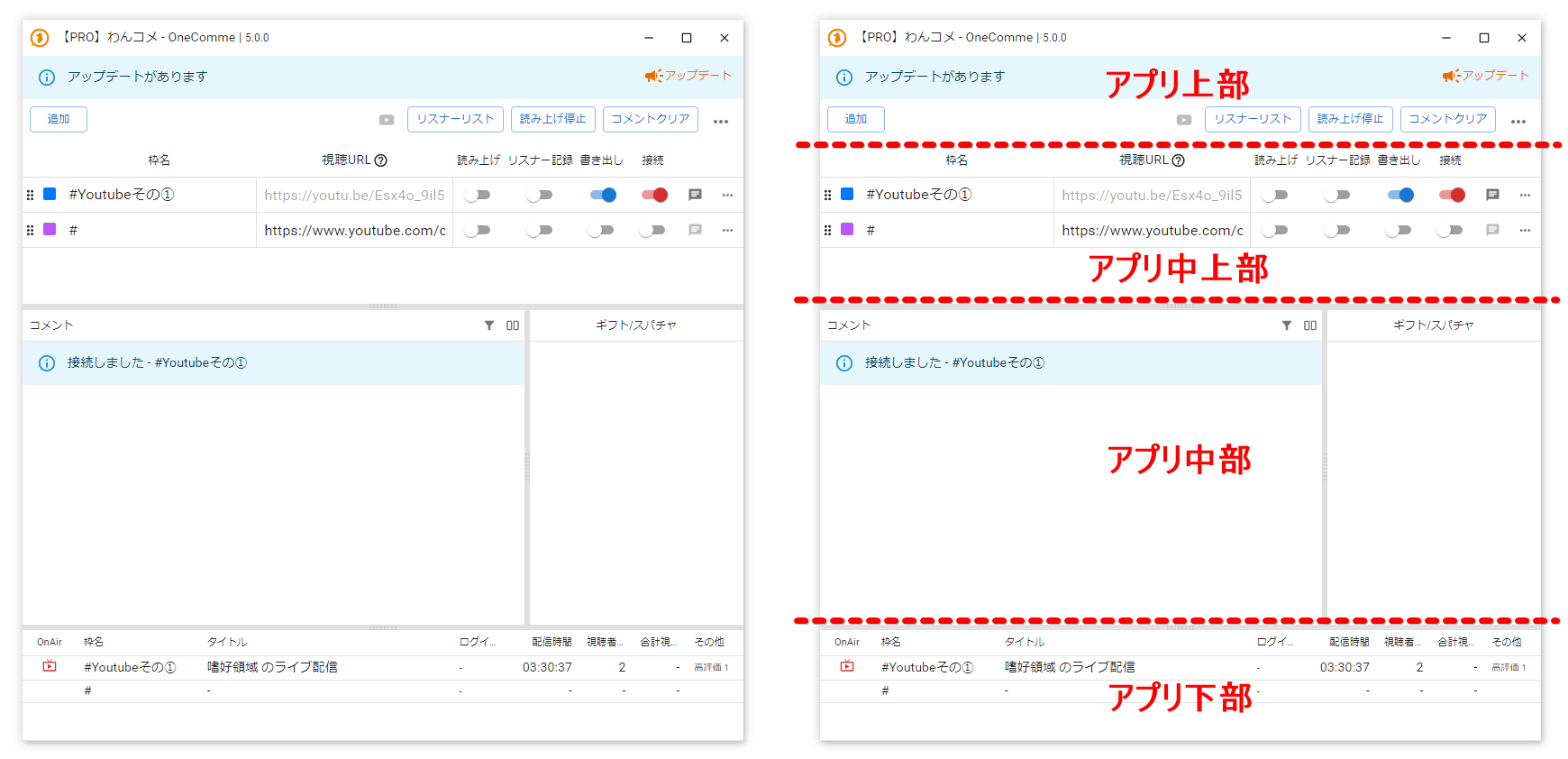 Update(s) availableAddStream NameCommentersStop speechClear commentsStream URLSpeechPersistExportConnectCommentsGift/SuperChatStream NameYouTube etcTitleLive stream in preferred genreUpdate(s) availableAddStream NameCommentersStop speechClear commentsStream URLSpeechPersistExportConnectApp upper-middleCommentsGift/SuperChatApp middleStream NameTitleLive stream in preferred genreApp bottomOthersLike 1
Description of each part of the app screen (overview)
| Top of the app | Contains the title bar, update notification area, and menu bar |
| Upper-middle of the app | This area shows the list of "streams" ※ A "stream" is a term specific to the OneComme app, a mechanism where one stream (Stream URL) is associated with and managed as one "stream" |
| Middle of the app | This area displays comments retrieved from the stream (Stream URL) set for each stream Comments from all streams are shown together, sorted by posting time |
| Bottom of the app | Displays various information obtained from the stream (Stream URL) itself set for each stream |
■Top of the app
Description of each item in the top of the app

On macOS it looks like this

Title bar
(topmost row of the top screen)
You can check the OneComme logo, app name, and version information here
If you're using PRO, "[PRO]" appears at the beginning of the app name
| ① Version number | The version of the application you're currently using This is always required when getting support on the Forum |
| ② Always on top | Keeps OneComme in front of other windows ※ It won't appear above fullscreen apps |
| ③ PiP display | Switches the OneComme app to a simple PiP display PiP display automatically becomes an always-on-top display |
Update notification area
(middle row of the top screen, light blue colored section)
If your current OneComme is not the latest version, a notification indicating there's an update will appear
Clicking anywhere in the light blue area opens the "Update available" screen so you can proceed with the update
If you're already on the latest version, the notification area itself is hidden
 Update(s) availableUpdate
"Update available" screen
Clicking the update notification area shows the screen below
Clicking the "Notice" button opens the Notice screen, where you can check update information and more
(※ This is the same screen opened via "Notice" in the "top-right menu")
Clicking "Update" starts the download automatically on the spot, with no need to specify a save location, and shows the progress (percentage)
Once the download finishes, it automatically proceeds to the installation process without any further confirmation or action needed. After "Preparing to install" is shown for a while (about 30-60 seconds), the app restarts automatically
※ For details on how to update, see the guide page → How to update
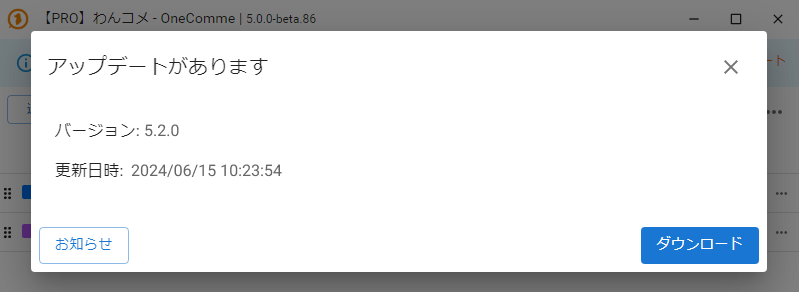 Update(s) availableVersion: 5.2.0Updated: 2024/06/15 10:23:54NoticeDownload
Menu bar
(row of buttons at the bottom of the top screen)
Menu bar screen
 AddCommentersStop speechClear comments
Menu bar button descriptions
| ① Add | Adds a new empty stream to the stream list |
| ② PRO mark | Indicates that this is the PRO version |
| ③ (Login icon) (icon position showing a 〔!〕 mark) | Depending on your login status for each registered streaming platform, icons such as 〔!〕, ✔, or → are shown Clicking this also opens a window where you can check login status and log in to each streaming platform (see Checking login status for details) |
| ④ Commenters | Shows the list of users who have commented (see Commenters screen) |
| ⑤ Stop speech | Clears the speech queue and stops speech Speech resumes for newly retrieved comments even after clearing (When integrated with BouyomiChan, stop it from the BouyomiChan side) |
| ⑥ Clear comments | Deletes the retrieved comments (nicknames and notes are not deleted) |
| ⑦ ... (top-right menu) | Shows a menu with settings and more (※ details below) |
- - Top-right menu item list image
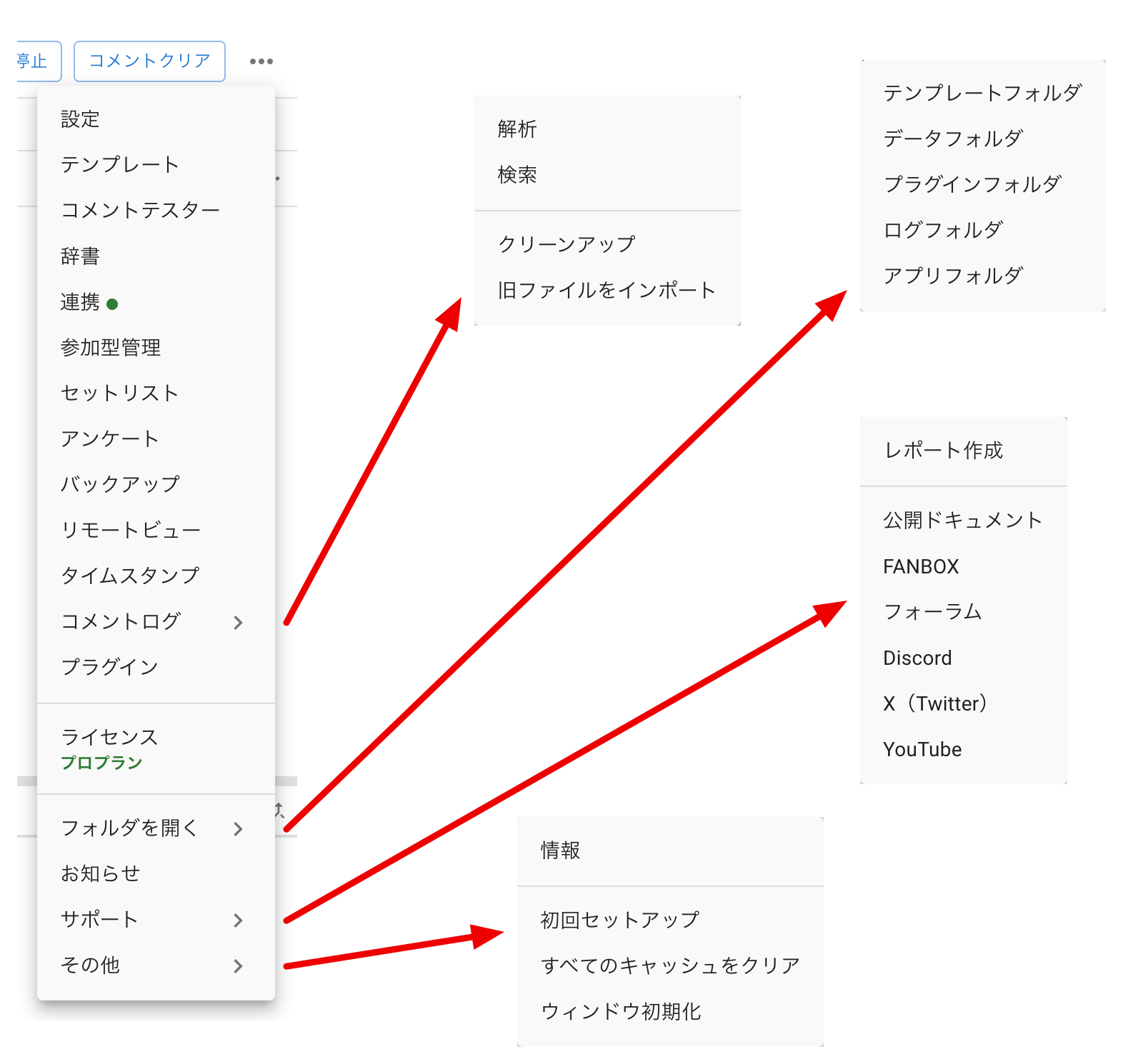 StopClear commentsSettingsTemplatesDummy CommenterDictionaryIntegrationViewer-participating SystemSetlistPollBackupRemote ViewTimestampsComment LogPluginsLicensePro PlanOpen folderNoticeSupportOthersAnalyticsSearchCleanupImport Old FilesTemplatesDataPlugins' FolderLogAppSave report fileDocumentationForumX(Twitter)InfoInitial setupClear all caches.Window Initialization
- - Description of top-right menu items
| Settings | Opens the app's settings screen → Screens and settings |
| Templates | Opens the Templates window for OBS → Templates feature |
| Dummy Commenter | Opens the Dummy Commenter for checking your display → Dummy Commenter feature |
| Dictionary | Opens the speech/conversion dictionary window → Dictionary feature |
| Integration | Opens the settings screen for external integrations Click the tab for the name of each integration and check "Enable" to configure the settings for that integration Integration tabs are categorized by feature: speech / translation / data retrieval / other ※ Integration is simply the gateway for connecting to external services; the actual engine used for speech is selected in "Speech Settings" or "Individual options" → YUKARINETTE CONNECTOR NEO integration / → BouyomiChan integration |
| Viewer-participating System | Opens the screen for viewer-participation management → Viewer-participating System |
| Setlist | Opens the Setlist screen → Setlist |
| Poll | Opens the screen for polls → [PRO] Poll |
| Backup | Opens the settings for backing up settings, comments, templates, and more → Automatic backup and restore |
| Remote View | Opens the screen for Remote View → [PRO] Remote View |
| Timestamps | Opens the timestamp assistance window for YouTube → [PRO] Timestamps |
| Comment Log | List of features related to comment logs |
| - Analysis | Opens the comment analysis screen → Log analysis |
| - Search | Lets you search for comments in the comment log → Log search |
| - Cleanup | Deletes comment logs before a specified date |
| - Import Old Files | Imports comment logs remaining in the 8.x or earlier format |
| Plugins | Opens the plugin management screen |
| License | Opens a dialog for registering your License Key, FANBOX authentication, and plan comparison The name of the plan you're currently using is shown in small text at the bottom of the menu item → How to register PRO |
| Open folder | Opens various folders such as the templates folder and log folder |
| - Templates | Opens the folder where template files are stored |
| - Data folder | Opens the folder that stores various OneComme data |
| - Plugins' Folder | Opens the folder that stores OneComme plugins |
| - Log | Opens the folder where app logs are stored |
| - App folder | Opens the folder containing the OneComme app itself (This is the only one on a different hierarchy from the data folder) |
| Notice | Opens a screen showing update information and other notices |
| Support | Official links such as the official docs and forum |
| - Create report | Creates a report file useful for reporting issues (Save it with a name and attach/upload it to the Forum or Discord, etc.) |
| - (Other links) | Public docs, FANBOX, Forum, Discord, X (Twitter), YouTube Clicking each one opens the respective external site |
| Other | |
| - Info | Opens an info window showing the OneComme app version and more |
| - Initial setup | Runs the initial setup again, as when you first installed the app |
| - Clear all cache | Deletes all cache, cookies, and sessions within the app Doing this logs you out of all sites |
| - Reset window | Resets the size and position of the OneComme windows |
■Upper-middle of the app (stream list)
(the 2nd image below shows the state when translation integration is enabled)
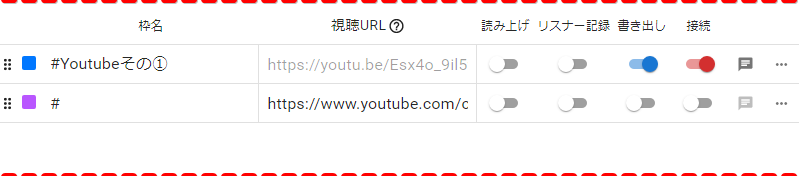 Stream NameYouTube etcStream URLSpeechPersistExportConnect
 Stream NameYouTube etcStream URLSpeechTranslatePersistExportConnect
Description of each item in the upper-middle of the app (stream list)
Reordering streams, identifying streams, setting the stream URL
| ⠿ (six-dot mark) | Drag and drop to reorder the streams |
| ◼ (colored square icon) | Represents the stream's color The same color is also shown on the left edge of comments retrieved from this stream Click it to change the stream's color as you like |
| Stream name | You can give this stream any name you like The stream name is also shown in the info area of comments retrieved from this stream |
| Stream URL (?) | Enter the Stream URL for the live stream Clicking the "(?)" icon to the right of the label opens a page listing supported streaming platforms and their valid URL formats |
 Stream NameYouTube etcStream URLSpeechTranslatePersistExportConnect
Switches within a stream
| Speech | Reads out comments aloud as they arrive (When integrated with BouyomiChan, sends comments to BouyomiChan instead) |
| Translation (shown only under certain conditions) | Lets you specify a translation language per stream Click ▼ to show the list of languages (2nd image below) (※⚠ The translation item appears only when translation integration is enabled) |
| Persist | While checked, records the users who posted comments retrieved from this stream Recording lets you aggregate cumulative comment counts and more across multiple streams |
| Export | Outputs comment data available to templates and such outside the app (※⚠ Be sure to check this if you want to show comments in OBS, for example) |
| Connection | Connects to the live stream (Stream URL) and starts retrieving comments |
 Stream NameYouTube etcStream URLSpeech
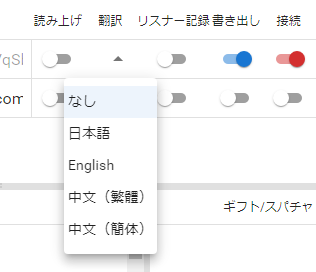 SpeechTranslatePersistExportConnectJapaneseGift/SuperChat
Streaming platform comment input popup
The 🈪 button (square speech-bubble icon) opens the comment input page for the stream at the Stream URL
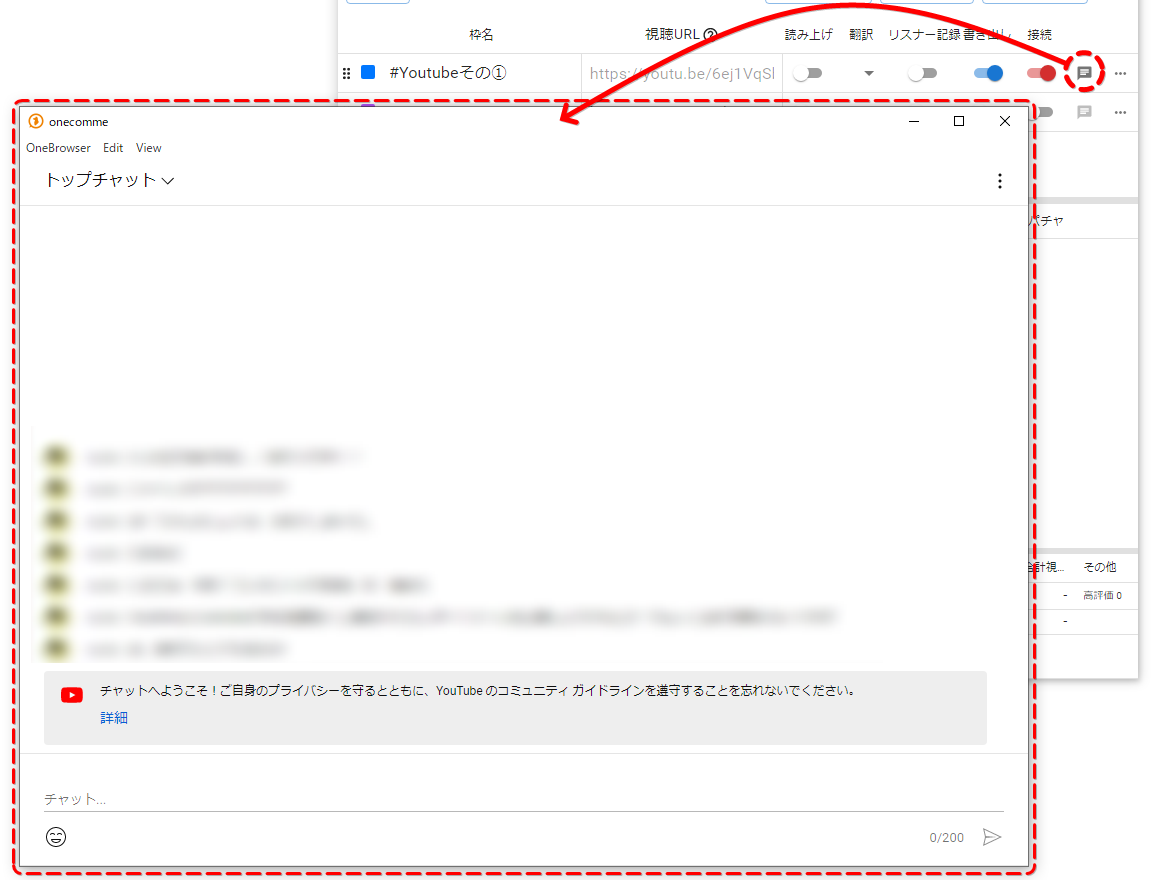 Stream NameYouTube etcTop chatChaOthersWelcome to chat! Please protect your privacy and follow YouTube's Community Guidelines
... button (right end of the stream row)
The "..." button at the right end of a stream row shows additional features
This holds features that didn't fit due to layout width constraints
 Stream NameYouTube etcStream URLSpeech
- Individual options, Open in web browser, deleting a stream
Contents of the "..." button
| Settings | Opens the settings screen for this stream (Individual options) → Individual options (There are also overall settings elsewhere, but this lets you make individual changes such as "but for this stream, do it this way") |
| Open in web browser | Opens the Stream URL in OneComme's browser (image below) Used both to check the display and to log in to the streaming platform from OneComme (Some platforms, such as member-only streams, may require login to retrieve comments) |
| Delete | Deletes this stream |
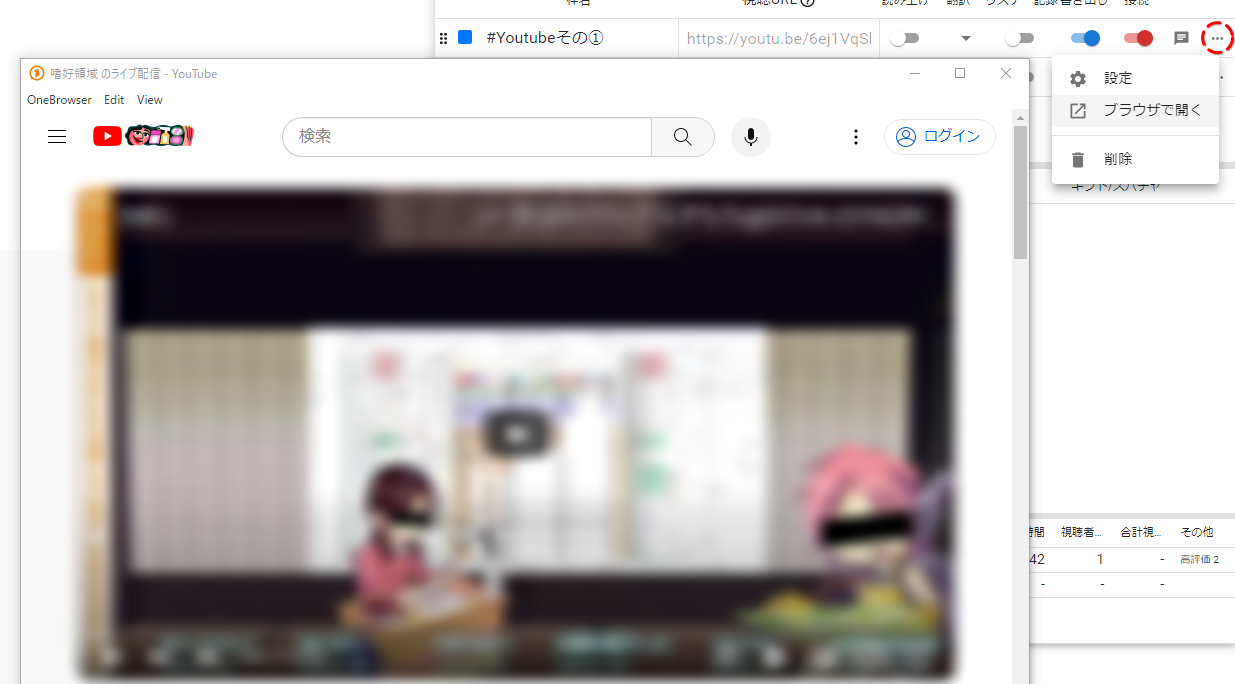 YouTube etcSearchLogged InSettingsRemoveOthers
■Middle of the app (comment display area)
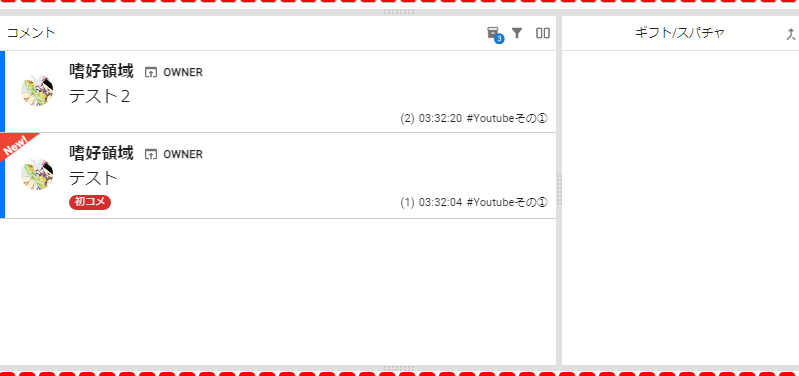 CommentsTest 2TestGift/SuperChat2) 03:32:20 =YouTube etc1) 03:32:04 =YouTube etc
Description of each item in the middle of the app (comment display area)
Menus and operations in the comment display area
- Comments (column)
Also called the comment column or comment lane
Displays comments retrieved from streams in chronological order
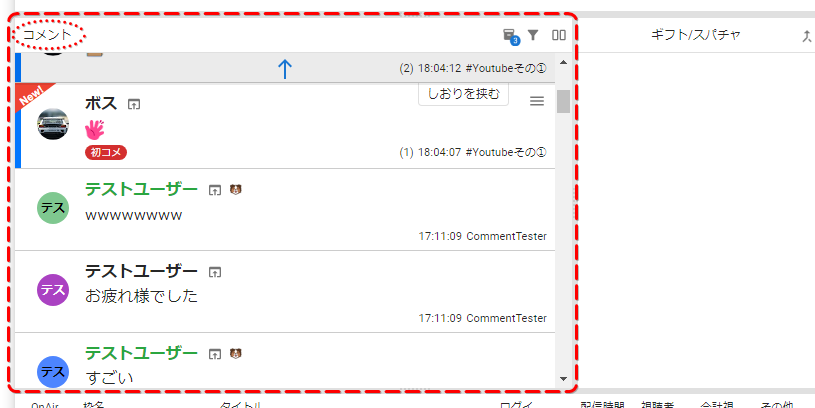 TesNewcomerTestUserTestUserGood workTesTestUserAmazingGift/SuperChat2) 18:04:12 #YouTube etcBookmark1) 18:04:07 =YouTube etc
- Stocked comments
Opens the stocked comments window
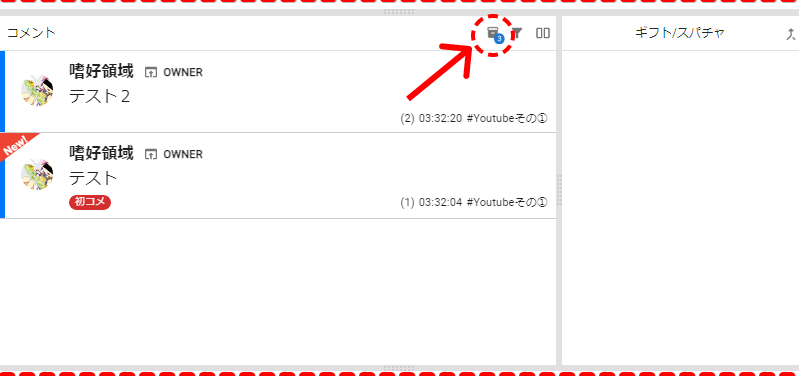 CommentsTest 2TestGift/SuperChat2) 03:32:20 =YouTube etc1) 03:32:04 =YouTube etc
- Filter
Lets you search (filter) comments
Clicking the filter icon (arrow in the image below) shows a search panel (dashed area in the 2nd image below)
(Each click of the filter icon toggles this panel on and off)
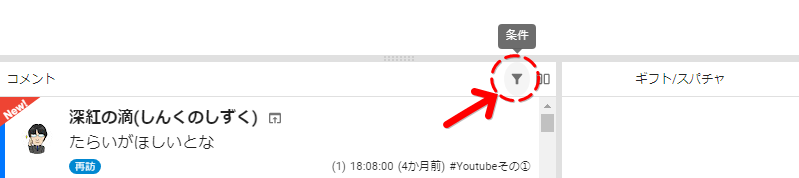 CommentsFilterWant a tubGift/SuperChat
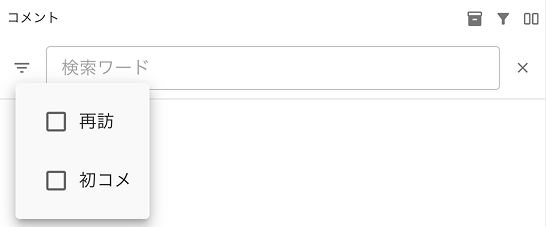 CommentsSearch for...
Description of filter (comment extraction) items
| Returning | Shows comments tagged with the "returning" label |
| Newcomer | Shows comments tagged with the "newcomer" label |
| Search for... | Shows only comments where the name or comment text contains the search term |
| ✕ button | Closes the comment search panel |
- Split view
Splits the comment display area into two
Clicking the icon in the image below switches to the split layout (2nd image below)
 CommentsSplitWant a tubGift/SuperChat
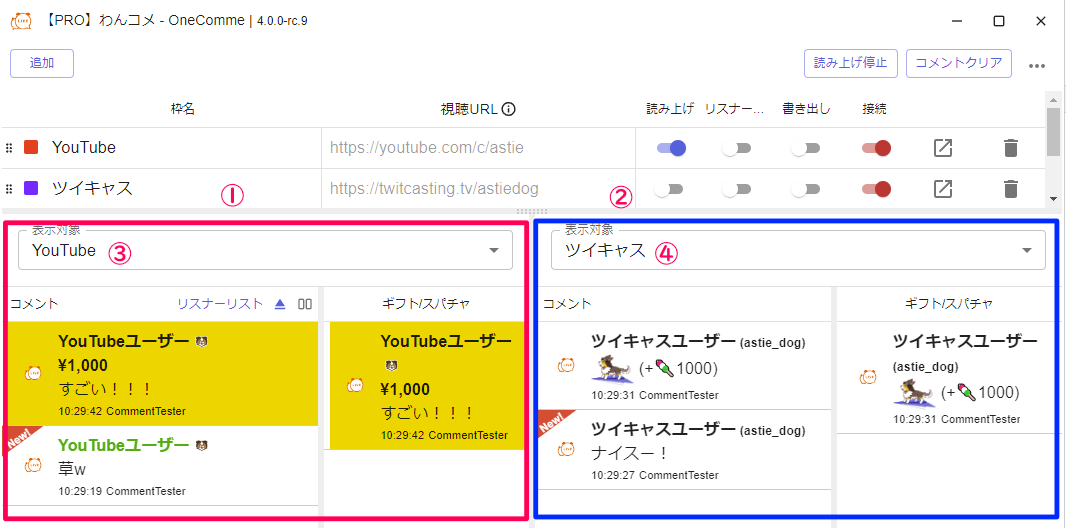 AddStream NameTwitCastingCommentsStop speechConnectClear commentsStream URLExportTarget(s) to displayTwitCastingCommentsGift/SuperChatYouTube UserTwitCasting User (astie_dogTwitCasting User (astie_dogNiceTwitCasting User
Description of the split view screen
| ① (left comment display area) | The left comment column (red box in the image above) |
| ② (right comment display area) | The right comment column (blue box in the image above) |
| ③ Target(s) to display (left) | Select the stream(s) you want shown in the left comment column |
| ④ Target(s) to display (right) | Select the stream(s) you want shown in the right comment column |
- Gift/SuperChat (column)
Also called the Gift/SuperChat column or Gift/SuperChat lane
Special comments such as gifts, Super Chats, and point items are gathered and shown here
※ These special comments are also shown in the regular comment lane, but checking this lane too helps you avoid missing them
TIPS
On streaming platforms with free gifts, such as SHOWROOM, this is automatically split into two lanes: free and paid
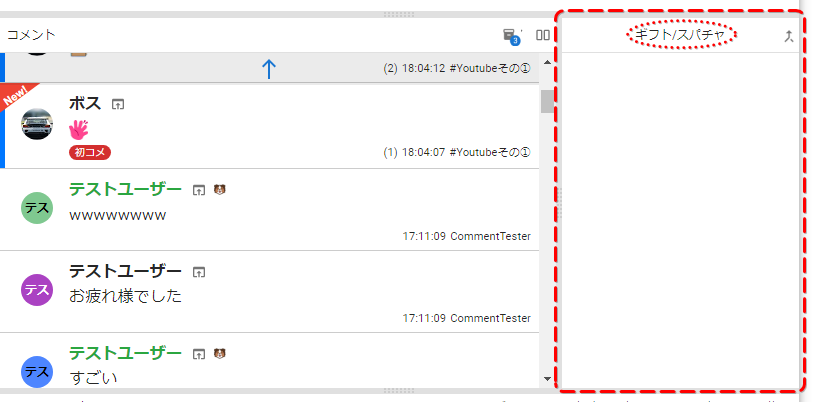 CommentsTesTestUserTesTestUserGood workTestUserAmazing1) 18:04:07 #YouTube etc
Clicking the icon next to Gift/SuperChat opens a window showing gifts per user
- Divider bars
Drag these to adjust the width of each area (each red dashed box in the image below)
The horizontal bars at the top and bottom edges of the comment display area, and the bars dividing the comment display area (such as with Gift/SuperChat or split view), can each be dragged to adjust
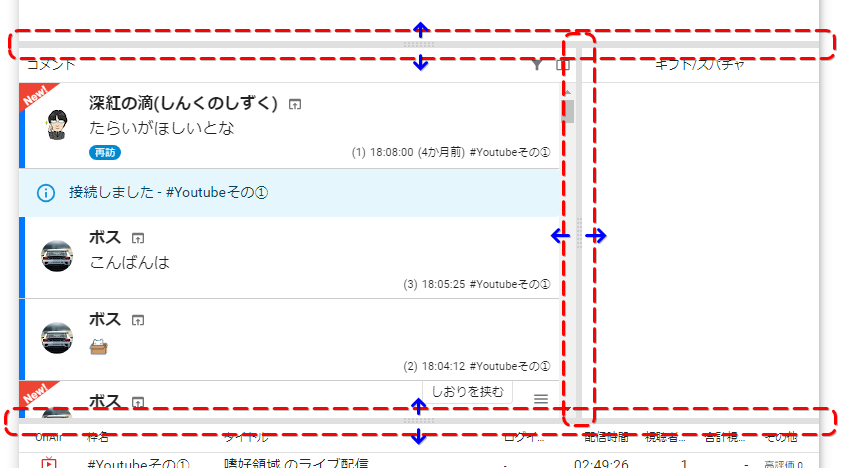 Konun belowWant a tubGood evening2) 18:04:12 =YouTube etcBookmark
- ↑ (up arrow and gray area)
Clicking the gray area with the up arrow (↑) scrolls the comment lane back to the latest position
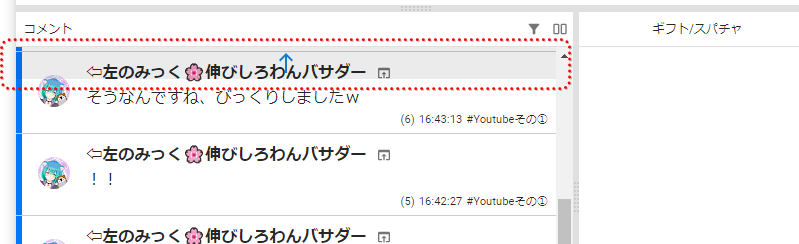 CommentsGift/SuperChat6) 16:43:13 =YouTube etc5) 16:42:27 #YouTube etc
Comments (comment display info and actions)
- Comment info display (same information as on the streaming platform)
Shows information such as the commenter icon, username, badges (if any), and the comment text, matching what you'd see on the streaming platform (see image below)
 Testest
- New comment display (New!, Newcomer, Returning)
| "New!" display (top-left of the comment) | Shown for what's called a "New Comment" (top-left position in both the left and right images below) Shown for a commenting user's first comment within that stream Useful as a marker so you don't miss greeting comments |
| "Newcomer" display (bottom-right of the commenter icon) | Shown for a New Comment when the user has no record in Commenters (red icon shown on the left in the image below) |
| "Returning" display (bottom-right of the commenter icon) | Shown for a New Comment when the user already has a record in Commenters (blue icon shown on the right in the image below) Useful for telling apart first-time viewers |
 NewcomerTestest
- Special username features
Mouseover display
Hovering over a username shows a mini window with information about that user
You can check the username itself*, notes, icon permission status, translation settings, and username change history
(*The username is useful for confirming the original username when a nickname is in use)
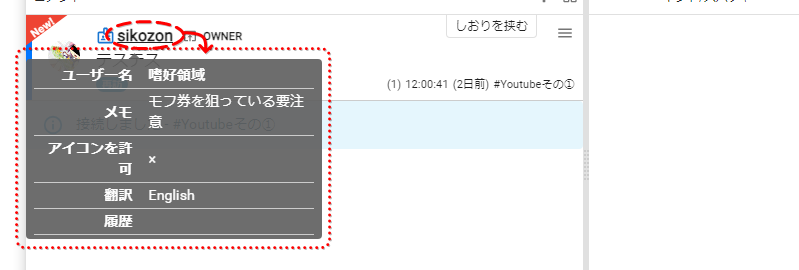 UsernameNotesAllow User IconTranslateAfter Mofu ticket, watchYouTube etcBookmark
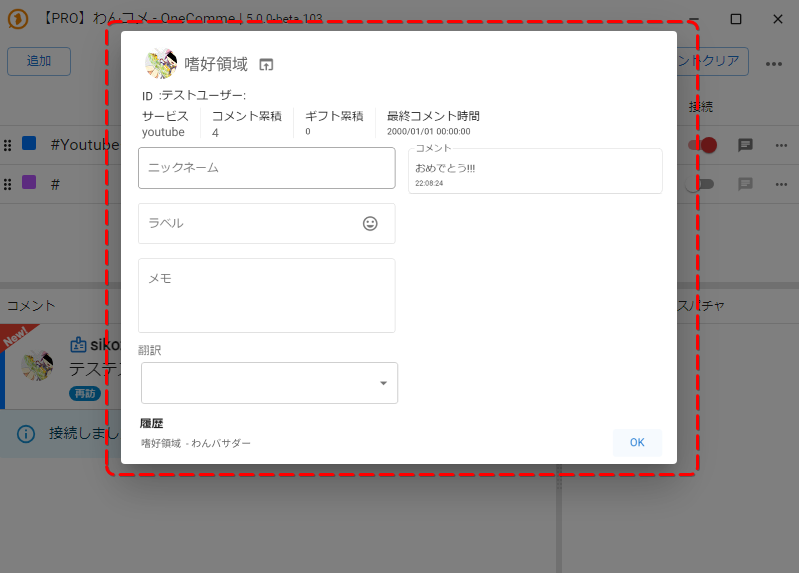
Opening the dedicated commenter management screen (dedicated view)
Clicking the username, or the mini window from the mouseover display above, opens the dedicated user management screen
On this screen (image below), besides changing the nickname, notes, and translation language settings, you can also check that user's comment history
 AddServicesComments Count (Total)NicknameGifts Count (Total)Newcomer/RepeaterNotesCommentsTranslateLast Comment TimeCommentsnt Clear
| ID | This user's ID on the streaming platform This ID can also be used when blocking the user in OneComme |
| Service | The streaming platform this user is on |
| Comments Count (Total) | This user's cumulative comment count (if Persist is enabled) |
| Gifts Count (Total) | This user's cumulative gift count (if Persist is enabled) |
| Last Comment Time | The date and time this user last commented |
| Nickname | Assign a nickname to this user Nicknames can also be used in templates and speech |
| Label | Assign a label (mark) to this user |
| Note | Add a note about this user |
| Translation | Translates this user's comments into the specified language (if translation integration is enabled) |
| History | The last up to 5 names this user has used |
| Comments | The list of comments this user has posted |
Nickname display and nickname mark (name tag mark)
If a commenting user has a nickname set, the nickname is shown in place of the username, along with a name tag mark (image below)
TIPS
If a label is set, the label is shown instead of the name tag mark
 CommentsTestestGift/SuperChat
- Other comment info display (OneComme-specific)
Screen for other comment info display
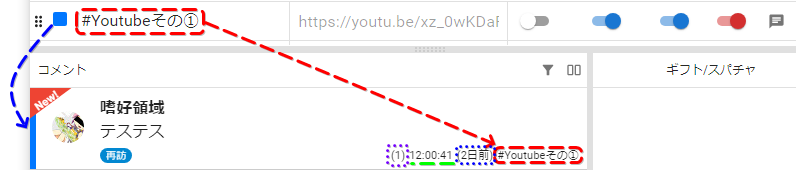 CommentsTestestGift/SuperChat
Description of other comment info display items
| Comment count | Shown in parentheses to the left of the timestamp (purple dashed box in the image above) Shows what number comment this is for the commenting user within this stream |
| Timestamp | Shows the time the comment was posted (green dashes in the image above) |
| Time elapsed since the stream of the previous comment (※⚠ only for "Returning") | Shown in parentheses to the right of the timestamp; if Persist is enabled, shows the time elapsed since the previous recorded comment (blue dashed box in the image above) ※⚠ Only shown for "Returning" |
| Stream color | The vertical line on the left edge of each comment (blue arrow in the image above) Shows the same color set for the stream this comment was retrieved from |
| Stream name display | Shows the name of the stream this comment was retrieved from (red arrow in the image above) |
- ≡ (hamburger menu)
Hovering over a comment shows a "≡" icon at the top-right of the comment
Hovering further over the "≡" icon shows a list of action icons for the comment
Hamburger menu screen
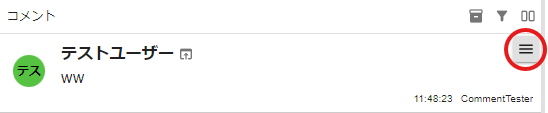 TesTestUser
Hovering over "≡" reveals the list of icons

Description of hamburger menu items (left to right)
| Delete | Deletes the comment, including from templates ※ Note that it remains on the streaming platform itself |
| Block | Registers the user as blocked within OneComme ※ This does not block them on the streaming platform |
| Mute | Adds this user to speech exclusion |
| Add to waiting list | Treats this comment as a participation comment and adds it to the waiting list |
| Translation | Translates this comment into the selected language |
| Copy comment | Copies the text of the posted comment |
| Open user page | Opens this user's profile page and such |
| Add bookmark | Adds a bookmark at this comment |
| Stocked comments | Stocks (records) this comment |
| Pin | Pins the selected comment to the top of the app |
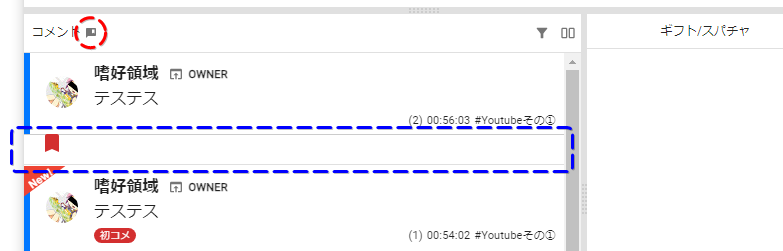
- Bookmark feature
Adds a bookmark between comments
When you add a bookmark, an icon appears at the heading of the comment, and you can jump to bookmarks you've added
Clicking a bookmark (blue dashes in the image below) removes it
◧ (jump-to-bookmark button)
While bookmarks exist, a speech-bubble-like icon appears to the right of the comment lane label ("Comments") (red dashed circle in the image below)
Clicking this icon jumps to the position of the bookmark
 CommenTestestTestestNewcomerGift/SuperChat1) 00:54:02 =YouTube etc
■Bottom of the app (streaming information per stream)
 Stream NameYouTube etcTitleLive stream in preferred genreLogged InOthers
Description of each item in the bottom of the app (streaming information per stream)
| OnAir | A red icon appears while streaming (a red loading mark appears when reconnecting due to network issues) |
| Stream name | The stream name set via the Stream URL |
| Title | The title of the currently connected stream |
| Login | Shows the account name if you're logged in to the connected platform (when retrieving comments from a member-only stream, for example, make sure your own account name is shown) |
| Streaming time | Elapsed time since the stream started |
| Viewers | The current number of viewers (not shown on some streaming platforms) |
| Total Viewers | The total number of viewers for this stream (not shown on some streaming platforms) |
| Other | Shows other stream information such as the number of likes or followers |